Conversations
Overview
Conversations bring together replies and message history from your engagement channels in one place.
When your campaigns run across email, LinkedIn, and iMessage, 1eyeᴬᴵ captures the message activity, groups it into conversations, classifies intent when available, and helps your team understand which target contacts need follow-up.
Use Conversations to review replies, understand intent, inspect message history, filter by channel or status, and prioritize the conversations that matter most.
What Conversations are for
Conversations help your team answer:
Campaigns create activity across multiple channels.
Conversations organize that activity so your team can:
Review replies from target contacts
See message history across channels
Understand conversation intent
Identify positive, neutral, and negative responses
Review drafts, discarded messages, and not delivered messages
Search for specific conversations
Filter conversations by channel, direction, intent, status, campaign, company, and date
Prioritize follow-up
Improve future campaigns based on real replies
Why Conversations matter
Signals tell you who is active.
Campaigns tell you who you engaged.
Conversations tell you who is responding.
This is where outreach turns into action.
A good Conversations workflow helps your team:
Follow up with interested target contacts
Avoid continuing outreach to contacts who are not interested
Understand why contacts are interested or not interested
Spot campaign quality issues
Learn which channels are working
Improve targeting, messaging, and workflows
Conversation views
The Conversations section includes multiple views.
View | What it shows |
|---|---|
Overview | High-level conversation activity across channels and statuses. |
Conversation Intent | Conversations grouped by intent, score, and reason. |
Email Messages | Email message activity and email-specific conversations. |
LinkedIn Messages | LinkedIn message activity and LinkedIn-specific conversations. |
iMessages | iMessage and SMS message activity. |
Use the Overview when you want the full picture.
Use channel-specific views when you want to inspect one channel.
Use Conversation Intent when you want to prioritize follow-up by response quality.
Conversation categories
The left navigation groups conversations by outcome and message state.
Common categories include:
Category | What it means |
|---|---|
All | All conversations across channels. |
Positive | Conversations with positive or interested intent. |
Neutral | Conversations with unclear or neutral intent. |
Negative | Conversations with negative or not interested intent. |
Drafts | Messages drafted but not sent. |
Discarded | Messages discarded before sending. |
Not Delivered | Messages that were not delivered. |
These categories help your team move faster.
For example, start with Positive conversations when you want to follow up on interested contacts.
Review Not Delivered when you want to fix channel or contact data issues.
All conversations

All shows the full conversation list.
Use All when you want to review everything happening across channels.
All may include:
Email conversations
LinkedIn conversations
iMessage conversations
Incoming replies
Outgoing messages
Campaign-driven conversations
Drafts, discarded, and not delivered messages when available
All is the best starting point when you are not sure where a conversation lives.
Positive conversations
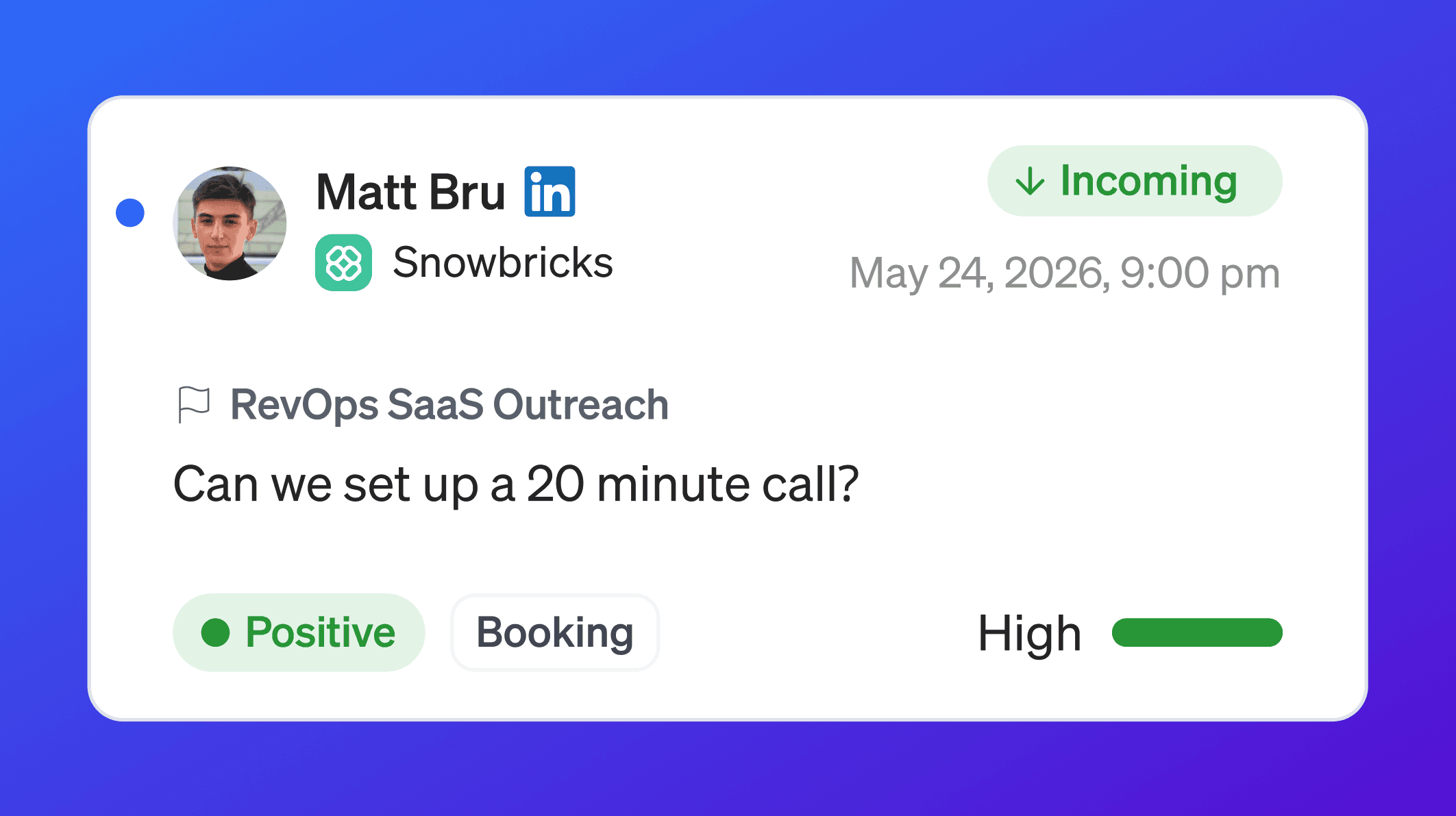
Positive conversations are replies that show interest.
A positive conversation may include:
A meeting request
A pricing question
A request for more information
A referral to another person
A request to follow up later
A product or support question
Positive conversations should usually be reviewed quickly.
Examples:
Neutral conversations
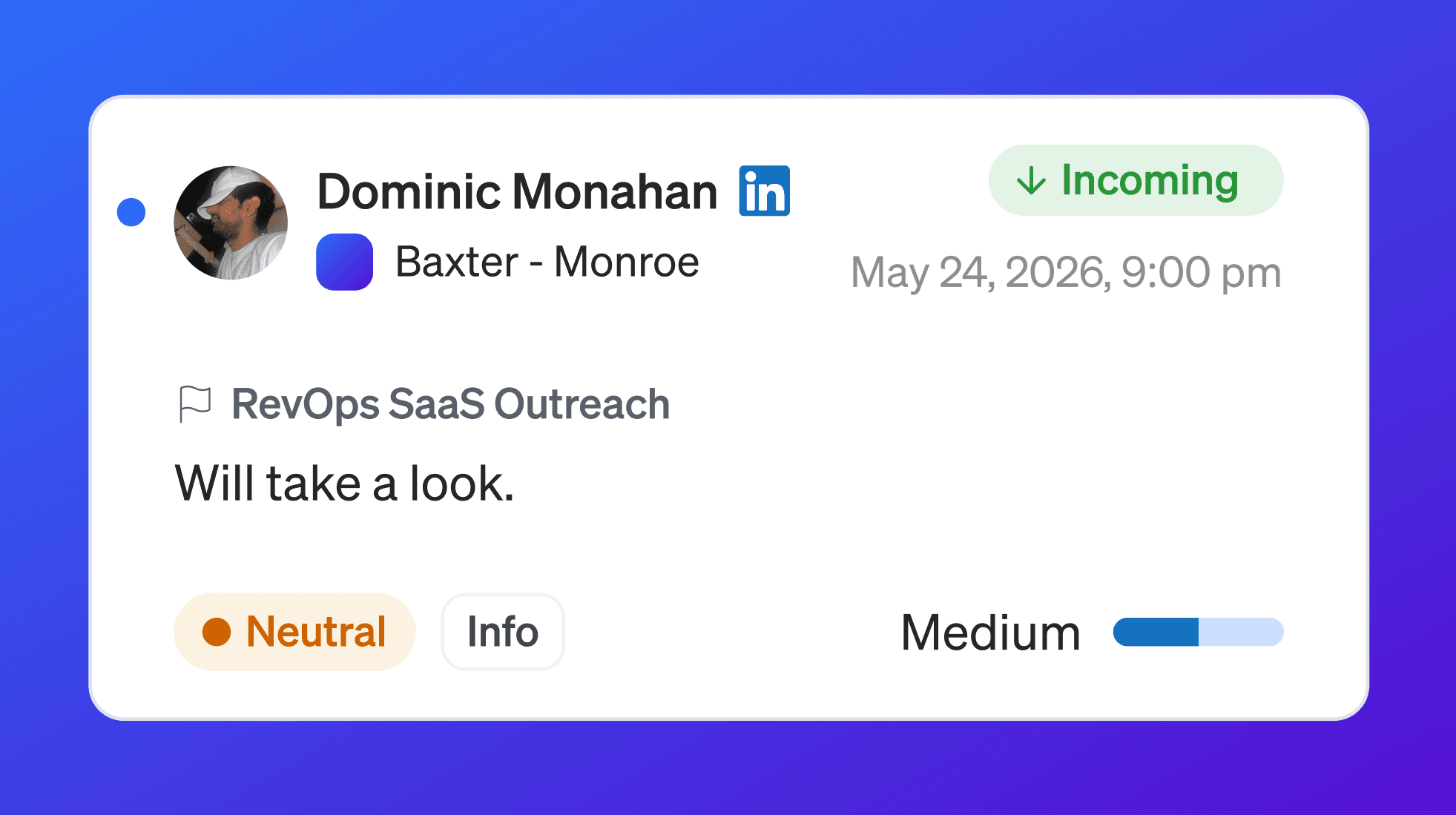
Neutral conversations are replies that are unclear or do not strongly indicate interest or disinterest.
A neutral conversation may include:
A vague reply
A short acknowledgement
A response that needs manual review
A message that does not clearly indicate next steps
Examples:
Neutral conversations are worth reviewing because some may become positive with the right follow-up.
Negative conversations

Negative conversations are replies that indicate the contact is not interested or should not continue in the workflow.
A negative conversation may include:
No need
Budget issue
Competitor selected
Wrong person
Requested removal
Unsubscribe request
Not a fit
Examples:
Negative conversations should be handled carefully.
If a contact asks not to be contacted, stop outreach.
Drafts
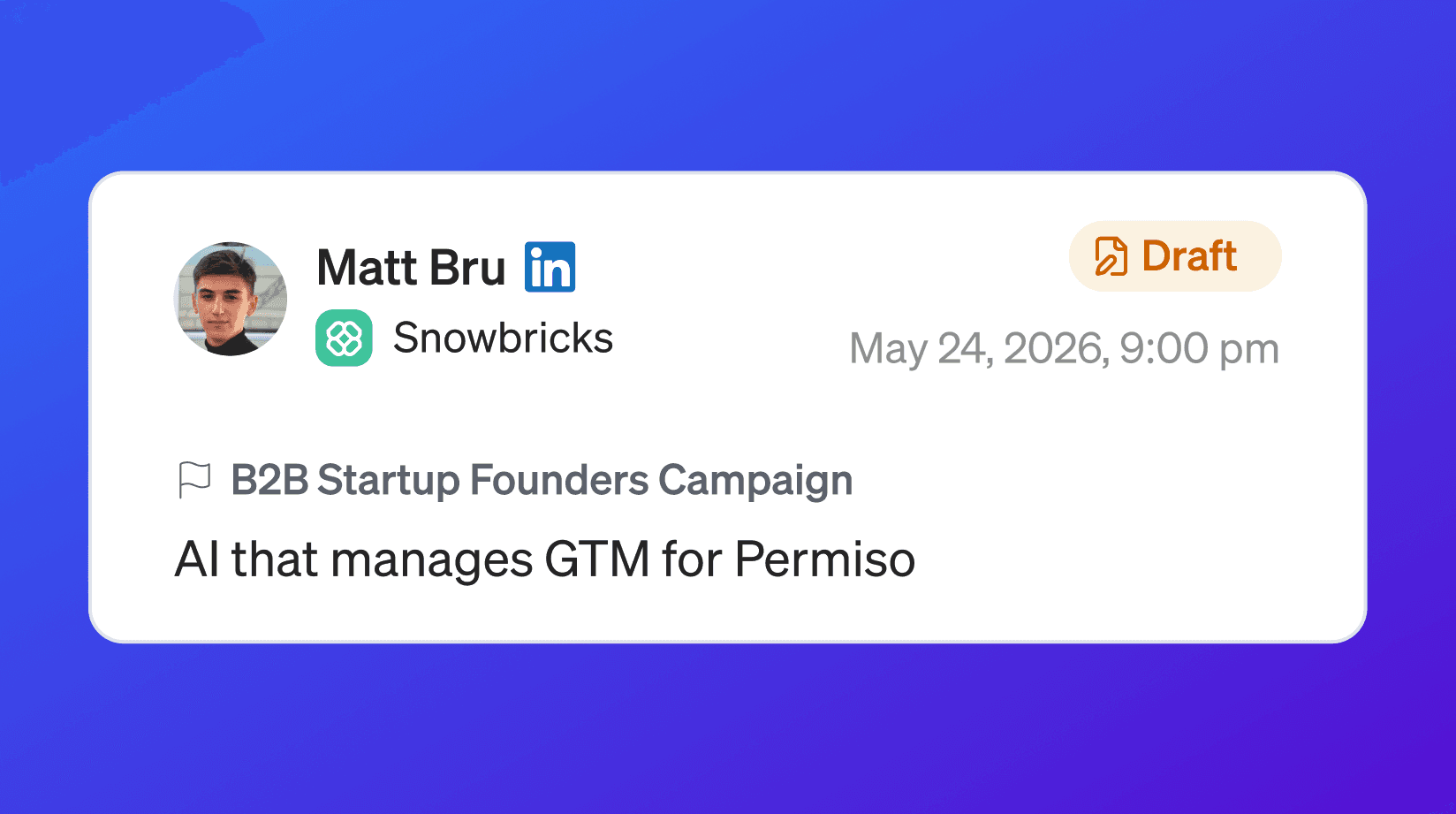
Drafts are messages that were created but not sent.
Use Drafts to review messages before they go out.
Drafts are useful when your team wants to:
Review AI-generated messages
Approve outbound messages
Edit content before sending
Check personalization
Avoid sending incomplete messages
Discarded
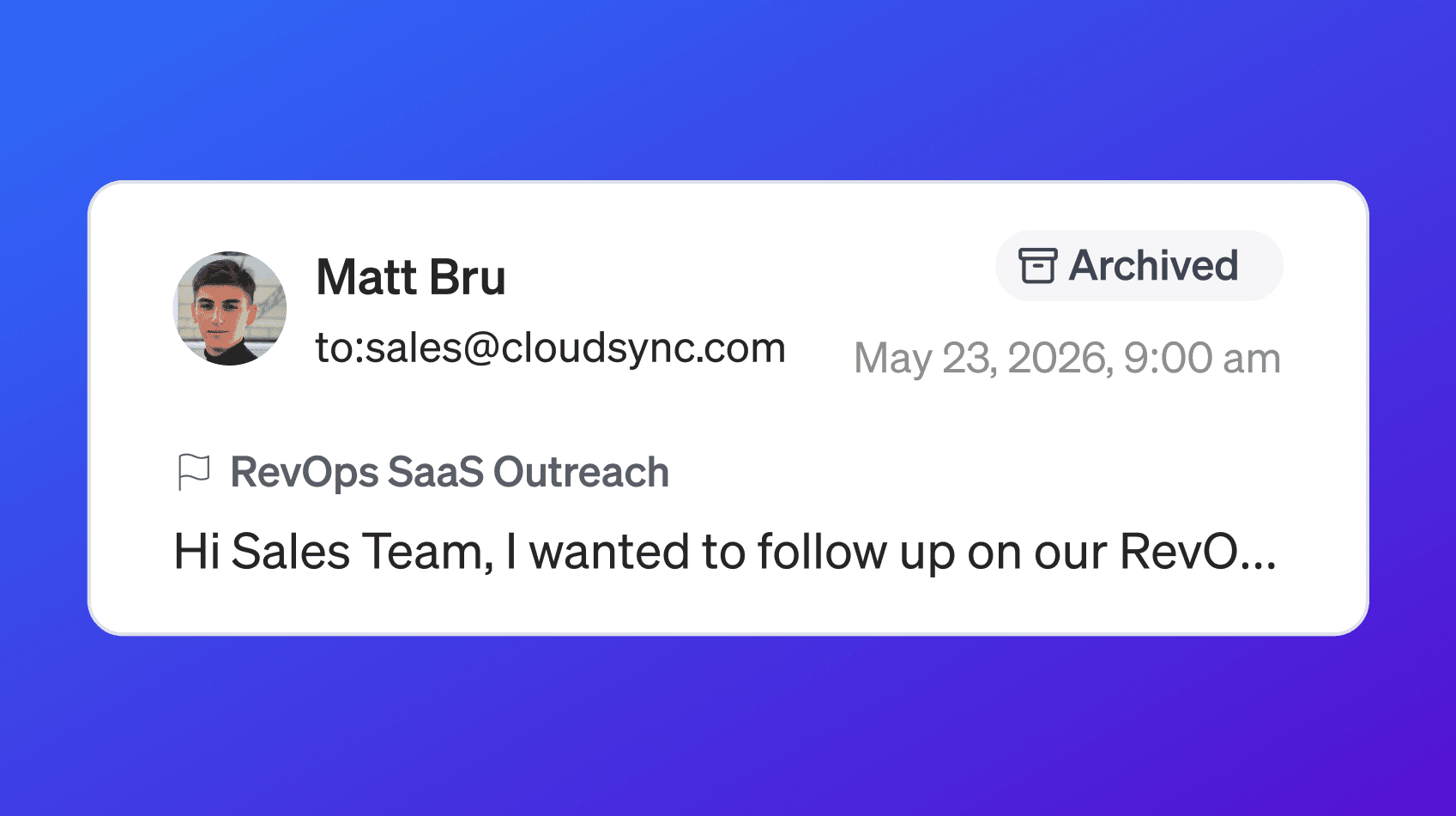
Discarded messages are messages that were generated or prepared but not used.
Use Discarded to understand what was rejected and why.
Discarded messages can help your team improve:
Messaging quality
Workflow rules
Personalization logic
Campaign setup
Approval process
Not Delivered
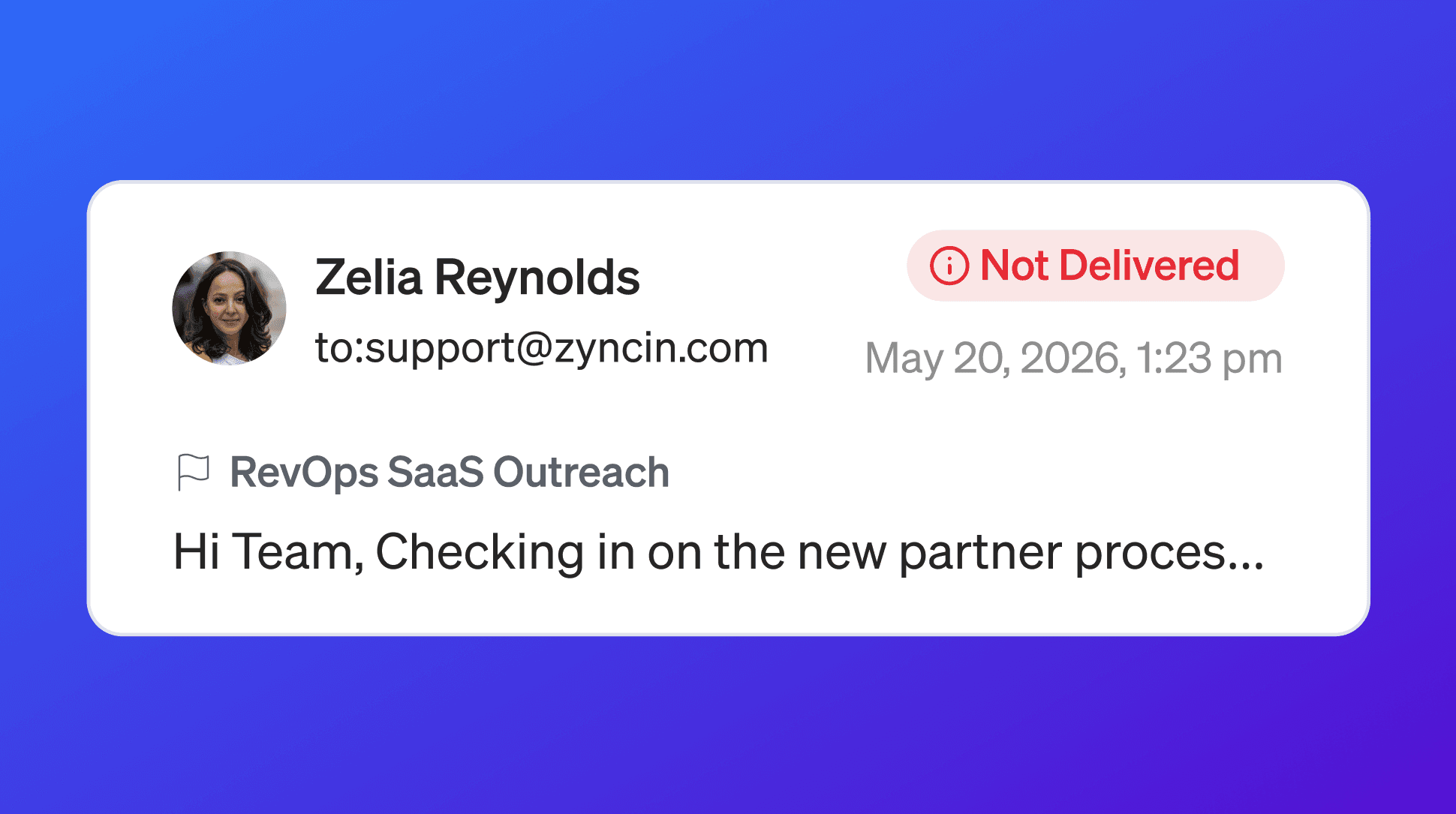
Not Delivered shows messages that could not be delivered.
This may happen because of:
Invalid email
Missing or unreachable mailbox
LinkedIn delivery issue
iMessage or SMS delivery issue
Disconnected sender
Channel limit
Contact data issue
Compliance or exclusion rule
Review Not Delivered when campaign activity is lower than expected or when you need to clean contact data.
Conversation list
The conversation list shows individual conversations.
Each conversation may include:
Target contact
Target contact company
Channel
Campaign
Last message date
Intent score
Intent status
Intent reason
Message preview
Conversation count or message count
Use the list to quickly scan conversations and decide which one to open.
Conversation detail
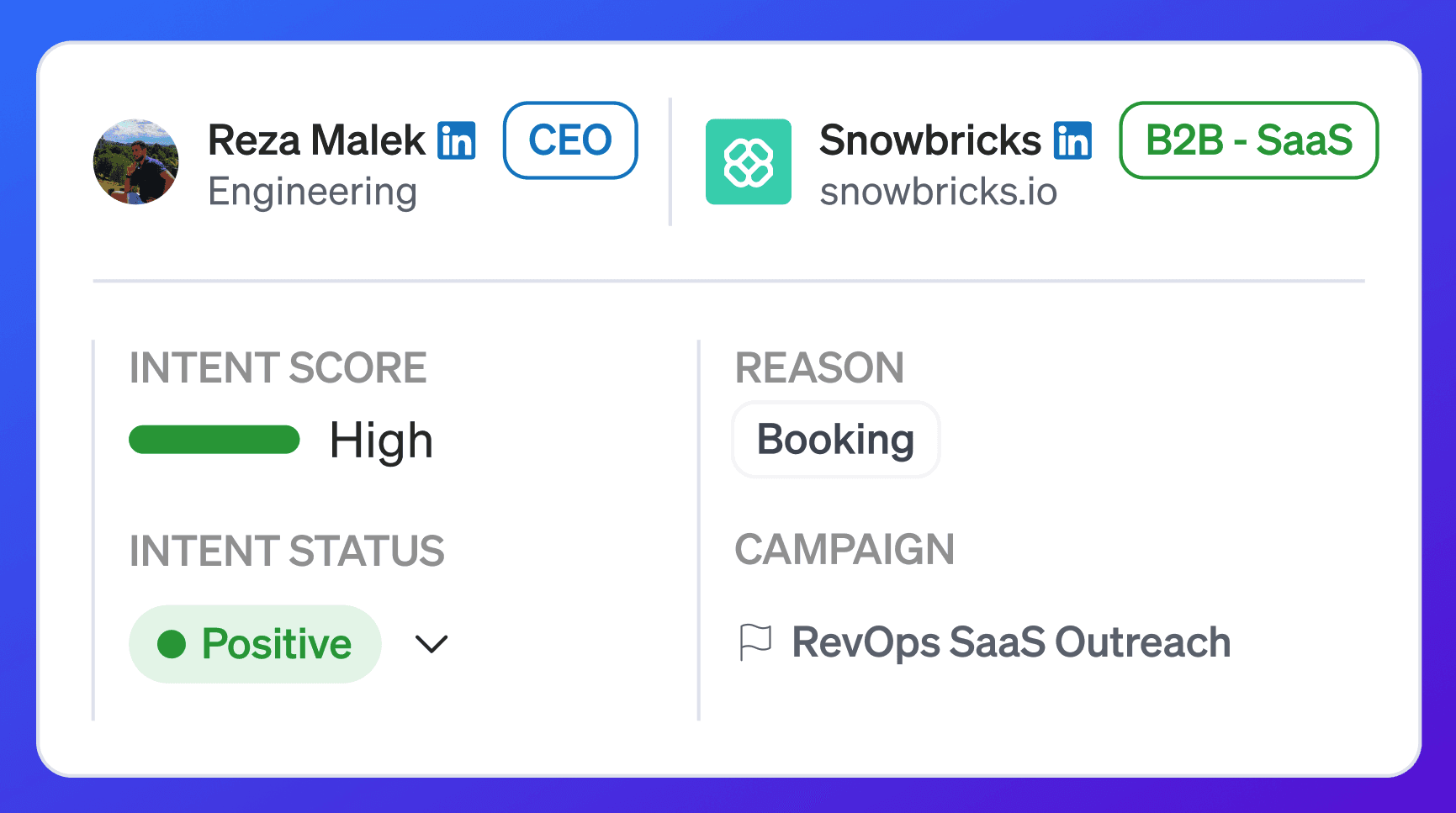
When you open a conversation, you can see the full message thread.
Conversation detail may include:
Target contact
Contact title
Contact LinkedIn profile
Company
Company website
ICP match
Persona match
Intent score
Intent status
Intent reason
Campaign
Message history
Incoming and outgoing messages
Channel labels
This gives your team the context needed to follow up properly.
One conversation can include many messages

A conversation is not always a single message.
One conversation can include many messages inside it.
For example, a single conversation may include:
Intro email
Email reply
LinkedIn connection request
LinkedIn message
iMessage follow-up
Contact response
Manual follow-up
This helps your team see the thread in context instead of reviewing isolated events.
Channels
Conversations can come from multiple channels.
Supported conversation channels may include:
Email
LinkedIn
iMessage
SMS fallback from iMessage lines when iMessage is not available
Channel labels help you understand where each message happened.
Direction
Conversation messages can be inbound or outbound.
Direction | What it means |
|---|---|
Incoming | The target contact sent a message or reply. |
Outgoing | Your team or campaign sent a message. |
Direction is useful when reviewing who responded and what happened next.
Conversation Intent
Conversation Intent helps classify replies so your team can prioritize follow-up.
Intent may include:
Intent status
Intent reason
Intent score
Intent helps you quickly understand whether a conversation is worth pursuing, needs review, or should be stopped.
Intent status
Intent status describes the overall meaning of the conversation.
Common intent statuses include:
Intent Status | What it means |
|---|---|
Positive | The target contact appears interested. |
Neutral | The target contact replied, but intent is unclear or not strongly positive or negative. |
Negative | The target contact appears not interested or should not continue. |
Use Positive first when prioritizing follow-up.
Use Negative to stop or clean up outreach.
Use Neutral to review ambiguous replies.
Intent reason
Intent reason explains why a conversation was classified a certain way.
Positive reasons may include:
Reason | What it means |
|---|---|
Meeting | The contact asks to schedule a meeting, call, or demo. |
Pricing | The contact asks about price, plan, contract, or procurement. |
Info | The contact asks for docs, details, case studies, or next steps. |
Support | The contact asks for help using the product or troubleshooting. |
Later | The contact asks to reconnect later. |
Referral | The contact points you to another person or team. |
Other | The contact appears interested, but the reason does not fit another category. |
Negative reasons may include:
Reason | What it means |
|---|---|
Competitor | The contact mentions using or choosing another vendor. |
Budget | The contact says budget is blocked, frozen, or unavailable. |
No Need | The contact does not have the problem or it is not a priority. |
Wrong Persona | The contact is not the right person or not responsible. |
Requested Remove | The contact asks to unsubscribe, be removed, or not be contacted again. |
Other | The contact is not interested, but the reason does not fit another category. |
Intent score
Intent score helps indicate confidence in the intent classification.
A higher score means stronger confidence in the detected intent.
Example:
Use intent score to prioritize which conversations need attention first.
How intent affects follow-up
Conversation Intent helps your team decide what to do next.
For example:
Intent | Recommended action |
|---|---|
Positive - Meeting | Follow up quickly and schedule the meeting. |
Positive - Pricing | Send pricing or route to the right person. |
Positive - Info | Send the requested information. |
Positive - Later | Schedule a follow-up for the requested time. |
Positive - Referral | Follow up with the referred person or team. |
Negative - Requested Remove | Stop outreach and exclude the contact. |
Negative - Wrong Persona | Stop outreach to that contact and find the right person. |
Negative - Competitor | Stop or deprioritize the account based on your process. |
Neutral | Review manually and decide the next step. |
Contact and company status updates
Conversation Intent can help update contact and company status.
For example:
If a contact shows positive intent, the contact may be marked as Engaged.
If a contact asks to be removed, the contact should be marked as Excluded.
If a company clearly has no need or chose a competitor, the company may be excluded depending on your workflow.
If the contact is the wrong person, only that contact may be excluded while the company can still be valid.
This keeps your targeting clean and prevents repeated outreach to people who should not be contacted.
Special cases
Some messages should not be treated as real conversation intent.
Examples include:
Out-of-office replies
Vacation autoresponders
Bounce messages
Delivery failures
Automated system responses
Non-human replies
These messages may still matter operationally, but they should not be treated the same as a real human reply.
Out-of-office replies
An out-of-office reply is not the same as interest or disinterest.
If a return date is available, follow up after the contact returns.
If no return date is available, use your team’s follow-up policy.
Do not treat an out-of-office reply as a positive or negative conversation by itself.
Bounce and delivery failure
A bounce is a delivery signal, not conversation intent.
If a message bounces, the contact data may need cleanup.
Review the contact before trying again.
Search conversations
Conversations can be searched.
Use search to find:
A target contact
A company
A campaign
A message
A channel
A keyword from a reply
Examples:
Search is useful when you know what you are looking for and want to jump directly into the conversation.
Conversation filters
Conversations can be filtered.
Common filters include:
Channels
Direction
Intent Status
Intent Reason
Intent Score
Status
Record Status
Email ID
Campaign
Company
Updated Date
Use filters when the conversation list is large or when you want to focus on a specific segment.
Filter by Channels
Use Channels to filter conversations by where the messages happened.
Examples:
Email
LinkedIn
iMessage
This helps you review channel-specific activity.
Filter by Direction
Use Direction to filter by incoming or outgoing messages.
Examples:
Incoming
Outgoing
This is useful when you want to focus on actual replies from target contacts.
Filter by Intent Status
Use Intent Status to filter conversations by positive, neutral, or negative intent.
Examples:
Positive
Neutral
Negative
Use Positive when you want to prioritize follow-up.
Use Negative when you want to review opt-outs, disqualifications, or poor-fit responses.
Filter by Intent Reason
Use Intent Reason to filter by the reason behind the classification.
Examples:
Meeting
Pricing
Info
Later
Referral
Competitor
Budget
No Need
Wrong Persona
Requested Remove
This helps your team group similar follow-up actions.
Filter by Intent Score
Use Intent Score to focus on high-confidence or lower-confidence conversations.
For example:
High intent score conversations may be good follow-up priorities.
Lower intent score conversations may need manual review.
Filter by Status
Use Status to filter conversations by message or conversation state.
Examples may include:
Sent
Opened
Replied
Draft
Discarded
Not Delivered
Use this to review operational message status.
Filter by Record Status
Use Record Status to filter by whether the conversation record is active, archived, or otherwise managed in your workflow.
This helps keep your conversation list organized.
Filter by Email ID
Use Email ID when you need to find conversations tied to a specific email address.
This is useful for support, troubleshooting, or reviewing all activity connected to one email.
Filter by Campaign
Use Campaign to see conversations from a specific campaign.
This is useful when you want to answer:
Which contacts replied to this campaign?
Which replies were positive?
Which replies were negative?
Which conversations need follow-up?
Which campaign generated not delivered messages?
Filter by Company
Use Company to see conversations tied to a specific target company.
This helps you understand account-level conversation history.
For example, multiple contacts at the same company may have replied across different channels.
Filter by Updated Date
Use Updated Date to find recently updated conversations.
This helps you review:
New replies
Recent campaign activity
Conversations updated today
Conversations from a specific time period
Apply filters
After selecting filters, select Apply Filters.
The conversation list will update to show matching records.
Clear filters
Use Clear Selection to remove filters and return to the full conversation list.
This is helpful when the conversation list looks empty or you cannot find a conversation you expected to see.
Recommended daily workflow
Use this workflow to manage conversations each day.
Open Conversations
Start with Positive
Review meeting, pricing, info, later, and referral replies
Follow up on high-intent conversations first
Review Neutral conversations that need manual judgment
Review Negative conversations for exclusions or cleanup
Check Not Delivered for contact data issues
Search for specific contacts or companies if needed
Use filters for campaign, channel, or intent
Update follow-up actions as needed
Recommended campaign follow-up workflow
Use this workflow after a campaign launches.
Open Conversations
Filter by Campaign
Review Positive conversations
Follow up on meeting and pricing replies first
Review referral replies and identify the right next contact
Review later replies and schedule follow-up
Review Neutral replies manually
Review Negative replies and stop outreach where needed
Check Not Delivered messages
Use the learnings to improve the campaign workflow
Recommended troubleshooting workflow
Use this workflow when conversation data looks wrong.
Search for the target contact
Check the campaign
Check the channel
Review message direction
Check intent status and reason
Review message history
Confirm whether the reply is human or automated
Check whether the message was delivered
Check whether filters are hiding results
Clear filters and search again if needed
Best practices
Start with Positive conversations
These are usually the highest-priority replies.Use intent reason for routing
Meeting, pricing, info, later, and referral need different follow-up actions.Do not ignore Neutral replies
Some neutral replies can turn into opportunities with the right response.Respect negative replies
If someone asks to be removed, stop outreach.Review Not Delivered regularly
Delivery issues often point to data quality or channel setup problems.Use filters before manual review
Filter by campaign, channel, intent, or company to make review faster.Look at the full message history
One reply may not tell the whole story.Use company context
Review the target company, ICP, and campaign before replying.Use persona context
Review the target contact’s role and persona before replying.Keep follow-up timely
Positive replies get colder the longer they sit.Treat automated replies differently
Out-of-office replies, bounces, and system messages are not the same as human intent.Use Conversations to improve campaigns
Replies show which messages, channels, ICPs, and personas are working.
Troubleshooting
I do not see a conversation I expected
Check:
Filters are not hiding it
The campaign is selected correctly
The contact is in the right workspace
The channel is correct
The message had time to process
The conversation exists under another category
Search by contact, company, or email
A reply is not showing
Check:
The channel is connected
The reply came to the connected mailbox, LinkedIn account, or iMessage line
The reply had time to process
Filters are not hiding incoming messages
The conversation is connected to the campaign
Intent looks wrong
Review the full conversation.
Intent classification depends on the message content. If a reply is vague, automated, or ambiguous, manual review may be needed.
A conversation is marked Negative but only the person is wrong
If the contact is the wrong person, exclude that contact and find the right target contact.
You may not need to exclude the whole company.
A conversation is marked Not Delivered
Review:
Contact email, LinkedIn, or phone data
Sender connection
Channel availability
Contact status
Campaign workflow
Console failures
I only want inbound replies
Use the Direction filter and select Incoming.
I only want one campaign’s conversations
Use the Campaign filter.
I only want one company’s conversations
Use the Company filter.
I only want high-intent replies
Use Intent Status and Intent Score filters.
I see out-of-office replies
Do not treat out-of-office replies as real intent by themselves.
Schedule follow-up based on the return date when available.
FAQ
What are Conversations?
Conversations are message threads from email, LinkedIn, iMessage, and SMS fallback activity.
Can one conversation have multiple messages?
Yes. One conversation can include many messages across the same or different channels.
What channels appear in Conversations?
Conversations may include Email, LinkedIn, iMessage, and SMS fallback messages when available.
What is Conversation Intent?
Conversation Intent classifies a conversation so your team can understand whether the target contact is positive, neutral, or negative.
What is Intent Reason?
Intent Reason explains why a conversation was classified a certain way, such as meeting, pricing, info, later, referral, competitor, budget, no need, wrong persona, or requested remove.
What is Intent Score?
Intent Score indicates confidence in the intent classification.
What is Positive?
Positive means the conversation shows interest or willingness to continue.
What is Neutral?
Neutral means the conversation is unclear or does not strongly show interest or disinterest.
What is Negative?
Negative means the conversation shows disinterest, disqualification, or a request to stop outreach.
What are Drafts?
Drafts are messages that were created but not sent.
What are Discarded messages?
Discarded messages are messages that were prepared but not used.
What are Not Delivered messages?
Not Delivered messages are messages that could not be delivered.
Can I search conversations?
Yes. Use search to find contacts, companies, campaigns, channels, or keywords.
Can I filter conversations?
Yes. You can filter by channel, direction, intent status, intent reason, intent score, status, record status, email ID, campaign, company, and updated date.
Should I start with All or Positive?
Start with Positive when you are doing follow-up. Use All when you need the complete view.
What should I do with requested remove replies?
Stop outreach and exclude the contact.
Are out-of-office replies intent?
No. Out-of-office replies are not real human buying intent by themselves.
Next step
Next, go to Conversation Intent to understand how 1eyeᴬᴵ classifies replies and helps your team prioritize follow-up.