Signals
LinkedIn Signals
LinkedIn Signals show which target companies and target contacts are engaging with your company’s and user's LinkedIn presence.
LinkedIn Signals look at activity happening on your company's LinkedIn and connected LinkedIn accounts. 1eyeᴬᴵ helps your team understand which companies and contacts are engaging with your company page, posts, comments, likes, visits, connection requests, messages, replies, and connected LinkedIn accounts.
Use LinkedIn Signals to identify active target companies, find relevant target contacts, evaluate ICP and persona fit, track LinkedIn engagement, understand message intent, and turn LinkedIn activity into target lists and campaigns.
Before you begin
To use LinkedIn Signals, you should have:
A 1eyeᴬᴵ workspace
Your Knowledge Base reviewed
ICPs reviewed or created
Personas reviewed or created
Users invited to your workspace
LinkedIn accounts connected for users who will participate in LinkedIn engagement
Your company LinkedIn page connected or available for signal tracking
For this guide, we’ll use Snowbricks as the example workspace.
Field | Example |
|---|---|
Company | Snowbricks |
Domain | snowbricks.io |
Workspace admin | Matt Bru |
Admin email | |
Company LinkedIn | Snowbricks LinkedIn page |
What LinkedIn Signals capture
LinkedIn Signals can include activity from your company page, connected user accounts, and LinkedIn campaign workflows.
LinkedIn Signals may include:
Company page visits
Profile visits
Post engagement
Comments
Likes
Reactions
Connection requests sent
Connection requests accepted
LinkedIn messages sent
LinkedIn replies received
LinkedIn message intent
Follow-up activity
Conversation status
Company-level LinkedIn activity
Contact-level LinkedIn activity
ICP evaluation
Persona evaluation
LinkedIn Signals help your team understand which companies and contacts are showing interest, engaging with your team, or responding to LinkedIn outreach.
How LinkedIn Signals work
LinkedIn Signals start with LinkedIn activity.
A company or contact engages on LinkedIn
A target company or target contact visits, likes, comments, reacts, views, replies, accepts a connection request, or engages with your company page, posts, connected user accounts, or LinkedIn campaign steps.1eyeᴬᴵ captures available LinkedIn activity
1eyeᴬᴵ organizes the activity into company and contact signals where available.1eyeᴬᴵ identifies the company or contact
When enough information is available, 1eyeᴬᴵ identifies the target company, target contact, or both.1eyeᴬᴵ evaluates fit
Companies are evaluated against your ICPs. Contacts are evaluated against your personas.1eyeᴬᴵ tracks campaign activity and intent
If LinkedIn is used in a campaign workflow, 1eyeᴬᴵ can track connection requests, messages, replies, and reply intent when available.The signal appears in your workspace
Your team can review LinkedIn Signals by company or contact, filter them, export them, or act on them.
Company LinkedIn Signals
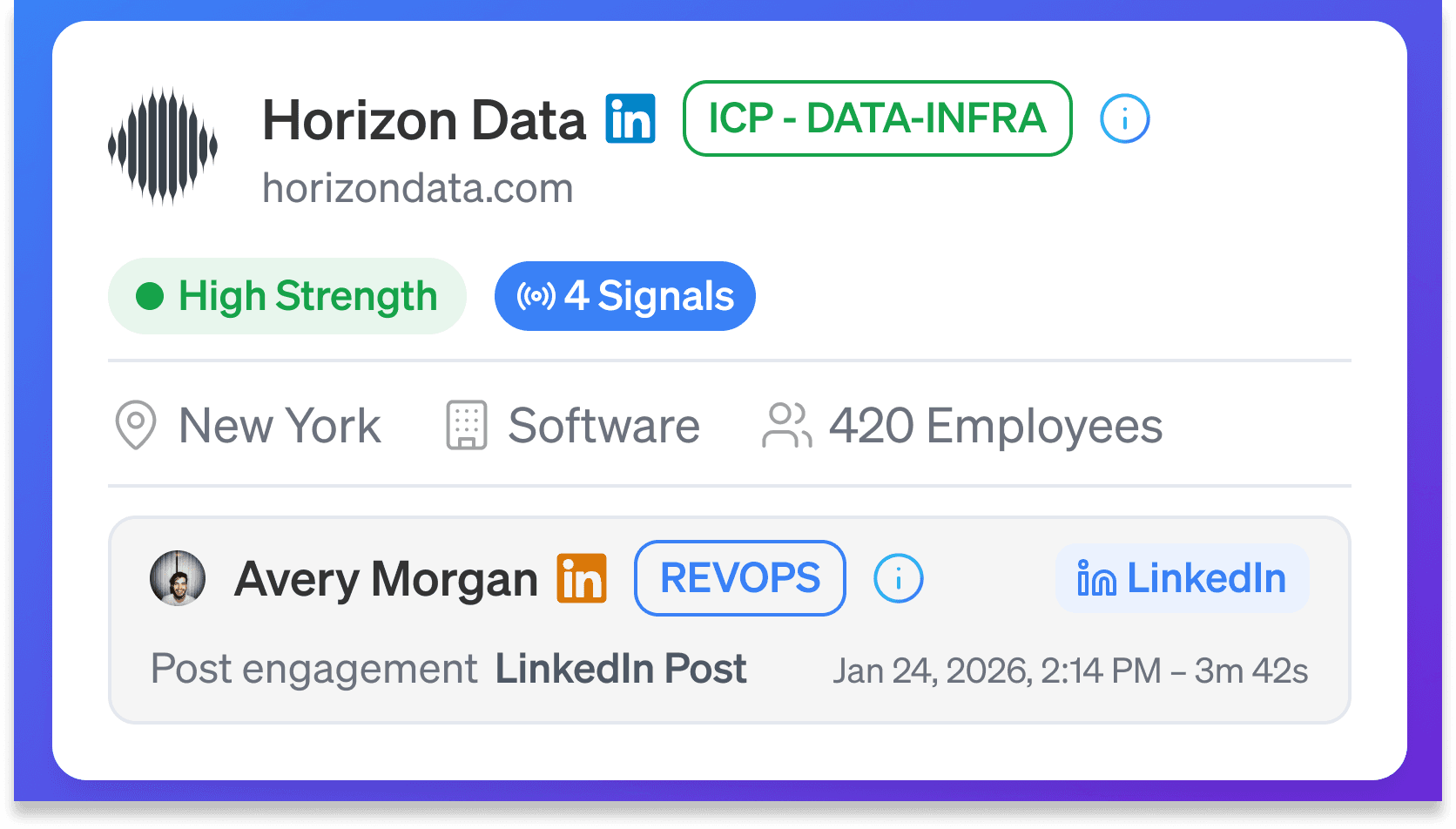
Company LinkedIn Signals show activity connected to your company’s LinkedIn presence.
For Snowbricks, this means 1eyeᴬᴵ may look at engagement with the Snowbricks LinkedIn page and related company activity.
Company LinkedIn Signals can help you understand:
Which companies are engaging on LinkedIn
Which companies are viewing or interacting with your LinkedIn content
Which companies are showing repeated activity
Which companies match your ICPs
Which companies should be added to target lists
Which companies may be ready for campaign follow-up
Example:
Field | Example |
|---|---|
Company | Horizon Data |
Domain | horizondata.com |
LinkedIn activity | Engaged with a company post |
Signal type | |
ICP match | ICP - DATA-INFRA |
Signal count | 4 |
Company LinkedIn Signals help your team move from passive social activity to account-level prioritization.
Connected user LinkedIn Signals
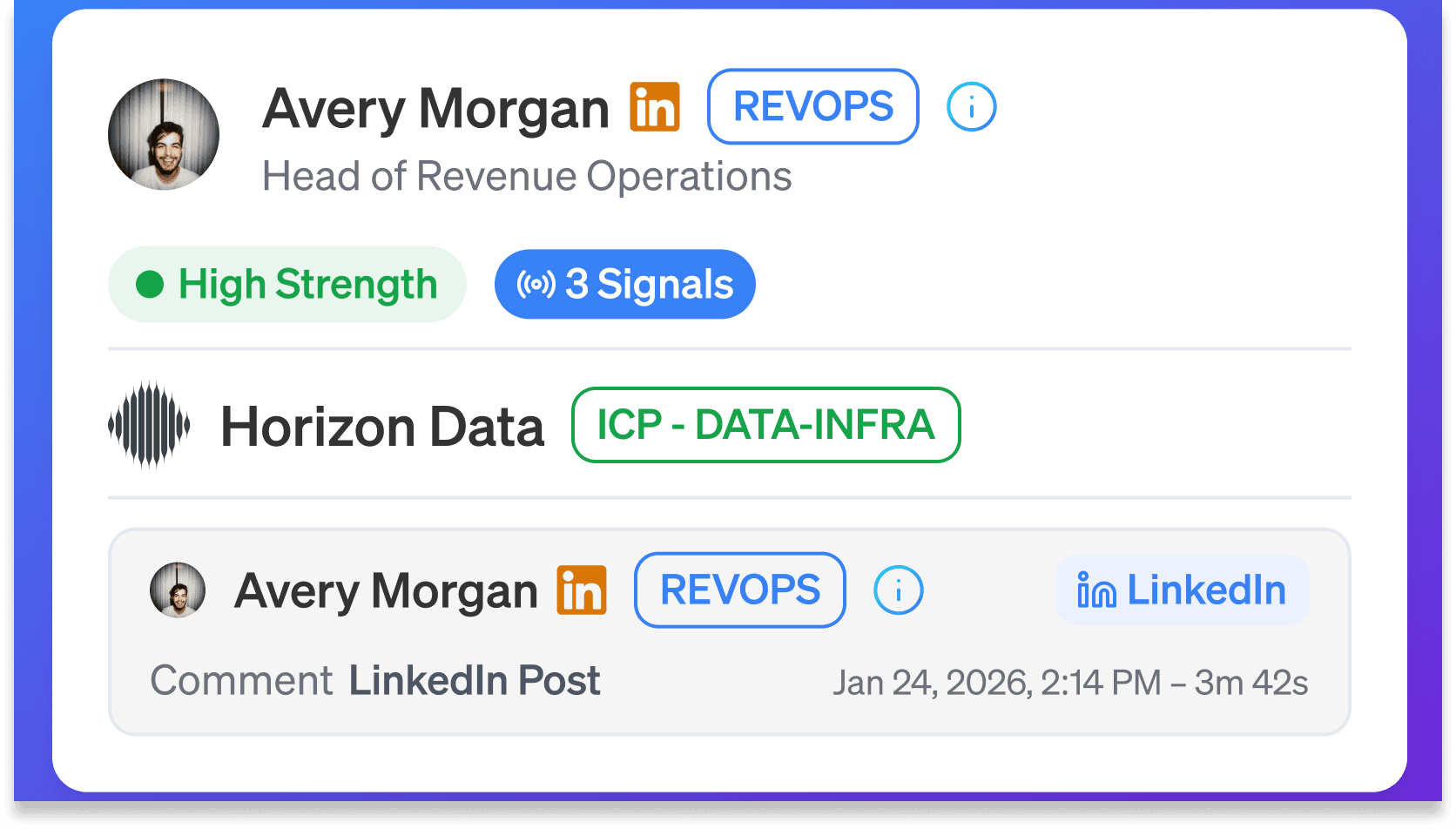
1eyeᴬᴵ can also use LinkedIn activity from connected user accounts.
When users connect their LinkedIn accounts, 1eyeᴬᴵ can help surface activity connected to those accounts, such as target contacts engaging with posts, profile activity, comments, likes, replies, and other LinkedIn interactions where available.
Connected user LinkedIn Signals can help you understand:
Which target contacts are engaging with your team’s LinkedIn activity
Which contacts are visiting or interacting with connected user profiles
Which contacts are commenting on or liking posts
Which contacts are replying to LinkedIn messages
Which companies those contacts belong to
Whether those contacts match your personas
Whether the contact should be added to a target list or campaign
Example:
Field | Example |
|---|---|
Contact | Avery Morgan |
Title | Head of Revenue Operations |
Company | Horizon Data |
LinkedIn activity | Commented on a connected user’s post |
Persona match | REVOPS |
Signal count | 3 |
This helps your team understand which people are already engaging with your team before you reach out.
LinkedIn signal types
LinkedIn Signals can include different types of activity.
Signal type | What it means |
|---|---|
Company page visit | A company or contact engaged with your company’s LinkedIn page. |
Profile visit | A contact visited or engaged with a connected user’s LinkedIn profile. |
Post engagement | A company or contact engaged with a LinkedIn post. |
Comment | A contact commented on a post or thread. |
Like or reaction | A contact liked or reacted to LinkedIn content. |
Connection request sent | A LinkedIn connection request was sent to a target contact. |
Connection request accepted | A target contact accepted a LinkedIn connection request. |
LinkedIn message sent | A LinkedIn message was sent to a target contact. |
LinkedIn reply received | A target contact replied to a LinkedIn message. |
LinkedIn message intent | 1eyeᴬᴵ classified the intent of a LinkedIn reply. |
ICP match | 1eyeᴬᴵ evaluated the company as matching an ICP. |
Persona match | 1eyeᴬᴵ evaluated the contact as matching a persona. |
Use LinkedIn signal types to understand what kind of LinkedIn engagement happened, whether it came from organic activity or campaign activity, and how strong the signal may be.
LinkedIn activity examples
LinkedIn activity may come from your company page, your team’s connected accounts, posts, comments, likes, messages, connection requests, and engagement around your content.
Examples of LinkedIn activity:
A company views your LinkedIn company page
A target contact visits a connected user’s LinkedIn profile
A target contact likes a post from your team
A target contact comments on a post
A target contact reacts to thought leadership content
A company repeatedly engages with company page posts
A contact engages with multiple users on your team
A connection request is sent to a target contact
A target contact accepts a connection request
A LinkedIn message is sent to a target contact
A target contact replies to a LinkedIn message
1eyeᴬᴵ classifies the reply intent
A company shows activity before or after visiting your website
A contact engages with content related to your product category
LinkedIn Signals become more useful when they are connected to ICP fit, persona fit, and campaign activity.
LinkedIn campaign signals
LinkedIn Signals can include activity from campaigns that use LinkedIn steps.
Campaign-related LinkedIn Signals may include:
Connection request sent
Connection request accepted
LinkedIn message sent
LinkedIn reply received
Follow-up sent
Message not delivered when available
Conversation intent when available
This helps your team understand not just who engaged organically, but also what happened after 1eyeᴬᴵ started engaging target contacts through LinkedIn.
Signal | What it tells you |
|---|---|
Connection request sent | Your campaign attempted to connect with the target contact. |
Connection request accepted | The target contact accepted the connection request. |
LinkedIn message sent | A message was sent through a connected LinkedIn account. |
LinkedIn reply received | The target contact replied. |
Positive intent | The reply appears interested or worth follow-up. |
Neutral intent | The reply is unclear, informational, or not yet strongly positive or negative. |
Negative intent | The reply appears uninterested or not a fit. |
Not delivered | The message could not be delivered when delivery status is available. |
Use campaign signals to understand how LinkedIn outreach is performing and which target contacts need follow-up.
LinkedIn message intent
When a target contact replies to a LinkedIn message, 1eyeᴬᴵ may classify the reply intent.
Intent helps your team prioritize conversations.
Common intent types include:
Positive
The contact appears interested, asks a question, requests more information, or shows buying intent.Neutral
The contact replies, but the response does not clearly show strong interest or rejection.Negative
The contact is not interested, asks not to be contacted, or is not a fit.Not delivered
The message could not be delivered when delivery status is available.
Use LinkedIn message intent to quickly identify which replies need action.
For example, a positive LinkedIn reply from a target persona at an ICP-matched company should usually be reviewed before lower-fit activity.
ICP evaluation for LinkedIn Signals
1eyeᴬᴵ evaluates LinkedIn company signals against your ICPs.
When a company engages with your company LinkedIn page, content, connected user activity, or LinkedIn campaign activity, 1eyeᴬᴵ checks whether the company matches one or more ICPs in your Knowledge Base.
For Snowbricks, ICPs may include:
B2B SaaS Companies
Revenue Operations Teams
AI-Native GTM Companies
Data Infrastructure Companies
Enterprise Sales Organizations
B2B Marketplaces and Platforms
If a company matches an ICP, 1eyeᴬᴵ may show an ICP badge on the company card.
Example:
The ICP badge helps your team quickly understand why the company may be relevant.
ICP match explanation
When a company matches an ICP, 1eyeᴬᴵ may show an explanation.
Example:
Use the explanation to decide whether the company should be added to a target list, enriched with contacts, or moved into a campaign.
Why ICP evaluation matters
ICP evaluation helps your team separate meaningful LinkedIn activity from noise.
It helps you:
Prioritize companies that match your target market
Avoid chasing low-fit LinkedIn engagement
Focus on accounts showing both activity and fit
Build better target company lists
Improve campaign quality
Use LinkedIn engagement as part of your account prioritization
A company liking a post is useful. A company liking a post and matching your ICP is much more useful.
Persona evaluation for LinkedIn Signals
1eyeᴬᴵ evaluates LinkedIn contact signals against your personas.
When a contact engages with your company LinkedIn page, content, posts, comments, connected user accounts, connection requests, or LinkedIn messages, 1eyeᴬᴵ checks whether that contact matches one or more personas in your Knowledge Base.
For Snowbricks, personas may include:
Revenue Operations Leader
Head of Data
VP Sales
VP Marketing
GTM Systems Leader
AI Transformation Leader
Founder or CEO
If a contact matches a persona, 1eyeᴬᴵ may show a persona badge on the contact card.
Example:
The persona badge helps your team understand why that contact may be relevant.
Persona match explanation
When a contact matches a persona, 1eyeᴬᴵ may show an explanation.
Example:
Use the explanation to decide whether the contact should be enriched, added to a target list, or moved into a campaign.
Why persona evaluation matters
Persona evaluation helps your team focus on the right people behind LinkedIn activity.
It helps you:
Prioritize relevant target contacts
Avoid engaging poor-fit contacts
Identify contacts already familiar with your team or content
Build better target contact lists
Personalize outreach based on role and engagement
Route contacts into the right LinkedIn or multi-channel campaigns
A LinkedIn like from anyone is activity. A LinkedIn like from your target persona is a signal.
View LinkedIn Signals by company
Use Signals → By Company to review LinkedIn activity at the account level.
This is useful when you want to answer:
Which companies are engaging on LinkedIn?
Which companies have multiple LinkedIn signals?
Which companies match our ICPs?
Which companies are interacting with posts or company page activity?
Which companies should be added to target lists?
Which companies should be prioritized for campaigns?
Start here when you want to prioritize target companies.
View LinkedIn Signals by contact
Use Signals → By Contact to review LinkedIn activity at the person level.
This is useful when you want to answer:
Which contacts are engaging on LinkedIn?
Which contacts match our personas?
Which company does each contact belong to?
What LinkedIn activity did each contact create?
Which contacts accepted a connection request?
Which contacts replied to a LinkedIn message?
Which contacts have positive or high-priority intent?
Which contacts should be enriched?
Which contacts should be moved into campaigns?
Use this view when you want to prioritize people based on LinkedIn engagement.
Search LinkedIn Signals
Use search to find a specific company, contact, domain, or keyword.
Examples:
Search is helpful when you know exactly what you are looking for.
Filter LinkedIn Signals
Use filters to narrow LinkedIn Signals.
You can filter by:
Company
Contact person
ICP
Persona
Type
Date range
For LinkedIn activity, useful filters include:
LinkedIn signals
ICP matches
Persona matches
Response signals
Recent activity
Specific companies
Specific contacts
Filter by type
Use the type filter to focus on LinkedIn-related signal types.
Useful types include:
Type | Use it to find |
|---|---|
LinkedIn-related activity | |
Response | LinkedIn replies or response activity when available |
ICP | Companies that matched an ICP |
Persona | Contacts that matched a persona |
Use this when you want to isolate LinkedIn activity from website, form, email, or other conversation activity.
Filter by date range
Use date range to review LinkedIn Signals from a specific period.
Examples:
Today
Yesterday
Last 7 days
Last 30 days
After a founder post
After a product launch
After a campaign announcement
After an event
After a webinar
During a LinkedIn outbound campaign
Date range filters help your team connect LinkedIn activity to campaigns, posts, and market moments.
Sort LinkedIn Signals
Use sort to change the order of LinkedIn Signals.
You may sort by:
Most recent activity
Highest signal count
Company name
Contact name
Created date
Updated date
Use sorting to prioritize the companies or contacts that matter first.
Export LinkedIn Signals
Use Export CSV to download LinkedIn signal data.
Export is useful when you want to:
Share LinkedIn activity with your team
Analyze engagement in a spreadsheet
Review target companies offline
Build a LinkedIn campaign plan
Compare LinkedIn activity over time
Send signal data to RevOps
Review high-engagement accounts with sales
Before exporting, use filters to narrow the data.
For example:
Filter by LinkedIn
Turn on Show ICPs Only or Show Personas Only
Select the last 7 days
Export CSV
This gives your team a cleaner export with more actionable LinkedIn activity.
Recommended workflow: company LinkedIn signal
Use this workflow when you want to act on company-level LinkedIn activity.
Open Signals → By Company
Filter by LinkedIn
Turn on Show ICPs Only
Review companies with recent LinkedIn activity
Review the ICP badge and match explanation
Open the signal timeline
Confirm the activity is relevant
Add the company to a target company list
Source matching target contacts
Launch or prepare a campaign
This workflow helps your team move from LinkedIn engagement to account prioritization.
Recommended workflow: contact LinkedIn signal
Use this workflow when you want to act on person-level LinkedIn activity.
Open Signals → By Contact
Filter by LinkedIn
Turn on Show Personas Only
Review contacts with recent LinkedIn activity
Review the persona badge and match explanation
Open the signal timeline
Confirm the contact is relevant
Enrich the contact if needed
Add the contact to a target contact list
Launch a LinkedIn or multi-channel campaign
Track connection requests, messages, replies, and intent
Follow up on positive or high-priority replies
This workflow helps your team move from LinkedIn engagement to contact-level action.
Recommended workflow: post engagement to campaign
Use this workflow when your team wants to act on LinkedIn post engagement.
Publish or review a LinkedIn post
Open LinkedIn Signals
Filter by recent LinkedIn activity
Review companies and contacts engaging with the post
Check ICP and persona matches
Prioritize contacts with relevant roles
Add matching companies or contacts to target lists
Launch a contextual campaign referencing the topic they engaged with
This workflow helps your team turn content engagement into pipeline action.
Recommended workflow: connected user activity
Use this workflow when your team wants to use LinkedIn activity from connected user accounts.
Make sure relevant users have connected LinkedIn
Open LinkedIn Signals
Review activity from connected accounts
Identify contacts engaging with users’ profiles, posts, or comments
Check persona match
Review the contact’s company and ICP match
Add relevant contacts to a target list
Launch a LinkedIn or multi-channel campaign
This workflow helps your team act on engagement already happening around your team.
Recommended workflow: LinkedIn reply to follow-up
Use this workflow when your team wants to act on LinkedIn replies.
Open LinkedIn Signals
Filter by Response or LinkedIn reply activity
Review the reply and message intent
Prioritize positive replies first
Check the contact’s persona match
Check the company’s ICP match
Review prior activity in the signal timeline
Follow up with context
Move the conversation forward or update the target list
This workflow helps your team quickly separate replies that need action from lower-priority activity.
How LinkedIn Signals connect with campaigns
LinkedIn Signals can help your team launch more contextual campaigns and track what happens after the campaign starts.
Instead of starting with a cold list, your team can start with LinkedIn activity.
Examples:
A target contact likes a founder post
A company repeatedly engages with your company page
A RevOps leader comments on a post about data quality
A VP Sales views a connected user’s profile
A Head of Data engages with content about AI workflows
Then, when you launch a campaign, LinkedIn Signals can help you track campaign activity such as:
Connection requests sent
Connection requests accepted
LinkedIn messages sent
LinkedIn replies received
Reply intent
Follow-up activity
This gives your team a full LinkedIn loop: activity, fit evaluation, campaign engagement, reply intent, and follow-up.
Best practices
Connect the right LinkedIn accounts
Connect users who post, engage, sell, or participate in LinkedIn workflows.Review company and contact activity together
A company signal tells you the account is active. A contact signal tells you who may be worth engaging.Use ICP matches to reduce noise
Focus on companies that match your target company profiles.Use persona matches to find relevant contacts
Focus on contacts that match your target personas.Prioritize repeated engagement
Multiple LinkedIn signals from the same company or contact are usually stronger than one signal.Look for content-topic fit
A contact engaging with content related to your product category may be more relevant than a generic engagement.Track replies and intent
LinkedIn replies, especially positive replies from target personas, should be reviewed quickly.Use filters before exporting
Clean the view before downloading a CSV.Build lists from LinkedIn activity
Move relevant companies and contacts into target lists.Use LinkedIn context in outreach
Reference the topic, theme, or context of engagement where appropriate.Keep your Knowledge Base updated
Better ICPs, personas, and exclusions create better LinkedIn Signal quality.
Troubleshooting
I do not see LinkedIn Signals
Check:
LinkedIn accounts are connected where needed
Your company LinkedIn page is available for tracking where enabled
There is recent LinkedIn activity
You are viewing the right date range
Filters are not hiding results
The activity source is supported
I see companies but not contacts
This can happen when company-level LinkedIn activity is available but contact-level activity is not.
Check:
Whether contact-level activity is available
Whether filters are hiding contacts
Whether personas are too narrow
Whether the contact view has a restrictive date range
I see contacts but no persona matches
Review personas in your Knowledge Base.
Check:
Persona descriptions
Job titles
Seniority
Functions
Departments
Buying roles
If your personas are too narrow, 1eyeᴬᴵ may miss relevant contacts.
I see companies but no ICP matches
Review ICPs in your Knowledge Base.
Check:
ICP descriptions
Company types
Industries
Company sizes
Use cases
Exclusions
If your ICPs are too narrow, 1eyeᴬᴵ may miss relevant companies.
LinkedIn Signals look noisy
Try:
Turning on Show ICPs Only
Turning on Show Personas Only
Filtering by LinkedIn
Filtering by date range
Adding exclusions
Tightening ICPs
Tightening personas
I do not see LinkedIn reply intent
Check:
Whether the contact replied
Whether the reply is available in 1eyeᴬᴵ
Whether the signal has been processed
Whether the conversation is connected to a supported LinkedIn workflow
Whether filters are hiding response signals
Connection request activity is missing
Check:
The campaign includes LinkedIn connection request steps
The LinkedIn account is connected
The user has the right role and channel access
The campaign is active
You are viewing the right date range
Filters are not hiding LinkedIn activity
LinkedIn message activity is missing
Check:
The campaign includes LinkedIn message steps
The LinkedIn account is connected
The message was sent or attempted
The activity has been processed
You are viewing the correct company or contact
Filters are not hiding LinkedIn or Response activity
Export is too noisy
Before exporting:
Filter by LinkedIn
Turn on Show ICPs Only or Show Personas Only
Filter by ICP or persona
Select a recent date range
Export only the focused view
A company or contact should not be targeted
Add the company to Exclusions in your Knowledge Base.
This prevents 1eyeᴬᴵ from treating that company as a target.
FAQ
What are LinkedIn Signals?
LinkedIn Signals are activity from LinkedIn, such as company page engagement, connected user account activity, profile visits, post engagement, comments, likes, reactions, connection requests, messages, replies, and other LinkedIn-related activity when available.
How are LinkedIn Signals different from Website Signals?
Website Signals come from activity on your website. LinkedIn Signals come from activity connected to LinkedIn, including company page activity, connected user accounts, and LinkedIn campaign workflows.
Do LinkedIn Signals include company activity?
Yes. LinkedIn Signals can include activity from companies engaging with your LinkedIn presence.
Do LinkedIn Signals include contact activity?
Yes, when available. 1eyeᴬᴵ can show LinkedIn activity connected to target contacts.
Do LinkedIn Signals include connection requests?
Yes. LinkedIn Signals can include connection request activity when available, such as requests sent and accepted.
Do LinkedIn Signals include LinkedIn messages?
Yes. LinkedIn Signals can include LinkedIn messages sent and replies received when LinkedIn is used in campaign workflows.
Does 1eyeᴬᴵ classify LinkedIn reply intent?
Yes, when available. 1eyeᴬᴵ may classify LinkedIn replies by intent, such as positive, neutral, negative, or not delivered.
Can I use LinkedIn Signals to track campaign performance?
Yes. LinkedIn Signals can help you understand connection requests, accepted connections, sent messages, replies, and reply intent from LinkedIn campaign steps.
What does 1eyeᴬᴵ evaluate for LinkedIn company signals?
1eyeᴬᴵ evaluates identified companies against your ICPs.
What does 1eyeᴬᴵ evaluate for LinkedIn contact signals?
1eyeᴬᴵ evaluates identified contacts against your personas.
What does Show ICPs Only do?
It filters the company view to show only companies that match your ICPs.
What does Show Personas Only do?
It filters the contact view to show only contacts that match your personas.
Can I filter LinkedIn Signals?
Yes. You can filter by company, contact person, ICP, persona, type, and date range.
Can I export LinkedIn Signals?
Yes. Use Export CSV to download the current signal view.
Why are some LinkedIn engagements not shown?
Some activity may not be available depending on the signal source, connected accounts, permissions, activity type, or available context.
Why do some LinkedIn contacts not have persona badges?
They may not match your current personas, or 1eyeᴬᴵ may not have enough context to evaluate them as a match.
Why do some LinkedIn companies not have ICP badges?
They may not match your current ICPs, or 1eyeᴬᴵ may not have enough context to evaluate them as a match.
How do I improve LinkedIn Signal quality?
Connect the right LinkedIn accounts, keep your Knowledge Base updated, tighten ICPs and personas, add exclusions, and use filters to focus on relevant activity.
Next step
Next, go to Conversation Signals to understand how 1eyeᴬᴵ captures and organizes activity from email, LinkedIn, iMessage, replies, and responses.