Channels
iMessage
iMessage lets your team request iMessage-enabled lines and use them in 1eyeᴬᴵ campaign workflows.
Unlike Email and LinkedIn, iMessage setup does not connect an existing user account directly. Instead, your team requests an iMessage line in 1eyeᴬᴵ. The line can be provisioned from an available pool or requested with a preferred 3-digit area code.
Once the line is provisioned by the 1eyeᴬᴵ team, it becomes available for campaign workflows.
Use iMessage to send text-based outreach, manage replies, track reads when available, and create Conversation Signals from iMessage engagement.
What iMessage is for
iMessage helps your team engage target contacts through iMessage-enabled lines.
Use iMessage when you want to:
Send iMessages to target contacts
Use iMessage inside campaign workflows
Send SMS fallback messages when the target contact does not have an iMessage-compatible device
Track reads when available
Capture replies
Create Conversation Signals from iMessage and SMS activity
Route replies by response intent when available
Combine iMessage with email and LinkedIn in multi-channel campaigns
Reach target contacts through a more direct channel when phone data is available
iMessage and SMS delivery
1eyeᴬᴵ sends through an iMessage-enabled line.
If the target contact has an iMessage-compatible device, such as an iPhone with iMessage enabled, the message can be delivered as an iMessage.
If the target contact does not have an iMessage-compatible device, or iMessage is not available for that phone number, the message may be delivered as SMS.
This means your team can still reach contacts who do not use iMessage, as long as the contact has a usable phone number and the line can deliver the message.
Delivery type may depend on:
The target contact’s device
Whether iMessage is enabled for the phone number
Carrier and phone number support
Message availability
Delivery conditions at the time of send
Before you begin
Before setting up iMessage, make sure:
Your workspace is on a paid plan that includes iMessage lines
iMessage is enabled in Settings → Engagement Channels
Users who will use iMessage are invited to the 1eyeᴬᴵ workspace
Target contacts have phone numbers when using iMessage campaigns
Your team knows whether it wants an available line or a preferred area code
iMessage lines must be provisioned before they can be used in workflows.
Where to manage iMessage

Admins can enable iMessage from Engagement Channels.
Open your 1eyeᴬᴵ workspace
Go to Settings
Select Engagement Channels
Select iMessage
Turn iMessage Enabled
Follow the setup guidance shown on the page
Once iMessage is enabled, users or admins can request an iMessage line from the user settings.
iMessage setup has two parts
iMessage setup has two layers:
Workspace-level enablement
An admin enables iMessage in Settings → Engagement Channels.Line request and provisioning
A user or admin requests an iMessage-enabled line. 1eyeᴬᴵ provisions the line and notifies your team when it is ready.
A workspace can have iMessage enabled, but campaigns cannot use iMessage until at least one iMessage line is provisioned and connected.
Step 1: Enable iMessage in 1eyeᴬᴵ
An admin should first enable iMessage for the workspace.
Go to Settings
Select Engagement Channels
Select iMessage
Turn iMessage Enabled
When iMessage is enabled, 1eyeᴬᴵ shows the setup instructions for requesting iMessage lines.
Step 2: Open the user iMessage settings
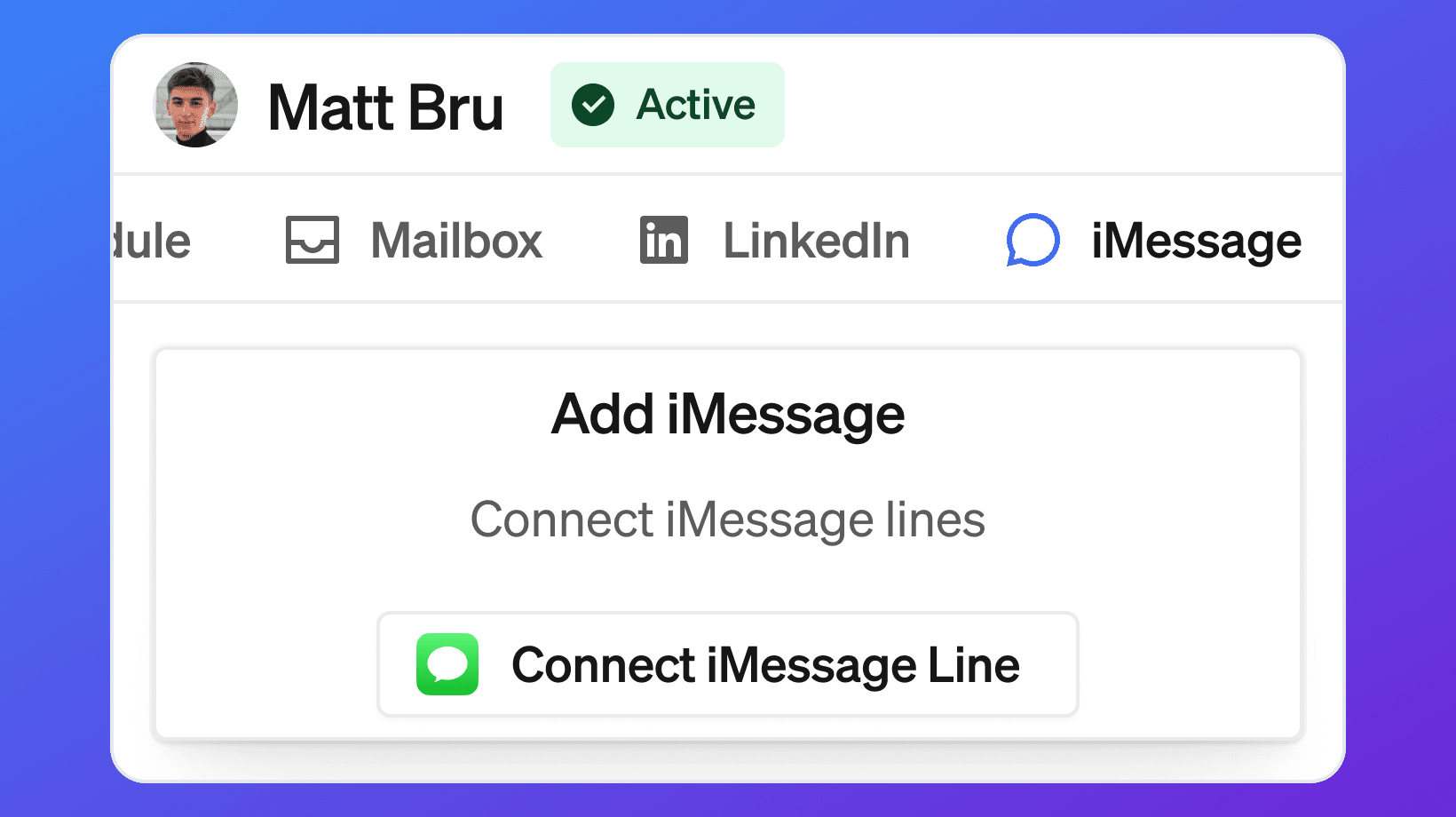
To request or connect an iMessage line:
Open 1eyeᴬᴵ
Go to the user profile area
Select the user
Open the iMessage tab
Select Connect iMessage Line
This opens the iMessage line request modal.
Step 3: Choose a line option
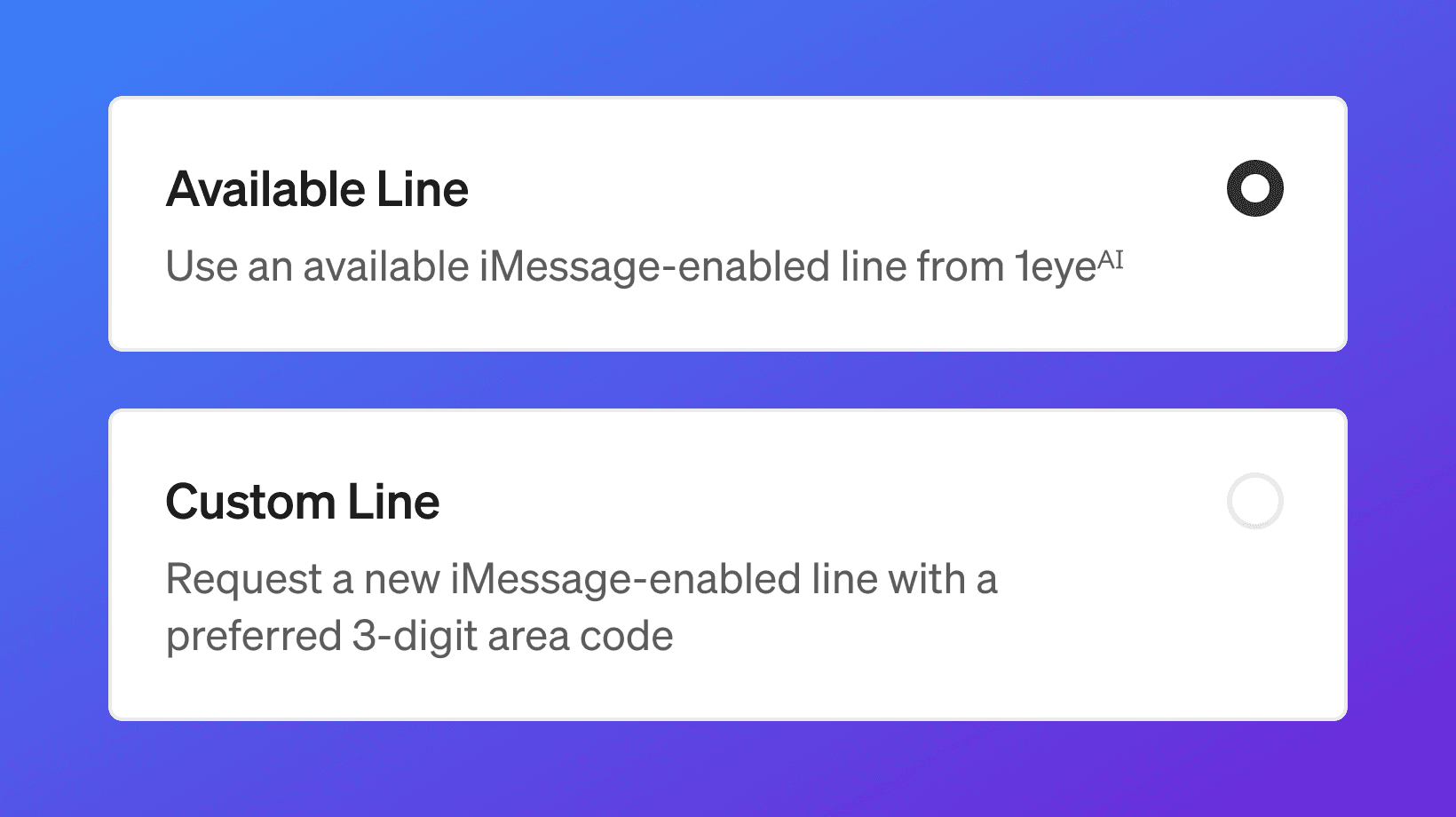
When connecting an iMessage line, you can choose between two options:
Option | What it means | Typical provisioning time |
|---|---|---|
Available Line | Use an available iMessage-enabled line from 1eyeᴬᴵ | Under 24 hours |
Custom Line | Request a new iMessage-enabled line with a preferred 3-digit area code | Under 48 hours |
Choose the option that fits your team’s needs.
Available Line
Choose Available Line when you want the fastest setup.
This option uses an available iMessage-enabled line that 1eyeᴬᴵ can provision for your workspace.
Use Available Line when:
You do not need a specific area code
You want the line provisioned faster
You are setting up iMessage for the first time
You want to start testing iMessage workflows quickly
Available lines are typically provisioned in under 24 hours.
Custom Line
Choose Custom Line when you want to request a line with a preferred 3-digit area code.
For example:
Use Custom Line when:
You want the line to match a preferred geography
Your team wants a familiar local area code
Your GTM motion is region-specific
You want more control over the line identity
Custom lines are typically provisioned in under 48 hours.
Custom area code availability may depend on line availability.
Step 4: Submit the iMessage line request
After selecting the line option:
Choose Available Line or Custom Line
If using Custom Line, enter the preferred 3-digit area code
Select Connect
1eyeᴬᴵ creates the line request
The line moves into Pending status
The line is not ready immediately. It must be provisioned by the 1eyeᴬᴵ team.
Step 5: Wait for provisioning
After the request is submitted, the iMessage line shows as:
Pending means the line has been requested and is being provisioned.
Typical provisioning times:
Line type | Typical time |
|---|---|
Available Line | Under 24 hours |
Custom Line | Under 48 hours |
During this time, the line cannot be used in campaign workflows yet.
Step 6: Get notified when the line is ready
Once the iMessage line is provisioned, 1eyeᴬᴵ will notify you by email.
The line status will update from:
to:
After the line is connected, it becomes available for campaign workflows.
Step 7: Confirm the iMessage line is connected
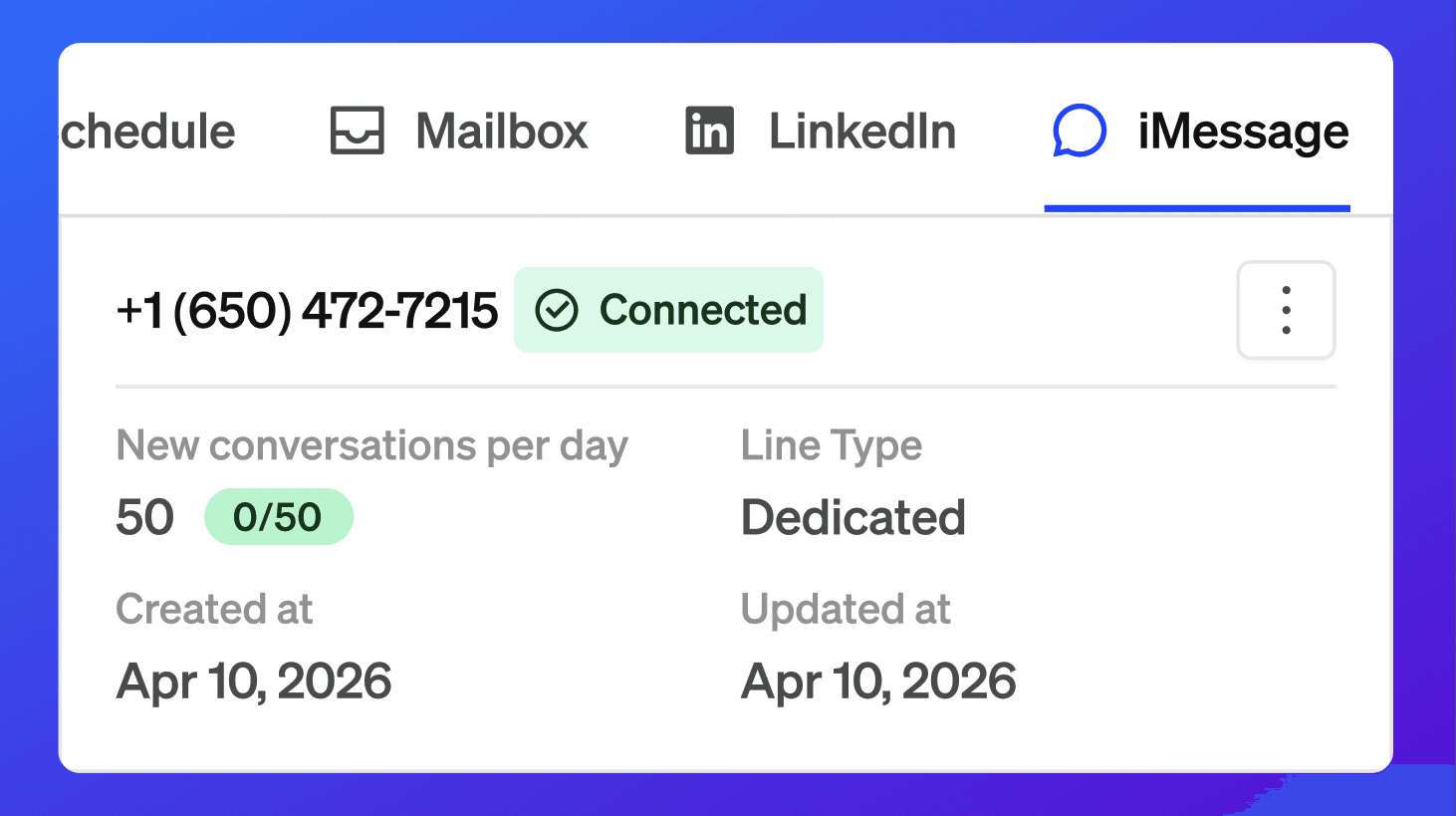
Once connected, the iMessage tab may show:
iMessage line
Connected status
New conversations per day
Line type
Created date
Updated date
Line menu
Example:
Field | Example |
|---|---|
Line | +1 650 472 7215 |
Status | Connected |
New conversations per day | 50 |
Line type | Dedicated |
Created date | Apr 10, 2026 |
Updated date | Apr 10, 2026 |
These fields help your team understand whether the iMessage line is ready for campaign workflows.
iMessage line statuses
An iMessage line may show different statuses.
Status | What it means |
|---|---|
Pending | The line has been requested and is being provisioned by 1eyeᴬᴵ. |
Connected | The line is active and available for campaign workflows. |
Disconnected | The line is not currently available for use. |
Disabled | iMessage is disabled at the workspace level by an admin. |
Use the status to understand whether the line can be used.
Pending status
Pending means the iMessage line request has been submitted but provisioning is not complete yet.
A pending line may show:
Pending status
New conversations per day limit
Line type
Created date
Updated date
You do not need to resubmit the request while it is pending.
Once the line is ready, 1eyeᴬᴵ will update the status and notify you by email.
Connected status
Connected means the iMessage line is ready to use.
A connected line can be selected in campaign workflows, depending on plan limits, user permissions, contact data, and campaign setup.
Before launching iMessage campaigns, confirm:
iMessage is enabled
The line shows Connected
Target contacts have phone numbers
Contacts are in Target status
The target list is ready
The campaign includes iMessage steps
Line type
An iMessage line may show a line type.
Common line type:
A dedicated line is assigned for your workspace or user and can be used in campaign workflows once connected.
New conversations per day
iMessage lines may show a daily new conversation limit.
Example:
This helps control how many new iMessage or SMS conversations can be started from the line each day.
Use this limit carefully. Do not treat it as a target to max out every day.
Why iMessage limits matter
iMessage limits help your team:
Avoid over-sending
Keep outreach controlled
Reduce spam-like behavior
Protect line quality
Improve campaign quality
Manage replies more effectively
Keep multi-channel workflows balanced
A better approach is to use iMessage for high-fit target contacts where the message is timely and relevant.
Plan limits
iMessage lines are available on paid plans.
Plan | iMessage lines |
|---|---|
Free | 0 |
Launch | 1 |
Growth | 2 |
Scale | 5 |
If you need more iMessage lines, upgrade to a plan with higher iMessage limits.
How iMessage connects to campaigns
Once an iMessage line is connected, campaigns can use it for iMessage steps.
Campaign workflows may include:
Send iMessage
Send SMS fallback when iMessage is not available for the target contact
Wait
Track read when available
Capture reply
Send follow-up
Stop on reply
Branch based on reply or intent when available
Continue to email or LinkedIn when available
iMessage can be used as a standalone channel or as part of a multi-channel campaign.
How iMessage creates Conversation Signals
iMessage activity can create Conversation Signals.
iMessage and SMS Conversation Signals may include:
iMessage sent
SMS sent when iMessage is not available
iMessage read when available
Reply received
Follow-up sent
Positive intent when available
Neutral intent when available
Negative intent when available
Not delivered when available
Conversation Signals help your team understand which target contacts are engaging and which replies need follow-up.
iMessage replies and intent
When a target contact replies to an iMessage or SMS, 1eyeᴬᴵ may classify the reply intent when available.
Common intent categories include:
Intent | What it means |
|---|---|
Positive | The contact appears interested, asks a question, requests more information, or wants to continue. |
Neutral | The contact replied, but the response is unclear or not strongly positive or negative. |
Negative | The contact is not interested, is not a fit, or asks not to be contacted. |
Not delivered | The message could not be delivered when delivery status is available. |
Use intent to prioritize follow-up.
A positive reply from a target persona at an ICP-matched company should usually be reviewed quickly.
Recommended setup workflow
Use this workflow when setting up iMessage for the first time.
Confirm your workspace is on a paid plan
Go to Settings → Engagement Channels
Enable iMessage
Invite users who will use iMessage
Open the user profile
Go to the iMessage tab
Select Connect iMessage Line
Choose Available Line or Custom Line
Enter a 3-digit area code if using Custom Line
Select Connect
Wait for the line to show Pending
Watch for the email notification from 1eyeᴬᴵ
Confirm the line shows Connected
Use the connected line in campaign workflows
Recommended campaign workflow
Use this workflow when preparing to use iMessage in campaigns.
Build or select a Target List
Review target companies
Review target contacts
Confirm contacts are in Target status
Confirm contacts have phone numbers
Confirm iMessage is enabled
Confirm the iMessage line shows Connected
Review the new conversations per day limit
Add iMessage steps to the campaign workflow
Review message content
Launch the campaign when ready
Best practices
Request iMessage early
Provisioning can take 24–48 hours, so request the line before you need it for a campaign.Use Available Line for fastest setup
Choose Available Line when you do not need a specific area code.Use Custom Line for area code preference
Choose Custom Line when a specific 3-digit area code matters.Wait for Connected status
Do not build a campaign assuming the line is ready while it is still Pending.Watch for the email notification
1eyeᴬᴵ will notify you when the line is provisioned.Understand SMS fallback
If the target contact does not have an iMessage-compatible device, the message may be sent as SMS.Use iMessage for high-fit contacts
iMessage is direct. Use it thoughtfully with relevant target contacts.Confirm phone availability
Contacts need phone numbers before they can be used in iMessage workflows.Review contact status
Only use contacts in Target status for campaign outreach.Respect daily limits
Do not max out new conversation limits just because they are available.Monitor replies quickly
Replies can be high intent and should be reviewed quickly.Use multi-channel workflows carefully
Coordinate iMessage with email and LinkedIn instead of sending too much across every channel.Keep messages concise
iMessage and SMS work best when the message is clear, brief, and relevant.Respect negative replies
If a contact says they are not interested or asks not to be contacted, stop outreach.
Troubleshooting
I do not see iMessage in campaign workflows
Check:
iMessage is enabled in Settings → Engagement Channels
Your workspace is on a paid plan
An iMessage line has been requested
The line shows Connected
The campaign step supports iMessage
The user has permission to use the line
The target contacts have phone numbers
My iMessage line is Pending
Pending means the line is being provisioned.
Typical provisioning times:
Available Line, under 24 hours
Custom Line, under 48 hours
You will be notified by email when the line is connected.
My iMessage line is still pending after 48 hours
Check:
Whether you requested a Custom Line
Whether the preferred area code is available
Whether you received an email from 1eyeᴬᴵ
Whether the line status changed after refreshing
Whether your workspace plan includes enough iMessage lines
If it is still pending, contact 1eyeᴬᴵ support.
I requested the wrong area code
If the line is still pending, contact 1eyeᴬᴵ support as soon as possible.
If the line is already provisioned, you may need to request a new custom line.
I cannot request another iMessage line
Check:
Your plan limit
Existing connected lines
Pending line requests
Whether iMessage is enabled
Your workspace role or permissions
If you need more iMessage lines, upgrade your plan.
iMessage is enabled but sending fails
Check:
The iMessage line is Connected
The user is active
The campaign is active
The contact has a phone number
The contact status is Target
The line is within daily limits
The message content is complete
The target list is connected to the campaign
Message is sent as SMS instead of iMessage
This can happen when iMessage is not available for the target contact.
Common reasons include:
The target contact does not use an iPhone
The target contact has iMessage disabled
The phone number is not registered with iMessage
iMessage delivery is unavailable at the time of send
The device or carrier falls back to SMS
The message can still be delivered as SMS when available.
iMessages are not sending at the expected time
Check:
Campaign timing
User sending schedule if used
Timezone
Selected sending days
Daily new conversation limit
Contact-level workflow rules
Whether the line is Connected
I do not see iMessage reads
Read tracking may depend on availability and recipient behavior.
Some reads may not appear because of:
Recipient settings
Device behavior
iMessage read receipt settings
SMS fallback
Delivery limitations
Tracking availability
Read signals are useful, but replies are usually more important.
I do not see replies
Check:
The line is Connected
The recipient replied to the iMessage or SMS line
The reply had time to process
Filters are not hiding Conversation Signals
The conversation is connected to the campaign workflow
A contact should not receive iMessages or SMS
Do not include the contact in outreach.
Review whether the contact should be:
Removed from the target list
Marked Excluded
Added to exclusions at the company level if appropriate
Excluded contacts should not receive outreach.
FAQ
What does the iMessage channel do?
iMessage lets your team use iMessage-enabled lines in campaign workflows.
Where do I enable iMessage?
Admins can enable iMessage in Settings → Engagement Channels.
Is iMessage available on the Free Plan?
No. iMessage lines are available on paid plans.
How many iMessage lines are included by plan?
Launch includes 1 iMessage line. Growth includes 2 iMessage lines. Scale includes 5 iMessage lines. Free includes 0.
Do I connect my personal iMessage account?
No. You request an iMessage-enabled line in 1eyeᴬᴵ.
What is an Available Line?
An Available Line uses an available iMessage-enabled line from 1eyeᴬᴵ and is typically provisioned in under 24 hours.
What is a Custom Line?
A Custom Line lets you request a new iMessage-enabled line with a preferred 3-digit area code and is typically provisioned in under 48 hours.
Can I choose the area code?
Yes. Choose Custom Line and enter the preferred 3-digit area code.
Is the area code guaranteed?
Area code availability may depend on line availability.
What happens after I request a line?
The line moves to Pending while 1eyeᴬᴵ provisions it.
How long does provisioning take?
Available Lines are typically provisioned in under 24 hours. Custom Lines are typically provisioned in under 48 hours.
How will I know when the line is ready?
1eyeᴬᴵ will notify you by email when the line is provisioned.
What does Pending mean?
Pending means the line has been requested and is being provisioned.
What does Connected mean?
Connected means the iMessage line is active and can be used in campaign workflows.
Can I use iMessage while the line is Pending?
No. The line must show Connected before it can be used in campaign workflows.
What data do contacts need for iMessage?
Contacts need phone numbers before they can be used in iMessage workflows.
What happens if the target contact does not have an iPhone?
If the target contact does not have an iMessage-compatible device, the message may be sent as SMS.
What happens if iMessage is disabled for the target contact?
If iMessage is not available for that phone number, the message may be sent as SMS.
Can SMS replies create signals?
Yes. Replies to messages sent through the iMessage line can create Conversation Signals when available.
Can iMessage create signals?
Yes. iMessage activity can create Conversation Signals such as sent, read, reply, and response intent when available.
Can 1eyeᴬᴵ classify iMessage or SMS replies?
Yes, when available. Replies may be classified as positive, neutral, negative, or not delivered.
What should I check before launching an iMessage campaign?
Check that iMessage is enabled, the line is Connected, contacts have phone numbers, contacts are in Target status, limits are available, and the target list is ready.
Next step
Next, go to Campaigns Overview to learn how to use Email, LinkedIn, and iMessage inside campaign workflows.