Channels
Overview
Channels are where admins enable the engagement channels your team can use in campaign workflows.
In 1eyeᴬᴵ, engagement can happen across email, LinkedIn, and iMessage. Before your team can use these channels in campaigns, an admin needs to enable the channels for the workspace and users need to connect the accounts or lines they will use for outreach.
Use Channels to manage which engagement channels are available, understand what each channel does, and make sure your workspace is ready for campaign execution.
What Channels are for
Channels help your team answer:
1eyeᴬᴵ supports multiple engagement channels so your team can reach target contacts where they are most likely to respond.
Channels help you:
Enable email outreach
Enable LinkedIn connection requests and messages
Enable iMessage conversations
Connect user accounts and lines
Control which channels are available in campaign workflows
Review connection status
Understand channel limits
Prepare your workspace for multi-channel engagement
Where to find Channels
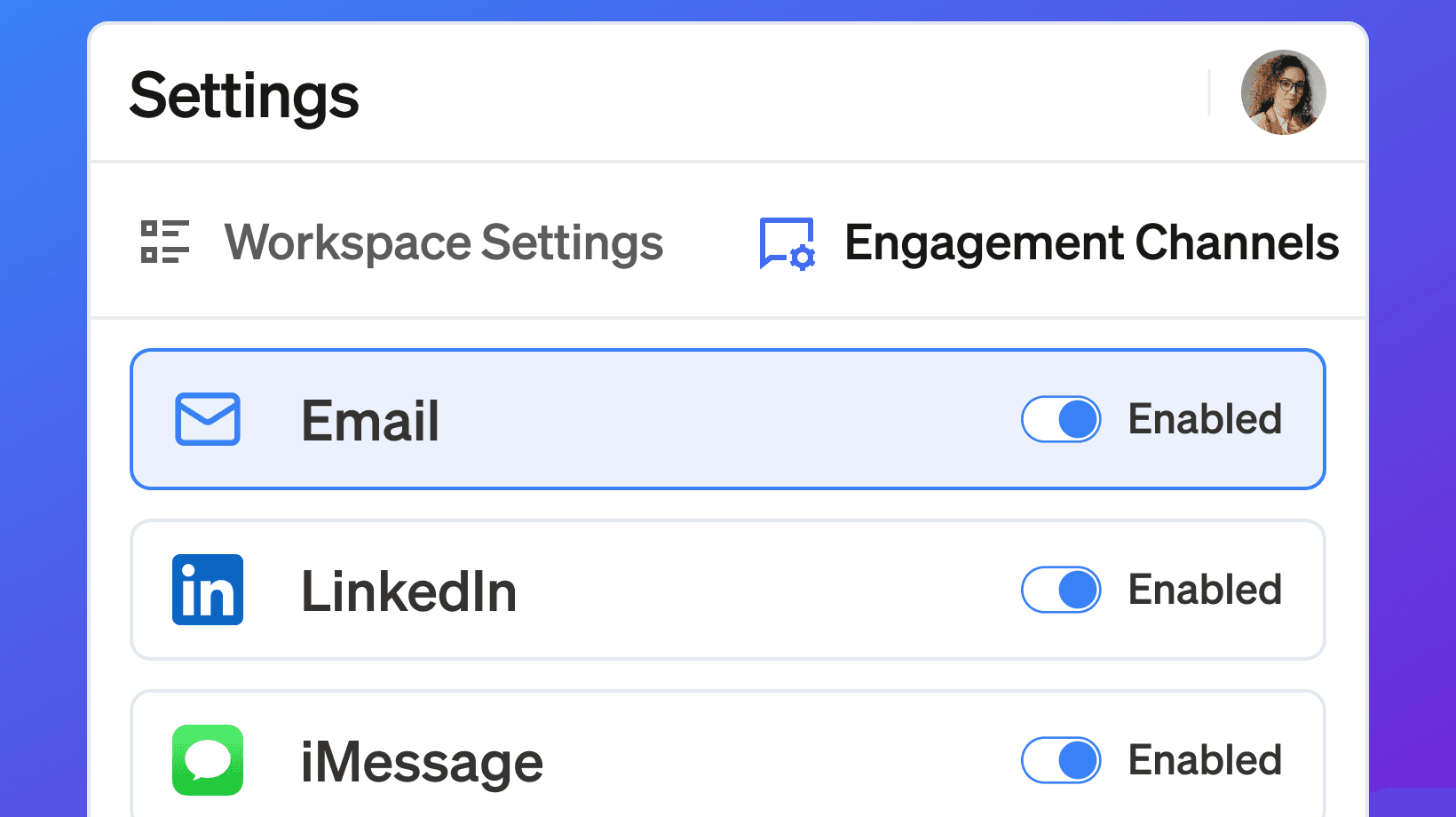
Admins can manage engagement channels from Settings.
Open your 1eyeᴬᴵ workspace
Go to Settings
Select Engagement Channels
Choose the channel you want to review
Enable or disable the channel for the workspace
Follow the setup steps shown for that channel
The Engagement Channels page shows the available channels on the left and the setup instructions for the selected channel on the right.
Available channels
1eyeᴬᴵ supports these engagement channels:
Channel | What it does |
|---|---|
Connect Gmail mailboxes to send campaign emails. | |
Connect LinkedIn accounts to send connection requests and messages. | |
iMessage | Connect iMessage lines to send and manage iMessage conversations. |
Each channel can be enabled or disabled by an admin.
Admin controls
Admins can enable or disable engagement channels for the workspace.
When a channel is enabled, users can connect the required account or line and use that channel in campaign workflows, depending on plan limits and user permissions.
When a channel is disabled, that channel is not available for campaign execution.
Use admin controls when you want to:
Decide which channels your team can use
Start with one channel before adding others
Disable a channel your team is not ready to use
Control rollout across the workspace
Match channel access to your plan
Channel availability by plan
Engagement channels are available on paid plans. The Free Plan includes credits and users, but does not include mailboxes, LinkedIn accounts, or iMessage lines.
Plan | Mailboxes | LinkedIn Accounts | iMessage Lines |
|---|---|---|---|
Free | 0 | 0 | 0 |
Launch | 5 | 5 | 1 |
Growth | 10 | 10 | 2 |
Scale | 25 | 25 | 5 |
If your workspace needs more connected channels, upgrade to a plan with higher channel limits.
Free Plan
The Free Plan is useful for exploring 1eyeᴬᴵ, setting up your workspace, reviewing signals, and understanding how the platform works.
The Free Plan includes:
1,000 credits
2 users
0 mailboxes
0 LinkedIn accounts
0 iMessage lines
Because the Free Plan does not include engagement channels, email, LinkedIn, and iMessage campaign sending require a paid plan.
Paid plans
Paid plans unlock engagement channels.
Plan | Best for |
|---|---|
Launch | Starting outbound with a small team. |
Growth | Running repeatable campaigns with more users and channels. |
Scale | Scaling GTM with more credits, users, and connected channels. |
Paid plans give your team access to connected mailboxes, LinkedIn accounts, and iMessage lines based on plan limits.
Email channel
The Email channel lets your team connect Gmail mailboxes and use them in campaign workflows.
Use Email when you want to:
Send campaign emails
Send follow-ups
Track email engagement when available
Capture email replies
Create conversation signals
Use email as part of a multi-channel workflow
Email is commonly used for outbound sequences, follow-ups, and direct campaign messaging.
LinkedIn channel
The LinkedIn channel lets users connect LinkedIn accounts for campaign workflows.
Use LinkedIn when you want to:
Send connection requests
Send LinkedIn messages
Track LinkedIn connection activity
Track LinkedIn replies when available
Create LinkedIn conversation signals
Use LinkedIn as part of a multi-channel workflow
LinkedIn is useful when your team wants to engage target contacts in a professional channel before or alongside email.
iMessage channel
The iMessage channel lets your team connect iMessage lines and use them in campaign workflows.
Use iMessage when you want to:
Send iMessages
Track reads when available
Capture replies
Manage iMessage conversations
Create iMessage conversation signals
Use iMessage as part of a multi-channel workflow
iMessage lines need to be requested and provisioned before they can be used.
How channel setup works
Channel setup has two layers:
Workspace-level enablement
An admin enables the channel in Settings → Engagement Channels.User-level connection
A user connects the specific mailbox, LinkedIn account, or iMessage line they will use.
Both are important.
A channel may be enabled for the workspace, but a user still needs a connected account before they can use it in campaign workflows.
Email setup overview
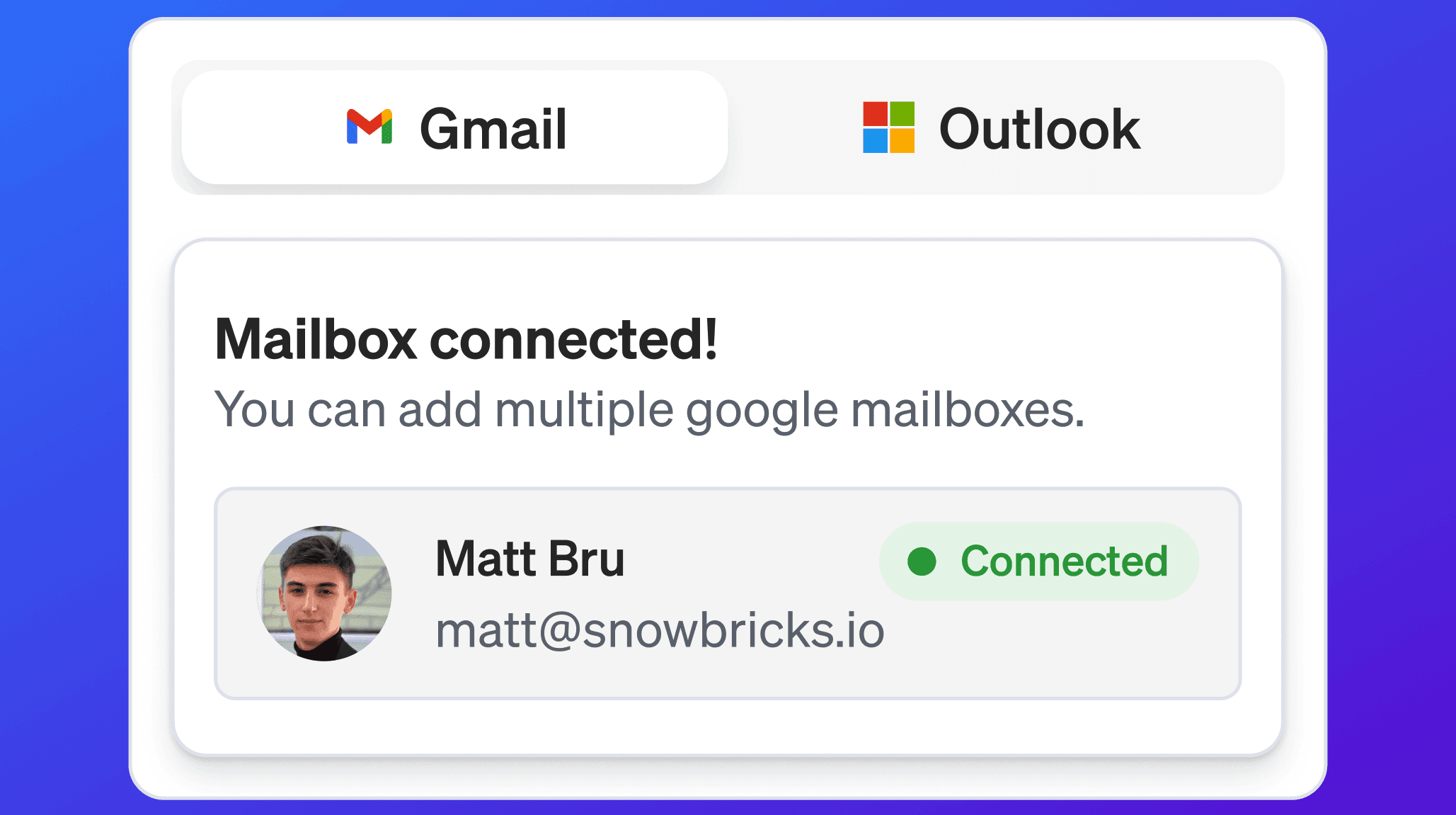
Email setup uses Gmail mailboxes.
At a high level:
Admin enables Email in Engagement Channels
Google Workspace admin installs or trusts the 1eye app if required
Users connect their Gmail mailbox
Connected mailboxes become available for campaign workflows
Email send limits and usage appear in the user channel settings
If the Google Workspace setup is already complete, users can continue with Gmail mailbox connection.
LinkedIn setup overview
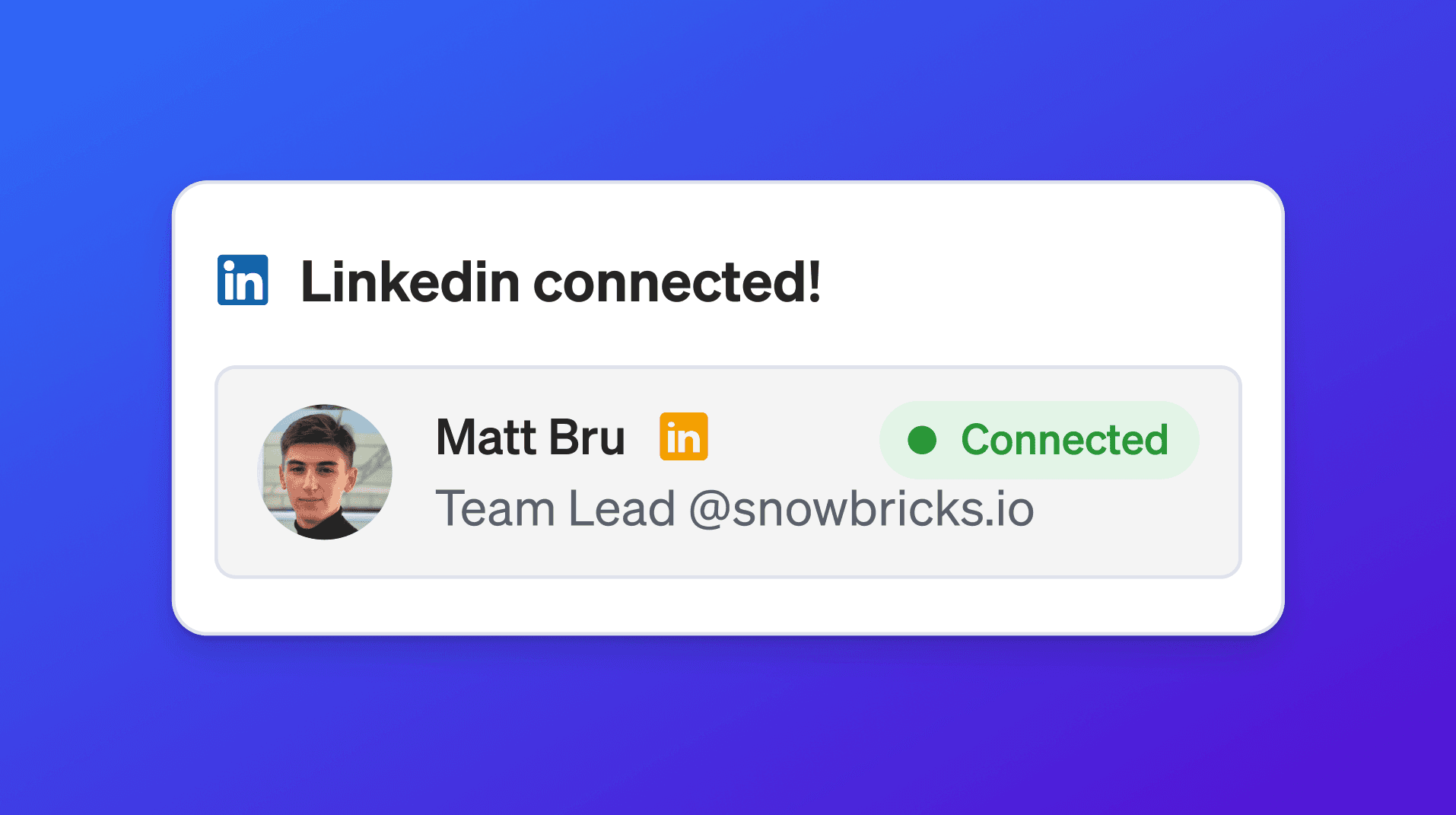
LinkedIn setup happens at the user level.
At a high level:
Admin enables LinkedIn in Engagement Channels
User goes to their user settings
User selects the LinkedIn tab
User adds their LinkedIn account
User signs in to LinkedIn
User completes 2FA or security checks if required
Connected LinkedIn accounts become available for campaign workflows
LinkedIn connection is required before that user’s account can be used for connection requests or LinkedIn messages.
iMessage setup overview
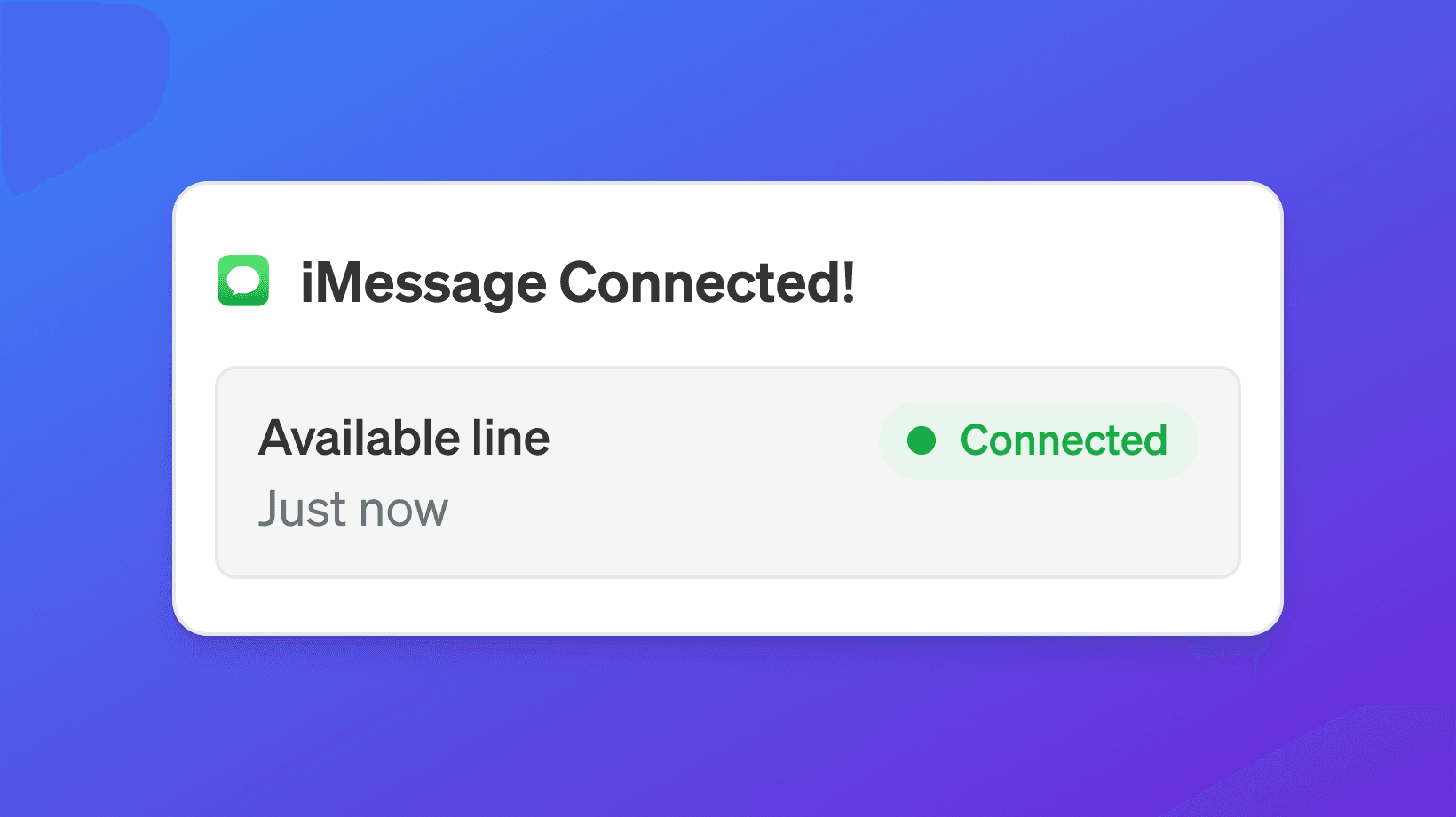
iMessage setup requires an iMessage line.
At a high level:
Admin enables iMessage in Engagement Channels
User or admin requests an iMessage line
User chooses an available line or requests a specific area code when available
1eyeᴬᴵ provisions the iMessage line
The line becomes available as an engagement channel
The line can be selected inside campaign workflows
Provisioning may take time, so set up iMessage before you need it in a campaign.
User channel settings
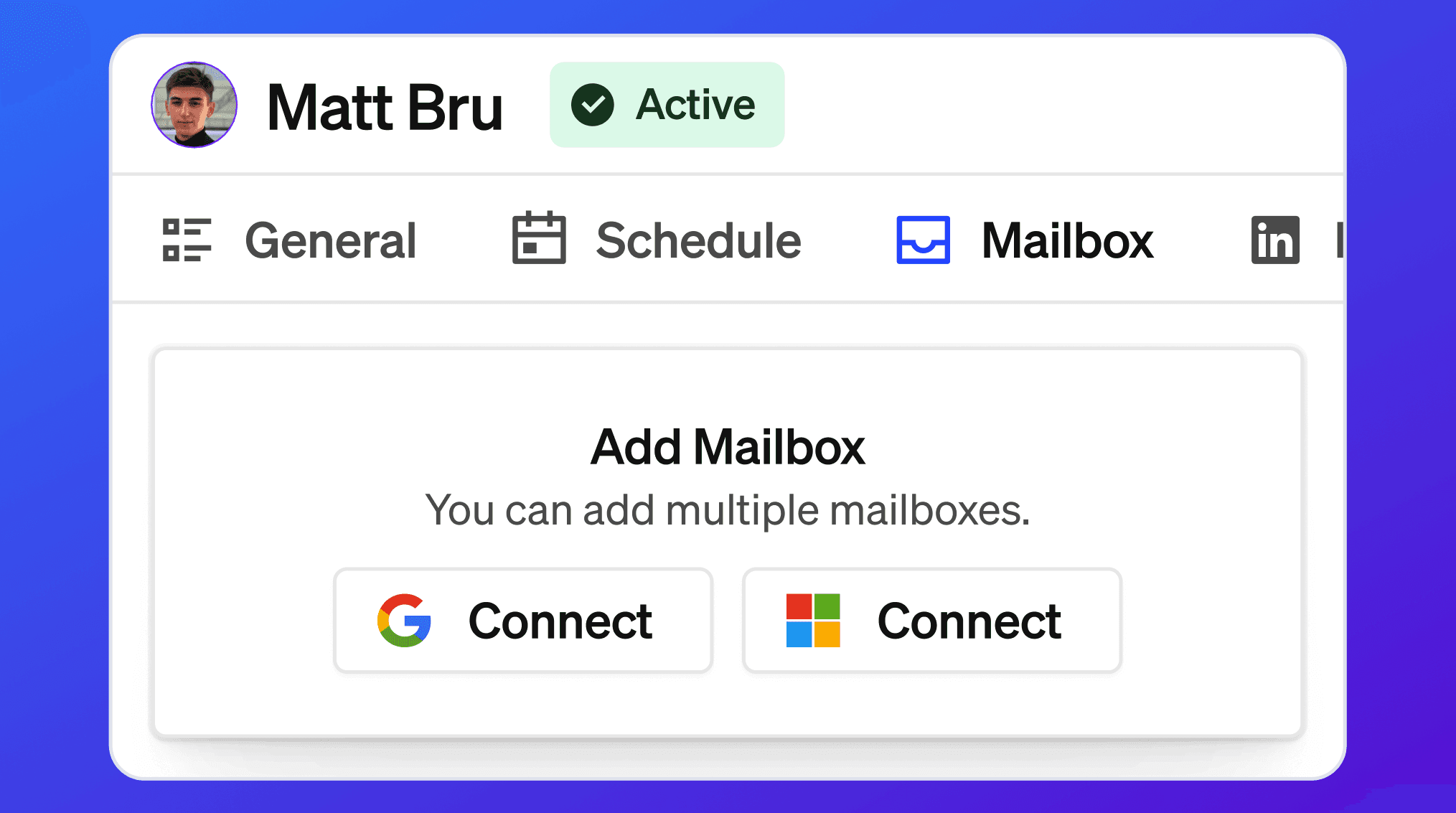
Users can manage their connected channels from their user settings.
A user profile may include tabs for:
General
Schedule
Mailbox
LinkedIn
iMessage
This is where users can connect or manage their own mailbox, LinkedIn account, and iMessage line.
Admins can enable the channel at the workspace level, but individual users still need to connect their accounts where required.
Message schedule
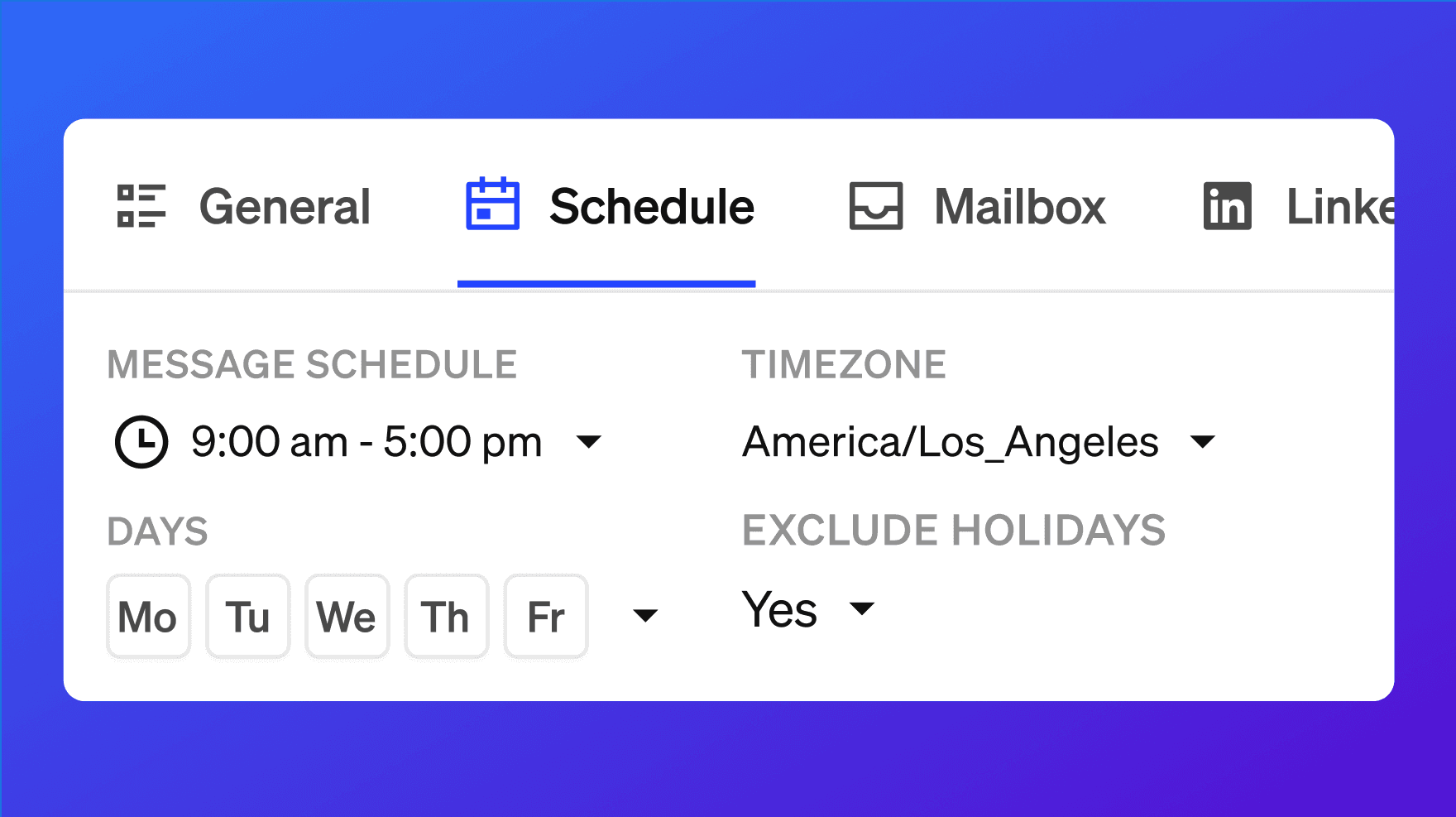
User settings may include a sending schedule.
The schedule helps control when campaign messages can be sent.
A schedule may include:
Start time
End time
Timezone
Selected days
Holiday exclusions when available
Use schedules to make outreach look more natural and align sending with business hours.
Channel limits

Each connected channel may have limits.
For example:
Daily send limits
Per-contact limits
LinkedIn connection limits
LinkedIn message limits
iMessage conversation limits
Plan-level channel counts
Limits help protect deliverability, reduce spammy behavior, and keep outreach controlled.
Your plan determines how many mailboxes, LinkedIn accounts, and iMessage lines your workspace can use.
Connected vs disconnected
A connected channel is ready to use, assuming the workspace channel is enabled and the user has permission.
A disconnected channel is not available for that user until it is connected again.
Examples:
Status | What it means |
|---|---|
Connected | The account or line is connected and can be used when selected in workflows. |
Disconnected | The account or line is not currently connected. Reconnect before using it. |
Disabled | The workspace channel is turned off by an admin. |
Not provisioned | The iMessage line has not been created or activated yet. |
How Channels connect to campaigns
Campaign workflows use connected channels to engage target contacts.
A campaign may include steps such as:
Send email
Send LinkedIn connection request
Send LinkedIn message
Send iMessage
Wait
Follow up
Stop on reply
Route based on intent
If a channel is not enabled or connected, it will not be available for campaign steps that require it.
How Channels connect to Conversation Signals
Channels also power Conversation Signals.
When your team sends messages and target contacts engage, 1eyeᴬᴵ can create signals such as:
Email sent
Email opened
Email reply
LinkedIn connection request sent
LinkedIn connection accepted
LinkedIn message sent
LinkedIn reply
iMessage sent
iMessage read
iMessage reply
Positive intent
Neutral intent
Negative intent
Connected channels make it possible to track engagement and understand which contacts need follow-up.
Recommended setup order
Use this order when setting up Channels for the first time.
Upgrade to a paid plan if you need engagement channels
Go to Settings → Engagement Channels
Enable Email, LinkedIn, and/or iMessage
Complete workspace-level setup for Email if required
Invite users who will send campaigns
Ask users to connect their mailbox, LinkedIn account, or iMessage line
Set user sending schedules
Confirm connected status
Build a target list
Use connected channels in campaign workflows
Best practices
Start with the channels your team will actually use
Do not enable every channel before you have a plan for it.Use paid plans for engagement
Engagement channels are available on paid plans. Free is for exploration, not outbound execution.Connect real user accounts carefully
Make sure each connected account belongs to the person who will use it in workflows.Set sending schedules
Use schedules to control when outreach happens.Respect channel limits
Do not overload one mailbox, LinkedIn account, or iMessage line.Use multi-channel workflows intentionally
Email, LinkedIn, and iMessage work best when they are coordinated, not spammed.Monitor Conversation Signals
Once messages are live, review opens, replies, reads, and intent.Disconnect unused accounts
If a user leaves or a channel is no longer needed, disconnect it.Keep admin control tight
Only admins should enable or disable workspace-level channels.Review plan limits before launching campaigns
Make sure your plan has enough mailboxes, LinkedIn accounts, and iMessage lines for the campaign volume you want.
Troubleshooting
I do not see a channel in campaign workflows
Check:
The channel is enabled in Settings → Engagement Channels
Your plan includes that channel
The user has connected the required account or line
The account is not disconnected
The user has permission to use the channel
The campaign step supports that channel
Email is enabled but I cannot send email
Check:
The workspace is on a paid plan
Google Workspace setup is complete if required
The user connected a Gmail mailbox
The mailbox shows Connected
Sending limits are available
The campaign uses a connected mailbox
LinkedIn is enabled but I cannot send LinkedIn messages
Check:
The workspace is on a paid plan
The user connected LinkedIn
The LinkedIn account shows Connected
LinkedIn security checks or 2FA are complete
The campaign uses that connected LinkedIn account
The account is within plan and sending limits
iMessage is enabled but I cannot send iMessages
Check:
The workspace is on a paid plan
An iMessage line has been requested
The iMessage line has been provisioned
The line shows Connected or active
The campaign uses that iMessage line
The line is within plan and sending limits
A connected account shows disconnected
Reconnect the account from the user’s channel settings.
A channel can become disconnected because of authentication changes, security checks, expired access, or account changes.
My plan does not include enough channels
Review your plan limits and upgrade if needed.
The pricing page lists how many mailboxes, LinkedIn accounts, and iMessage lines are included in each plan.
FAQ
What are Channels?
Channels are the engagement methods your team can use in campaigns, including Email, LinkedIn, and iMessage.
Where do I manage Channels?
Admins can manage channels in Settings → Engagement Channels.
Who can enable or disable channels?
Admins can enable or disable workspace-level engagement channels.
Are Channels available on the Free Plan?
The Free Plan does not include mailboxes, LinkedIn accounts, or iMessage lines. Engagement channels require a paid plan.
Which channels are available on paid plans?
Paid plans include Email, LinkedIn, and iMessage with different limits by plan.
How many channels are included in each plan?
Launch includes 5 mailboxes, 5 LinkedIn accounts, and 1 iMessage line. Growth includes 10 mailboxes, 10 LinkedIn accounts, and 2 iMessage lines. Scale includes 25 mailboxes, 25 LinkedIn accounts, and 5 iMessage lines.
Can users connect their own accounts?
Yes. Users can connect their own Gmail mailbox, LinkedIn account, and iMessage line when the channel is enabled and available on the workspace plan.
Can I disable a channel?
Yes. Admins can disable a channel from Settings → Engagement Channels.
What happens if a channel is disabled?
The channel will not be available for campaign workflows.
Can I use multiple channels in one campaign?
Yes. Campaign workflows can use multiple connected channels when available.
Do Channels create signals?
Yes. Channel activity can create Conversation Signals such as opens, replies, connection accepts, reads, and response intent.
What should I set up first?
Start with the paid plan, enable the channel, connect user accounts, confirm connected status, then use the channel in campaigns.
Next step
Next, go to Email to learn how to enable Gmail mailboxes and use email in campaign workflows.