Campaigns
Console
Console shows how a campaign is executing at the contact and node level.
Use Console to see what has already run, what is waiting to run, what failed, and what is scheduled next. It gives your team a detailed execution log for the campaign workflow so you can monitor activity, troubleshoot issues, and understand exactly where each target contact is in the campaign.
What Console is for
Console helps your team answer:
A campaign workflow may include email nodes, LinkedIn nodes, iMessage nodes, signal conditions, wait steps, and branches.
Console shows how those nodes are executing for each target contact.
Use Console to:
View executed workflow steps
View pending workflow steps
View failed workflow steps
Search campaign execution activity
Filter by contact
Filter by executed date
Filter by next execution date
Inspect node status on hover
Understand why a contact is waiting
Understand why a node failed
Confirm when the next step is scheduled
Monitor campaign health while it is running
Where to find Console
You can open Console from a campaign.
Open a campaign
Go to the Workflow tab
Select View Console
Console opens on top of the workflow canvas and shows execution activity for the campaign.
How Console works
Console tracks workflow execution for each target contact.
Each row or item in Console represents an execution event, such as:
Email sent
LinkedIn connection request sent
LinkedIn message sent
iMessage sent
Signal condition checked
Wait step scheduled
End node reached
Step failed
Step pending
Console helps you understand the campaign at the operational level.
The workflow shows the campaign logic.
Console shows what actually happened.
Console views
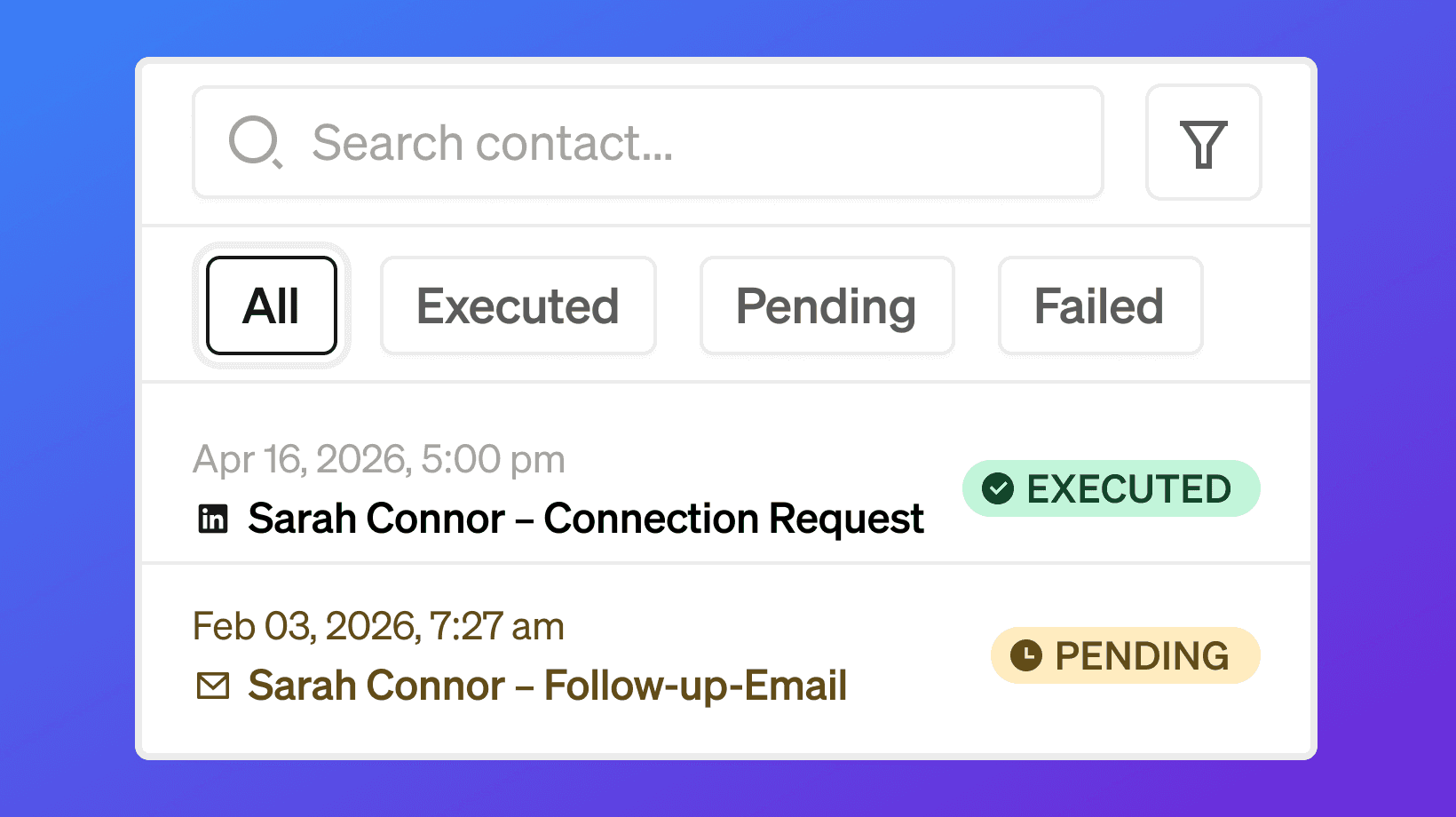
Console may show execution items by status.
Common Console statuses include:
All
Executed
Pending
Failed
Use these views to quickly narrow the campaign execution log.
All
Use All to view every execution event in the campaign.
This includes:
Executed steps
Pending steps
Failed steps
Use All when you want the complete campaign execution history.
Executed
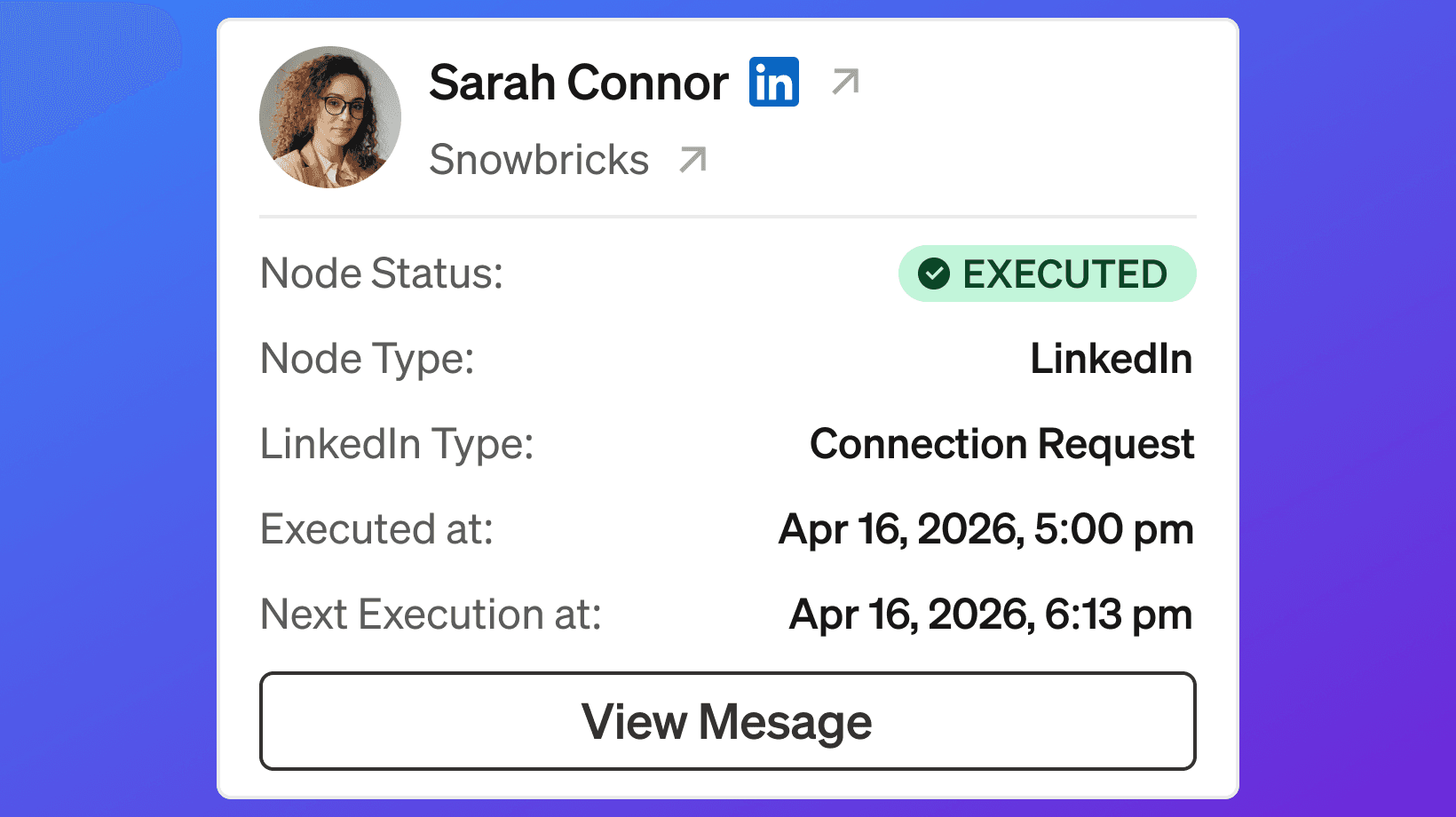
Use Executed to view workflow steps that successfully ran.
An executed step may include:
Contact
Node Status
Node Type
Executed at
Next Execution at when applicable
Message details when available
Executed means the node successfully completed for that contact.
Example:
Pending
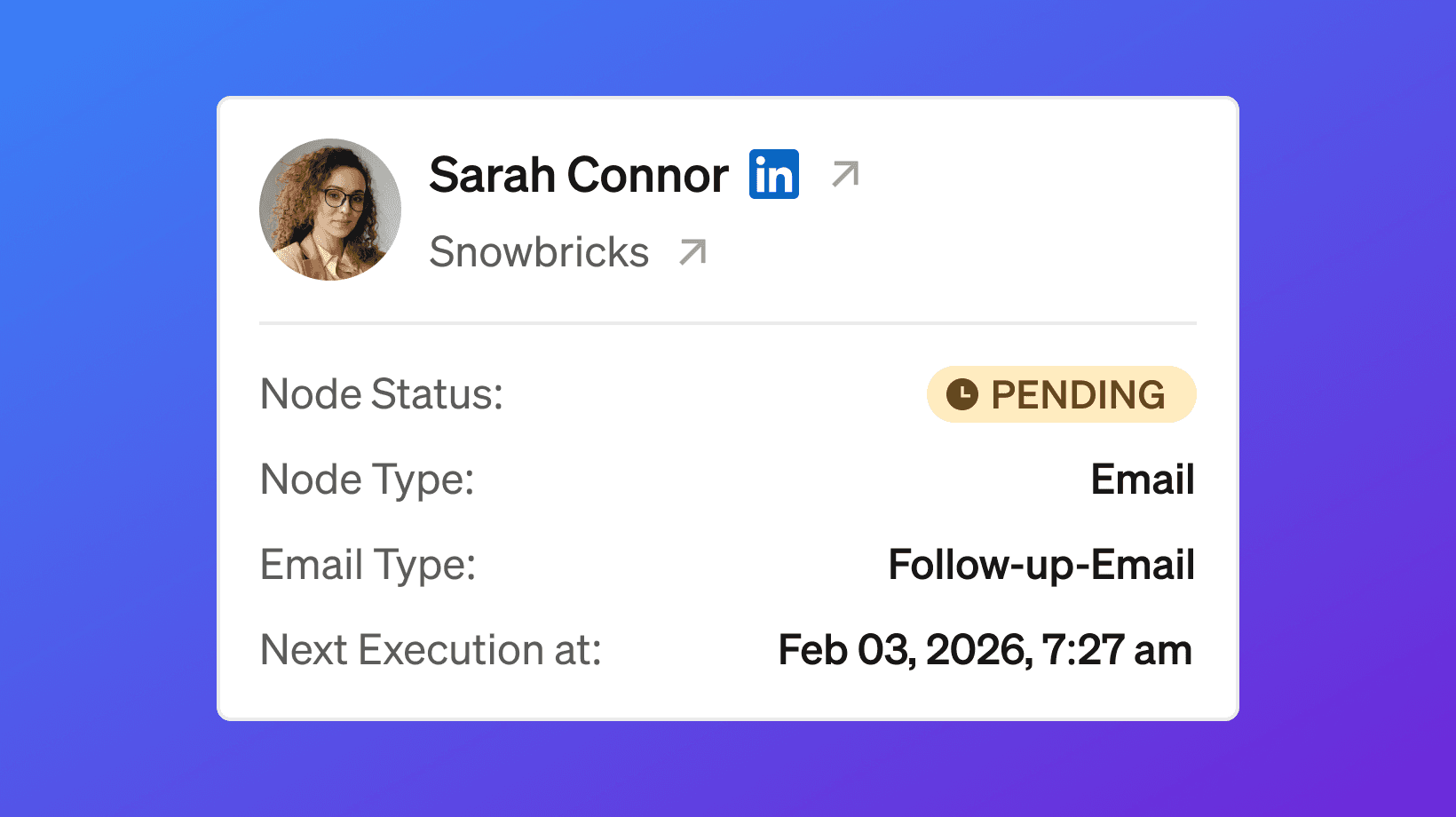
Use Pending to view workflow steps that are waiting to run.
A pending step may include:
Contact
Node Status
Node Type
Email Type or LinkedIn Type when applicable
Next Execution at
Pending means the node has not executed yet.
This usually happens when the campaign is waiting for:
A wait period
A scheduled send time
A channel limit to become available
The next workflow step
A signal condition check
A user sending schedule
Example:
Failed
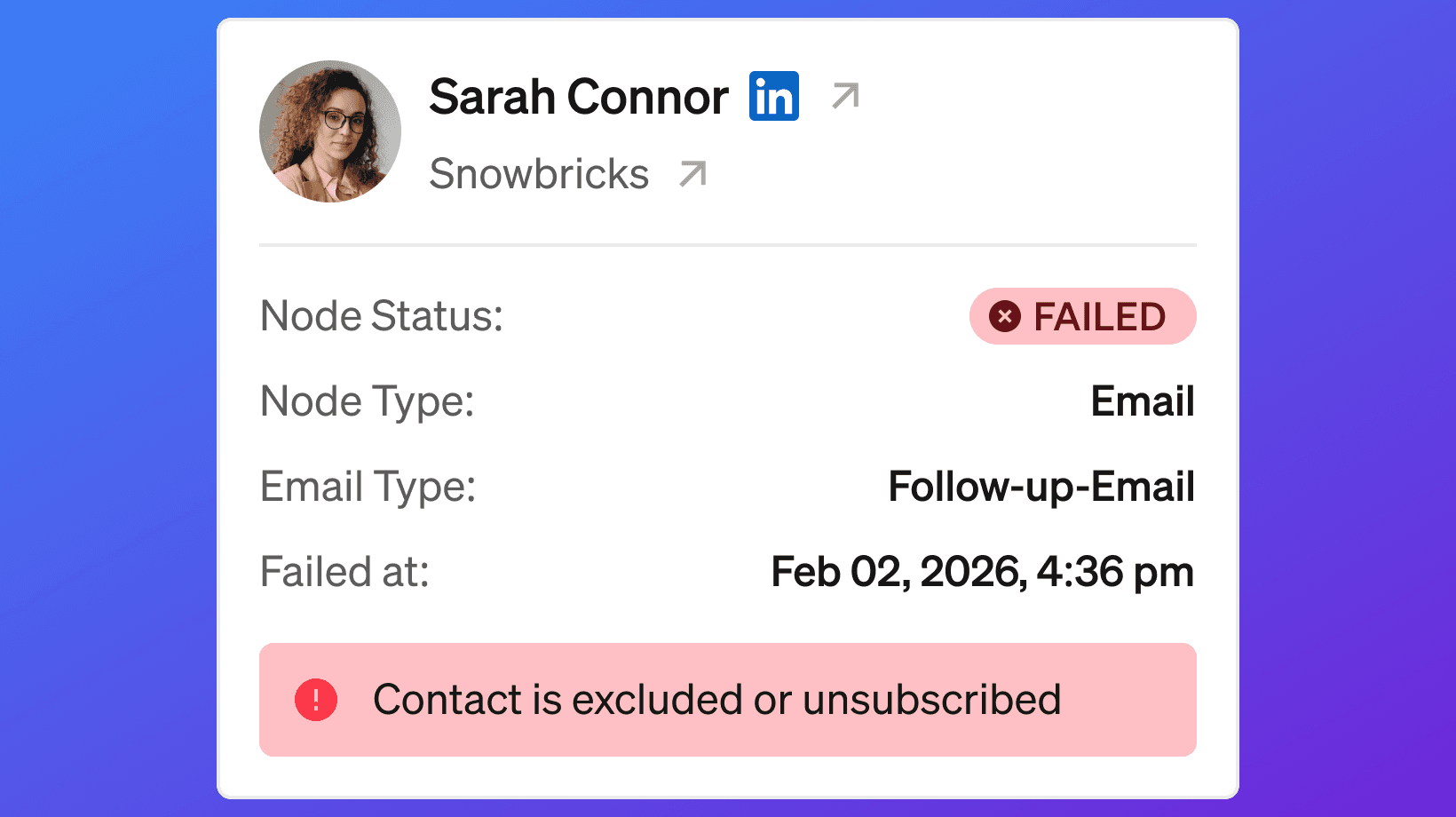
Use Failed to view workflow steps that did not complete successfully.
A failed step may include:
Contact
Node Status
Node Type
Email Type or LinkedIn Type when applicable
Failed at
Failure reason when available
Failed means the node could not execute for that contact.
Example:
Node status
Node Status tells you the execution state of a workflow node for a specific contact.
Common node statuses include:
Node Status | What it means |
|---|---|
Executed | The workflow node completed successfully. |
Pending | The workflow node is waiting to run. |
Failed | The workflow node could not complete. |
Node Status is different from campaign status.
Campaign status tells you whether the campaign is Draft, Running, Paused, or Ended.
Node Status tells you what happened to a specific workflow node for a specific contact.
Node type
Node Type tells you which kind of workflow node is being executed.
Common node types include:
Email
LinkedIn
iMessage
Signal
Start
End
Node Type helps you understand which part of the workflow the contact is currently on.
Executed at
Executed at shows when a node successfully ran.
Use Executed at to confirm:
When a message was sent
When a condition was checked
When a workflow step completed
When the contact moved through the campaign
Executed at appears for executed steps.
Next Execution at
Next Execution at shows when the next workflow step is scheduled to run.
Use Next Execution at to understand:
When the next email will send
When the next LinkedIn step will run
When the next iMessage step will run
When a wait step will complete
When a signal condition will be checked
Pending steps usually show Next Execution at.
Failed at
Failed at shows when a workflow step failed.
Use Failed at with the failure reason to understand what went wrong.
Common failure reasons may include:
Contact is excluded
Contact unsubscribed
Missing email address
Missing LinkedIn profile
Missing phone number
Sender is disconnected
Channel is disabled
Send limit reached
Contact is not in Target status
Message content is missing
Hover details
You can hover over a Console item to see more execution details.
Hover details may include:
Contact name
Company
Node Status
Node Type
Channel type
Executed at
Next Execution at
Failed at
Message details
Failure reason when available
Use hover details when you want to inspect a specific contact’s campaign path without leaving the workflow view.
Search Console
Console can be searched.
Use search to find a specific contact, company, node, or execution item.
Examples:
Search is useful when you want to quickly inspect one contact or one type of activity inside a campaign.
Console filters
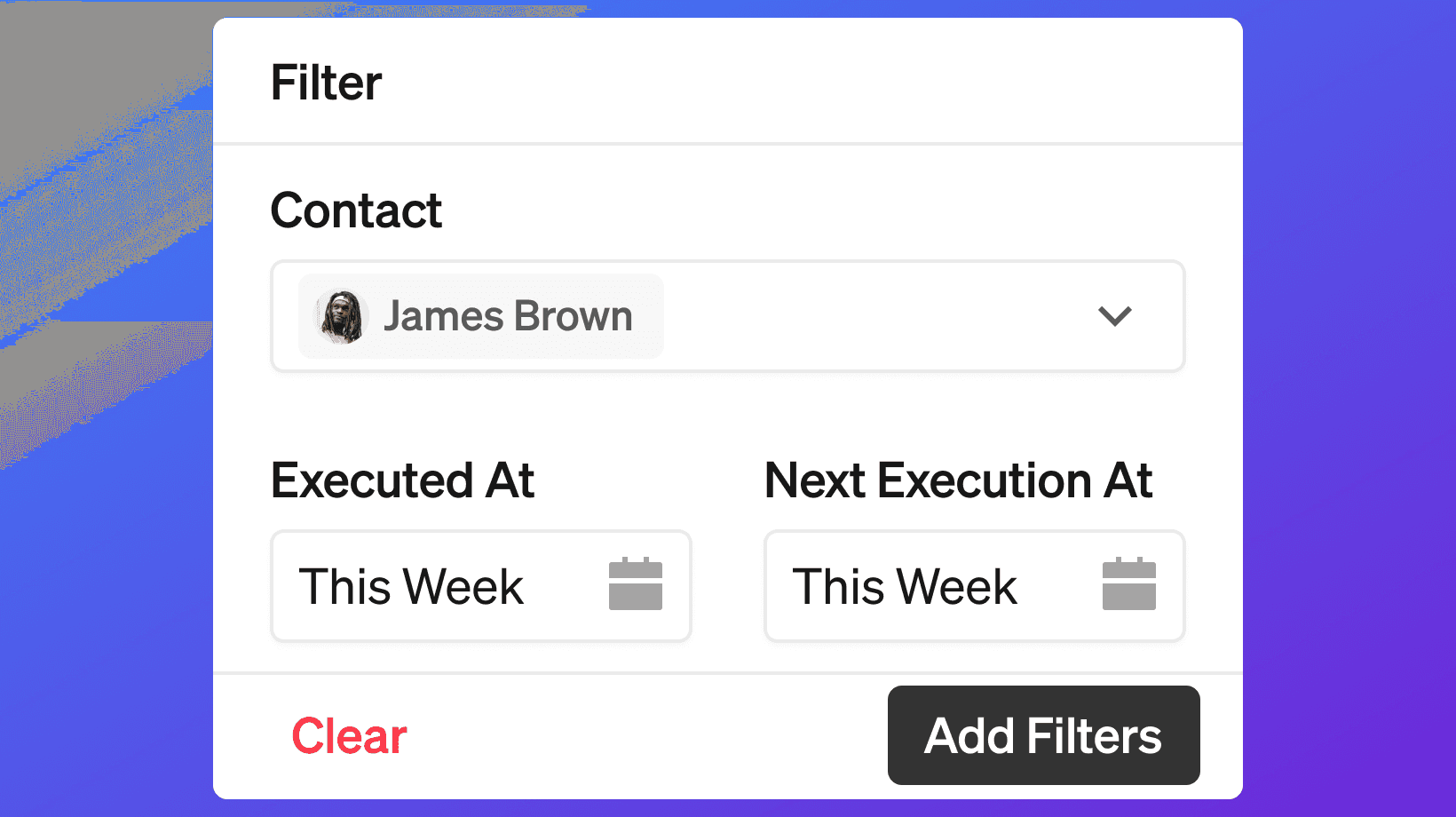
Console can also be filtered.
Filters may include:
Contact
Executed At
Next Execution At
Use filters when the campaign has many contacts or many execution events.
Filter by Contact
Use the Contact filter to inspect execution activity for one target contact.
This is useful when you want to answer:
Which node is this contact on?
Did this contact receive the email?
Did this contact get the LinkedIn request?
Is this contact waiting for the next step?
Did this contact fail at any node?
When will this contact’s next step run?
Filter by Executed At
Use Executed At to find steps that ran during a specific date range.
This is useful when you want to answer:
What executed today?
What executed yesterday?
What ran last week?
Which contacts were touched during a specific campaign window?
Filter by Next Execution At
Use Next Execution At to find steps scheduled for a specific date range.
This is useful when you want to answer:
What is scheduled to run today?
What will run tomorrow?
Which contacts are waiting for a future step?
What is queued for the next campaign window?
Clear filters
Use Clear Selection to remove filters and return to the full Console view.
This is useful when a filtered view is hiding activity you expected to see.
Apply filters
After selecting filters, choose Apply Filters.
Console will update to show only matching execution events.
How Console connects to Workflows

Workflows define the campaign logic.
Console shows how that logic is executing.
For example, a workflow may say:
Console will show each contact moving through those nodes.
For one contact, Console may show:
For another contact, Console may show:
For another contact, Console may show:
This is how you debug and monitor a running campaign.
How Console connects to channels
Console shows execution activity across enabled campaign channels.
Email execution events may include:
Intro Email
Follow-up Email
Final Email
Delivered when available
Opened when available
Response when available
Failed email step
LinkedIn execution events may include:
Connection Request
LinkedIn Message
Connection accepted when available
Response when available
Failed LinkedIn step
iMessage
iMessage execution events may include:
iMessage sent
SMS fallback sent when iMessage is not available
Read when available
Response when available
Failed iMessage step
How Console connects to signal nodes
Signal nodes create branching logic.
Console helps you understand when a signal was checked and what happened next.
Signal conditions may include:
If email opened
If website visited
If ICP
If LinkedIn accepted
Example:
If the contact accepted the LinkedIn request, the workflow may continue down the Yes branch.
If not, the workflow may continue down the No branch.
Console helps you see whether the signal check executed, is pending, or failed.
How Console helps troubleshoot branches
Use Console when a contact does not follow the branch you expected.
Check:
Was the signal node reached?
Did the signal condition execute?
Was the contact activity captured?
Was there enough wait time before the check?
Did the contact go down the Yes path or No path?
Did a downstream node fail?
Is the next execution still pending?
Console is the best place to inspect what happened step by step.
How Console helps troubleshoot failed steps
When a step fails, Console helps you identify why.
A failed step may be caused by:
Missing contact data
Disconnected sender
Disabled channel
Contact excluded
Contact unsubscribed
Send limit reached
Message missing
Workflow not saved
Target List issue
Contact status issue
Use the failure reason when available.
Then fix the root cause before restarting, resuming, or adjusting the campaign.
How Console helps monitor pending steps
Pending steps are normal.
A step may be pending because:
The campaign is waiting for the next scheduled time
A wait step is active
A signal condition is waiting to be checked
A sender schedule is limiting send time
A channel limit is delaying execution
The workflow has not reached that node yet
Use Next Execution At to see when the step is expected to run.
Recommended monitoring workflow
Use this workflow after launching a campaign.
Open the campaign
Go to Workflow
Select View Console
Review All activity
Check Executed steps
Check Pending steps
Check Failed steps
Search for specific contacts if needed
Filter by Contact, Executed At, or Next Execution At
Hover over execution items for details
Fix failed steps when possible
Pause the campaign if something looks wrong
Recommended troubleshooting workflow
Use this workflow when a campaign is not behaving as expected.
Open Console
Search for the contact
Check the contact’s latest node
Review Node Status
Review Node Type
Check Executed at
Check Next Execution at
Check Failed at if applicable
Review failure reason if available
Open the Workflow tab
Confirm the node and branch logic
Fix the root cause
Save the workflow if changes are made
Resume or monitor the campaign
Best practices
Check Console after launch
Do not assume a campaign is running correctly just because it is marked Running.Review Failed steps first
Failed steps often reveal missing data, disconnected senders, or setup issues.Use Pending to understand timing
Pending does not always mean something is wrong. Check Next Execution At.Search for specific contacts
Use search when a target contact needs investigation.Use filters for large campaigns
Filter by Contact, Executed At, or Next Execution At to narrow the view.Hover for details
Hover over execution items to inspect node status and timing.Pause if failures are widespread
If many nodes fail, pause the campaign and fix the issue before more contacts are affected.Check sender connections
Disconnected mailboxes, LinkedIn accounts, or iMessage lines can cause failures.Check contact data
Missing email, LinkedIn, or phone data can block channel nodes.Check contact status
Contacts should be in Target status to receive outreach.Respect exclusions
Excluded or unsubscribed contacts should not receive outreach.Use Console with Insights
Console shows execution details. Insights shows broader campaign performance.
Troubleshooting
I do not see any Console activity
Check:
Campaign has launched
Campaign is Running
Workflow is saved
Target List has contacts
Contacts are in Target status
Channels are enabled
Senders are connected
Steps are not scheduled for later
Console shows Pending but nothing is happening
Pending usually means the workflow is waiting.
Check:
Next Execution At
Wait steps
Sender schedule
Channel limits
Campaign schedule
Signal condition timing
Whether the campaign is paused
Console shows Failed
Open the failed item and review the failure reason when available.
Common fixes include:
Add missing email
Add missing LinkedIn profile
Add missing phone number
Reconnect sender
Enable the channel
Update contact status to Target if appropriate
Remove excluded contacts from the campaign
Save missing message content
Adjust limits or schedule
A contact did not receive an email
Check:
Email node executed
Contact has email
Contact is in Target status
Mailbox is connected
Mailbox has send capacity
User schedule allows sending
Console does not show failure
A contact did not receive a LinkedIn request or message
Check:
LinkedIn node executed
Contact has LinkedIn profile
Contact is in Target status
LinkedIn account is connected
LinkedIn limits are available
User schedule allows sending
Console does not show failure
A contact did not receive iMessage or SMS
Check:
iMessage node executed
Contact has phone number
Contact is in Target status
iMessage line is connected
Daily conversation limit is available
Console does not show failure
A signal branch went the wrong way
Check:
Signal condition
Signal timing
Wait period before the signal check
Whether the signal was captured
Whether the contact met the condition
Yes and No branch connections
Console execution details
A failed step says the contact is excluded or unsubscribed
Do not continue outreach to that contact.
Review whether the contact should remain excluded, be removed from the target list, or be handled manually.
Search does not find a contact
Check:
Contact is part of the campaign Target List
Contact has entered the workflow
Spelling of the contact name
Filters are not hiding results
Campaign activity has started
Filters hide expected activity
Select Clear Selection and apply again.
Then re-check All activity.
Console status does not match what I expected
Compare Console against the Workflow.
Check:
Workflow path
Node order
Wait steps
Signal branches
Sender settings
Contact data
Contact status
Campaign status
FAQ
What is Console?
Console is the campaign execution log. It shows what ran, what is pending, what failed, and what is scheduled next.
Where do I open Console?
Open a campaign, go to Workflow, and select View Console.
What does Executed mean?
Executed means the workflow node successfully ran for the contact.
What does Pending mean?
Pending means the workflow node is waiting to run.
What does Failed mean?
Failed means the workflow node could not complete.
What is Node Status?
Node Status is the execution state of a workflow node, such as Executed, Pending, or Failed.
What is Node Type?
Node Type is the kind of workflow node, such as Email, LinkedIn, iMessage, Signal, Start, or End.
What does Executed at mean?
Executed at shows when a node successfully ran.
What does Next Execution at mean?
Next Execution at shows when the next step is scheduled to run.
What does Failed at mean?
Failed at shows when a node failed.
Can I search Console?
Yes. Use search to find contacts, companies, nodes, or execution items.
Can I filter Console?
Yes. You can filter by Contact, Executed At, and Next Execution At.
Can I inspect a Console item?
Yes. Hover over an item to see execution details such as node status, node type, timing, and message details when available.
Why is a step pending?
A step may be pending because of wait time, schedule, channel limits, signal timing, or next execution timing.
Why did a step fail?
A step may fail because of missing contact data, disconnected sender, disabled channel, send limit, excluded contact, unsubscribed contact, or incomplete message content.
Should I pause a campaign if there are failures?
If failures are isolated, fix the specific issue. If failures are widespread, pause the campaign and investigate before more contacts are affected.
How is Console different from Insights?
Console shows execution details for workflow steps. Insights summarizes campaign performance across companies, contacts, messages, channels, replies, and intent.
Next step
Next, review Conversations to understand replies, intent, and follow-up activity from your running campaigns.