Conversations
Linkedin Messages
LinkedIn Messages show LinkedIn activity inside your conversations.
Use LinkedIn Messages to review connection requests, outgoing LinkedIn messages, incoming replies, message history, campaign context, and follow-up activity from LinkedIn-based campaigns.
LinkedIn conversations help your team understand who received a connection request, who accepted, who replied, and which target contacts need follow-up.
What LinkedIn Messages are for
LinkedIn Messages help your team answer:
Use LinkedIn Messages to:
Review LinkedIn connection requests
Review outgoing LinkedIn messages
Review incoming LinkedIn replies
Track accepted connection requests when available
Understand which campaign generated the LinkedIn activity
Review conversation intent
Follow up on interested contacts
Investigate failed or not delivered LinkedIn steps
Understand the full LinkedIn thread in context
View the same activity inside the connected LinkedIn account when needed
Where LinkedIn Messages appear
LinkedIn messages appear inside Conversations.
You can review them from:
Conversations → Overview
Conversations → LinkedIn Messages
Conversations → Conversation Intent
A specific conversation detail view
Use LinkedIn Messages when you want to focus only on LinkedIn activity.
Use Overview when you want to review all channels together.
LinkedIn activity in the connected LinkedIn account
LinkedIn connection requests and messages can also be viewed inside the connected LinkedIn account.
For example:
Sent connection requests may appear inside the connected LinkedIn account.
Sent LinkedIn messages may appear in the connected LinkedIn account’s messaging area.
Incoming LinkedIn replies may appear in the connected LinkedIn account’s inbox or message thread.
Accepted connection requests may appear in LinkedIn activity when available.
1eyeᴬᴵ and the connected LinkedIn account stay in sync.
This means 1eyeᴬᴵ gives your team campaign context, intent, signals, workflow visibility, and conversation history, while LinkedIn remains the underlying channel where the message activity also exists.
Use LinkedIn when you want to:
Confirm the message exists in the native LinkedIn account
Review the native LinkedIn thread
Check the contact’s LinkedIn profile
Continue a conversation directly on LinkedIn if your team prefers
Review LinkedIn-specific account behavior
Use 1eyeᴬᴵ when you want to see the LinkedIn activity in GTM context, including campaign, company, persona, ICP, intent, signals, and workflow history.
What a LinkedIn conversation includes

A LinkedIn conversation may include:
Target contact
Contact LinkedIn profile
Sender name
Connected LinkedIn account
Company context
Connection request activity
LinkedIn message body
Incoming or outgoing direction
Campaign name
ICP match
Persona match
Intent status
Intent score
Intent reason
Message timestamp
This gives your team enough context to review and follow up without jumping between tools.
Incoming and outgoing LinkedIn activity
LinkedIn messages can be incoming or outgoing.
Direction | What it means |
|---|---|
Outgoing | Your team or campaign sent the LinkedIn connection request or message. |
Incoming | The target contact replied on LinkedIn. |
Outgoing activity helps you understand what was sent.
Incoming activity helps you understand what the contact said and whether follow-up is needed.
LinkedIn connection requests
LinkedIn connection requests are used when your team wants to connect with a target contact before sending a LinkedIn message.
Connection request activity may include:
Sender
Target contact
Contact LinkedIn profile
Request message when included
Sent timestamp
Accepted status when available
Campaign context
Workflow node
A connection request may be followed by a signal check, such as:
If the request is accepted, the workflow can continue down the Yes branch.
If it is not accepted, the workflow can continue down the No branch or move to another channel.
LinkedIn messages
LinkedIn messages are sent from a connected LinkedIn account.
LinkedIn messages may include:
Sender
Target contact
Message body
Sent timestamp
Incoming reply when available
Campaign context
Conversation intent when available
Use LinkedIn messages to review what was sent and how the contact responded.
Connection accepted
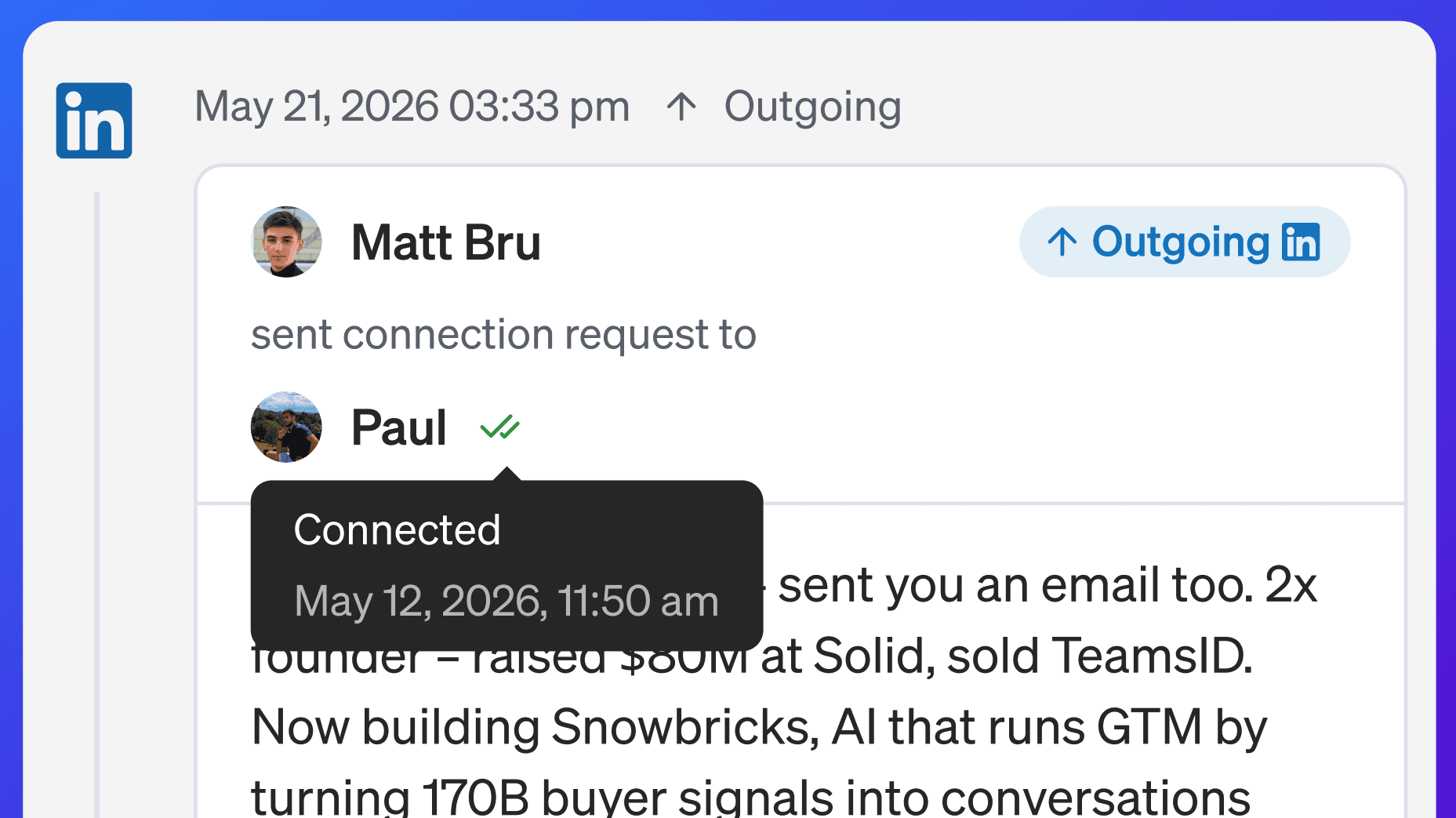
Connection accepted means the target contact accepted the LinkedIn connection request when that activity is available.
This can be an important signal because it may allow the workflow to send a follow-up LinkedIn message.
Example workflow:
Accepted connections are useful, but a reply is still a stronger signal.
LinkedIn message body
The LinkedIn message body shows what was sent or received.
Use the message body to review:
What your team sent
What the contact replied
Whether the message was personalized
Whether the reply needs action
Whether the contact asked for something specific
Whether the contact should be excluded or followed up with
Always read the message body before taking important action.
LinkedIn and Conversation Intent
LinkedIn replies can create Conversation Intent.
When a target contact replies on LinkedIn, 1eyeᴬᴵ may classify the conversation by:
Intent status
Intent reason
Intent score
Example:
This helps your team decide what to do next.
Positive LinkedIn replies
Positive LinkedIn replies show interest or willingness to continue.
Examples:
Recommended action:
Reply quickly
Answer the request directly
Move the conversation forward
Update contact status if needed
Stop unnecessary automated follow-ups
Neutral LinkedIn replies
Neutral LinkedIn replies are unclear or weak.
Examples:
Recommended action:
Read the full thread
Review contact and company context
Decide whether follow-up is useful
Ask a simple clarifying question if appropriate
Negative LinkedIn replies
Negative LinkedIn replies show disinterest, disqualification, or a request to stop outreach.
Examples:
Recommended action:
Stop outreach where needed
Mark the contact as Excluded if appropriate
Respect opt-out requests
Use the feedback to improve targeting
LinkedIn and campaigns
LinkedIn messages often come from campaign workflows.
A campaign may send:
LinkedIn connection request
LinkedIn follow-up message
LinkedIn message after accepted connection
Persona-specific LinkedIn message
ICP-specific LinkedIn message
When reviewing a LinkedIn conversation, check the campaign context so you understand why the message was sent.
LinkedIn and workflows
LinkedIn activity is often tied to workflow nodes.
Common LinkedIn workflow nodes include:
Connection Request
LinkedIn Message
LinkedIn can also be paired with signal nodes such as:
This lets 1eyeᴬᴵ adapt the workflow based on whether the target contact accepted the connection request.
LinkedIn and target contacts
LinkedIn messages are tied to target contacts when available.
Review the contact context before replying:
Contact name
Title
Persona
LinkedIn profile
Company
Contact status
Conversation history
This helps make the reply more relevant.
LinkedIn and target companies
LinkedIn conversations also include company context when available.
Review the company before replying:
Company name
Website
ICP match
Industry
Company status
Campaign
Other contacts at the company
In B2B, the company context matters as much as the person.
LinkedIn and ICP match
If the company matches an ICP, the reply may be more important.
For example:
Use ICP context to decide how quickly to respond and how much effort to invest.
LinkedIn and persona match
If the contact matches a persona, the reply may be more important.
For example:
Use persona context to tailor the response.
A founder, RevOps leader, IT leader, and finance leader may need different follow-up.
LinkedIn limits
LinkedIn activity is subject to LinkedIn account limits and 1eyeᴬᴵ workflow limits.
Limits may include:
Daily connection requests
Weekly connection requests
Monthly connection requests
Daily LinkedIn messages
Weekly LinkedIn messages
Monthly LinkedIn messages
User schedule
Campaign workflow timing
If LinkedIn messages are not sending, check account limits and campaign execution in Console.
LinkedIn Premium
LinkedIn Premium is highly recommended for users who rely on LinkedIn in GTM workflows.
Premium may give the account better capacity, credibility, and professional engagement room compared with a limited or low-activity account.
If a connected account has LinkedIn Premium, 1eyeᴬᴵ may show a LinkedIn Premium indicator or icon when available.
Premium does not mean you should over-send. Keep outreach relevant and within safe limits.
Search LinkedIn Messages
Use search to find specific LinkedIn messages or conversations.
You can search for:
Contact name
Company name
Campaign name
Keyword from a message
Intent reason
LinkedIn activity type
Examples:
Search is useful when you know which message or contact you want to review.
Filter LinkedIn Messages
LinkedIn Messages can be filtered.
Common filters may include:
Channel
Direction
Intent Status
Intent Reason
Intent Score
Status
Record Status
Campaign
Company
Updated Date
Use filters to narrow the message list.
Filter by channel
Use channel filters when reviewing LinkedIn inside broader Conversations.
Select:
This shows LinkedIn activity and hides Email or iMessage activity.
Filter by direction
Use direction to focus on incoming or outgoing LinkedIn activity.
Direction | Use it for |
|---|---|
Incoming | Reviewing LinkedIn replies from contacts. |
Outgoing | Reviewing sent connection requests and LinkedIn messages. |
Incoming is usually where follow-up work starts.
Filter by intent status
Use intent status to review LinkedIn replies by outcome.
Common values:
Positive
Neutral
Negative
Start with Positive when following up.
Review Negative for opt-outs, wrong-person replies, and disqualifications.
Filter by intent reason
Use intent reason to group replies by follow-up type.
Examples:
Meeting
Pricing
Info
Later
Referral
Competitor
Budget
No Need
Wrong Persona
Requested Remove
This helps your team handle similar conversations together.
Filter by status
Use status to review LinkedIn delivery or message state.
Examples may include:
Sent
Replied
Draft
Discarded
Not Delivered
Connection Request
Accepted
This is useful for both follow-up and troubleshooting.
Filter by campaign
Use campaign filters to review LinkedIn activity from a specific campaign.
This helps answer:
Which LinkedIn replies came from this campaign?
Which connection requests were sent?
Which contacts accepted?
Which contacts need follow-up?
Which campaign generated positive LinkedIn replies?
Filter by company
Use company filters to review LinkedIn activity for one target company.
This is useful when several contacts from the same company are in campaigns.
Filter by updated date
Use updated date to find recent LinkedIn conversations.
This helps you review:
New replies today
Recently accepted connections
Recently updated LinkedIn threads
Activity from a campaign launch window
Recommended workflow: review LinkedIn replies
Use this workflow daily.
Open Conversations
Go to LinkedIn Messages
Filter by Incoming if needed
Start with Positive intent
Review Meeting and Info replies first
Open each conversation
Read the full thread
Review company and persona context
Reply or route the conversation
Stop automated follow-ups where needed
Recommended workflow: review connection requests
Use this workflow when reviewing connection request activity.
Open Conversations
Go to LinkedIn Messages
Filter for LinkedIn activity
Review outgoing connection requests
Check accepted connections when available
Open the campaign workflow if needed
Confirm whether the next LinkedIn message is scheduled
Use Console to inspect pending or failed LinkedIn nodes
Recommended workflow: reply on LinkedIn
Use this workflow when responding to a target contact.
Open the LinkedIn conversation
Read the latest reply
Review intent status, reason, and score
Review the target contact
Review the company and ICP
Review the campaign context
Decide whether to reply inside 1eyeᴬᴵ or directly in LinkedIn
Keep the message concise
Answer the contact directly
Move the conversation to the next step
Recommended workflow: view the message in LinkedIn
Use this workflow when you want to verify the thread in the native LinkedIn account.
Identify the connected LinkedIn account
Open LinkedIn for that account
Search for the target contact
Open the LinkedIn message thread
Review connection request or message history
Confirm replies or accepted connection activity
Return to 1eyeᴬᴵ to review campaign context, intent, ICP, persona, and signals
Use LinkedIn for native account-level verification.
Use 1eyeᴬᴵ for GTM context and campaign follow-up.
Recommended workflow: review not delivered LinkedIn messages
Use this workflow when LinkedIn messages are not delivered or workflow steps fail.
Open Conversations
Select Not Delivered if applicable
Filter by LinkedIn if needed
Open the message or contact
Review the contact LinkedIn profile
Check sender LinkedIn connection status
Check campaign context
Check LinkedIn limits
Open Console for execution details
Fix the issue before continuing
Recommended workflow: handle opt-outs
Use this workflow when someone asks not to be contacted.
Open the conversation
Confirm the request
Do not continue LinkedIn outreach
Mark the contact as Excluded
Stop campaign outreach to that contact
Review whether the company should also be excluded
Keep the record clean for future campaigns
Best practices
Start with incoming replies
Replies are more important than sent messages.Prioritize positive intent
Meeting, info, referral, and pricing replies should be handled quickly.Review accepted connections
Accepted connections are useful signals, especially when followed by replies.Check the sender account
Make sure the right connected LinkedIn account is being used.Read the full thread
Do not reply based only on a preview.Use company and persona context
A better reply reflects who the contact is and why they were targeted.Keep LinkedIn messages short
LinkedIn is conversational. Avoid long, heavy messages.Use LinkedIn Premium when possible
Premium is highly recommended for users relying on LinkedIn outreach.Respect account limits
Do not max out connection or message limits just because they are available.Respect opt-outs immediately
Requested remove should stop outreach.Review not delivered messages regularly
Delivery issues usually point to account, profile, channel, or workflow issues.Use LinkedIn when you need native thread confirmation
Connection requests and messages can also be reviewed in the connected LinkedIn account.Use 1eyeᴬᴵ when you need GTM context
1eyeᴬᴵ connects the LinkedIn thread to campaign, company, ICP, persona, signals, and intent.Use LinkedIn replies to improve campaigns
Replies tell you which ICPs, personas, messages, and workflows are working.
Troubleshooting
I do not see a LinkedIn message I expected
Check:
Filters are not hiding it
You are in the correct workspace
You are viewing LinkedIn Messages or All Conversations
The message had time to process
The campaign is selected correctly
The contact LinkedIn profile is correct
The activity appears in the connected LinkedIn account
A LinkedIn reply is not showing
Check:
The LinkedIn account is connected
The reply went to the connected LinkedIn account
The message had time to sync
Filters are not hiding incoming messages
The conversation is tied to the correct contact or campaign
The reply appears in the connected LinkedIn account
I see the message in LinkedIn but not in 1eyeᴬᴵ
Check:
The LinkedIn account is still connected
The message had time to sync
The message belongs to a connected campaign or contact
Filters are not hiding the message
The LinkedIn profile matches the target contact record
The conversation is not under a different category or status
I see the message in 1eyeᴬᴵ but not in LinkedIn
Check:
You are logged in to the correct LinkedIn account
You are checking the connected sender account
You searched the correct target contact
The message is not in a different LinkedIn thread
LinkedIn has refreshed or synced the thread
Connection request was not sent
Check:
LinkedIn channel is enabled
Sender LinkedIn account is connected
Contact has a LinkedIn profile
Contact is in Target status
LinkedIn account has remaining connection limit
User schedule allows sending
Console does not show a failed node
LinkedIn message was not sent
Check:
LinkedIn channel is enabled
Sender LinkedIn account is connected
Contact has a LinkedIn profile
Contact is in Target status
LinkedIn account has remaining message limit
Workflow conditions allow the message to send
Console does not show a failed node
LinkedIn accepted signal is not triggering
Check:
A connection request was sent first
The contact accepted the connection request
LinkedIn activity had time to sync
The workflow waits long enough before checking
The Signal node is configured as If LinkedIn accepted
Console shows the signal node execution
LinkedIn intent looks wrong
Read the full thread.
Intent can be harder to classify when replies are vague, sarcastic, incomplete, or missing context.
A contact replied “remove me”
Stop outreach and mark the contact as Excluded.
Do not continue campaign messages to that contact.
LinkedIn account disconnected
Reconnect the account from the user’s LinkedIn settings.
A LinkedIn account may disconnect because of:
Password change
Security check
Expired session
Two-factor verification
Account access change
User disconnect action
FAQ
What are LinkedIn Messages?
LinkedIn Messages are LinkedIn-specific conversations and message activity from connected LinkedIn accounts.
What LinkedIn activity is included?
LinkedIn Messages may include connection requests, accepted connections, outgoing messages, incoming replies, and campaign-related LinkedIn activity.
Can I view the same LinkedIn messages in LinkedIn?
Yes. LinkedIn connection requests and messages can also be viewed inside the connected LinkedIn account.
Are LinkedIn and 1eyeᴬᴵ always in sync?
Yes. LinkedIn activity from connected accounts stays in sync with 1eyeᴬᴵ when available.
Why use 1eyeᴬᴵ instead of just LinkedIn?
1eyeᴬᴵ adds GTM context, including campaign, target contact, company, ICP, persona, signals, workflow, and conversation intent.
Why use LinkedIn directly at all?
Use LinkedIn when you want native account visibility, profile context, or the native LinkedIn message thread.
Can I send LinkedIn connection requests from 1eyeᴬᴵ?
Yes, when LinkedIn is enabled, the account is connected, and the campaign workflow includes a LinkedIn connection request node.
Can I send LinkedIn messages from 1eyeᴬᴵ?
Yes, when LinkedIn is enabled, the account is connected, the target contact has a LinkedIn profile, and the workflow includes a LinkedIn message node.
Can LinkedIn replies create Conversation Intent?
Yes. LinkedIn replies can be classified by intent status, reason, and score when available.
What should I do with positive LinkedIn replies?
Review quickly, reply with context, and move the conversation forward.
What should I do with negative LinkedIn replies?
Respect the response, stop outreach where needed, and exclude the contact when appropriate.
What should I do with not delivered LinkedIn messages?
Review contact profile data, sender connection, campaign setup, and Console execution details.
Can one LinkedIn conversation have multiple messages?
Yes. A conversation can include connection requests, outgoing messages, and incoming replies.
Can one conversation include other channels?
In the broader Conversations view, one conversation can include activity across email, LinkedIn, iMessage, and SMS fallback when available.
Does LinkedIn Premium help?
LinkedIn Premium is highly recommended for users who rely on LinkedIn in campaign workflows.
Do LinkedIn limits apply?
Yes. LinkedIn connection requests and messages are subject to account, plan, schedule, and workflow limits.
Next step
Next, go to iMessages to review iMessage and SMS conversations, replies, delivery activity, and message history.