Targets
Target Lists
Target Lists bring target companies, target contacts, workflows, and campaigns together into one focused GTM audience.
Target Lists
Target Lists bring target companies, target contacts, workflows, and campaigns together into one focused GTM audience.
In 1eyeᴬᴵ, a Target List is where targeting becomes actionable. It is the workspace for building, reviewing, enriching, and preparing the companies and contacts you want to use in campaigns.
Use Target Lists to organize companies, source contacts, review audience quality, connect campaigns, track list readiness, and keep your GTM motion focused.
What Target Lists are for
Target Lists help your team answer:
A Target List can represent a segment, campaign audience, signal-based follow-up list, event list, vertical list, imported account list, or any focused group of companies and contacts your team wants to pursue.
Use Target Lists to:
Organize companies and contacts into focused audiences
Build lists from ICPs, personas, signals, or imports
Source companies by ICP
Source contacts by persona
Import companies or contacts by CSV
Review company and contact counts
Enrich selected records
Connect campaigns to the right audience
Track list status
Keep files and notes attached to the list
Why Target Lists matter
Signals show activity.
ICPs define the companies you care about.
Personas define the people you want to engage.
Target Lists bring those pieces together.
A clean Target List helps your team move from:
to:
Without Target Lists, companies and contacts can become scattered across sources, imports, signals, and campaigns.
With Target Lists, your team has one place to manage the audience and the workflow.
What a Target List contains
A Target List may include:
Details
Basic list information, status, owner, created date, updated date, and list context.Workflow
The list-building workflow, including how companies and contacts were added.Companies
Target companies included in the list.Contacts
Target contacts included in the list.Campaigns
Campaigns connected to the list.Files
Supporting CSVs, imports, or related files.Notes
Team notes, context, assumptions, or next steps.
Target List structure
A Target List gives your team a structured way to manage a GTM audience.
Tab | What it does |
|---|---|
Details | Shows list information and context. |
Workflow | Shows how companies and contacts are being added, sourced, imported, or enriched. |
Companies | Shows companies inside the list. |
Contacts | Shows contacts inside the list. |
Campaigns | Shows campaigns connected to the list. |
Files | Stores supporting files or imports. |
Notes | Stores team context and follow-up notes. |
Target List statuses
Target Lists can move through different statuses.
Status | What it means |
|---|---|
Draft | The list is still being built or reviewed. |
Enriching | Companies or contacts are being enriched. |
Ready | The list is ready to use in campaigns. |
Use status to understand where the list is in the build process.
Draft status
Use Draft when the list is still being built.
A list may be in Draft when:
Companies are still being selected
Contacts are still being sourced
Imported data still needs review
ICP or persona fit still needs validation
The audience is not ready for campaigns yet
Draft lists should be reviewed before launch.
Enriching status
Use Enriching when companies or contacts are being enriched.
A list may be in Enriching when:
Company data is being completed
Contact data is being completed
Emails are being added or validated
Phone numbers are being added or validated
LinkedIn profiles are being added or reviewed
Additional context is being prepared
Wait for enrichment to complete before using the list in a campaign.
Ready status
Use Ready when the list is clean enough to use.
A Ready list should have:
Relevant companies
Relevant contacts
Clear persona and ICP fit
Enough contact data for the channels you plan to use
No obvious poor-fit records
No excluded companies or contacts
Campaign-ready audience quality
Ready does not mean the list is perfect. It means the list is ready for the next GTM step.
How companies get into a Target List
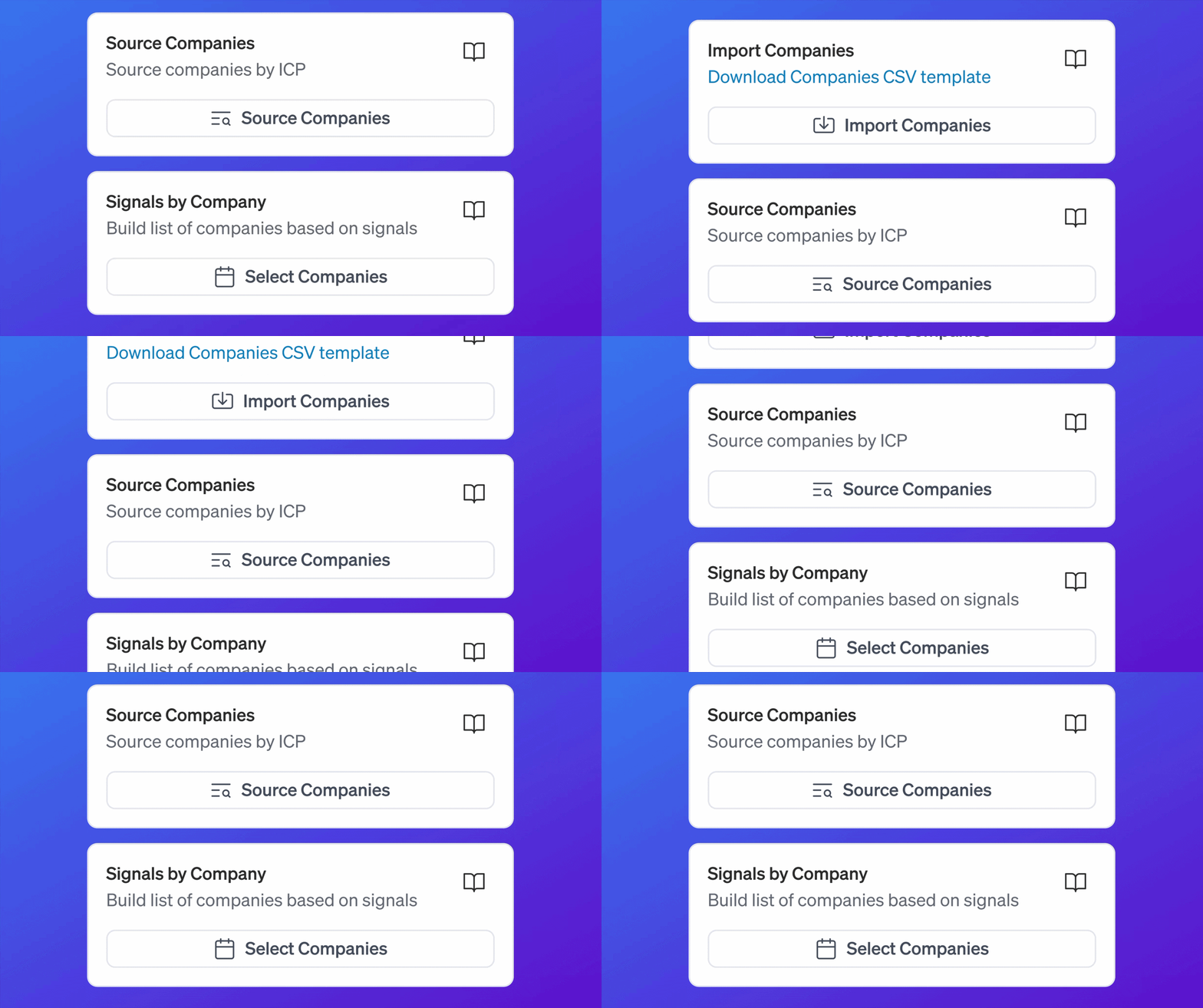
Companies can be added to a Target List in different ways.
Common methods include:
Import Companies
Upload a CSV of companies you already have. Download the template to get started.Source Companies
Use 1eyeᴬᴵ to source companies based on ICPs.Signals by Company
Select companies that are already showing activity.Master Target Companies
Select existing companies from your workspace and add them to one or more target lists.
This gives your team flexibility. You can start from your own data, use 1eyeᴬᴵ to find new companies, or build lists from companies already showing signal activity.
How contacts get into a Target List

Contacts can be added to a Target List in different ways.
Common methods include:
Import Contacts
Upload a CSV of contacts you already have. Download the template to get started.Source Contacts
Use 1eyeᴬᴵ to source contacts based on personas.Signals by Contact
Select contacts that are already showing activity.Source contacts from companies
Start with companies in the list, then source relevant personas inside those companies.Master Target Contacts
Select existing contacts from your workspace and add them to one or more target lists.
A strong list usually has both the right companies and the right contacts.
Workflow

The Workflow tab shows how the Target List is being built.
A workflow can include steps for:
Adding companies
Importing companies
Sourcing companies by ICP
Selecting companies from signals
Enriching companies
Adding contacts
Importing contacts
Sourcing contacts by persona
Selecting contacts from signals
Enriching contacts
Preparing the list for campaign use
The workflow helps your team understand:
What has already happened
What is still missing
Which records were imported
Which records were sourced
Which records came from signals
Whether companies or contacts are enriched
Whether the list is ready
Company step
The company step defines which businesses belong in the list.
Companies may be:
Imported from a CSV. Download the template to get started:
Sourced by ICP
Selected from company signals
Added from the master company pool
Inside the company step, your team should check:
Are the companies relevant?
Do they match the right ICP?
Are poor-fit companies removed?
Are excluded companies avoided?
Do the companies have enough context?
Do the companies need contacts sourced?
Contact step
The contact step defines which people belong in the list.
Contacts may be:
Imported from a CSV. Download the template to get started:
Sourced by persona
Selected from contact signals
Sourced from companies in the list
Added from the master contact pool
Inside the contact step, your team should check:
Do the contacts match the right personas?
Do the contacts belong to the right companies?
Do the contacts have email, phone, or LinkedIn data needed for the campaign?
Are poor-fit contacts removed?
Are excluded contacts avoided?
Are contacts ready for engagement?
Enrichment
Enrichment helps complete company and contact data.
Company enrichment may add or improve:
Company domain
LinkedIn profile
Industry
Employee count
Founded year
Annual revenue when available
Technologies when available
ICP evaluation
Contact enrichment may add or improve:
Job title
Company
LinkedIn profile
Email
Phone
Persona evaluation
Validation indicators when available
Use enrichment carefully. Enrich records you actually plan to use.
Companies tab
The Companies tab shows companies included in the Target List.
It may include:
Company name
LinkedIn profile
ICP match
Status
Website
Number of employees
Founded year
Annual revenue when available
Industries
Technologies when available
Created date
Updated date
Use the Companies tab to review account quality before campaign launch.
Contacts tab
The Contacts tab shows contacts included in the Target List.
It may include:
Contact name
LinkedIn profile
Company
Title
Persona match
Status
Email
Phone
Created date
Updated date
Use the Contacts tab to review person-level quality before campaign launch.
Campaigns tab
The Campaigns tab shows campaigns connected to the Target List.
Campaigns use the companies and contacts in the list as the audience for outreach.
Use the Campaigns tab to understand:
Which campaigns use the list
Whether the list is already being used
Which audience is connected to which campaign
Whether the list should be edited before launch
Whether the list is still safe to update
Before connecting a list to a campaign, make sure the audience is clean.
Files tab
The Files tab stores supporting files related to the list.
Files may include:
Company import CSVs
Contact import CSVs
Source files
Event lists
Partner lists
Notes from external research
Other supporting documents
Use Files to keep the source material attached to the audience.
Notes tab
The Notes tab stores team context.
Use Notes for:
List goals
Segment assumptions
Campaign angle
ICP or persona context
Records to review later
Known exclusions
Follow-up instructions
Team decisions
Good notes help your team understand why the list exists and how it should be used.
Target List details
The Details tab gives your team the basic context for the list.
Details may include:
List name
Status
Owner or creator
Created date
Updated date
Description or goal
Related campaign context
Use clear names and descriptions so your team can quickly understand what the list is for.
Naming Target Lists
A good Target List name should explain the audience or GTM motion.
Good examples:
Weak examples:
The name should help your team understand the list without opening it.
Target List counts
Target Lists show company and contact counts.
Counts help you understand list size and readiness.
Examples:
Count | What it tells you |
|---|---|
Companies | Number of businesses in the list. |
Contacts | Number of people in the list. |
Campaigns | Number of campaigns connected to the list. |
A list with companies but no contacts may still need contact sourcing.
A list with contacts but poor company fit should be reviewed before launch.
A list connected to campaigns should be edited carefully.
Search Target Lists
Use search to find a specific Target List.
Search is useful when you know the list name, segment, campaign, or theme.
Examples:
Target List filters
You may be able to filter Target Lists by status.
Common list-level filters include:
All
Draft
Ready
Enriching
Use filters to quickly find lists that need review, lists being enriched, or lists ready for campaigns.
All
Use All to view every Target List in the workspace.
This is useful when you want to see all active, draft, enriching, and ready lists together.
Draft
Use Draft to find lists that still need work.
Draft lists may need:
More companies
More contacts
Enrichment
ICP review
Persona review
Cleanup before campaign launch
Enriching
Use Enriching to find lists that are still being prepared.
These lists may have company or contact data being completed.
Do not launch campaigns from an enriching list until the data is ready.
Ready
Use Ready to find lists that are ready for campaign use.
Ready lists should still be reviewed before high-volume outreach, but they are intended to be usable.
Adding a new Target List
Use Add to create a new Target List.
When creating a list, use a name that describes:
Segment
ICP
Persona
Channel
Campaign goal
Source
Time period
Example:
This tells your team the list is for RevOps contacts at SaaS companies for a Q2 motion.
Importing companies
Use Import Companies when you already have a company list.
To import companies, upload a CSV file using the Import Companies panel:
Download the CSV template ( Download the template ) — Use the provided template to format your data correctly before uploading.
Prepare your file — Add your company data to the template. Accepted format is CSV only.
Upload the file — Drag and drop your CSV file into the upload area, or select Browse File to choose it from your device.
After the file is uploaded, 1eyeᴬᴵ will process the records and add the companies to the Target List.
Common examples:
Event attendee companies
Partner account lists
CRM exports
Target account lists
Customer expansion accounts
Website signal exports
Manually researched accounts
When importing companies, use the provided CSV template when available.
After import, review:
Company names
Websites
ICP matches
Status
Duplicates
Companies without contacts
Importing contacts
Use Import Contacts when you already have a contact list.
To import contacts, upload a CSV file using the Import Contacts panel:
Download the CSV template ( Download the template ) — Use the provided template to format your data correctly before uploading.
Prepare your file — Add your contact data to the template. Accepted format is CSV only.
Upload the file — Drag and drop your CSV file into the upload area, or select Browse File to choose it from your device.
After the file is uploaded, 1eyeᴬᴵ will process the records and add the contacts to the Target List.
Common examples:
Event attendee contacts
CRM exports
Webinar registrants
Partner-sourced contacts
Manually researched contacts
Existing prospect lists
When importing contacts, use the provided CSV template when available.
After import, review:
Contact names
Companies
Titles
Personas
Email availability
Phone availability
LinkedIn availability
Status
Duplicates
Source companies
Use Source Companies when you want 1eyeᴬᴵ to find companies based on ICPs.
This is useful when you know the type of company you want but do not already have a complete account list.
When sourcing companies, you can configure the following filters:
Required
ICP — Select the ICP that defines the type of companies you want to source.
Locations — Select one or more countries or regions to limit sourcing to specific geographies.
Total Companies — Set the maximum number of companies to source.
Industry
Keywords — Add keywords to narrow companies by topic, product, or focus area.
NAICS — Add NAICS codes to filter by industry classification.
SIC — Add SIC codes to filter by standard industry classification.
Company Info
Founded Year — Set a minimum (and optionally maximum) founding year to filter by company age.
Employee Count — Set a minimum and maximum employee count range.
Revenue — Set a minimum and maximum annual revenue range.
Funding
Funding Stage — Select one or more funding stages such as Seed, Series A, Series B, or later.
Funding Amount — Set a minimum and maximum total funding amount range.
Technologies — Filter companies by the technologies they use.
For example:
After sourcing companies, review:
ICP match
Industry
Company size
Website
LinkedIn
Technologies when available
Whether the company should stay in the list
Source contacts
Use Source Contacts when you want 1eyeᴬᴵ to find contacts based on personas.
This is useful when you already have companies and need the right people inside those companies.
When sourcing contacts, you can configure the following filters:
Required
Persona — Select the persona that defines the type of contacts you want to source.
Locations — Select one or more countries or regions to limit sourcing to specific geographies.
Number of contacts to source — Set the maximum number of contacts to source.
Optional
Titles — Add specific job titles to narrow the sourced contacts. For example: CEO, CTO, VP of Sales.
Seniorities — Select one or more seniority levels such as Founder, Director, VP, or C-Level.
Options
Exclude Companies with Contacts — When enabled, skips companies that already have contacts in the target list. Use this to avoid duplicate sourcing across companies already covered.
For example:
After sourcing contacts, review:
Persona match
Title
Company
Email availability
Phone availability
LinkedIn availability
Whether the contact should stay in the list
Select companies from signals
Use Signals by Company when you want to build a list from companies already showing activity.
This is useful when you want to act on active businesses.
When selecting companies from signals, you can configure the following filters:
Date Range
Start Date (required) — The date the company first visited. Sets the beginning of the signal window.
End Date (optional) — The date the company last visited. Leave blank to build an ongoing list that continues to capture new signal activity.
Company Filter
All Companies — Include any company that showed signal activity within the date range, regardless of ICP match.
ICPs Only — Limit results to companies that match one or more of your defined ICPs. When selected, choose the specific ICPs to include.
URL Filter
All URLs — Include signal activity from any page on your website.
Specific URLs (Max 5) — Limit results to companies that visited specific pages. Enter up to 5 URLs to focus on high-intent pages such as pricing, demo, or product pages.
Add up to 5 URLs.
Enter a full URL or domain path, for example:
https://domain.com/contact-usordomain.com/login.Use
*as a wildcard, for example:domain.com/*change-stackordomain.com/*change-stack*agents.
Examples of signal-based company lists:
Companies that visited pricing page
Companies that submitted forms
Companies that engaged on LinkedIn
Companies that replied through a campaign
Companies with multiple recent signals
Companies that match an ICP
Signal-based lists are often stronger because they start from real activity.
Filter Signals by Company for Target Pages

The Signals by Company modal now includes a URL Filter with two options, alongside its existing Start Date, End Date, and All Companies / ICP's Only filters:
Option | What it does |
|---|---|
All URLs | Include signal activity from any page on the company's site visits. |
Target Pages | Limit results to companies that visited specific pages. Enter up to 5 URLs to focus on high-intent pages such as pricing, demo, or product pages. |
When entering URLs under Target Pages:
Add up to 5 URLs.
Enter a full URL or domain path, for example
https://domain.com/contact-usordomain.com/login.Use
*as a wildcard, for exampledomain.com/*change-stackordomain.com/*change-stack*agents.
As you type, if the URL matches a page already configured as a Target Page in your Knowledge Base, 1eyeᴬᴵ shows a suggestion with the Target Page's name and short name, for example:
https://snowbricks.io/ Homepage [Home]
Select the suggestion to use the saved Target Page instead of typing the raw URL — this applies the page's configured Match Type (Exact Match, Contains, Starts With, Ends With) automatically. If the typed URL doesn't match a configured Target Page, it's still used as a plain custom URL condition, wildcards included.
For each URL, you can also set:
Field | What it does |
|---|---|
Visit Count | Filter by number of visits, e.g. Equal to, Greater than, or Less than a given count. |
Total time spent | Filter by total time spent on the page, e.g. Equal to, Greater than, or Less than a given duration. |
Select + Add to add another URL condition, up to the 5-URL maximum. Each condition appears as a chip, for example:
Pricing · Exact Match · visits = 5 · time ≥ 4m 0s
Products · visits ≥ 32 · time > 12m 12s
This lets you source companies based on exactly which high-intent pages they visited, how many times, and how long they spent there — instead of matching on any page visit.
Select Find Companies to preview matches, or Proceed to add the resulting companies to the Target List. If no companies match, the panel shows No Company found — loosen the date range, visit count, or time spent thresholds and try again.
Select Discard to close the modal without adding companies.
Select contacts from signals
Use Signals by Contact when you want to build a list from contacts already showing activity.
This is useful when you want to act on active people.
Here's the exact update for the Select contacts from signals section.
When selecting contacts from signals, you can configure the following filters:
Date Range
Start Date (required) — The date the contact first visited. Sets the beginning of the signal window.
End Date (optional) — The date the contact last visited. Leave blank to build an ongoing list that continues to capture new signal activity.
Persona Filter
All Personas — Include any contact that showed signal activity within the date range, regardless of persona match.
Specific Personas — Limit results to contacts that match one or more of your defined personas. When selected, choose the specific personas to include.
URL Filter
All URLs — Include signal activity from any page on your website.
Specific URLs (Max 5) — Limit results to contacts that visited specific pages. Enter up to 5 URLs to focus on high-intent pages such as pricing, demo, or product pages.
Add up to 5 URLs.
Enter a full URL or domain path, for example:
https://domain.com/contact-usordomain.com/login.Use
*as a wildcard, for example:domain.com/*change-stackordomain.com/*change-stack*agents.
Examples of signal-based contact lists:
Contacts who visited high-intent pages
Contacts who replied positively
Contacts who accepted LinkedIn requests
Contacts who read iMessages
Contacts who engaged with LinkedIn posts
Contacts who match a persona
Signal-based contact lists are useful for timely follow-up.
Filter Signals by Contact for Target Pages
[Screenshot: Signals by Contact modal — URL Filter, Target Pages (Max 5) selected, with autocomplete]
The Signals by Contact modal now includes a URL Filter with two options, alongside its existing date range and persona filters:
Option | What it does |
|---|---|
All URLs | Include signal activity from any page the contact visited. |
Target Pages (Max 5) | Limit results to contacts who visited specific pages. Enter up to 5 URLs to focus on high-intent pages such as pricing, demo, or product pages. |
When entering URLs under Target Pages:
Add up to 5 URLs.
Enter a full URL or domain path, for example
https://domain.com/contact-usordomain.com/login.Use
*as a wildcard, for exampledomain.com/*change-stackordomain.com/*change-stack*agents.
As you type, if the URL matches a page already configured as a Target Page in your Knowledge Base, 1eyeᴬᴵ shows a suggestion with the Target Page's name and short name, for example:
https://snowbricks.io/ Homepage [Home]
Select the suggestion to use the saved Target Page instead of typing the raw URL — this applies the page's configured Match Type (Exact Match, Contains, Starts With, Ends With) automatically. If the typed URL doesn't match a configured Target Page, it's still used as a plain custom URL condition, wildcards included.
For each URL, you can also set:
Field | What it does |
|---|---|
Visit Count | Filter by number of visits, e.g. Equal to, Greater than, or Less than a given count. |
Total time spent | Filter by total time spent on the page, e.g. Equal to, Greater than, or Less than a given duration. |
Select + Add to add another URL condition, up to the 5-URL maximum. Each condition appears as a chip, for example:
Pricing · Exact Match · visits = 5 · time ≥ 4m 0s
snowbricks.io/blog · visits ≥ 32 · time > 12m 12s
This lets you source contacts based on exactly which high-intent pages they visited, how many times, and how long they spent there — instead of matching on any page visit.
Select Find Contacts to preview matches, or Proceed to add the resulting contacts to the Target List. If no contacts match, loosen the date range, visit count, or time spent thresholds and try again.
Select Discard to close the modal without adding contacts.
Add companies from the master company list
You can select companies from the master Target Companies page and add them to a Target List.
When adding companies, you may also select personas so 1eyeᴬᴵ knows which contacts to find inside those companies.
Use this when:
Companies already exist in your workspace
You want to reuse companies in a new list
A company belongs in multiple GTM motions
You want to build a list quickly from existing accounts
Add contacts from the master contact list
You can select contacts from the master Target Contacts page and add them to a Target List.
Use this when:
Contacts already exist in your workspace
You want to reuse contacts in a new list
A contact belongs in multiple campaigns
You want to build a role-specific or channel-specific list
Removing companies from a Target List
Inside a Target List, you can select companies and remove them from that list.
Use this when:
A company was added by mistake
A company is not a fit for the list
A company belongs in another segment
A company should not be part of the campaign audience
A company has no relevant contacts
A company should be excluded or archived instead
Removing a company from a list removes it from that list. It does not necessarily delete the company from the workspace.
Removing contacts from a Target List
Inside a Target List, you can select contacts and remove them from that list.
Use this when:
A contact was added by mistake
A contact is not a fit for the list
A contact belongs in another segment
A contact should not be part of the campaign audience
A contact is missing required data
A contact should be excluded or archived instead
Removing a contact from a list removes it from that list. It does not necessarily delete the contact from the workspace.
Exporting Target Lists
You can export companies or contacts from a Target List.
Use export when you want to:
Share list data with your team
Review records in a spreadsheet
Send data to RevOps
Compare list quality
Review campaign readiness offline
Back up a list view
Prepare analysis or reporting
Before exporting, use filters and search to narrow the view.
For example, you may export:
Companies in a specific list
Contacts in a specific list
Persona-matched contacts
ICP-matched companies
Contacts with email
Contacts with phone
Companies without contacts
How Target Lists connect to campaigns
Target Lists are the audience layer for campaigns.
A campaign uses the companies and contacts in a Target List to decide who should be engaged.
Before connecting a campaign, review:
List status
Company quality
Contact quality
ICP fit
Persona fit
Contact status
Email, phone, and LinkedIn availability
Exclusions
Channel readiness
A campaign performs better when the Target List is focused and clean.
Campaign readiness checklist
Before using a Target List in a campaign, check:
Is the list status Ready?
Do the companies match the right ICPs?
Do the contacts match the right personas?
Are excluded companies removed?
Are excluded contacts removed?
Do contacts have the data needed for the campaign channel?
Are companies without contacts resolved?
Are duplicate records cleaned up?
Is the campaign audience aligned with the message?
Is the list connected to the right campaign?
Example Target List
Here is an example for Snowbricks.
Field | Example |
|---|---|
Target List | RevOps SaaS Pipeline - Q2 |
Goal | Build a focused list of B2B SaaS companies with RevOps leaders |
ICP | B2B SaaS Companies |
Persona | Revenue Operations Leader |
Companies | 125 |
Contacts | 430 |
Status | Ready |
Campaign | RevOps Signal-Led Outreach |
This list could include companies sourced by ICP, contacts sourced by persona, and additional companies or contacts selected from recent signals.
Common Target List examples
Target Lists can support many GTM motions.
Examples:
ICP sourced list
Companies sourced from a specific ICP.Persona sourced list
Contacts sourced from a specific persona.Signal follow-up list
Companies or contacts selected from recent signals.Website intent list
Companies or contacts who visited high-intent website pages.LinkedIn engagement list
Companies or contacts engaging with LinkedIn content or messages.Event list
Companies or contacts from a conference, webinar, or event.Imported account list
Companies imported from a CRM, spreadsheet, or research file.Expansion list
Existing customers or accounts for upsell or cross-sell motions, if appropriate.Regional list
Companies or contacts in a specific geography.Vertical list
Companies or contacts in a specific industry.
Recommended workflow: build a list from ICP
Use this workflow when you know the type of company you want.
Create a Target List
Choose or review the ICP
Source companies by ICP
Review company fit
Remove poor-fit companies
Source contacts by persona
Review contact fit
Enrich selected records if needed
Mark the list Ready
Connect a campaign
Recommended workflow: build a list from persona
Use this workflow when you know the role you want to engage.
Create a Target List
Choose or review the persona
Source contacts by persona
Review company fit for each contact
Remove poor-fit contacts
Enrich selected records if needed
Add or review companies
Mark the list Ready
Connect a campaign
Recommended workflow: build a list from signals
Use this workflow when you want to act on active companies or contacts.
Open Signals
Review companies or contacts showing activity
Use ICP or persona filters
Select strong targets
Add them to a Target List
Review companies and contacts inside the list
Enrich records if needed
Mark the list Ready
Launch or connect a campaign with signal context
Recommended workflow: build a list from import
Use this workflow when you already have a list.
Create a Target List
Download the company or contact CSV template when available
Add your data to the template
Import the CSV
Review imported records
Check ICP and persona fit
Enrich records if needed
Remove bad records
Mark the list Ready
Connect a campaign
Recommended workflow: clean a Target List
Use this workflow when a list is too broad or not campaign-ready.
Open the Target List
Review the Companies tab
Remove companies that are poor fit
Filter for companies without contacts
Source contacts where needed
Review the Contacts tab
Remove contacts that do not match personas
Filter for missing channel data
Export the cleaned view if needed
Mark the list Ready when complete
Recommended workflow: connect a Target List to a campaign
Use this workflow when the audience is ready.
Open the Target List
Review list status
Review companies
Review contacts
Confirm contact statuses are Target
Confirm contact data exists for the campaign channels
Confirm exclusions are handled
Open the Campaigns tab
Connect or create the campaign
Launch when ready
Best practices
Keep each list focused
A focused list usually performs better than a broad list.Start with ICP and persona clarity
Know which companies and people the list is for before building it.Use signals when possible
Active companies and contacts are often stronger than cold records.Review companies before contacts
In B2B, start by confirming account fit.Review contacts before campaigns
Make sure the people match the persona and have the right channel data.Use enrichment only where it matters
Enrich companies and contacts you plan to use.Remove poor-fit records
Bad records hurt targeting and campaign performance.Use status to manage readiness
Draft, Enriching, and Ready should reflect where the list actually stands.Use files and notes for context
Keep imports, assumptions, and campaign notes attached to the list.Do not campaign from messy lists
Clean the audience before launch.Reuse good lists carefully
A strong list can support more than one campaign, but make sure the context still fits.Refine over time
Use results, replies, and signal quality to improve future lists.
Troubleshooting
I do not see companies in my Target List
Check:
Companies were imported, sourced, or selected
You are viewing the correct Target List
Filters are not hiding companies
The company workflow step completed
Companies were not removed from the list
I do not see contacts in my Target List
Check:
Contacts were imported, sourced, or selected
You are viewing the correct Target List
Filters are not hiding contacts
The contact workflow step completed
Contacts were not removed from the list
My list has companies but no contacts
Source contacts by persona, import contacts, or select contacts from signals.
Companies are not enough for most campaigns. You need the right people inside those companies.
My list has contacts but the companies are poor fit
Review company ICP fit.
Remove poor-fit companies or contacts, tighten your ICP, or rebuild the list around better company criteria.
My list is stuck in Draft
Check whether the list still needs:
Companies
Contacts
Enrichment
Review
Cleanup
Campaign connection
My list is stuck in Enriching
Check whether enrichment is still running or whether some records could not be enriched.
Review companies and contacts to see what data is still missing.
I cannot connect a list to a campaign
Check:
The list has contacts
Contacts are in Target status
Contacts have the required channel data
The list is Ready
You have the right workspace role
The campaign channel is connected
Export has too much data
Filter before exporting.
Try filtering by:
ICP
Persona
Status
Company
Title
Has Email
Has Phone
Has LinkedIn
Created date
I removed a company or contact by mistake
Add it back from the master Target Companies or Target Contacts page if it is still available in your workspace.
If needed, select the record and add it to the Target List again.
I do not know whether to start with companies or contacts
For most B2B workflows, start with companies.
Choose the companies that match your ICP, then source or select contacts who match your personas.
Start with contacts when your motion is persona-led or when you already know the exact people you want to engage.
FAQ
What is a Target List?
A Target List is a focused audience that brings together companies, contacts, workflows, campaigns, files, and notes.
Are Target Lists required?
Target Lists are the main way to organize companies and contacts before campaign execution.
What is the difference between Target Companies and Target Lists?
Target Companies are the businesses available in your workspace. Target Lists organize selected companies into a specific GTM audience.
What is the difference between Target Contacts and Target Lists?
Target Contacts are the people available in your workspace. Target Lists organize selected contacts into a specific GTM audience.
Can a Target List have companies but no contacts?
Yes, but it may not be campaign-ready. Most campaigns need contacts.
Can a Target List have contacts but no companies?
Contacts usually include company context when available, but you should still review company fit before launching campaigns.
Can I import companies into a Target List?
Yes. Use Import Companies and the CSV template when available.
Can I import contacts into a Target List?
Yes. Use Import Contacts and the CSV template when available.
Can 1eyeᴬᴵ source companies for a Target List?
Yes. 1eyeᴬᴵ can source companies based on ICPs.
Can 1eyeᴬᴵ source contacts for a Target List?
Yes. 1eyeᴬᴵ can source contacts based on personas.
Can I build a Target List from signals?
Yes. You can select companies or contacts from signal activity and add them to a Target List.
Can I filter Signals by Company for Target Page activity?
Yes. In the Signals by Company modal, switch All URLs to Target Pages, enter up to 5 URLs (wildcards supported), and set visit count and time spent thresholds to source companies from real page-level activity.
Can I filter Signals by Contact for Target Page activity?
Yes. In the Signals by Contact modal, switch All URLs to Target Pages, enter up to 5 URLs (wildcards supported), and set visit count and time spent thresholds to source contacts from real page-level activity.
Can I add the same company to multiple Target Lists?
Yes. A company can be used in more than one list if it fits multiple GTM motions.
Can I add the same contact to multiple Target Lists?
Yes. A contact can be used in more than one list if they fit multiple campaigns or segments.
Can I remove companies from a Target List?
Yes. Select companies inside the list and remove them from that list.
Can I remove contacts from a Target List?
Yes. Select contacts inside the list and remove them from that list.
Does removing a company or contact delete it from the workspace?
Removing a record from a Target List removes it from that list. It does not necessarily delete it from the workspace.
Can I export a Target List?
Yes. You can export companies or contacts from the current view.
Should I filter before exporting?
Yes. The export reflects the current view, so filter first if you want a focused export.
How do Target Lists connect to campaigns?
Campaigns use Target Lists as the audience for outreach.
When is a Target List ready?
A list is ready when the companies and contacts are reviewed, relevant, enriched as needed, not excluded, and usable for the campaign channels you plan to use.
Next step
Next, go to Campaigns Overview to understand how 1eyeᴬᴵ uses target lists to launch contextual outreach across channels.