Targets
Target Companies
Target Companies are the businesses your team wants to review, prioritize, add to lists, enrich, and use in campaigns.
In 1eyeᴬᴵ, target companies can live in two places:
Master Target Companies
The full company database available in your workspace.Companies inside a Target List
The companies selected for a specific GTM motion, segment, audience, or campaign.
Use Target Companies to organize account-level targeting, review ICP fit, manage company status, add companies to lists, remove companies from lists, filter by key attributes, and export company data for review or planning.
What Target Companies are for
Target Companies help your team answer:
A company may come from signals, sourcing, imports, or manual selection. Once it becomes a target company, your team can review its details, understand why it may be a fit, attach it to target lists, source contacts from it, and use it in campaigns.
Target Companies help you:
Build account lists
Review ICP fit
Organize companies by status
Add companies to one or more target lists
Remove companies from a specific list
Filter companies by campaign, contact, status, ICP, industry, or date
Identify companies without contacts
Export company data
Prepare clean account audiences for campaigns
Where Target Companies appear
You can work with target companies in two main places.
Target Companies page
The Target Companies page shows the master company pool in your workspace.
From here, you can:
Review available companies
Select companies
Add selected companies to a target list
Choose personas when adding companies to a list
Search and filter companies
Export companies
Companies tab inside a Target List
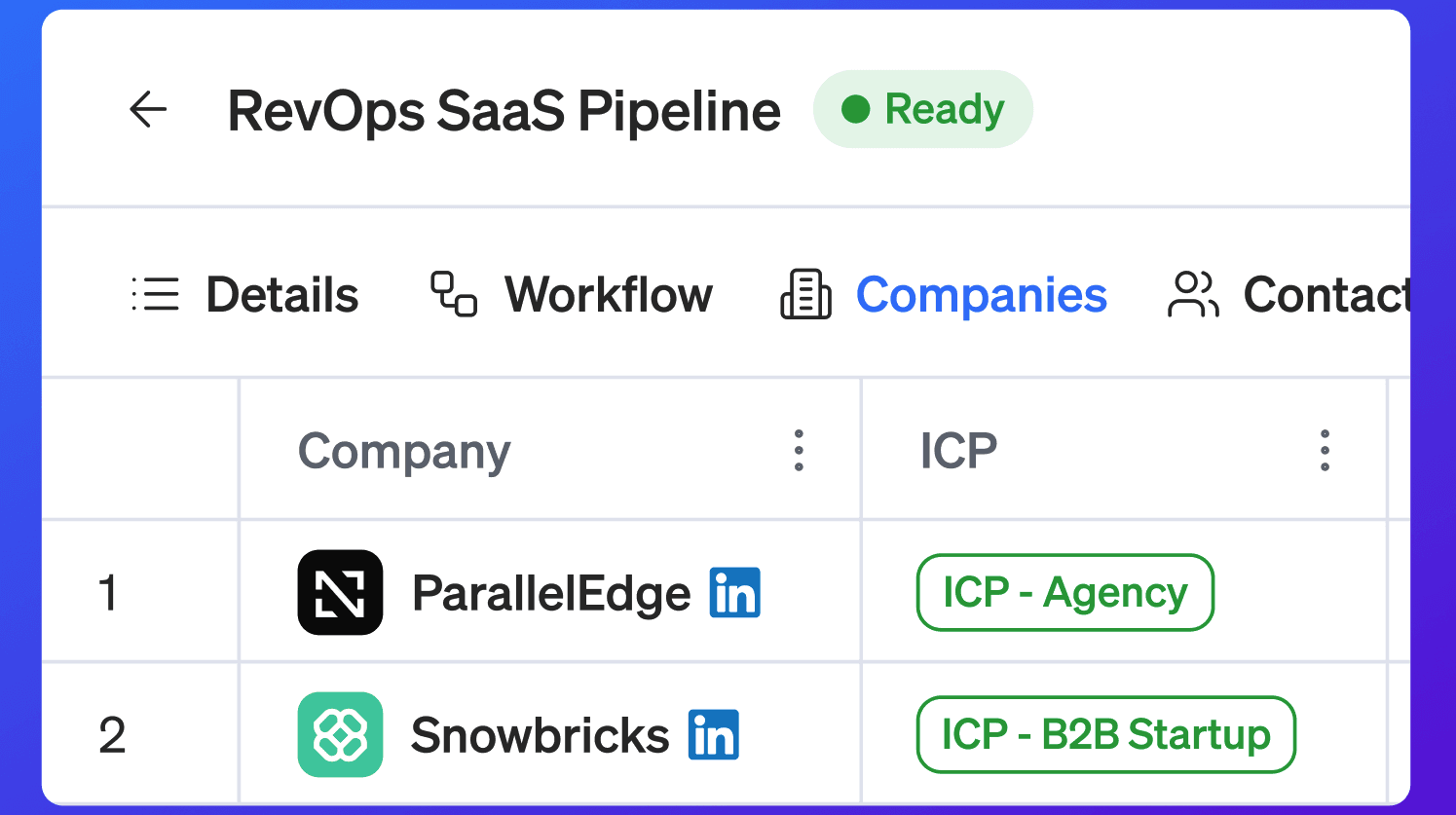
Each Target List has a Companies tab.
Inside the list, you can:
View companies included in that target list
Review company-level fields
See ICP evaluation
See company status
Remove selected companies from the list
Filter companies inside the list
Export the list’s companies
The master page is where you manage the broader company pool. The list-level Companies tab is where you manage companies inside a specific audience.
How companies get added
Companies can be added to 1eyeᴬᴵ in multiple ways.
Common sources include:
Imported companies
Upload a CSV of companies you already have.Sourced companies
Use 1eyeᴬᴵ to source companies based on ICPs.Signals by company
Select companies that are already showing activity across website, LinkedIn, conversations, forms, or responses.Existing target lists
Reuse companies already available in your workspace.
This lets your team build lists from existing data, new sourcing, or real signal activity.
What you can see for each company
Target company tables may include:
Company name
LinkedIn profile
ICP match
Status
Website
Number of employees
Founded year
Annual revenue when available
Industries
Technologies when available
Created date
Updated date
Example:
Field | Example |
|---|---|
Company | Northstar Analytics |
Website | northstaranalytics.com |
ICP | ICP - B2B-SAAS |
Status | Target |
Employees | 420 |
Founded year | 2019 |
Annual revenue | $45M |
Industry | Software |
Technologies | Salesforce, HubSpot, Snowflake |
These details help your team understand whether the company belongs in the target list and what action should happen next.
ICP evaluation
Target Companies show ICP evaluation when available.
ICP evaluation helps your team understand whether a company matches one of the ICPs in your Knowledge Base.
A company may show an ICP badge such as:
or:
The ICP badge helps your team quickly understand why the company is relevant.
Use ICP evaluation to:
Prioritize companies that match your target market
Reduce noisy account lists
Build cleaner target lists
Filter companies by segment
Improve campaign audience quality
Avoid spending time on poor-fit accounts
Company status
Each target company can have a status.
Status helps your team understand where the company sits in your GTM process.
Common statuses include:
Status | What it means |
|---|---|
Target | The company is a target account your team may want to pursue. |
Engaged | The company has engagement or activity your team is tracking. |
Converted | The company converted or reached the desired outcome. |
Excluded | The company should not be targeted. |
Archived | The company is no longer active in the current workflow. |
Use status to keep the company list organized as your team reviews, engages, qualifies, or removes accounts.
Target status
Use Target for companies your team wants to pursue.
A company in Target status may be:
ICP-matched
Added to a target list
Ready for contact sourcing
Ready for enrichment
Ready for campaign planning
Target is usually the default status for companies selected for a GTM motion.
Engaged status
Use Engaged for companies that have meaningful activity.
Engaged companies may have:
Website visits
LinkedIn engagement
Email activity
iMessage activity
Replies
Form activity
Contacts showing intent
Engaged status helps your team separate accounts that are simply in a list from accounts that are actually interacting.
Converted status
Use Converted when a company reaches a desired outcome.
Converted may mean the company:
Booked a meeting
Became an opportunity
Became a customer
Completed a target action
Moved out of active prospecting
Use this status based on your team’s GTM process.
Excluded status
Use Excluded when a company should not be targeted.
Common exclusions include:
Your own company
Existing customers
Competitors
Vendors
Partners
Agencies
Poor-fit companies
Companies your team does not want to contact
Excluded companies should not be treated as active targets.
Archived status
Use Archived when a company is no longer part of the active workflow but should not be deleted from your history.
Archived companies may include:
Old target accounts
Companies from completed campaigns
Companies that are not relevant right now
Companies paused for later review
Archived keeps your workspace clean without losing context.
Target Companies inside a Target List
Inside a Target List, the Companies tab shows the companies included in that specific list.
This is useful when you want to review the account audience for one campaign, segment, or GTM workflow.
Inside a list, you can see:
How many companies are in the list
Which companies are selected
ICP match for each company
Company status
Company firmographic details
Industries and technologies
Created and updated dates
Companies connected to contacts and campaigns
For example, a target list may include:
Each company can be reviewed, filtered, exported, or removed from that list.
Selecting companies
You can select one or more companies from a table.
Selected companies can be used for actions such as:
Add to target list
Remove from target list
Review selected records
Prepare bulk actions when available
When companies are selected inside a target list, 1eyeᴬᴵ shows how many companies are selected.
Example:
This means 2 companies are selected out of 100 companies in the current list.
Remove selected companies
Inside a Target List, you can remove selected companies from that list.
Use Remove Selected Companies when companies do not belong in the current list.
This removes the selected companies from that specific target list. It does not necessarily mean the company is deleted from your entire workspace.
Use this when:
A company is not a fit for the list
The company was added by mistake
The company belongs in a different segment
The company should not be part of the campaign audience
The company has no relevant contacts
The company should be excluded or archived instead
Before removing companies, confirm that you are in the correct target list.
Add companies to a target list
From the master Target Companies page, you can select companies and add them to a target list.
Use Add to target list when you want to move selected companies into a specific GTM audience.
The add flow may ask you to select:
Target List
Personas
The target list decides where the companies will be added.
The personas help 1eyeᴬᴵ understand which contacts to look for inside those companies.
For example:
Field | Example |
|---|---|
Selected companies | 25 |
Target List | RevOps SaaS Pipeline |
Personas | Revenue Operations Leader, GTM Systems Leader |
This tells 1eyeᴬᴵ to add those companies to the RevOps SaaS Pipeline list and focus on the selected personas when finding contacts.
Add companies to more than one list
A company can be useful in more than one GTM motion.
For example, the same company may belong to:
A RevOps campaign
A Data Infrastructure campaign
A Website Signals follow-up list
A LinkedIn engagement list
A regional account list
Use target lists to organize the same company in different contexts without losing account-level history.
Select personas when adding companies
When adding companies to a target list, you may be asked to select personas.
This matters because companies are accounts, but campaigns usually need people.
Selecting personas tells 1eyeᴬᴵ which types of contacts to prioritize inside those companies.
For example, if you add B2B SaaS companies to a target list, you may select personas such as:
Revenue Operations Leader
VP Sales
GTM Systems Leader
Head of Data
This helps 1eyeᴬᴵ build a better contact audience for the list.
Search target companies
Use search to find a specific company, domain, or keyword.
Examples:
Search is useful when you already know which company or segment you want to review.
Filter target companies
Use filters to narrow the company view.
Filters may include:
Campaign
Contact
Status
ICP
Industries
Created date
Companies without contacts
Filters help you find the exact companies you want to review or act on.
Filter by campaign
Use the campaign filter to find companies connected to a specific campaign.
This is useful when you want to understand:
Which companies are part of a campaign
Which companies are being engaged
Which companies belong to a specific GTM motion
Which companies should be reviewed before campaign launch
Filter by contact
Use the contact filter to find companies connected to a specific contact.
This is useful when you want to:
Find the company behind an active contact
Review companies with a certain contact attached
Understand which accounts have known people
Investigate a contact’s company context
Filter by status
Use the status filter to view companies by GTM state.
Status options may include:
Target
Engaged
Converted
Excluded
Archived
For example, filter by Target to see companies still in your active target pool.
Filter by Engaged to see companies with activity.
Filter by Excluded to review companies your team does not want to pursue.
Filter by ICP
Use the ICP filter to view companies that match a specific ICP.
For example:
or:
Use this when you want to build or review a segment-specific company list.
The ICP filter helps you answer:
Which companies match this ICP?
Which ICP has the strongest account pool?
Which segment should we build a campaign around?
Which companies need contacts sourced next?
Filter by industry
Use the industry filter to find companies in a specific market category.
Examples:
Industry filtering is useful when you want to focus a target list by vertical.
Filter by created date
Use created date to find companies added during a specific period.
Examples:
Today
Yesterday
Last 7 days
Last 30 days
Current campaign build period
After a CSV import
After a sourcing run
This helps your team review recently added companies.
Filter companies without contacts
Use Companies without Contacts to find companies that do not yet have contacts attached.
This is useful because companies are not campaign-ready until you have the right people to engage.
Use this filter when you want to:
Find accounts that need contact sourcing
Prioritize persona sourcing
Clean up incomplete target lists
Prepare companies for campaigns
Avoid launching lists without enough contacts
For example, if a list has 100 companies but only 60 have contacts, use this filter to find the 40 companies that still need contact work.
Sort target companies
Use sort to change the order of companies.
You may sort by:
Company name
Created date
Updated date
Number of employees
Founded year
Annual revenue
Signal count when available
Use sorting to prioritize the most relevant records first.
For example:
Sort by created date to review recently added companies
Sort by employee count to focus on larger accounts
Sort by revenue to prioritize bigger companies
Sort by updated date to review recently changed records
Export target companies
Use Export CSV to download company data from the current view.
The export includes the companies shown in the current table and available fields such as:
Company name
Website
LinkedIn profile when available
ICP match
Status
Number of employees
Founded year
Annual revenue
Industries
Technologies when available
Created date
Updated date
Export is useful when you want to:
Share company data with your team
Analyze companies in a spreadsheet
Review account quality offline
Send company data to RevOps
Compare companies across lists
Prepare campaign planning
Back up a target list view
Before exporting, use filters and search to narrow the view.
For example:
Filter by ICP
Filter by Target status
Filter out companies without contacts if needed
Export CSV
This gives you a cleaner export.
Using Target Companies with contacts
Target Companies are most useful when paired with Target Contacts.
A company tells you which account matters.
A contact tells you who to engage.
For each company, your team should ask:
Does this company match our ICP?
Does this company have relevant contacts?
Which personas should we find?
Are the contacts enriched?
Is the company ready for a campaign?
Should the company stay in this target list?
If a company has no contacts, source contacts by persona before launching a campaign.
Using Target Companies with campaigns
Campaigns use companies and contacts from target lists.
Before connecting a list to a campaign, review:
Company fit
ICP match
Company status
Contact count
Persona match
Enrichment quality
Exclusions
List readiness
A campaign performs better when the company audience is clean and aligned with the campaign message.
Recommended workflow: review companies inside a target list
Use this workflow when reviewing a list before launch.
Open the target list
Go to the Companies tab
Review the company count
Check ICP matches
Check company statuses
Filter for companies without contacts
Remove poor-fit companies
Source contacts for companies that need them
Export the final view if needed
Move the list toward campaign readiness
Recommended workflow: add companies from the master company list
Use this workflow when you want to add existing companies to a list.
Open Target Companies
Select the companies you want
Select Add to target list
Choose the target list
Select personas
Confirm the action
Open the target list
Review the Companies tab
Source contacts if needed
Prepare the list for campaigns
Recommended workflow: clean a company list
Use this workflow when a target list needs cleanup.
Open the target list
Go to Companies
Filter by status, ICP, industry, or companies without contacts
Review companies that do not fit
Select poor-fit companies
Remove selected companies from the list
Add exclusions if needed
Re-check the company count
Export the cleaned view if needed
Recommended workflow: prepare companies for contact sourcing
Use this workflow when companies are selected but contacts are missing.
Open the target list
Go to Companies
Filter for Companies without Contacts
Review company fit
Remove companies that should not be pursued
Keep companies that match your ICP
Go to Contacts or Workflow
Source contacts by persona
Review the resulting contacts
Move the list closer to Ready
Best practices
Start with ICP fit
Target companies should match one or more ICPs whenever possible.Use status consistently
Keep company status updated so your team knows what is target, engaged, converted, excluded, or archived.Filter before exporting
Export only after narrowing the view to the companies you care about.Remove poor-fit companies from lists
Do not let weak accounts stay in campaign audiences.Use companies without contacts as a cleanup view
These companies may need persona sourcing before campaign launch.Select personas when adding companies to a list
This helps 1eyeᴬᴵ find the right people inside the selected companies.Keep industries and ICPs aligned
If the industry does not match the ICP, review the company before using it.Review enrichment before campaigns
Make sure companies and contacts have enough data to support outreach.Use one company in multiple lists when needed
The same account can support different campaigns or segments.Use exclusions for companies you never want to target
Removing a company from one list is not the same as excluding it from future targeting.
Troubleshooting
I do not see any companies in a target list
Check:
Companies were imported, sourced, or selected
You are viewing the correct target list
Filters are not hiding companies
The list workflow has completed the company step
Companies were not removed from the list
I selected companies but cannot add them to a list
Check:
A target list exists
You selected at least one company
You have the right workspace role
The list is not locked or unavailable
Required personas are selected when prompted
Companies were added but no contacts appeared
Adding companies does not always mean contacts are already available.
Next, source contacts by persona or import contacts into the list.
I see companies without contacts
Use the Companies without Contacts filter.
Then source contacts by persona or remove companies that do not need to be pursued.
ICP matches look wrong
Review the ICP in your Knowledge Base.
Check:
ICP description
Company type
Industry
Company size
Use case
Exclusions
If the ICP is too broad, too many companies may match.
If it is too narrow, good companies may not match.
Company status is wrong
Update the company status if available.
Use:
Target for active target accounts
Engaged for companies with meaningful activity
Converted for companies that reached the desired outcome
Excluded for companies that should not be targeted
Archived for companies no longer active in the workflow
Export includes too many companies
Filter before exporting.
Try:
Filter by target list
Filter by ICP
Filter by status
Filter by industry
Filter by created date
Filter out companies without contacts if needed
I removed a company from a list by mistake
Add it back from the master Target Companies page if it is still available in your workspace.
If needed, select the company and add it to the target list again.
FAQ
What are Target Companies?
Target Companies are the businesses your team wants to review, prioritize, add to lists, enrich, and use in campaigns.
Are Target Companies the same as companies in a Target List?
Not always. The Target Companies page is the broader company pool. The Companies tab inside a Target List shows the companies included in that specific list.
Can I add companies to a target list?
Yes. Select companies from the Target Companies page and use Add to target list.
Can I add the same company to multiple target lists?
Yes. A company can be used in more than one target list if it fits multiple GTM motions.
Can I remove companies from a target list?
Yes. Inside a Target List, select companies and use Remove Selected Companies.
Does removing a company from a list delete it from the workspace?
Removing a company from a list removes it from that list. It does not necessarily delete the company from your workspace.
What does ICP mean in the company table?
ICP shows whether the company matches an Ideal Customer Profile from your Knowledge Base.
What does company status mean?
Status shows where the company sits in your GTM process, such as Target, Engaged, Converted, Excluded, or Archived.
What does Companies without Contacts mean?
It shows companies that do not currently have contacts attached. These companies may need contact sourcing before campaigns can run.
Can I filter target companies?
Yes. You can filter by campaign, contact, status, ICP, industry, created date, and companies without contacts.
Can I export target companies?
Yes. Use Export CSV to download the companies in the current view.
Should I export before or after filtering?
Filter first. The export reflects the current view, so filtering helps you download a cleaner company list.
How do Target Companies connect to campaigns?
Companies sit inside target lists. Campaigns use target lists as the audience for outreach, usually with contacts sourced or imported for those companies.
Next step
Next, go to Target Contacts to understand how 1eyeᴬᴵ organizes the people your team should engage inside target companies.