Signals
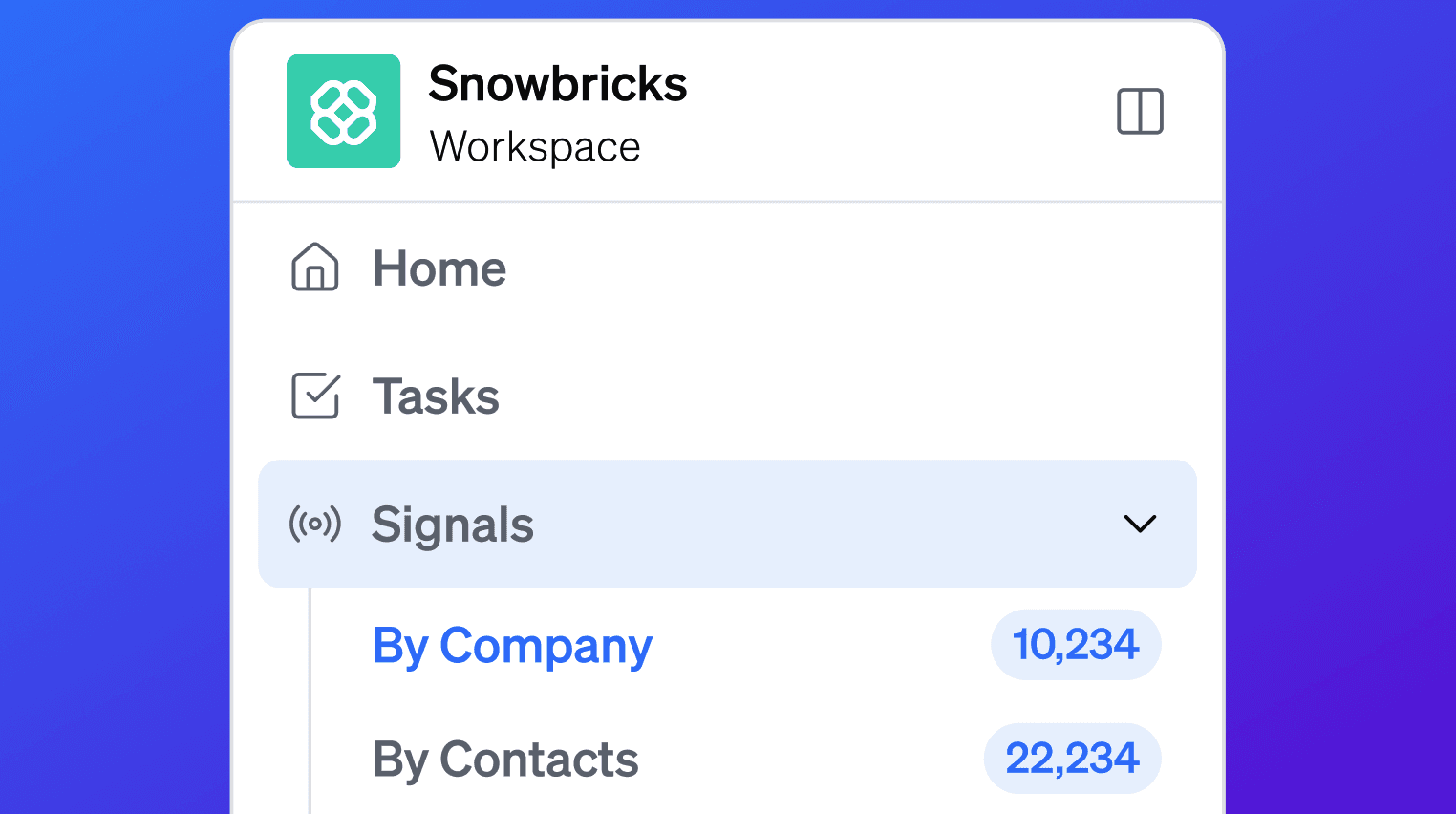
View by Company
View by Company shows company-level signal activity in one place, helping you see which businesses are engaging with you and what they did.
This is where 1eyeᴬᴵ shows you the businesses that are engaging with your GTM motion, including website activity, LinkedIn activity, conversation activity, ICP matches, contacts, firmographic details, technographic context when available, and signal history.
Use View by Company when you want to understand which companies are interested in you, why they may be relevant, who the right contacts are, and what action your team should take next.
What View by Company is for
B2B GTM usually starts at the account level.
A person may visit your site, like a post, open an email, reply to a message, or submit a form, but the bigger question is:
View by Company helps answer that.
It organizes activity around the company so your team can see:
Which businesses are active
What signals each business generated
Whether the business matches your ICPs
Which contacts are associated with the company
What pages, posts, forms, messages, or replies are connected to the company
Whether the company should be added to a target list or campaign
How View by Company works
1eyeᴬᴵ collects signals across channels and groups them by company.
A company can show activity through:
Website visits
Tracked forms
LinkedIn engagement
Email engagement
LinkedIn connection activity
LinkedIn messages
iMessage activity
Replies and response intent
ICP evaluation
Related contact activity
When 1eyeᴬᴵ identifies a company, it creates or updates the company signal record.
Your team can then review the company, inspect the signals, evaluate fit, and decide what to do next.
What you can see in View by Company
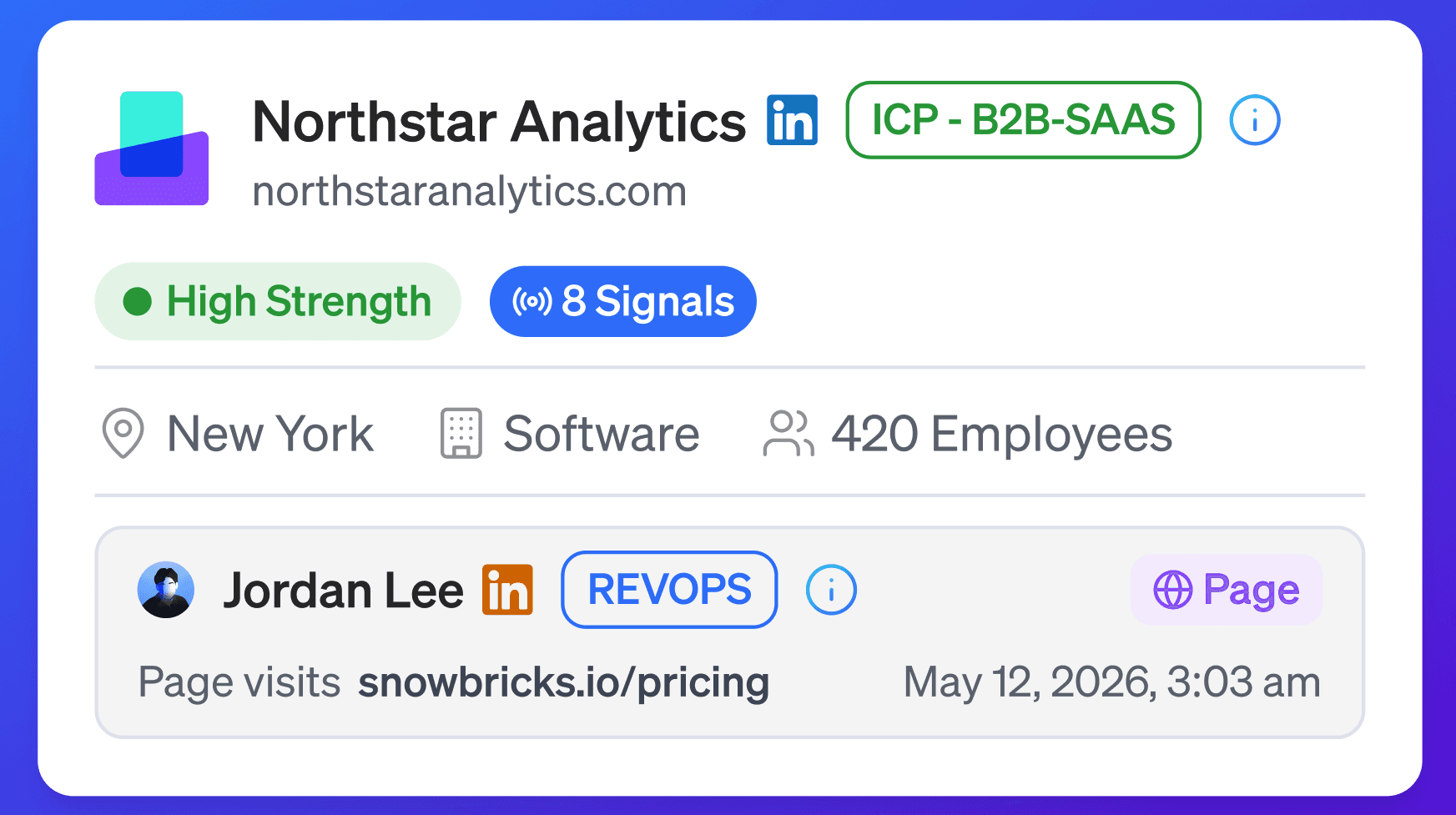
Each company card may include:
Company name
Company domain
Company LinkedIn profile
Location
Industry
Employee count
Revenue when available
Founded year when available
Signal count
Latest signal
ICP match badge when available
Related contact activity
Signal timeline in the side panel
Company context and enrichment when available
Example:
Field | Example |
|---|---|
Company | Northstar Analytics |
Domain | northstaranalytics.com |
Location | New York |
Industry | Software |
Employees | 420 |
Founded | 2019 |
Latest signal | Page visit |
Signal count | 8 |
ICP match | ICP - B2B-SAAS |
This gives your team a fast account-level view of who is showing interest.
Company signals
A company signal is any activity connected to a business.
Company signals may include:
A company visiting your website
A company viewing a pricing or demo page
A company engaging with your LinkedIn page
A company connected to a contact’s email activity
A company connected to a LinkedIn reply
A company connected to iMessage activity
A company matching one of your ICPs
A company showing repeated activity across channels
Company signals help your team understand account-level intent.
Everything rolls up to the company
View by Company is powerful because it groups related activity under the business.
A company record may include:
Company details
Name, domain, LinkedIn, location, industry, employee count, revenue, and founded year when available.Firmographic context
Company size, category, geography, industry, business model, and other account-level details.Technographic context when available
Technologies, tools, platforms, or systems associated with the company when available.Associated contacts
People connected to the company through signals, enrichment, LinkedIn, website activity, or campaigns.Signal history
Website visits, LinkedIn engagement, email activity, iMessage activity, responses, forms, and intent.ICP evaluation
Whether the company matches one or more ICPs in your Knowledge Base.Next action context
Enough information to decide whether to add the company to a list, source contacts, enrich contacts, or launch a campaign.
The goal is to make the company the center of the GTM view.
Why company-level signals matter
In B2B, companies are often more important than isolated events.
One page visit may not mean much by itself. But a company with multiple signals across pages, people, channels, and responses can be a strong target.
Company-level signals help you:
Prioritize accounts
Identify active businesses
Find companies showing repeated interest
Understand which companies match your ICPs
Source the right contacts inside those companies
Build better target company lists
Launch campaigns with stronger context
Align sales and marketing around account activity
ICP evaluation
1eyeᴬᴵ evaluates companies against your ICPs.
When a company signal comes in, 1eyeᴬᴵ checks whether the company matches one or more ICPs in your Knowledge Base.
If the company matches, 1eyeᴬᴵ may show an ICP badge on the company card.
Example:
The ICP badge helps your team quickly understand why the company may be relevant.
What 1eyeᴬᴵ may use for ICP evaluation
1eyeᴬᴵ may evaluate company fit using context such as:
Industry
Company size
Location
Business model
Company description
Website content
Revenue when available
Founded year when available
Growth stage when available
Technographic context when available
Signal activity
ICP definitions from your Knowledge Base
The goal is not just to identify a business. The goal is to decide whether that business looks like a good target company.
ICP match explanation
When a company matches an ICP, 1eyeᴬᴵ may show an explanation.
Example:
Use the explanation to validate whether the match makes sense before adding the company to a list or campaign.
Target Page badge
When a company or contact visits a URL that matches an active Target Page in your Knowledge Base, 1eyeᴬᴵ shows a Target Page badge on the signal.
Example:
The badge appears next to the page visit, both on the company card and on the contact-level activity underneath it, so your team can immediately see when a high-intent page was visited without opening the full timeline.
Signals to URLs that do not match a Target Page still appear, but only show as a generic Page signal without the badge.
Use the Target Page badge to quickly scan a company's signal feed for the pages that matter most, instead of reading every visited URL.
Show ICPs Only
Use Show ICPs Only when you want to focus only on companies that match your ICPs.
When enabled, View by Company filters the list to companies that 1eyeᴬᴵ has evaluated as ICP matches.
Use this when you want to:
Reduce noisy company activity
Focus on best-fit businesses
Review high-priority accounts
Build cleaner target company lists
Prioritize companies for campaigns
Spend less time reviewing poor-fit traffic
For example, if Snowbricks only wants to review companies that match B2B SaaS, RevOps, Data Infrastructure, or AI-native GTM ICPs, Show ICPs Only helps narrow the view.
ICP filter
Use the ICP filter when you want to view companies that match a specific ICP.
For Snowbricks, example ICP filters may include:
B2B SaaS Companies
Revenue Operations Teams
AI-Native GTM Companies
Data Infrastructure Companies
Enterprise Sales Organizations
B2B Marketplaces and Platforms
Use the ICP filter when you want to answer questions like:
Which B2B SaaS companies are active?
Which Data Infrastructure companies visited recently?
Which AI-native GTM companies are showing intent?
Which ICP is generating the most signals?
Which segment should we build a campaign for?
Show ICPs Only gives you all ICP-matched companies.
The ICP filter lets you focus on one specific ICP.
Associated contacts
Company signals become more useful when you can see the people behind them.
In View by Company, a company may include contacts associated with that business.
Contacts may come from:
Website activity
LinkedIn engagement
Email activity
iMessage activity
Replies
Enrichment
Target lists
Campaign activity
For each contact, 1eyeᴬᴵ may show:
Name
Title
Company
LinkedIn profile
Persona match when available
Recent signal activity
Engagement history when available
Use associated contacts to decide who to enrich, add to a list, or include in a campaign.
Company signal timeline
When you select a company, the side panel shows its signal timeline.
The timeline helps you understand what happened and when it happened.
A company timeline may show:
Page visits
Form activity
LinkedIn activity
Email activity
iMessage activity
Replies
Response intent
ICP match activity
Related contact activity
Signal dates and times
Use the timeline to understand whether the company is showing light activity or meaningful interest.
Reading a company card
When reviewing a company card, look at five things:
Company identity
Is this a real business? Does the domain and company name look right?Firmographic fit
Does the industry, location, employee count, or company type match your target market?Signal strength
Did the company generate one signal or multiple signals?Signal quality
Did the company visit high-intent pages, engage on LinkedIn, submit forms, or reply?ICP fit
Does 1eyeᴬᴵ show an ICP badge or explanation?
The best companies usually have both activity and fit.
Search companies
Use search to find a specific company, domain, or keyword.
Examples:
Search is useful when you already know what company or segment you want to review.
Filter companies
Use filters to narrow the company view.
Filters may include:
Company
Contact person
ICP
Persona
Target Page
Type
Date range
Use filters when you want to focus on a specific signal set.
Filter by company
Use the company filter to review a specific business.
Example:
This helps you see all relevant signals connected to one company.
Filter by contact person
Use the contact person filter to view companies connected to a specific contact.
Example:
This is useful when a contact is active and you want to understand the company behind them.
Filter by ICP
Use the ICP filter to view companies that match a specific ICP.
Example:
This is useful when you want to focus on one segment before building a target list or campaign.
Filter by type
Use the type filter to narrow company signals by activity type.
Types may include:
Page
Form
LinkedIn
Email
Response
ICP
Persona
Examples:
Type | Use it when you want to see |
|---|---|
Page | Companies visiting tracked website pages. |
Form | Companies connected to tracked form activity. |
Companies engaging through LinkedIn. | |
Companies connected to email activity. | |
Response | Companies with replies or response activity. |
ICP | Companies evaluated as ICP matches. |
Persona | Companies with contacts evaluated as persona matches. |
Use type filters to separate broad activity from high-intent activity.
Filter by Target Page
Use the Target Page Search panel to add extra conditions for specific URLs, on top of the standard Company, ICP, Contact Person, Persona, Type, and Date Range filters.
Option | What it does |
|---|---|
URLs | Include signal activity from any page on your website. |
Target Pages | Limit results to companies that visited specific pages. |
Inside Target Page Search you can add one or more URL conditions:
Field | What it does |
|---|---|
Target Pages | Pick a saved Target Page from your Knowledge Base, or type a custom URL. |
Visit Count | Filter by number of visits, e.g. Equal to, Greater than, or Less than a given count. |
Total time spent | Filter by total time spent on the page, e.g. Equal to, Greater than, or Less than a given duration. |
Select Add URL to add another condition — for example, filter for companies that visited the Pricing page at least 5 times and spent at least 12 minutes on a specific blog URL. Each condition you add appears as a chip below the panel, showing the page name (or URL), match type, and thresholds, with an x to remove it.
Example:
Select Apply to run the filter, or Clear to reset it.
Use Target Page filters when you want to answer questions like:
Which companies visited Pricing more than once?
Which contacts spent real time on the Demo page, not just a quick bounce?
Which companies are showing repeated interest across two or more high-intent pages?
Filter by date range
Use date range to review companies active during a specific period.
Examples:
Today
Yesterday
Last 7 days
Last 30 days
Current campaign window
After a product launch
After a LinkedIn campaign
After an email campaign
During an event or webinar
Date filtering helps your team connect company activity to GTM moments.
Sort companies
Use sort to change the order of companies.
You may sort by:
Most recent activity
Highest signal count
Company name
Created date
Updated date
Use sorting to prioritize the companies that matter first.
For example, sort by most recent activity when your team wants to act quickly.
Sort by signal count when your team wants to find companies with repeated activity.
Export company signals
Use Export CSV to download the companies in the current company view.
The export gives you a company-level CSV, including the companies shown in the view and the available company details, signal context, ICP match information, and related fields.
Export is useful when you want to:
Share active companies with your team
Review accounts in a spreadsheet
Send company activity to RevOps
Build campaign audiences
Compare signal activity over time
Review ICP-matched companies offline
Create target company lists
Before exporting, use filters to clean the view.
Example export workflow:
Open Signals → View by Company
Turn on Show ICPs Only if you only want ICP-matched companies
Filter by a specific ICP if needed
Filter by recent activity
Sort by signal count or recency
Select Export CSV
This downloads the companies from the current view, so filter first if you want a focused export.
Recommended workflow: find active ICP companies
Use this workflow when you want to identify high-fit companies.
Open Signals → View by Company
Turn on Show ICPs Only
Review companies with recent activity
Check signal count
Review the latest signal
Open the company timeline
Read the ICP match explanation
Add strong companies to a target company list
Source relevant contacts
Prepare a campaign
This workflow helps your team move from signal activity to account prioritization.
Recommended workflow: build a target company list
Use this workflow when you want to build a list from company signals.
Open Signals → View by Company
Filter by ICP
Filter by date range
Sort by signal count or recent activity
Review company cards
Open timelines for high-priority companies
Remove poor-fit companies
Add relevant companies to a target list
Source matching personas inside those companies
Launch or prepare a campaign
This workflow helps you build lists from real activity instead of static research.
Recommended workflow: investigate one company
Use this workflow when a company looks interesting.
Search for the company
Open the company card
Review firmographic details
Review ICP match
Open the signal timeline
Check which pages, channels, or contacts created signals
Review associated contacts
Decide whether to enrich contacts
Add the company or contacts to a list
Follow up with context
This workflow helps your team understand the account before taking action.
Recommended workflow: act on high-intent company activity
Use this workflow when a company shows strong intent.
Open View by Company
Filter by recent activity
Filter by Page, Form, LinkedIn, or Response signals
Look for repeated signals
Review whether the company matches an ICP
Check associated contacts
Add the company to a target list
Add relevant contacts to a target contact list
Launch a campaign with signal context
This workflow helps your team act on the companies that are most likely worth attention.
How View by Company connects to target lists
View by Company is one of the best places to build target company lists.
You can use it to find companies that are:
Active
Recently engaged
ICP-matched
Repeatedly showing signals
Connected to relevant contacts
Engaging across multiple channels
Showing high-intent behavior
Once you find relevant companies, add them to a target company list.
Then source contacts from those companies and build a campaign around the signal context.
How View by Company connects to campaigns
Company signals can help you launch better campaigns because your team knows why the company is relevant.
Instead of sending generic outreach, your team can use context such as:
Company visited pricing
Company engaged on LinkedIn
Company submitted a form
Company has multiple active contacts
Company matches a specific ICP
Company showed recent activity
Company responded through one channel
This gives campaigns a stronger starting point.
Best practices
Start with company-level activity
In B2B, the company is usually the account. Start there before drilling into contacts.Use Show ICPs Only
This removes noise and focuses the view on companies that match your target market.Use the ICP filter for segment focus
Filter by one ICP when building a campaign for a specific market segment.Prioritize recent activity
Fresh company signals are usually more actionable than old ones.Look for repeated signals
Multiple signals from the same company usually matter more than one isolated signal.Review high-intent signal types
Form, response, pricing, demo, contact, LinkedIn reply, and repeated activity should get attention.Check associated contacts
A strong company signal becomes more actionable when you know who to contact.Read the ICP explanation
Use the explanation to confirm why 1eyeᴬᴵ matched the company.Add exclusions when needed
If a company should not be targeted, add it to Exclusions in your Knowledge Base.Build lists from signals
Do not let active companies sit unused. Move good-fit accounts into target lists.Use exports after filtering
Export only after narrowing the view to relevant companies.Keep your Knowledge Base current
Better ICPs, personas, and exclusions create better company signals.Use Target Page filters for high-intent follow-up
Filter by visit count and time spent on Target Pages like pricing or demo to prioritize the companies and contacts showing the strongest buying signal.
Troubleshooting
I do not see any companies
Check:
Signals are flowing into your workspace
The Vision snippet is installed if you expect website activity
LinkedIn accounts are connected if you expect LinkedIn activity
Campaigns are active if you expect conversation activity
You are viewing the correct date range
Filters are not hiding results
I see companies but they are not relevant
Try:
Turning on Show ICPs Only
Filtering by a specific ICP
Tightening your ICP definitions
Adding exclusions
Filtering by signal type
Reviewing only recent activity
A company does not have an ICP badge
This may mean:
The company does not match your current ICPs
1eyeᴬᴵ does not have enough context yet
Your ICP definitions need to be updated
The company is outside your target market
Review the company and update your Knowledge Base if needed.
ICP matches look wrong
Review your ICPs in the Knowledge Base.
Check:
ICP descriptions
Industries
Company sizes
Business models
Use cases
Exclusions
If ICPs are too broad, you may see noisy matches.
If ICPs are too narrow, you may miss good companies.
I see company signals but no contacts
This can happen when company-level identification is available but contact-level identification is not.
Check:
Whether contacts are available for that company
Whether contacts need enrichment
Whether personas are too narrow
Whether filters are hiding contact activity
A company visited a Target Page but I don't see the badge
Check that the Target Page is Active in your Knowledge Base, that the Match Type covers the visited URL, and that the visit happened after the Target Page was created.
Signal timeline looks empty or incomplete
Check:
Filters are not limiting the timeline
The selected company has recent activity
The signal source is supported
Activity has had time to process
Export is too noisy
Before exporting:
Turn on Show ICPs Only
Filter by ICP
Filter by type
Select a recent date range
Sort by signal count or recency
Export only the focused view
A company should not be targeted
Add the company to Exclusions in your Knowledge Base.
Use exclusions for:
Your own company
Existing customers
Competitors
Vendors
Partners
Agencies
Poor-fit companies
FAQ
What is View by Company?
View by Company shows signal activity grouped by business, so your team can understand which companies are engaging and whether they match your ICPs.
How is View by Company different from View by Contact?
View by Company focuses on account-level activity. View by Contact focuses on person-level activity.
What is a company signal?
A company signal is activity connected to a business, such as website activity, LinkedIn activity, conversation activity, form activity, or ICP evaluation.
What does Show ICPs Only do?
It filters the company view to show only companies that 1eyeᴬᴵ has evaluated as matching your ICPs.
What is the ICP filter?
The ICP filter lets you view companies that match a specific ICP.
What is a Target Page badge?
It's a badge shown on a signal when the visited URL matches an active Target Page from your Knowledge Base, such as Target Page - Pricing.
Can I filter Signals by Target Page?
Yes. Use the Target Page Search panel inside Filters to filter by one or more Target Pages, with conditions on visit count and total time spent.
Can I see contacts inside a company?
Yes. When available, contacts associated with the company can appear inside the company context or signal timeline.
Can I see firmographic information?
Yes. Company cards may include firmographic details such as location, industry, employee count, revenue, and founded year when available.
Can I see technographic information?
Technographic context may be available when 1eyeᴬᴵ has access to it.
Can I export company signals?
Yes. Use Export CSV to download the companies from the current company view.
What is included in the company export?
The export includes the companies shown in the current view and the available company-level details, signal context, ICP match information, and related fields.
Should I filter before exporting?
Yes. If you want a focused export, apply filters first. For example, turn on Show ICPs Only, filter by a specific ICP, or select a recent date range before exporting.
What should I do with a company that has strong signals?
Review the company, check ICP fit, inspect the timeline, source contacts, add the company to a target list, and prepare a campaign.
Why do some companies have no ICP match?
They may not match your ICPs, or there may not be enough context to evaluate them as a match.
How do I improve company signal quality?
Keep ICPs sharp, add exclusions, track the right channels, use filters, and review recent activity first.
Next step
Next, go to View by Contact to understand how 1eyeᴬᴵ organizes person-level signal activity.