Channels
LinkedIn lets your team connect their LinkedIn accounts and use them in 1eyeᴬᴵ campaign workflows.
Use LinkedIn to send connection requests, send LinkedIn messages, manage follow-ups, track LinkedIn activity when available, capture replies, and create Conversation Signals from LinkedIn engagement.
A connected LinkedIn account can be used in campaign workflows after the workspace admin enables LinkedIn and the user completes LinkedIn sign-in and verification.
What LinkedIn is for
LinkedIn helps your team engage target contacts through connected LinkedIn accounts.
Use LinkedIn when you want to:
Send LinkedIn connection requests
Send LinkedIn messages
Use LinkedIn inside campaign workflows
Track connection request activity when available
Track accepted connections when available
Capture LinkedIn replies
Create Conversation Signals from LinkedIn activity
Route replies by response intent when available
Combine LinkedIn with email and iMessage in multi-channel campaigns
Before you begin
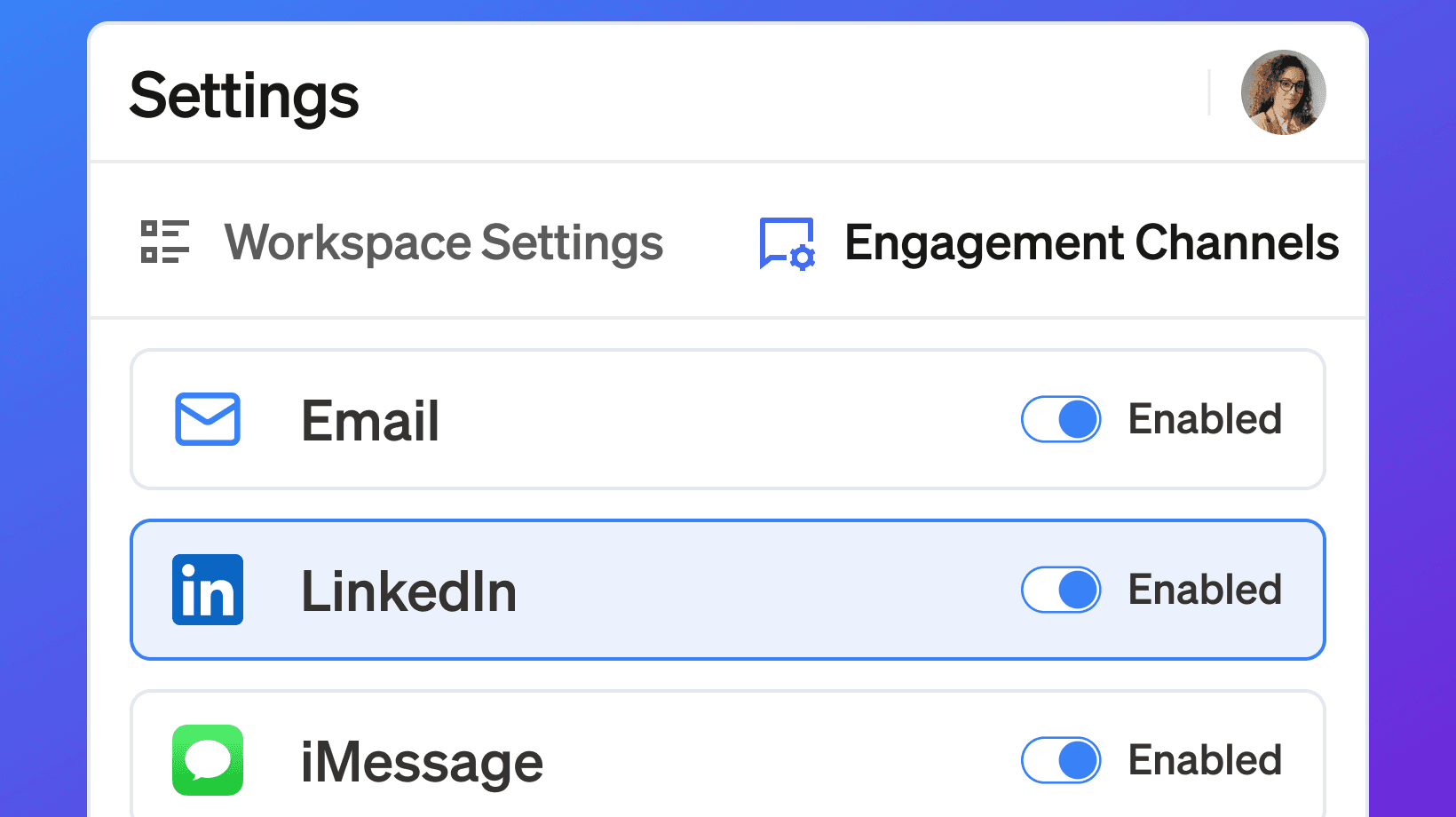
Before setting up LinkedIn, make sure:
Your workspace is on a paid plan that includes LinkedIn accounts
LinkedIn is enabled in Settings → Engagement Channels
Users who will send LinkedIn outreach are invited to the 1eyeᴬᴵ workspace
Each user has access to the LinkedIn account they want to connect
Each user can complete LinkedIn two-step verification or security checks if LinkedIn asks
The user’s LinkedIn account is in good standing
LinkedIn setup happens at the user level. Each user connects their own LinkedIn account.
Where to manage LinkedIn
Admins can enable LinkedIn from Engagement Channels.
Open your 1eyeᴬᴵ workspace
Go to Settings
Select Engagement Channels
Select LinkedIn
Turn LinkedIn Enabled
Follow the setup guidance shown on the page
Once LinkedIn is enabled, users can connect their LinkedIn account from their user settings.
LinkedIn setup has two parts
LinkedIn setup has two layers:
Workspace-level enablement
An admin enables LinkedIn in Settings → Engagement Channels.User-level account connection
Each user connects the LinkedIn account they want to use for campaign workflows.
Both steps are required.
A workspace can have LinkedIn enabled, but a campaign cannot use a user’s LinkedIn account until that user connects it.
Step 1: Enable LinkedIn in 1eyeᴬᴵ
An admin should first enable LinkedIn for the workspace.
Go to Settings
Select Engagement Channels
Select LinkedIn
Turn LinkedIn Enabled
When LinkedIn is enabled, 1eyeᴬᴵ shows the setup instructions for connecting LinkedIn accounts.
Step 2: Open the user LinkedIn settings
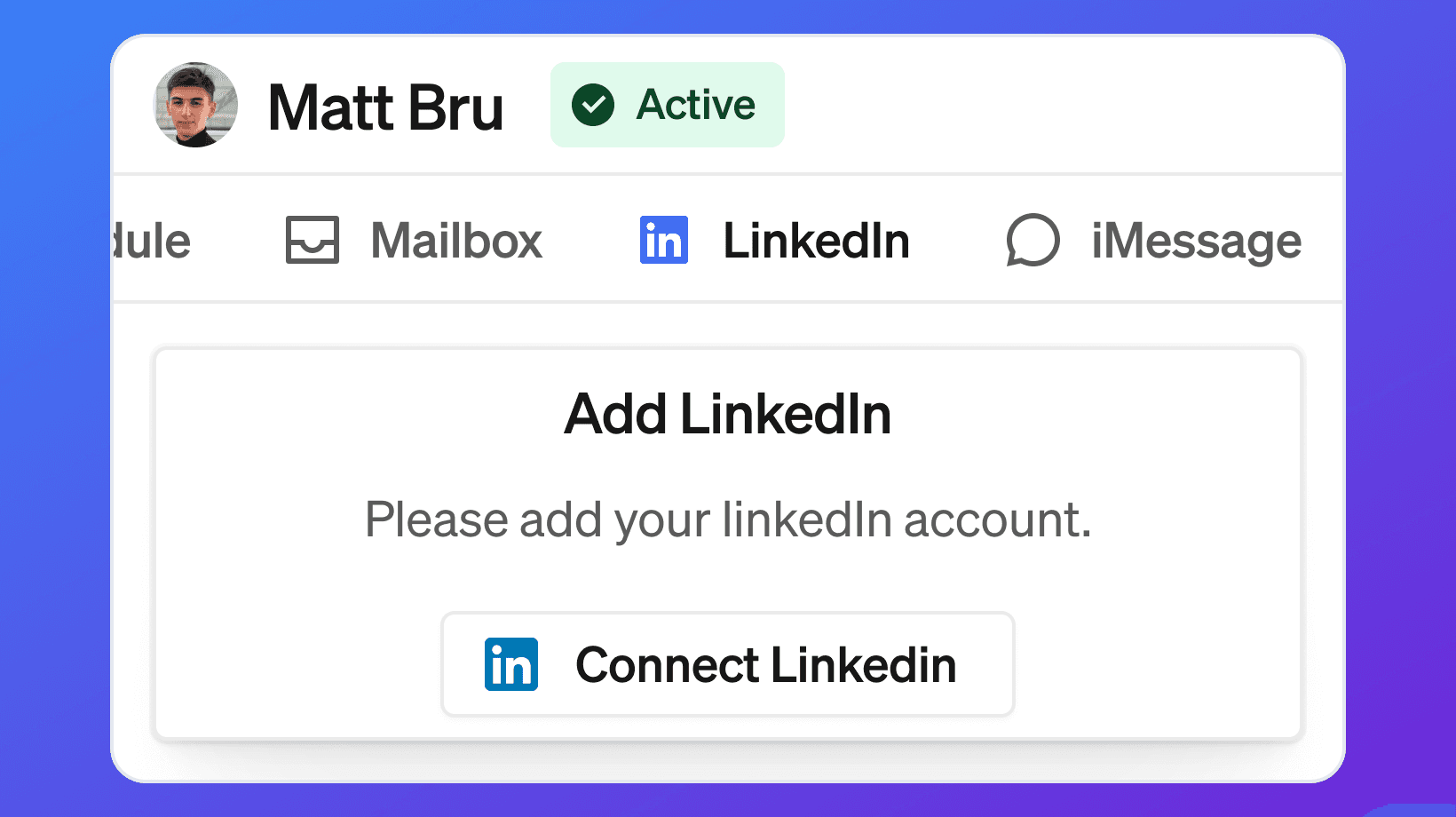
Each user who will send LinkedIn outreach should connect their own LinkedIn account.
To start:
Open 1eyeᴬᴵ
Go to the Users
Select the user
Open the LinkedIn tab
Select Connect LinkedIn or Add LinkedIn
This opens the LinkedIn sign-in flow.
Step 3: Sign in to LinkedIn
Sign in with the LinkedIn account you want to use for engagement.
You may be asked for:
LinkedIn email or phone
LinkedIn password
Two-step verification code
Security check
Device approval
Use the LinkedIn account that should send connection requests and messages in campaign workflows.
Do not connect an account that the user does not own or actively manage.
Step 4: Complete LinkedIn verification
LinkedIn may ask for verification during sign-in.
This depends on the user’s LinkedIn account, security settings, browser, device, and LinkedIn risk checks.
LinkedIn may ask for:
Text message verification code
Authenticator app code
Email verification code
LinkedIn app approval or prompt
Password confirmation
Additional identity or security verification if LinkedIn requires it
If LinkedIn asks for a six-digit code, enter the code in the 1eyeᴬᴵ connection flow.
Example SMS:
Enter only the code:
Then select Submit.
LinkedIn officially supports two-step verification by SMS and authenticator app, and LinkedIn recommends authenticator app verification as the preferred method.
Step 5: Wait for connection to complete
After the verification code is submitted, 1eyeᴬᴵ will complete the connection.
This usually takes a few seconds.
The button may show a loading state while the connection is being created.
Once setup completes, the LinkedIn account will show as:
If it does not show Connected, wait a moment and refresh the page.
Step 6: Confirm the account is connected
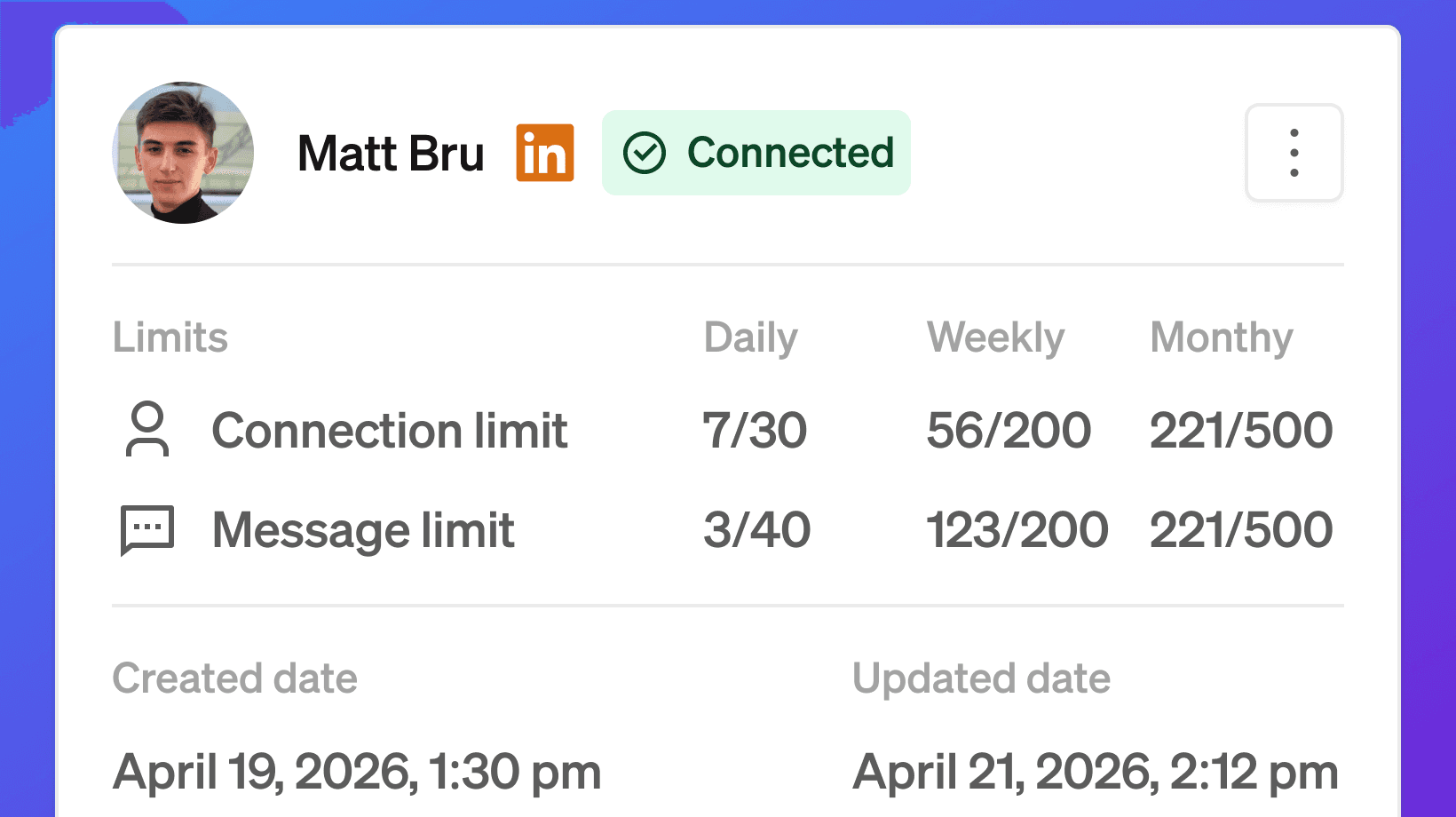
Once connected, the LinkedIn tab may show:
User name
LinkedIn icon
Connected status
Connection limits
Message limits
Daily limits
Weekly limits
Monthly limits
Created date
Updated date
Disconnect button
Example:
Field | Example |
|---|---|
User | Matt Bru |
Status | Connected |
Daily connection limit | 40 |
Weekly connection limit | 200 |
Monthly connection limit | 500 |
Daily message limit | 40 |
Weekly message limit | 200 |
Monthly message limit | 500 |
These fields help your team understand whether the LinkedIn account is ready for campaign workflows.
LinkedIn Premium
LinkedIn Premium is highly recommended.
1eyeᴬᴵ can connect LinkedIn accounts, but LinkedIn account limits and behavior depend on the LinkedIn account itself.
A LinkedIn Premium account is recommended because it may give the user better account capacity, stronger account credibility, and more room for professional engagement compared with a limited or low-activity account.
If a connected account has LinkedIn Premium, 1eyeᴬᴵ may show a LinkedIn Premium indicator or icon when available.
Use Premium especially when:
The account will send regular connection requests
The account will send regular LinkedIn messages
The user is part of outbound workflows
The user needs higher professional engagement capacity
The account is important for GTM execution
LinkedIn Premium does not mean you should over-send. Keep engagement targeted, relevant, and within safe limits.
LinkedIn limits
Connected LinkedIn accounts show limits for connection requests and messages.
Limits may include:
Daily connection limit
Weekly connection limit
Monthly connection limit
Daily message limit
Weekly message limit
Monthly message limit
Example:
Limit type | Daily | Weekly | Monthly |
|---|---|---|---|
Connection limit | 40 | 200 | 500 |
Message limit | 40 | 200 | 500 |
Limits help control activity and protect account health.
Actual available activity may also depend on LinkedIn behavior, account history, LinkedIn Premium status, account reputation, acceptance rates, reply rates, and LinkedIn’s own platform controls.
Why LinkedIn limits matter
LinkedIn limits help your team:
Avoid over-sending
Protect the connected account
Keep outreach more natural
Reduce spam-like behavior
Improve campaign quality
Prevent too many actions from one account
Keep multi-channel workflows balanced
Do not treat limits as a target to max out every day.
The better approach is to use LinkedIn for high-fit target contacts with relevant context.
Connected vs disconnected
A LinkedIn account can be connected or disconnected.
Status | What it means |
|---|---|
Connected | The LinkedIn account is connected and can be used in campaign workflows. |
Disconnected | The LinkedIn account is not currently connected and must be reconnected before use. |
Disabled | LinkedIn is disabled at the workspace level by an admin. |
A LinkedIn account may become disconnected if the user changes credentials, LinkedIn asks for a new verification, the account session expires, or the user disconnects it.
Disconnect LinkedIn
Users can disconnect a LinkedIn account from the LinkedIn tab.
Use disconnect when:
The account should no longer be used
The wrong LinkedIn account was connected
A user leaves the workspace
The account needs to be reconnected
Your team wants to stop using the account in workflows
After disconnecting, the LinkedIn account will not be available for campaign workflows until it is connected again.
Plan limits
LinkedIn accounts are available on paid plans.
Plan | LinkedIn accounts |
|---|---|
Free | 0 |
Launch | 5 |
Growth | 10 |
Scale | 25 |
If you need more connected LinkedIn accounts, upgrade to a plan with higher LinkedIn account limits.
User schedule
Users may also have a sending schedule.
A schedule can define:
Start time
End time
Timezone
Sending days
Holiday exclusions when available
Use schedules to control when LinkedIn campaign actions happen.
For example:
This helps keep outreach aligned with business hours and reduces unnatural activity.
How LinkedIn connects to campaigns
Once a LinkedIn account is connected, campaigns can use it for LinkedIn steps.
Campaign workflows may include:
Send LinkedIn connection request
Wait
Check if connection request was accepted
Send LinkedIn message
Send follow-up LinkedIn message
Stop on reply
Branch based on reply or intent when available
Continue to email or iMessage when available
LinkedIn can be used as a standalone channel or as part of a multi-channel campaign.
How LinkedIn creates Conversation Signals
LinkedIn activity can create Conversation Signals.
LinkedIn Conversation Signals may include:
Connection request sent
Connection request accepted
LinkedIn message sent
LinkedIn reply received
Follow-up sent
Not delivered when available
Positive intent when available
Neutral intent when available
Negative intent when available
Conversation Signals help your team understand which target contacts are engaging and which replies need follow-up.
LinkedIn replies and intent
When a target contact replies to a LinkedIn message, 1eyeᴬᴵ may classify the reply intent when available.
Common intent categories include:
Intent | What it means |
|---|---|
Positive | The contact appears interested, asks a question, requests more information, or wants to continue. |
Neutral | The contact replied, but the response is unclear or not strongly positive or negative. |
Negative | The contact is not interested, is not a fit, or asks not to be contacted. |
Use intent to prioritize follow-up.
A positive LinkedIn reply from a target persona at an ICP-matched company should usually be reviewed quickly.
Recommended setup workflow
Use this workflow when setting up LinkedIn for the first time.
Confirm your workspace is on a paid plan
Go to Settings → Engagement Channels
Enable LinkedIn
Invite users who will send LinkedIn outreach
Ask each user to open their profile settings
Go to the LinkedIn tab
Select Connect LinkedIn
Sign in with the LinkedIn account
Complete two-step verification or security checks if LinkedIn asks
Wait a few seconds for setup to complete
Confirm the account shows Connected
Use the connected LinkedIn account in campaign workflows
Recommended campaign workflow
Use this workflow when preparing to use LinkedIn in campaigns.
Build or select a Target List
Review target companies
Review target contacts
Confirm contacts are in Target status
Confirm contacts have LinkedIn profiles when needed
Confirm the sending user has a connected LinkedIn account
Review LinkedIn connection and message limits
Review the user’s sending schedule
Add LinkedIn steps to the campaign workflow
Review message content
Launch the campaign when ready
Best practices
Use the right LinkedIn account
Connect the account that should actually send connection requests and messages.Use LinkedIn Premium when possible
Premium is highly recommended for users who will rely on LinkedIn in GTM workflows.Complete verification carefully
Enter the LinkedIn verification code exactly as provided.Keep your phone and authenticator app available
LinkedIn may ask for SMS or authenticator app verification.Do not max out limits just because they exist
Use limits as safety controls, not daily targets.Start slowly with new or low-activity accounts
Warm, active, credible LinkedIn accounts are safer than new or inactive accounts.Use focused target lists
LinkedIn performs better when the audience matches your ICPs and personas.Review contact status
Only use contacts in Target status for campaign outreach.Check LinkedIn availability before launch
Make sure contacts have LinkedIn profiles before LinkedIn-first campaigns.Keep messages contextual
Use company, persona, and signal context to avoid generic outreach.Monitor replies quickly
Positive replies should be reviewed and followed up on fast.Disconnect unused accounts
If a user leaves or an account should no longer send, disconnect it.Respect LinkedIn platform behavior
If LinkedIn adds security checks or limits, slow down and review the account.
Troubleshooting
I do not see LinkedIn in campaign workflows
Check:
LinkedIn is enabled in Settings → Engagement Channels
Your workspace is on a paid plan
The user connected a LinkedIn account
The LinkedIn account shows Connected
The campaign step supports LinkedIn
The user has permission to use that account
I cannot connect LinkedIn
Check:
The LinkedIn email and password are correct
The user can sign in directly on LinkedIn
LinkedIn is not asking for a security check outside 1eyeᴬᴵ
The user has access to their two-step verification method
The browser is not blocking the connection flow
The workspace has available LinkedIn account capacity
I did not receive the SMS code
Try:
Wait a minute
Check the phone connected to your LinkedIn account
Make sure the phone has signal
Check whether LinkedIn offers resend
Check whether LinkedIn offers another verification method
Sign in directly to LinkedIn to confirm your phone number is current
My authenticator code does not work
Try:
Open the correct authenticator app
Use the current six-digit code before it expires
Check that your phone time is correct
Try the next code after it refreshes
Sign in directly to LinkedIn to confirm the authenticator setup
LinkedIn asks for a security check
Complete the security check shown by LinkedIn.
LinkedIn may ask for additional verification based on device, location, browser, account history, or security risk.
If the check cannot be completed, sign in directly to LinkedIn first and resolve the account issue.
LinkedIn connection takes a few seconds
This is expected.
After submitting the verification code, 1eyeᴬᴵ may take a few seconds to finish setup.
Wait for the connected status before leaving the page.
LinkedIn shows disconnected
Reconnect the account from the user’s LinkedIn tab.
A LinkedIn account can disconnect because:
LinkedIn session expired
Password changed
LinkedIn required a new security check
Two-step verification changed
The user disconnected the account
Account access changed
LinkedIn is enabled but sending fails
Check:
The LinkedIn account is connected
The user is active
The campaign is active
The contact has a LinkedIn profile if required
The contact status is Target
The account is within connection and message limits
The user schedule allows sending at that time
The message content is complete
The target list is connected to the campaign
LinkedIn messages are not sending at the expected time
Check:
User sending schedule
Timezone
Selected sending days
Holiday exclusions when available
Campaign timing
LinkedIn limits
Contact-level workflow rules
Whether the connection request must be accepted first
Connection requests are not being sent
Check:
LinkedIn account is connected
Campaign includes a connection request step
Contact has a LinkedIn profile
Contact status is Target
Account is within connection limits
User schedule allows sending
LinkedIn has not applied additional account restrictions
LinkedIn messages are not being sent
Check:
LinkedIn account is connected
Campaign includes a LinkedIn message step
Contact has a LinkedIn profile
Contact status is Target
Account is within message limits
User schedule allows sending
The workflow allows messaging at that step
A contact should not receive LinkedIn outreach
Do not include the contact in outreach.
Review whether the contact should be:
Removed from the target list
Marked Excluded
Added to exclusions at the company level if appropriate
Excluded contacts should not receive outreach.
I connected the wrong LinkedIn account
Disconnect the account from the LinkedIn tab.
Then connect the correct LinkedIn account.
FAQ
What does the LinkedIn channel do?
LinkedIn lets users connect LinkedIn accounts and use them in campaign workflows for connection requests and messages.
Where do I enable LinkedIn?
Admins can enable LinkedIn in Settings → Engagement Channels.
Who connects a LinkedIn account?
Each user connects their own LinkedIn account from their user settings.
Is LinkedIn available on the Free Plan?
No. LinkedIn accounts are available on paid plans.
How many LinkedIn accounts are included by plan?
Launch includes 5 LinkedIn accounts. Growth includes 10 LinkedIn accounts. Scale includes 25 LinkedIn accounts. Free includes 0.
Does 1eyeᴬᴵ require LinkedIn Premium?
LinkedIn Premium is not always required, but it is highly recommended for users who will rely on LinkedIn in campaign workflows.
Why is LinkedIn Premium recommended?
Premium may provide better account capacity, credibility, and room for professional engagement compared with a limited or low-activity account.
How do I connect LinkedIn?
Go to the user profile, open the LinkedIn tab, select Connect LinkedIn, sign in, complete verification if LinkedIn asks, and wait for the account to show Connected.
What two-step verification methods can LinkedIn ask for?
LinkedIn officially supports SMS and authenticator app verification. LinkedIn may also ask for other sign-in security checks depending on the account.
What if I receive a text message code?
Enter the six-digit code from the text message in the LinkedIn connection flow.
What if I use an authenticator app?
Open your authenticator app, copy the current six-digit LinkedIn code, and enter it in the connection flow before it expires.
How long does LinkedIn setup take?
After verification is submitted, setup usually completes in a few seconds.
What does Connected mean?
Connected means the LinkedIn account is connected and can be used in campaign workflows, subject to limits and permissions.
What does Disconnected mean?
Disconnected means the LinkedIn account must be reconnected before it can be used.
Can I disconnect LinkedIn?
Yes. Use the Disconnect button in the LinkedIn tab.
What limits apply to LinkedIn?
LinkedIn accounts may have connection and message limits by day, week, and month.
Can LinkedIn activity create signals?
Yes. LinkedIn activity can create Conversation Signals such as connection request sent, connection accepted, message sent, reply received, and reply intent when available.
Can 1eyeᴬᴵ classify LinkedIn replies?
Yes, when available. Replies may be classified as positive, neutral, negative, or not delivered.
What should I check before launching a LinkedIn campaign?
Check that LinkedIn is enabled, the account is connected, contacts have LinkedIn profiles, contacts are in Target status, limits are available, the sending schedule is correct, and the target list is ready.
Next step
Next, go to iMessage to learn how to request iMessage lines and use iMessage in campaign workflows.