Getting started
Credits
Understand how credits work in 1eyeᴬᴵ, what actions use credits, and how to monitor usage across signals, enrichment, target lists, and engagement.
Credits are the usage currency inside 1eyeᴬᴵ. They are used when 1eyeᴬᴵ captures signals, identifies companies, identifies contacts, enriches target contacts, sends engagement messages, or notifies your team about activity.
Credit details
The table below shows how many credits are used for common 1eyeᴬᴵ actions.
Type | Action | Credits |
|---|---|---|
Company | Company identified from website activity | 1 |
Company | Company identified from LinkedIn activity | 1 |
Company | Company event notification | 1 |
Contact | Person identified from website activity | 5 |
Contact | Person identified from LinkedIn activity | 1 |
Contact | Person’s verified work email | 2 |
Contact | Person’s verified phone number | 5 |
Contact | Person event notification | 1 |
Message | Send iMessage | 1 |
Message | Send LinkedIn connection request | 1 |
Message | Send LinkedIn message | 1 |
Credits help your team use 1eyeᴬᴵ flexibly across the full GTM workflow, from signal capture to target identification to outbound engagement.
Before you begin
To review credits, you need:
Access to your 1eyeᴬᴵ workspace
An active plan
Admin access if you want to manage plan or billing
A basic understanding of how your team uses signals, enrichment, and engagement
For this guide, we’ll use Snowbricks as the example workspace.
Field | Example |
|---|---|
Company | Snowbricks |
Domain | snowbricks.io |
Workspace admin | Matt Bru |
Admin email |
Where to find credit usage
You can review credit usage from your workspace sidebar or from Settings.
From the sidebar

Open your 1eyeᴬᴵ workspace
Find the plan card in the left sidebar
Review credits used and total credits included in your plan
Select View usage to open the detailed usage page
From Settings
Open your 1eyeᴬᴵ workspace
Select Settings from the top-right navigation
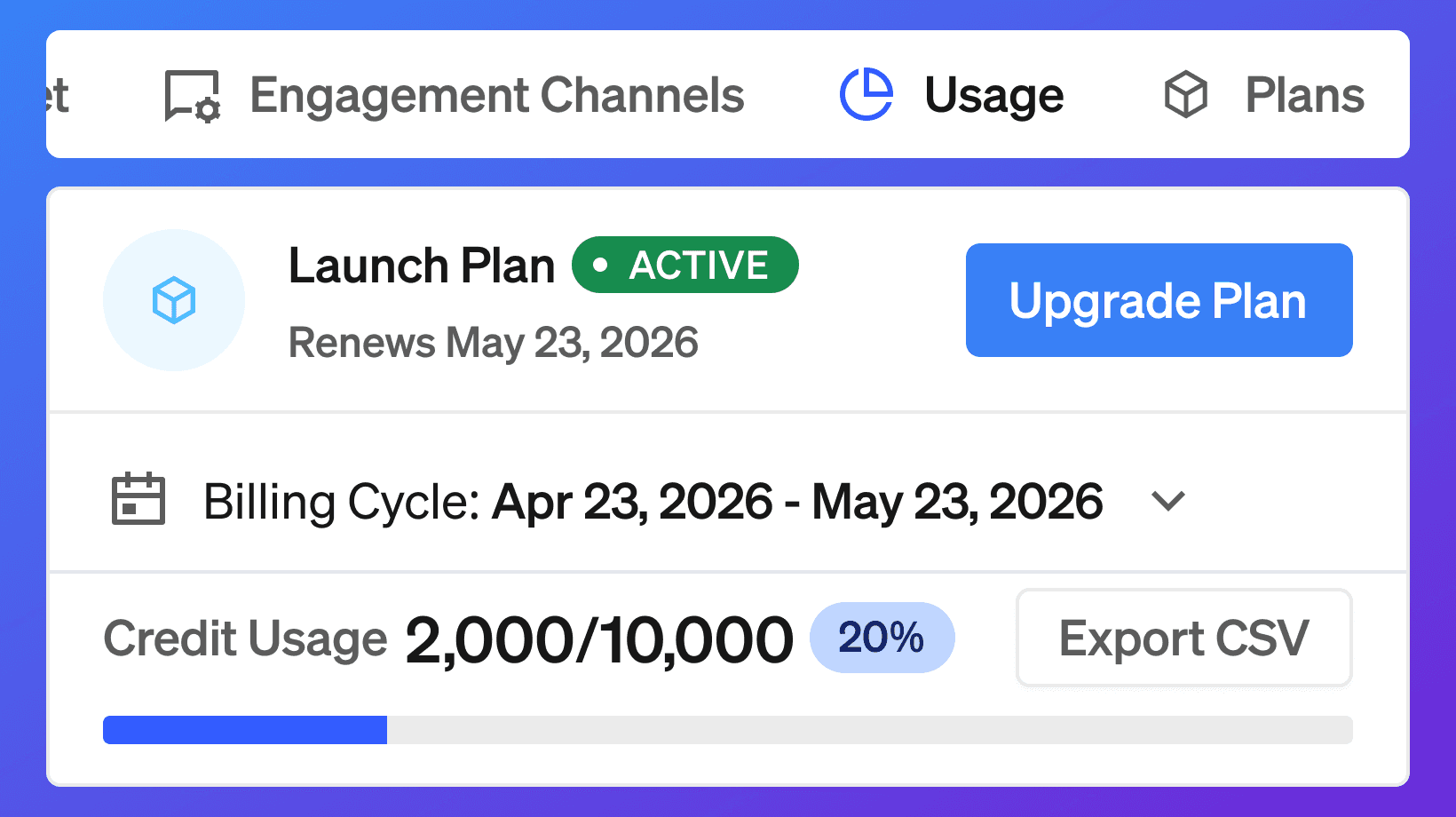
Open the Usage tab
Review plan, billing cycle, credit usage, and usage breakdown
The Usage page is the best place to see the full detail behind your credit usage.
Usage page
For the most detailed credit breakdown, go to Settings → Usage.
The Usage page shows your current plan, billing cycle, credit usage, remaining credits, and a breakdown of which actions used credits.
From the Usage page, you can:
View your active plan
See your current billing cycle
Track credits used and remaining credits
View usage by action type
See count, credits per action, and total credits used
Export usage as a CSV
Manage your plan
For Snowbricks, the Usage page may show a breakdown like:
Category | Action | Count | Credits | Total credits used |
|---|---|---|---|---|
Company | Company identified from website | 41 | 1 | 41 |
Person | Person identified from website | 25 | 5 | 125 |
Person | Person’s verified work email | 9 | 2 | 18 |
Use the billing cycle selector to review usage for a specific billing period.
Use Export Usage CSV when you want to download usage details for reporting, finance, RevOps, or internal review.
Billing cycle
Credits are tracked by billing cycle.
Your billing cycle shows the start and end date for the current usage period. Credit usage resets based on your plan’s billing cycle.
For example:
During that cycle, 1eyeᴬᴵ tracks all credit-consuming actions and shows the total credits used against your included monthly credit allowance.
Usage breakdown
The usage breakdown shows how credits were used by category and action.
Each row shows:
Category
The type of usage, such as Company, Person, or Message.Action
The specific action that used credits, such as company identified from website or person’s verified work email.Count
How many times that action happened during the selected billing cycle.Credits
How many credits each action uses.Total credits used
Count multiplied by credits per action.
This makes it easier to understand where credits are going and whether usage is coming from signals, identification, enrichment, or engagement.
Export usage
Select Export Usage CSV to download your usage data.
Use the export when you want to:
Share usage with finance
Review credit usage with RevOps
Analyze usage by billing cycle
Track which actions consume the most credits
Compare usage before and after campaign launches
Understand whether your current plan matches your GTM volume
Before exporting, confirm you are viewing the correct billing cycle.
What credits are used for
Credits are used for actions across four major areas:
Signals
Company identification
Contact identification and enrichment
Engagement
This means credits are used when 1eyeᴬᴵ helps you understand activity, identify target companies, find target contacts, enrich those contacts, and engage them across channels.
How credits fit into the GTM workflow
Credits support the full 1eyeᴬᴵ workflow.
Capture signals
1eyeᴬᴵ captures activity from your website, LinkedIn, conversations, and other GTM channels.Identify companies
1eyeᴬᴵ identifies companies showing activity and evaluates whether they match your ICPs.Identify contacts
1eyeᴬᴵ identifies contacts when available and evaluates whether they match your personas.Enrich contacts
1eyeᴬᴵ can enrich target contacts with verified work email and phone data when available.Engage targets
1eyeᴬᴵ uses credits when sending certain messages across channels such as LinkedIn and iMessage.
Plans and included credits
Each plan includes a monthly credit allowance.
Plan | Monthly price | Credits included | Users | Mailboxes | LinkedIn accounts | iMessage lines |
|---|---|---|---|---|---|---|
Free | $0/mo | 1,000 | 2 | 0 | 0 | 0 |
Launch | $499/mo | 10,000 | 5 | 5 | 5 | 1 |
Growth | $999/mo | 25,000 | 10 | 10 | 10 | 2 |
Scale | $2,499/mo | 75,000 | 25 | 25 | 25 | 5 |
Choose the plan based on how many signals you expect to capture, how many companies and contacts you want to identify, how much enrichment you need, and how many engagement channels your team wants to use.
Company credits
Company credits are used when 1eyeᴬᴵ identifies a company or creates company-level activity notifications.
Company credits help you understand which target companies are active.
Examples:
A company visits your website
A company is identified from website activity
A company is identified from LinkedIn activity
A company event notification is created
A company is evaluated against your ICPs
For Snowbricks, this means 1eyeᴬᴵ can identify companies visiting snowbricks.io and evaluate whether they match Snowbricks’ ICPs, such as B2B SaaS companies, RevOps teams, AI-native GTM companies, or data infrastructure companies.
Contact credits
Contact credits are used when 1eyeᴬᴵ identifies or enriches a person.
Contact credits help you understand which target contacts are active and whether they match your personas.
Examples:
A person is identified from website activity
A person is identified from LinkedIn activity
A person is matched to a target company
A person is evaluated against your personas
A verified work email is added
A verified phone number is added
A person event notification is created
For Snowbricks, this means 1eyeᴬᴵ can identify and enrich target contacts such as RevOps leaders, Heads of Data, VP Sales, VP Marketing, GTM Systems leaders, and AI Transformation leaders.
Message credits
Message credits are used when 1eyeᴬᴵ sends certain engagement actions.
Message credits help your team engage target contacts across the channels where they are active.
Examples:
Sending an iMessage
Sending a LinkedIn connection request
Sending a LinkedIn message
Your available channels depend on your plan, connected accounts, user roles, and workspace settings.
Signal notifications
Credits may be used when 1eyeᴬᴵ creates event notifications for company or contact activity.
Signal notifications help your team know when something important happens, such as a target company visiting a high-intent page or a target contact showing activity.
Examples:
Company event notification
Person event notification
Website activity notification
LinkedIn activity notification
Conversation activity notification
These notifications help your team act quickly on target activity instead of waiting for manual research.
How ICP and persona matching affects credit value
Credits are most valuable when your Knowledge Base is accurate.
When a company signal comes in, 1eyeᴬᴵ evaluates the company against your ICPs.
When a contact signal comes in, 1eyeᴬᴵ evaluates the contact against your personas.
This helps your team focus credits on the companies and contacts that matter most.
A strong Knowledge Base improves credit efficiency because 1eyeᴬᴵ can better decide:
Which companies are worth prioritizing
Which contacts are worth enriching
Which targets should be added to lists
Which targets should move into campaigns
Which signals deserve attention
Example credit usage
Here is a simple example for Snowbricks.
A company visits snowbricks.io and 1eyeᴬᴵ identifies the company.
Action | Credits |
|---|---|
Company identified from website activity | 1 |
Then 1eyeᴬᴵ identifies a target contact from that company.
Action | Credits |
|---|---|
Person identified from website activity | 5 |
Then 1eyeᴬᴵ enriches that person with a verified work email.
Action | Credits |
|---|---|
Person’s verified work email | 2 |
Then Snowbricks sends a LinkedIn connection request.
Action | Credits |
|---|---|
Send LinkedIn connection request | 1 |
Total example usage:
Total | Credits |
|---|---|
Company identified + person identified + verified work email + LinkedIn connection request | 9 |
Example: website signal to campaign
Here is how credits may be used across a common workflow.
A visitor lands on
snowbricks.io/pricing1eyeᴬᴵ identifies the company
The company is evaluated against Snowbricks’ ICPs
1eyeᴬᴵ identifies a target contact when available
The contact is evaluated against Snowbricks’ personas
1eyeᴬᴵ enriches the contact with a verified work email when available
The contact is added to a target list
A campaign sends a LinkedIn connection request or iMessage
This workflow may use credits for company identification, contact identification, enrichment, notifications, and message sends.
Example: LinkedIn signal to target list
Here is another common workflow.
A company is identified from LinkedIn activity
1eyeᴬᴵ evaluates the company against your ICPs
A person is identified from LinkedIn activity
1eyeᴬᴵ evaluates the person against your personas
The company or person is added to a target list
A campaign uses that list for outreach
This workflow may use credits for LinkedIn company identification, LinkedIn person identification, notifications, and message sends.
What does not automatically use credits
Not every action in the product uses credits.
For example, credits are not used just for:
Opening a page in the app
Viewing an existing company
Viewing an existing contact
Reviewing a target list
Reading an existing conversation
Editing your Knowledge Base
Inviting a user
Updating workspace settings
Viewing usage
Exporting usage
Credits are mainly tied to usage actions such as identifying, enriching, notifying, and sending.
How to monitor credit usage
Use the Usage page to understand where credits are going.
Review:
Total credits used
Remaining credits
Current billing cycle
Usage by action type
Usage by signal source
Usage by enrichment
Usage by engagement
Usage over time
If credits are being used faster than expected, review your signal volume, enrichment settings, campaign activity, and target list quality.
What happens when credits run low
When your workspace uses a large share of its included credits, your team should review usage and decide whether to adjust activity or upgrade.
You may want to:
Review which actions are using the most credits
Tighten ICPs and personas
Reduce noisy target segments
Add exclusions
Pause low-priority campaigns
Upgrade to a higher plan if your team needs more volume
If credits run out, credit-consuming actions may stop or be limited until more credits are available or your plan is upgraded.
How to make credits go further
The best way to make credits go further is to improve targeting.
Use these practices:
Keep your ICPs specific
Broad ICPs create noisy company matches and weaker target lists.Keep personas sharp
Clear personas help 1eyeᴬᴵ prioritize the right target contacts.Use exclusions
Exclude your own company, customers, competitors, vendors, partners, and companies you do not want to target.Track the right website pages
Install Vision on important GTM pages like homepage, pricing, product, demo, contact, and landing pages.Exclude low-value URLs
Exclude pages like privacy, terms, login, admin, and internal pages when they are not useful for GTM.Track important forms
Add demo, contact, trial, webinar, and gated content pages as form tracking URLs.Build lists from ICP and persona match
Source companies from ICPs and contacts from personas instead of creating broad lists.Prioritize high-intent signals
Focus on companies and contacts visiting pricing, demo, contact, product, comparison, and case study pages.Review enrichment settings
Enrich contacts when your team is likely to use the data for targeting or engagement.Pause campaigns that are not converting
Do not keep spending credits on weak audiences or low-quality segments.
Plan selection guide
Use this as a simple guide.
Free
Use Free if you are exploring 1eyeᴬᴵ and want to understand how signals, identification, and targeting work before upgrading.
Best for:
Testing the workspace
Installing Vision
Reviewing early signals
Understanding credit usage
Launch
Use Launch if your team is starting outbound and wants enough credits and connected channels to run early campaigns.
Best for:
Early GTM execution
Small teams
Website signal capture
Initial target lists
First campaigns
Growth
Use Growth if your team is running repeatable campaigns and needs more users, credits, mailboxes, LinkedIn accounts, and iMessage lines.
Best for:
Repeatable outbound
Multi-user GTM teams
More target lists
More enrichment
More engagement volume
Scale
Use Scale if your team needs higher volume, more users, more connected channels, and larger signal-driven GTM execution.
Best for:
Larger GTM teams
High signal volume
More campaign volume
Multiple connected channels
Broader target coverage
Best practices
Start with a clean Knowledge Base
Credits work better when 1eyeᴬᴵ has accurate ICPs, personas, and exclusions.Review usage by billing cycle
Check usage for the current cycle and compare it across previous cycles as your GTM motion grows.Export usage when reviewing spend
Use Export Usage CSV when you need to share credit usage with finance, RevOps, or leadership.Prioritize high-fit companies
Use ICP match to focus company identification and target list building.Prioritize high-fit contacts
Use persona match before enriching and engaging contacts.Use enrichment intentionally
Verified emails and phone numbers are valuable. Use them for contacts your team is likely to engage.Keep exclusions updated
Add customers, competitors, vendors, partners, and poor-fit companies to avoid wasting credits.Use target lists before campaigns
Build focused target lists before launching engagement workflows.Watch for noisy sources
If one page, campaign, or segment creates low-quality volume, refine your tracking or targeting.Upgrade when volume becomes repeatable
If your team is consistently using credits on high-fit signals and campaigns, move to the plan that matches your GTM scale.
Troubleshooting
Credits are being used faster than expected
Check:
Website signal volume
LinkedIn signal volume
Contact identification volume
Enrichment activity
Message sending volume
Event notifications
Broad ICPs or personas
Missing exclusions
Signals are noisy
Review your Knowledge Base.
Tighten:
ICPs
Personas
Exclusions
Included domains
Excluded URLs
Form tracking URLs
Too many poor-fit companies are being identified
Update ICPs and exclusions.
Check whether your ICPs are too broad or whether excluded companies are missing.
Too many poor-fit contacts are being identified
Update personas.
Check whether your personas include the right job titles, seniority, departments, and functions.
Enrichment is using more credits than expected
Review which contacts are being enriched.
Prioritize enrichment for contacts that match your personas and belong to companies that match your ICPs.
Campaigns are using more credits than expected
Review:
Campaign audience size
Channels used
Number of steps
Follow-up logic
Target list quality
Sending volume
No credits are being used
This may happen if:
Vision is not installed
No signals are flowing
No companies or contacts are being identified
No enrichment is running
No engagement actions are being sent
Your workspace is not active
Credit-consuming actions are not running
Check:
Remaining credits
Plan status
User role
Connected channels
Campaign status
Workspace settings
Usage does not look right
Check:
You are viewing the correct billing cycle
The usage breakdown includes the action you are looking for
The count, credits per action, and total credits used match the activity
The workspace has recent signal, enrichment, or engagement activity
The user reviewing usage has the right workspace access
If needed, export the usage CSV and review the rows in detail.
FAQ
What are credits?
Credits are the usage currency inside 1eyeᴬᴵ. They are used for actions such as signal capture, company identification, contact identification, enrichment, notifications, and engagement.
Where can I see my credit usage?
You can see credit usage in the plan card in the sidebar or in Settings → Usage.
What does the Usage page show?
The Usage page shows your active plan, billing cycle, credits used, remaining credits, usage breakdown, and export option.
Can I export usage?
Yes. Use Export Usage CSV from the Usage page to download usage details.
Can I view usage by billing cycle?
Yes. Use the billing cycle selector on the Usage page to review usage for a specific billing period.
What actions use credits?
Credits are used for actions such as identifying companies, identifying people, verifying work emails, verifying phone numbers, creating event notifications, sending iMessages, sending LinkedIn connection requests, and sending LinkedIn messages.
How many credits are included in each plan?
Free includes 1,000 credits. Launch includes 10,000 credits. Growth includes 25,000 credits. Scale includes 75,000 credits.
Does company identification use credits?
Yes. Company identification from website or LinkedIn activity uses credits.
Does contact identification use credits?
Yes. Person identification from website or LinkedIn activity uses credits.
Does enrichment use credits?
Yes. Verified work email and verified phone number enrichment use credits.
Do LinkedIn messages use credits?
Yes. Sending LinkedIn connection requests and LinkedIn messages uses credits.
Do iMessages use credits?
Yes. Sending iMessages uses credits.
Does email sending use credits?
Email sending is not listed in the current credit table. Check your workspace usage page for the latest usage details.
Do users use credits?
Users are included in your plan limits. Inviting or viewing users is separate from usage credits.
Do connected channels use credits?
Connected channels are included in your plan limits. Credits are used when certain actions happen through those channels, such as LinkedIn messages or iMessages.
Do all website visitors become identified companies or contacts?
No. Not every visitor can be identified. Identification depends on available signal data, enrichment match, source quality, and visitor context.
Can I reduce credit usage?
Yes. Tighten ICPs, personas, exclusions, tracked domains, excluded URLs, form tracking URLs, target lists, enrichment rules, and campaign audiences.
What should I do before upgrading?
Review usage, confirm that credits are being spent on high-fit companies and contacts, and make sure your Knowledge Base is clean.
Which plan should I choose?
Start with Free if you are exploring. Choose Launch if you are starting outbound. Choose Growth if you are running repeatable campaigns. Choose Scale if you need more users, credits, and connected channels.
Next step
After reviewing Credits, go to Signals Overview to understand how 1eyeᴬᴵ captures, evaluates, and organizes activity from target companies and target contacts.