Conversations
Email Messages
Email Messages show the email activity inside your conversations.
Use Email Messages to review sent emails, incoming replies, open activity, delivery status, message history, and follow-up context from email-based campaigns.
Email conversations help your team understand who received outreach, who opened messages, who replied, and which target contacts need action.
What Email Messages are for
Email Messages help your team answer:
Use Email Messages to:
Review outgoing campaign emails
Review incoming email replies
Track email opens when available
See how many times an email was opened
Reply to a contact
Reply all when needed
Review email subject and body
Understand which campaign generated the email
Review conversation intent
Follow up on interested contacts
Investigate not delivered messages
Understand the full email thread in context
View the same email thread in the connected Gmail mailbox when needed
Where Email Messages appear
Email messages appear inside Conversations.
You can review them from:
Conversations → Overview
Conversations → Email Messages
Conversations → Conversation Intent
A specific conversation detail view
Use Email Messages when you want to focus only on email activity.
Use Overview when you want to review all channels together.
Email in Gmail
Email messages sent or received through a connected Gmail mailbox can also be viewed in that Gmail account.
For example:
Outgoing campaign emails may appear in the connected Gmail mailbox’s Sent folder.
Incoming replies may appear in the connected Gmail mailbox’s Inbox.
Ongoing email threads may appear in Gmail search, Inbox, Sent, or conversation history depending on Gmail settings.
This means 1eyeᴬᴵ gives your team campaign context, intent, signals, and workflow visibility, while Gmail still remains the underlying mailbox system for the connected sender.
Use Gmail when you want to:
Confirm the email exists in the sender’s mailbox
Review the native Gmail thread
Search the mailbox directly
Check Inbox or Sent items
Review Gmail-specific delivery or thread behavior
Continue a conversation directly from Gmail if your team prefers
Use 1eyeᴬᴵ when you want to see the email in GTM context, including campaign, company, persona, ICP, intent, and conversation history.
What an email conversation includes

An email conversation may include:
Target contact
Contact email
Sender name
Sender email
Subject
Email body
Incoming or outgoing direction
Open tracking when available
Reply and reply-all actions
Campaign name
Company context
ICP match
Persona match
Intent status
Intent score
Intent reason
Message timestamp
This gives your team enough context to respond without jumping between tools.
Incoming and outgoing email
Email messages can be incoming or outgoing.
Direction | What it means |
|---|---|
Outgoing | Your team or campaign sent the email. |
Incoming | The target contact replied by email. |
Outgoing messages help you understand what was sent.
Incoming messages help you understand what the contact said and whether follow-up is needed.
Outgoing emails
Outgoing emails are messages sent from connected Google Workspace Gmail mailboxes.
Outgoing emails may include:
Sender name
Sender email
Recipient email
Subject line
Message body
Sent timestamp
Campaign context
Open activity when available
Delivery status when available
Use outgoing emails to confirm what the target contact received.
Outgoing emails may also be visible in the connected sender’s Gmail Sent folder.
Incoming replies
Incoming replies are messages received from target contacts.
Incoming replies are important because they can create Conversation Intent.
Incoming replies may be classified as:
Positive
Neutral
Negative
The reply may also include an intent reason such as:
Meeting
Pricing
Info
Later
Referral
Competitor
Budget
No Need
Wrong Persona
Requested Remove
Use incoming replies to decide the next action.
Incoming replies may also be visible in the connected sender’s Gmail Inbox.
Email subject
Email messages show the subject line.
For replies, the subject may include:
Example:
Use the subject to understand which email thread the contact is replying to.
Email body
The email body shows the message content.
Use the body to review:
What your team sent
What the contact replied
Whether the message was personalized
Whether the reply needs action
Whether the contact asked for something specific
Whether the contact should be excluded or followed up with
Always read the message body before taking important action.
Open tracking
Email Messages can show open tracking when available.
Open tracking helps you understand whether a target contact opened an email.
When available, 1eyeᴬᴵ may show:
Whether the email was opened
How many times it was opened
Who opened it
When it was opened
Example:
This can help you identify engaged contacts.
Open history
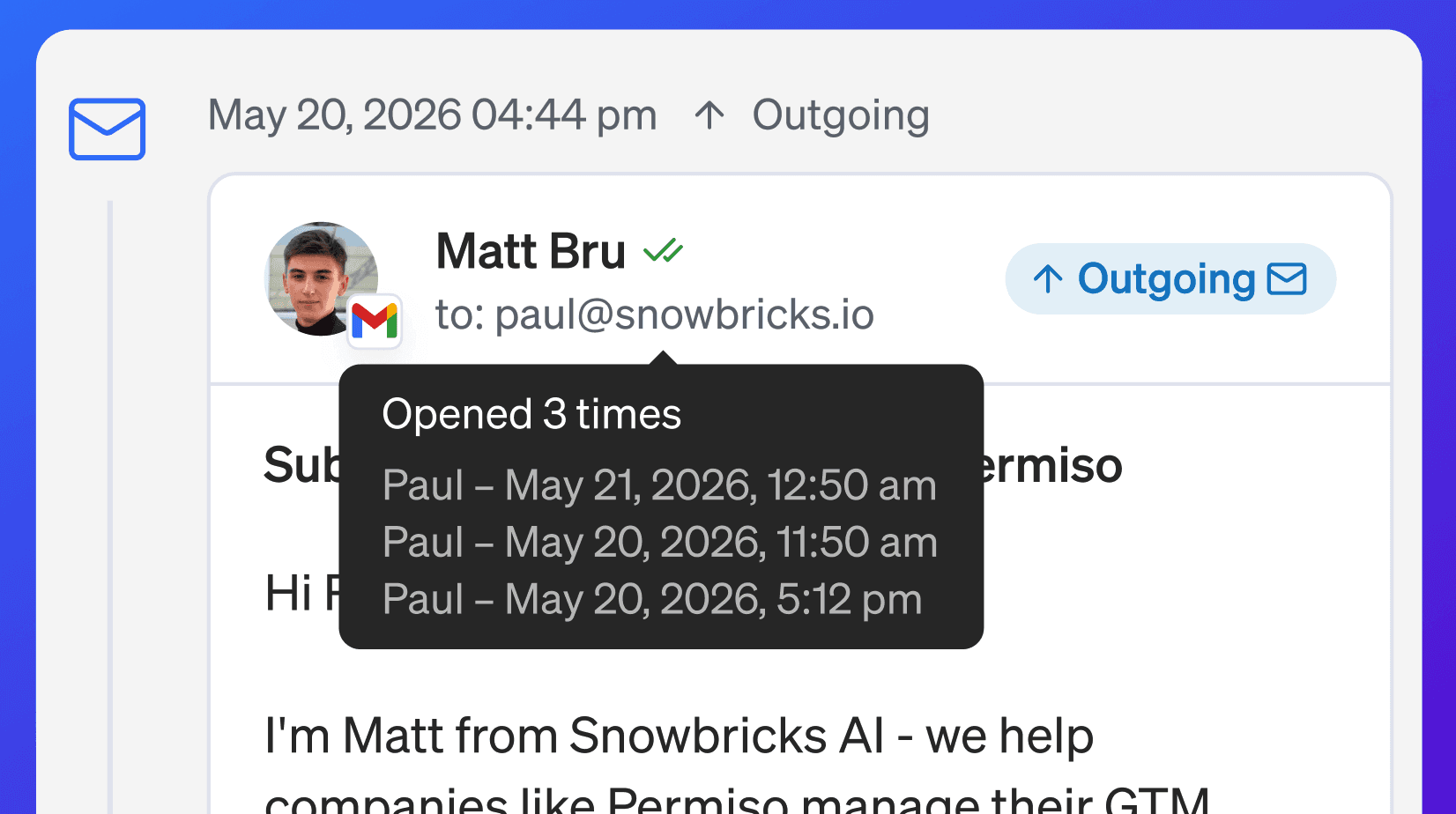
When you hover over the open indicator, you may see open history.
Open history may include:
Number of opens
Contact name
Open timestamp
Multiple open events
Example:
Use open history as an engagement signal.
Do not treat opens as a reply or buying intent by themselves.
How to interpret opens
Email opens can be useful, but they are not perfect.
A contact opening an email may mean:
They saw the email
They were curious
They re-opened the thread
Their email client loaded tracking pixels
A security tool scanned the email
Use opens as directional context, not final proof of interest.
Replies are stronger than opens.
When opens may not appear
Email opens may not always be tracked.
Open tracking can be affected by:
Email client privacy settings
Image blocking
Corporate security tools
Mail scanners
Recipient device settings
Forwarded messages
Tracking limitations
If an email shows no opens, it does not always mean the contact never saw it.
Reply
Use Reply to respond to the sender of an email thread.
Reply is useful when:
One person replied
You want to respond directly to that contact
No additional recipients need to be included
The conversation should stay focused
When you reply, 1eyeᴬᴵ opens a reply composer with the relevant thread context.
Reply All
Use Reply All when other recipients should stay included in the thread.
Reply All is useful when:
Multiple people are already part of the email conversation
The contact copied another stakeholder
A referral introduced another person
The thread should keep everyone included
The original context should stay visible to all recipients
Use Reply All carefully.
Do not include people who should not receive the response.
Reply composer
The reply composer lets you send a response from a connected mailbox.
The composer may include:
From
To
CC
BCC
Subject
Message body
Send button
Use the composer to write and send a follow-up email directly from the conversation.
From field
The From field shows the connected mailbox that will send the reply.
For example:
Make sure the correct sender is selected before sending.
The sender must have a connected Google Workspace Gmail mailbox.
To field
The To field shows the primary recipient.
For example:
Review the recipient before sending.
Make sure the reply is going to the right contact.
CC and BCC
Use CC and BCC when needed.
Use CC when another visible recipient should be included.
Use BCC when a recipient should receive the email without being visible to other recipients.
Use these fields carefully, especially in sales or customer conversations.
Subject field
The subject usually keeps the same email thread.
Replies may use:
For example:
Keep the subject unless there is a strong reason to change it.
Changing the subject can split the thread or confuse the recipient.
Message body
The message body is where you write the reply.
A strong reply should:
Address the contact by name
Reference what they asked
Answer directly
Keep the message concise
Include the right next step
Avoid over-explaining
Avoid sending generic copy
Respect opt-out or negative intent
Sending a reply
Before sending a reply, check:
Correct sender
Correct recipient
Correct subject
Correct message body
CC and BCC if needed
Conversation intent
Contact status
Company context
Campaign context
Any requested action from the contact
Then select Send.
After the reply is sent, it may appear in both:
1eyeᴬᴵ Conversations
The connected Gmail mailbox’s Sent folder
Email message statuses
Email messages may have statuses.
Common statuses include:
Status | What it means |
|---|---|
Sent | The email was sent. |
Opened | The email was opened when tracking is available. |
Replied | The contact replied. |
Draft | The email was drafted but not sent. |
Discarded | The email was discarded. |
Not Delivered | The email could not be delivered. |
Use status to understand what happened to the message.
Sent
Sent means the email was sent from a connected mailbox.
A sent email may later show opens, replies, or not delivered status depending on what happens next.
Sent messages may also appear in the sender’s connected Gmail Sent folder.
Opened
Opened means the email was opened when tracking is available.
Opened is an engagement signal, but not the same as a reply.
Use opened activity to prioritize follow-up when combined with ICP, persona, and campaign context.
Replied
Replied means the target contact responded.
Replies are stronger than opens.
A reply may trigger Conversation Intent classification.
Replies may also appear in the connected Gmail Inbox.
Draft
Draft means the message was created but not sent.
Drafts may need review, editing, approval, or manual sending.
Discarded
Discarded means the message was prepared but not used.
Review discarded messages if you need to understand why messages were not sent.
Not Delivered
Not Delivered means the email could not be delivered.
Not delivered may happen because of:
Invalid email address
Bounced email
Mailbox issue
Sender issue
Delivery restriction
Contact data issue
Domain or security issue
Review Not Delivered messages to clean up contact data and fix campaign issues.
Email and Conversation Intent
Email replies can create Conversation Intent.
When a target contact replies, 1eyeᴬᴵ may classify the conversation by:
Intent status
Intent reason
Intent score
Example:
This helps your team decide what to do next.
Positive email replies
Positive email replies show interest or willingness to continue.
Examples:
Recommended action:
Reply quickly
Answer the request directly
Move the conversation forward
Update contact status if needed
Stop unnecessary automated follow-ups
Neutral email replies
Neutral email replies are unclear or weak.
Examples:
Recommended action:
Read the full thread
Review contact and company context
Decide whether follow-up is useful
Ask a simple clarifying question if appropriate
Negative email replies
Negative email replies show disinterest, disqualification, or a request to stop outreach.
Examples:
Recommended action:
Stop outreach where needed
Mark the contact as Excluded if appropriate
Respect opt-out requests
Use the feedback to improve targeting
Email and campaigns
Email messages often come from campaign workflows.
A campaign may send:
Intro email
Follow-up email
Final email
Persona-specific email
ICP-specific email
When reviewing an email conversation, check the campaign context so you understand why the message was sent.
Email and target contacts
Email messages are tied to target contacts when available.
Review the contact context before replying:
Contact name
Title
Persona
Email
Company
Contact status
Conversation history
This helps make the reply more relevant.
Email and target companies
Email conversations also include company context when available.
Review the company before replying:
Company name
Website
ICP match
Industry
Company status
Campaign
Other contacts at the company
In B2B, the company context matters as much as the person.
Email and ICP match
If the company matches an ICP, the reply may be more important.
For example:
Use ICP context to decide how quickly to respond and how much effort to invest.
Email and persona match
If the contact matches a persona, the reply may be more important.
For example:
Use persona context to tailor the reply.
A CEO, RevOps leader, IT leader, and finance leader may need different responses.
Search Email Messages
Use search to find specific email messages or conversations.
You can search for:
Contact name
Company name
Email address
Subject
Campaign name
Keyword from a message
Intent reason
Examples:
Search is useful when you know which message or contact you want to review.
Filter Email Messages
Email Messages can be filtered.
Common filters may include:
Channel
Direction
Intent Status
Intent Reason
Intent Score
Status
Record Status
Email ID
Campaign
Company
Updated Date
Use filters to narrow the message list.
Filter by channel
Use channel filters when reviewing email inside broader Conversations.
Select:
This shows email activity and hides LinkedIn or iMessage activity.
Filter by direction
Use direction to focus on incoming or outgoing email.
Direction | Use it for |
|---|---|
Incoming | Reviewing replies from contacts. |
Outgoing | Reviewing sent emails from your team or campaigns. |
Incoming is usually where follow-up work starts.
Filter by intent status
Use intent status to review email replies by outcome.
Common values:
Positive
Neutral
Negative
Start with Positive when following up.
Review Negative for opt-outs, wrong-person replies, and disqualifications.
Filter by intent reason
Use intent reason to group replies by follow-up type.
Examples:
Meeting
Pricing
Info
Later
Referral
Competitor
Budget
No Need
Wrong Persona
Requested Remove
This helps your team handle similar conversations together.
Filter by status
Use status to review email delivery or message state.
Examples:
Sent
Opened
Replied
Draft
Discarded
Not Delivered
This is useful for both follow-up and troubleshooting.
Filter by Email ID
Use Email ID to find activity tied to a specific email address.
This is useful when:
A contact asks about a thread
You need to investigate delivery
You want to review all activity for one email
You are troubleshooting a contact record
Filter by campaign
Use campaign filters to review email activity from a specific campaign.
This helps answer:
Which email replies came from this campaign?
Which emails were opened?
Which messages were not delivered?
Which contacts need follow-up?
Which campaign generated positive replies?
Filter by company
Use company filters to review email activity for one target company.
This is useful when several contacts from the same company are in campaigns.
Filter by updated date
Use updated date to find recent email conversations.
This helps you review:
New replies today
Recent opens
Recently updated threads
Activity from a campaign launch window
Recommended workflow: review email replies
Use this workflow daily.
Open Conversations
Go to Email Messages
Filter by Incoming if needed
Start with Positive intent
Review Meeting and Pricing replies first
Open each conversation
Read the full thread
Review company and persona context
Reply or route the conversation
Stop automated follow-ups where needed
Recommended workflow: reply to an email
Use this workflow when responding to a target contact.
Open the email conversation
Read the latest reply
Review intent status, reason, and score
Review the target contact
Review the company and ICP
Select Reply or Reply All
Confirm From, To, CC, and BCC
Keep the subject unless it needs to change
Write the reply
Review for clarity and accuracy
Select Send
Confirm the sent reply in 1eyeᴬᴵ or in the connected Gmail Sent folder if needed
Recommended workflow: view the email in Gmail
Use this workflow when you want to verify the thread in the native Gmail mailbox.
Identify the connected sender mailbox
Open Gmail for that mailbox
Search for the target contact email, subject, or campaign message
Check Inbox for incoming replies
Check Sent for outgoing campaign emails or replies
Review the native Gmail thread if needed
Return to 1eyeᴬᴵ to review campaign context, intent, ICP, persona, and signals
Use Gmail for mailbox-level verification.
Use 1eyeᴬᴵ for GTM context and campaign follow-up.
Recommended workflow: investigate opens
Use this workflow when a contact has opened but not replied.
Open Email Messages
Find the email conversation
Hover over the open indicator
Review open count and timestamps
Check company and persona fit
Decide whether a follow-up is warranted
Avoid overreacting to opens alone
Multiple opens can indicate interest, but replies are stronger.
Recommended workflow: review not delivered emails
Use this workflow when emails are not delivered.
Open Conversations
Select Not Delivered
Filter by Email if needed
Open the message
Review the contact email
Check sender mailbox status
Check campaign context
Fix the contact data if possible
Remove or exclude bad records
Relaunch or continue only when clean
Recommended workflow: handle opt-outs
Use this workflow when someone asks not to be contacted.
Open the conversation
Confirm the request
Do not send another sales reply unless required by your process
Mark the contact as Excluded
Stop campaign outreach to that contact
Review whether the company should also be excluded
Keep the record clean for future campaigns
Best practices
Start with incoming replies
Replies are more important than opens.Prioritize positive intent
Meeting, pricing, and info replies should be handled quickly.Use Reply All only when needed
Keep additional recipients included only when it makes sense.Check the sender before sending
Make sure the correct connected mailbox is used.Read the full thread
Do not reply based only on a preview.Use company and persona context
A better reply reflects who the contact is and why they were targeted.Treat opens as directional
Opens are useful, but not perfect.Respect opt-outs immediately
Requested remove should stop outreach.Review not delivered messages regularly
Delivery issues usually point to data quality or channel setup issues.Keep replies concise
Good follow-up answers the contact and moves the conversation forward.Stop unnecessary automation after a reply
If a contact replies, avoid sending irrelevant automated follow-ups.Use Gmail when you need mailbox-level confirmation
Sent messages and incoming replies can also be reviewed in the connected Gmail mailbox.Use 1eyeᴬᴵ when you need GTM context
1eyeᴬᴵ connects the email thread to campaign, company, ICP, persona, signals, and intent.Use email replies to improve campaigns
Replies tell you which ICPs, personas, subjects, and messages are working.
Troubleshooting
I do not see an email message I expected
Check:
Filters are not hiding it
You are in the correct workspace
You are viewing Email Messages or All Conversations
The message had time to process
The campaign is selected correctly
The contact email is correct
The email appears in the connected Gmail mailbox
A reply is not showing
Check:
The mailbox is connected
The reply went to the connected mailbox
The message had time to sync
Filters are not hiding incoming messages
The conversation is tied to the correct contact or campaign
The reply appears in the connected Gmail Inbox
I see the email in Gmail but not in 1eyeᴬᴵ
Check:
The Gmail mailbox is still connected
The message had time to sync
The message belongs to a connected campaign or contact
Filters are not hiding the message
The email address matches the target contact record
The conversation is not under a different category or status
I see the email in 1eyeᴬᴵ but not in Gmail
Check:
You are logged in to the correct Gmail mailbox
You are checking the connected sender mailbox
You searched the subject, recipient, or contact email
The email is not archived, filtered, or hidden by Gmail labels
You checked Sent for outgoing emails and Inbox for incoming replies
Opens are not showing
Open tracking may be blocked or unavailable.
Common reasons include:
Recipient privacy settings
Image blocking
Email security tools
Corporate mail scanners
Tracking limitations
The recipient did not load the tracking pixel
Open count looks higher than expected
Open counts may include repeated opens or automated security scans.
Use open data as directional context, not absolute proof of human interest.
Reply button is not available
Check:
The email message is part of a valid conversation
The connected mailbox is available
The user has permission to reply
The conversation is not in a restricted status
The sender account is still connected
Reply is sending from the wrong mailbox
Check the From field before sending.
If the correct sender is missing, confirm the mailbox is connected in the user’s Mailbox settings.
Email was not delivered
Check:
Contact email address
Sender mailbox connection
Campaign status
Mailbox send limits
Contact status
Exclusions
Delivery failure details when available
Email intent looks wrong
Read the full thread.
Intent can be harder to classify when replies are vague, automated, sarcastic, forwarded, or incomplete.
A contact replied “remove me”
Stop outreach and mark the contact as Excluded.
Do not continue campaign messages to that contact.
FAQ
What are Email Messages?
Email Messages are email-specific conversations and message activity from connected campaign mailboxes.
What channels are included in Email Messages?
Only email activity is included. Use All Conversations to see email, LinkedIn, iMessage, and SMS fallback together.
Can I view the same emails in Gmail?
Yes. Emails sent or received through a connected Gmail mailbox may also appear in that Gmail account.
Where do outgoing campaign emails appear in Gmail?
Outgoing campaign emails may appear in the connected sender’s Gmail Sent folder.
Where do incoming replies appear in Gmail?
Incoming replies may appear in the connected sender’s Gmail Inbox.
Why use 1eyeᴬᴵ instead of just Gmail?
1eyeᴬᴵ adds GTM context, including campaign, target contact, company, ICP, persona, signals, open tracking, and conversation intent.
Why use Gmail at all?
Use Gmail when you want native mailbox visibility, such as Inbox, Sent, Gmail search, labels, or the native Gmail thread.
Can I reply to an email from 1eyeᴬᴵ?
Yes. You can use Reply or Reply All when available.
What is Reply?
Reply sends a response to the sender of the email thread.
What is Reply All?
Reply All sends a response to the sender and other recipients already included in the thread.
Can I edit recipients before sending?
Yes. Review To, CC, and BCC before sending.
Can I change the subject?
Yes, but it is usually best to keep the existing thread subject.
Can I track email opens?
Yes, when open tracking is available.
What does “Opened 3 times” mean?
It means the email was opened three times when tracking was available.
Are opens always accurate?
No. Opens can be affected by privacy settings, image blocking, and security scanners.
Are replies stronger than opens?
Yes. Replies are usually much stronger than opens.
Can email replies create Conversation Intent?
Yes. Email replies can be classified by intent status, reason, and score when available.
What should I do with positive email replies?
Review quickly, reply with context, and move the conversation forward.
What should I do with negative email replies?
Respect the response, stop outreach where needed, and exclude the contact when appropriate.
What should I do with not delivered emails?
Review contact data, sender connection, and campaign setup. Fix or remove bad records.
Can one email conversation have multiple messages?
Yes. A conversation can include multiple outgoing emails and incoming replies.
Can one conversation include other channels?
In the broader Conversations view, one conversation can include activity across email, LinkedIn, iMessage, and SMS fallback when available.
Next step
Next, go to LinkedIn Messages to review LinkedIn connection requests, messages, replies, and LinkedIn conversation history.