Campaigns
Overview
Campaigns are where 1eyeᴬᴵ turns target lists into outreach workflows across email, LinkedIn, and iMessage.
A campaign takes the companies and contacts from a Target List, applies a workflow, sends messages through connected channels, tracks execution in the Console, and surfaces results through replies, signals, and intent.
Use Campaigns to launch structured, multi-channel outreach to the right target contacts with the right context.
What Campaigns are for
Campaigns help your team answer:
A Target List defines the audience.
A Campaign defines how that audience is engaged.
Use Campaigns to:
Select a target list
Build a workflow
Choose engagement channels
Write messages by ICP or persona
Send email, LinkedIn, and iMessage steps
Add wait steps and conditions
Branch based on signals
Track execution
Review replies and intent
Improve future outreach
Campaigns require a paid plan
Campaigns require engagement channels.
Engagement channels are available on paid plans, so campaign execution is available only after your workspace is on a paid plan and the required channels are enabled.
The Free Plan is useful for exploring 1eyeᴬᴵ, setting up the workspace, reviewing signals, and building targeting foundations.
To run campaigns, your workspace needs:
A paid plan
Enabled engagement channels
Connected user accounts or lines
A target list
A campaign workflow
How Campaigns work
A campaign connects strategy, audience, channels, and execution.
The basic flow is:
Target List
The companies and contacts that will be used in the campaign.Campaign Setup
The campaign name, purpose, target list, optional exclusion list and optional workflow import.Workflow
The sequence of steps that controls what happens, when it happens, and which channel is used.Channels
Email, LinkedIn, and iMessage nodes used inside the workflow.Launch
The campaign starts running against the target contacts.Console
The execution log showing what ran, what is pending, and what failed.Conversations
Replies and message activity from target contacts.Insights
Performance, replies, intent, message counts, ICPs, personas, and channel activity.
Campaign Setup

When you create a campaign, you start with Campaign Setup.
Campaign Setup may include:
Campaign name
Campaign purpose
Target list
Exclusion list
Optional workflow import
Campaign config settings
Preview step
These fields help 1eyeᴬᴵ understand what the campaign is meant to do and which audience it should run against.
Campaign name
The campaign name should be short, clear, and easy to recognize.
Good examples:
Weak examples:
Use a name your team can understand later.
Campaign purpose
The purpose explains what the campaign is meant to achieve and who it is targeting.
A good purpose should include:
Target segment
Target contact type
Campaign goal
Message angle
Relevant qualification criteria
Example:
A clear purpose helps your team build better workflows and messages.
Target list
Every campaign starts from a Target List.
The Target List supplies the campaign audience, including:
Target companies
Target contacts
ICP matches
Persona matches
Contact data
Company context
List readiness
Before launching a campaign, make sure the Target List is clean and ready.
Review:
Companies
Contacts
ICP fit
Persona fit
Contact status
Email availability
LinkedIn availability
Phone availability
Exclusions
A campaign is only as good as the list behind it.
Exclusion list
Exclusion Lists help prevent outreach to contacts or companies that should not be included in a campaign.
The Exclusion Lists selected for a campaign are used to automatically filter out matching records before campaign execution.
Exclusion Lists can include:
Existing customers
Competitors
Unsubscribed contacts
Partner organizations
Internal company domains
Blocked accounts
Custom exclusion segments
By default, all available Exclusion Lists are selected when creating a campaign. You can choose specific lists to apply based on the campaign's objectives. This helps ensure outreach remains relevant, compliant, and free from unwanted recipients.
Import workflow from another campaign
You can optionally import a workflow from an existing campaign.
Use this when you want to reuse a campaign structure that already works.
For example, you may reuse:
A proven email sequence
A LinkedIn-first workflow
A signal-based follow-up workflow
A persona-specific campaign structure
A multi-channel campaign template
After importing a workflow, review and edit it for the new audience before launching.
Do not blindly reuse a workflow without checking that the target list, personas, channels, and message context still fit.
Campaign config settings
The Campaign Config panel includes three settings that control how the campaign behaves during execution.
Exclude Unsubscribe URL
When enabled, the unsubscribe URL will not be appended to outgoing messages. Use this carefully and follow your company's compliance requirements. For most outbound email campaigns, teams should include appropriate unsubscribe or opt-out handling. If your team has legal, compliance, or deliverability requirements, review them before enabling this setting.
Auto Send
When enabled, the campaign will automatically send messages as contacts become eligible in the workflow, without requiring manual send approvals. This keeps execution running continuously against the target list.
Spintax for Messages
When enabled, Spintax syntax is active across all three outbound channels — Email, LinkedIn, and iMessage. Each message sent will use a randomly selected combination of the variations you define, making every send unique without requiring you to write multiple separate templates.
What is Spintax?
Spintax, short for Spin Syntax, is a way of writing a single message template that contains multiple word or phrase options. When the message is sent, the system picks one option from each group automatically, producing a unique version for each recipient.
Example:
Each send will combine a different set of selections, so no two messages look identical.
Supported channels
Spintax is supported across all three outbound channels when this setting is enabled:
Email
LinkedIn
iMessage
Campaign statuses
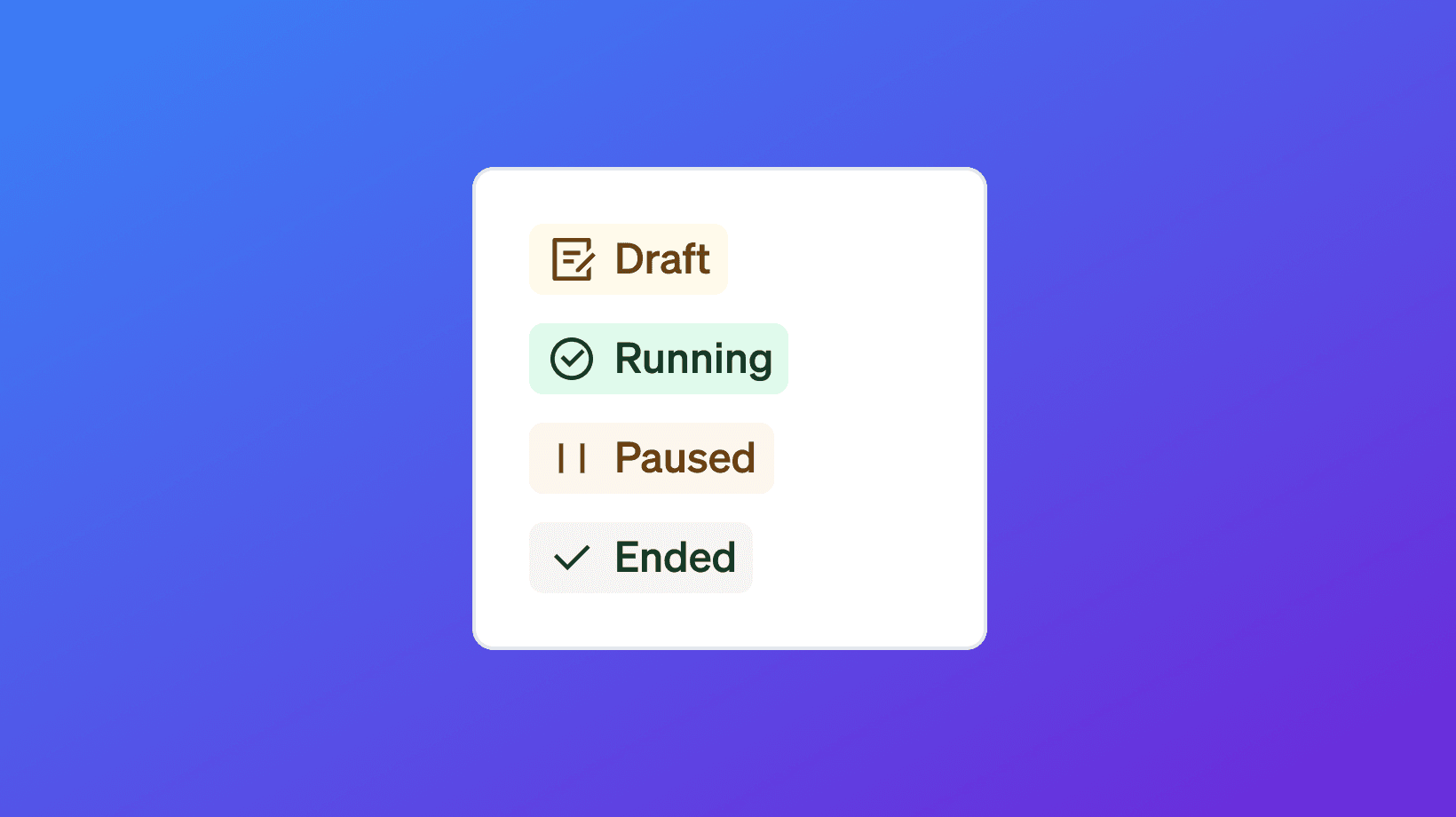
Campaigns can move through different statuses.
Common statuses include:
Status | What it means |
|---|---|
Draft | The campaign is being created or edited. |
Running | The campaign is actively executing. |
Paused | The campaign is stopped temporarily. |
Ended | The campaign has finished or was ended. |
Use campaign status to understand where each campaign is in the lifecycle.
Draft campaigns
A campaign is in Draft when it is still being built.
Draft campaigns may need:
A target list
Workflow steps
Channel setup
Message content
Sender selection
Preview review
Final launch approval
Draft campaigns do not execute until launched.
Running campaigns
A campaign is Running when 1eyeᴬᴵ is actively executing the workflow.
Running campaigns may be:
Sending messages
Waiting between steps
Checking conditions
Tracking responses
Updating conversation signals
Logging activity in Console
You can monitor running campaigns from Insights, Workflow, Console, Companies, Contacts, Target List, Files, and Notes.
Paused campaigns
A campaign is Paused when execution is temporarily stopped.
Pause a campaign when you need to:
Review message quality
Fix a workflow issue
Update the target list
Check channel connections
Investigate replies
Stop sending without ending the campaign
Paused campaigns can be resumed when ready.
Ended campaigns
A campaign is Ended when it has completed or has been stopped permanently.
Ended campaigns are useful for reviewing:
Final message counts
Replies
Intent
Channel performance
ICP performance
Persona performance
Lessons for future campaigns
Do not end a campaign unless you are done with it.
Channels inside campaigns
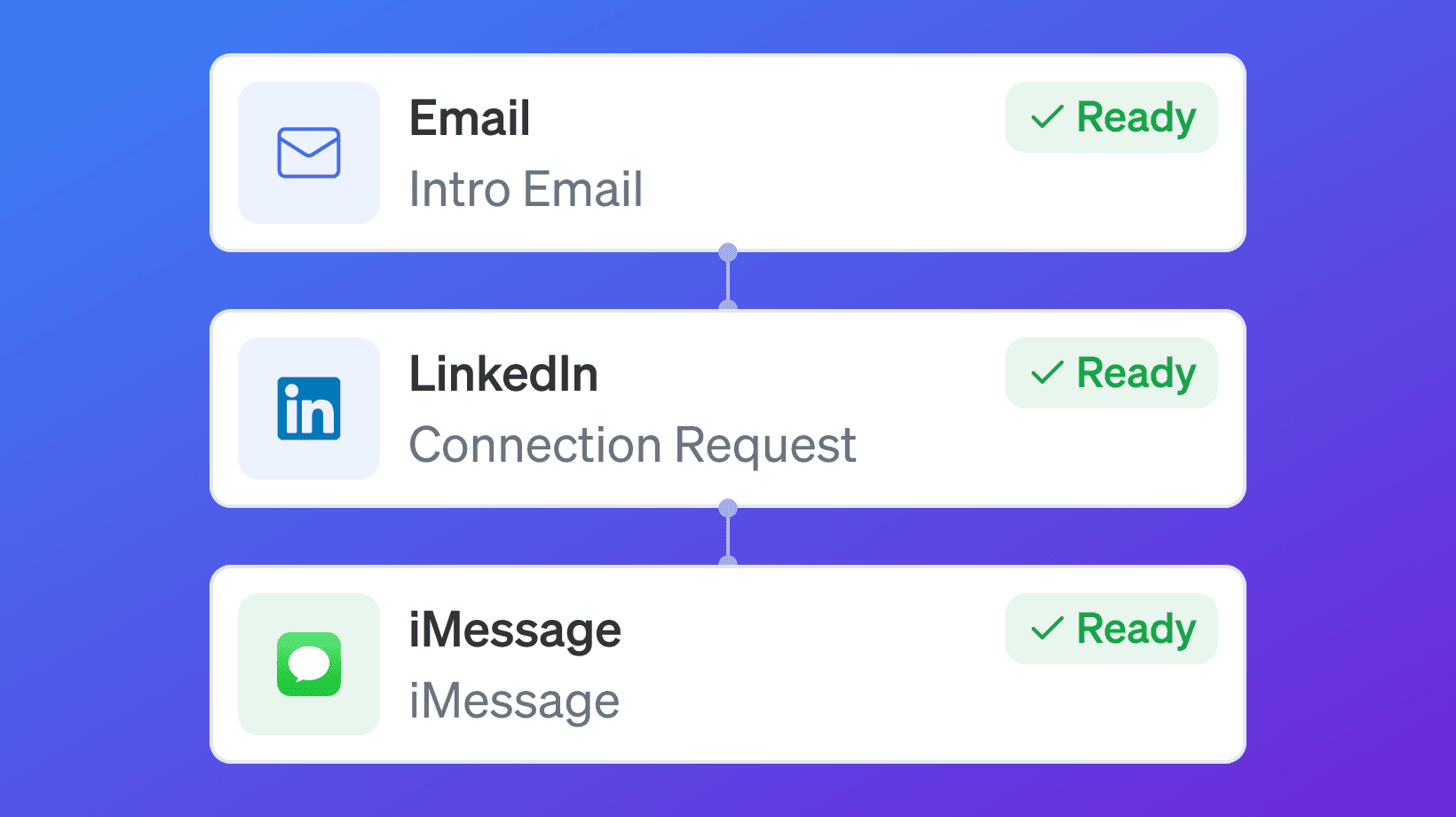
Campaigns use enabled engagement channels.
Available campaign channels may include:
Email
LinkedIn
iMessage
Only channels that are enabled for the workspace and connected for users will appear in campaign workflows.
For example:
If Email is enabled and a mailbox is connected, email nodes can be used.
If LinkedIn is enabled and an account is connected, LinkedIn nodes can be used.
If iMessage is enabled and a line is connected, iMessage nodes can be used.
If a channel is disabled, not included in the plan, or not connected, it will not be available for campaign execution.
Email in campaigns

Email nodes let you send campaign emails from connected Google Workspace Gmail mailboxes.
Email can be used for:
Intro emails
Follow-up emails
Final emails
Persona-specific messages
ICP-specific messages
Replies and intent tracking when available
Email is often the core channel in outbound campaigns.
LinkedIn in campaigns

LinkedIn nodes let you send connection requests and LinkedIn messages from connected LinkedIn accounts.
LinkedIn can be used for:
Connection requests
Follow-up messages
Messages after connection accepted
Persona-specific outreach
Multi-channel reinforcement
Replies and intent tracking when available
LinkedIn works well when the target contact has a strong LinkedIn profile and the message is relevant.
iMessage in campaigns

iMessage nodes let you send messages from connected iMessage-enabled lines.
If the target contact does not have an iMessage-compatible device, the message may be sent as SMS.
iMessage can be used for:
Direct outreach
Follow-up messages
High-intent contact engagement
Time-sensitive follow-up
Replies and intent tracking when available
iMessage should be used carefully because it is a direct channel.
Workflows
The Workflow tab is where you build the campaign logic.
A workflow controls:
Which message gets sent
Which channel is used
Which sender is used
How long to wait between steps
What happens after a signal
What happens after a reply
Where the campaign ends
Workflows can include nodes such as:
Start
Email
LinkedIn
iMessage
Signal condition
Wait
End
A workflow is the operating system of the campaign.
Channel nodes
Channel nodes are the action steps inside a workflow.
Examples:
Node | What it does |
|---|---|
Sends an email from a connected mailbox. | |
Sends a connection request or message from a connected LinkedIn account. | |
iMessage | Sends an iMessage or SMS fallback from a connected line. |
Only enabled and connected channels can be used.
If a channel is missing, check Settings → Engagement Channels and user channel connections.
Signal conditions
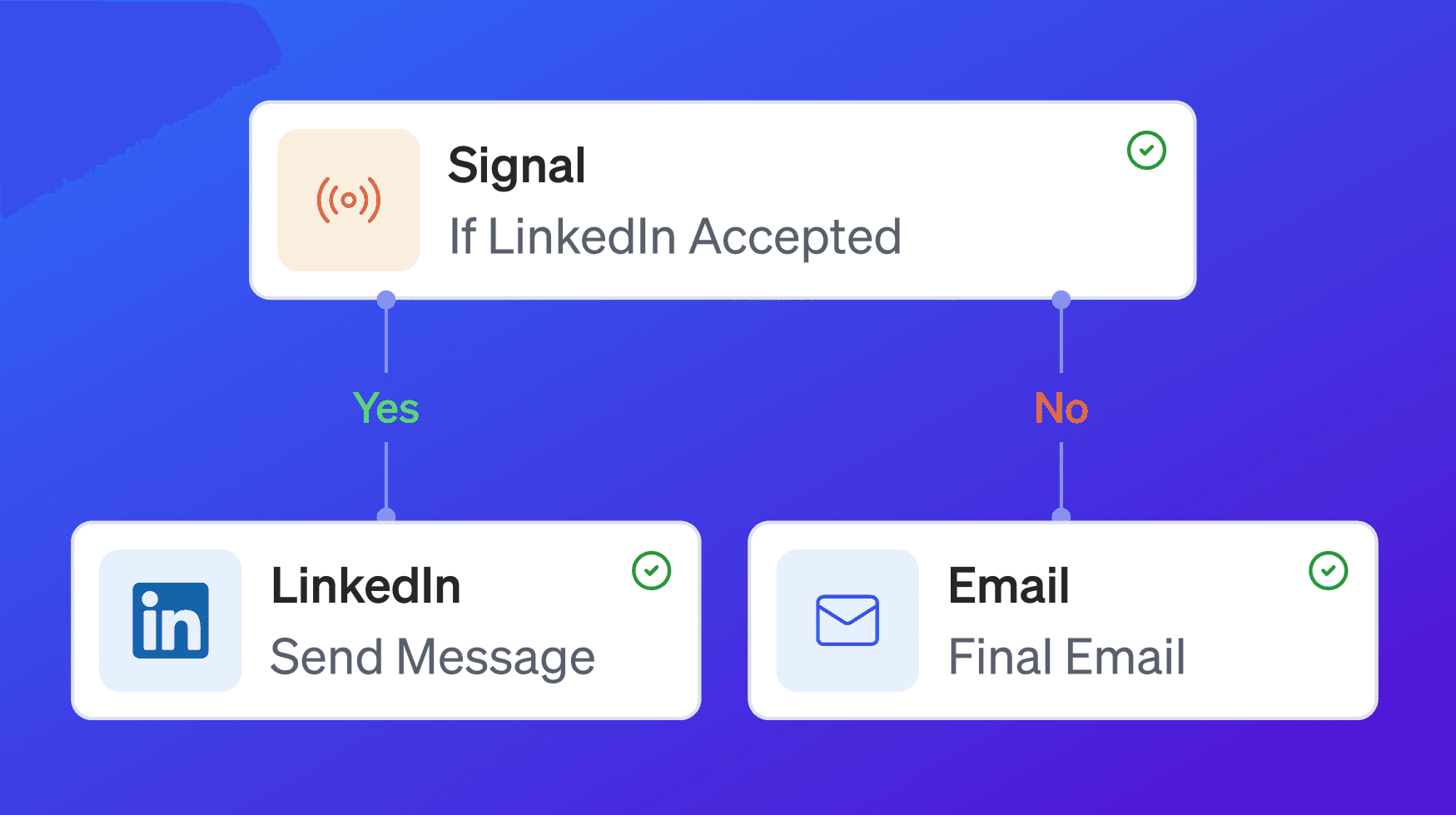
Signal conditions let workflows branch based on activity.
For example, a workflow can check:
Then branch:
Yes → Send LinkedIn message
No → Send final email
Signal conditions help campaigns adapt instead of sending the same sequence to everyone.
Wait steps
Wait steps control timing between actions.
Examples:
Wait steps help campaigns feel more natural and avoid sending too many messages too quickly.
Branching
Branching lets a campaign respond differently based on what the target contact does.
Example:
Branching helps campaigns become more contextual.
Message personalization by ICP and persona

Campaign messages can be crafted by ICP and persona.
This is important because different target companies and target contacts care about different things.
For example, you may write a different email for:
Hospitality ICP
Schools ICP
Healthcare ICP
Corporate ICP
You may also write different messages for:
CEO persona
Revenue persona
IT persona
Operations persona
This helps your campaign speak to the right context instead of sending one generic message to everyone.
Same message vs different message
When configuring a message step, you may be able to choose:
Same message to all
Different message by ICP
Different message by persona
Use same message when the audience is very focused.
Use different messages when the list includes multiple ICPs or personas with different pain points.
Same message to all
Use Same message to all when every target contact should receive the same message.
This works best when:
The target list is narrow
The ICP is consistent
The persona is consistent
The message angle is the same
The campaign goal is simple
Example:
Different message by ICP
Use Different message by ICP when companies in the list belong to different ICPs.
For example, Snowbricks may want different messaging for:
B2B SaaS Companies
Data Infrastructure Companies
AI-Native GTM Companies
Enterprise Sales Organizations
Each ICP may have a different business problem, so the message should reflect that.
Different message by persona
Use Different message by persona when contacts in the list have different roles.
For example, Snowbricks may want different messaging for:
Revenue Operations Leader
Head of Data
VP Sales
Founder or CEO
Each persona cares about a different outcome, so the message should match the person.
Sender selection
Campaign messages need a sender.
The sender must have the required channel connected.
For example:
Email steps require a connected Google Workspace Gmail mailbox.
LinkedIn steps require a connected LinkedIn account.
iMessage steps require a connected iMessage line.
If a sender is not available, check the user’s connected channels.
Variables
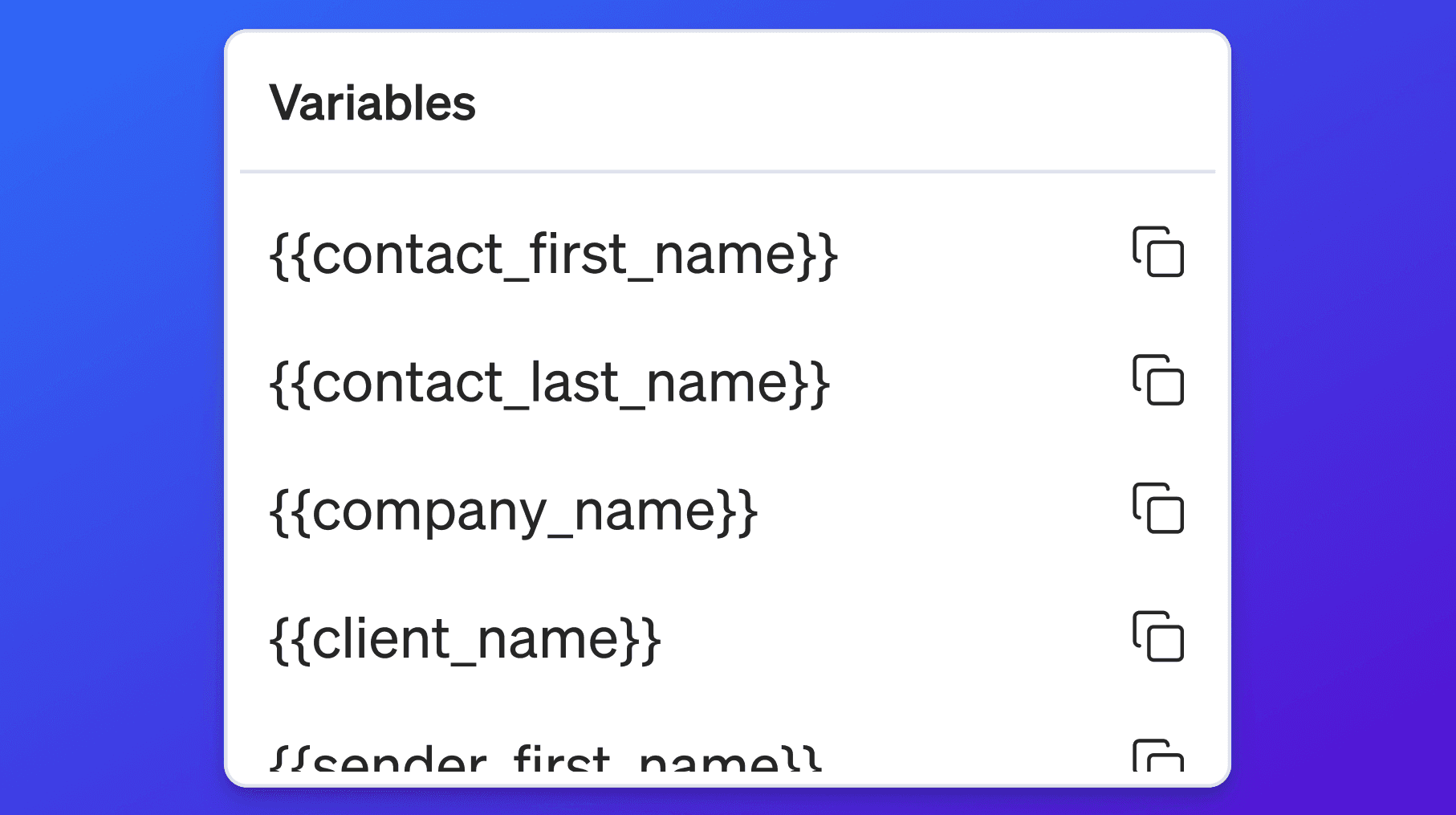
Messages may support variables.
Variables help insert contact, company, or campaign context into the message.
Examples may include:
Contact name
Company name
Title
Industry
Sender name
Website or signal context when available
Use variables carefully.
A good variable makes the message more relevant. A bad or missing variable can make the message feel automated.
Campaign preview
Before launch, review the campaign preview.
The preview helps you check:
Campaign name
Purpose
Target list
Workflow
Channels
Senders
Message content
Timing
Audience readiness
Do not launch until the preview looks right.
Campaign Insights

Insights show what is happening across the campaign.
Insights may include:
Target companies
ICP counts
Target contacts
Persona counts
Conversations
Positive replies
Neutral replies
Negative replies
Message counts by channel
Email performance
LinkedIn performance
iMessage performance
Average response time
Average open time when available
Use Insights to understand campaign performance and improve future campaigns.
Companies inside a campaign
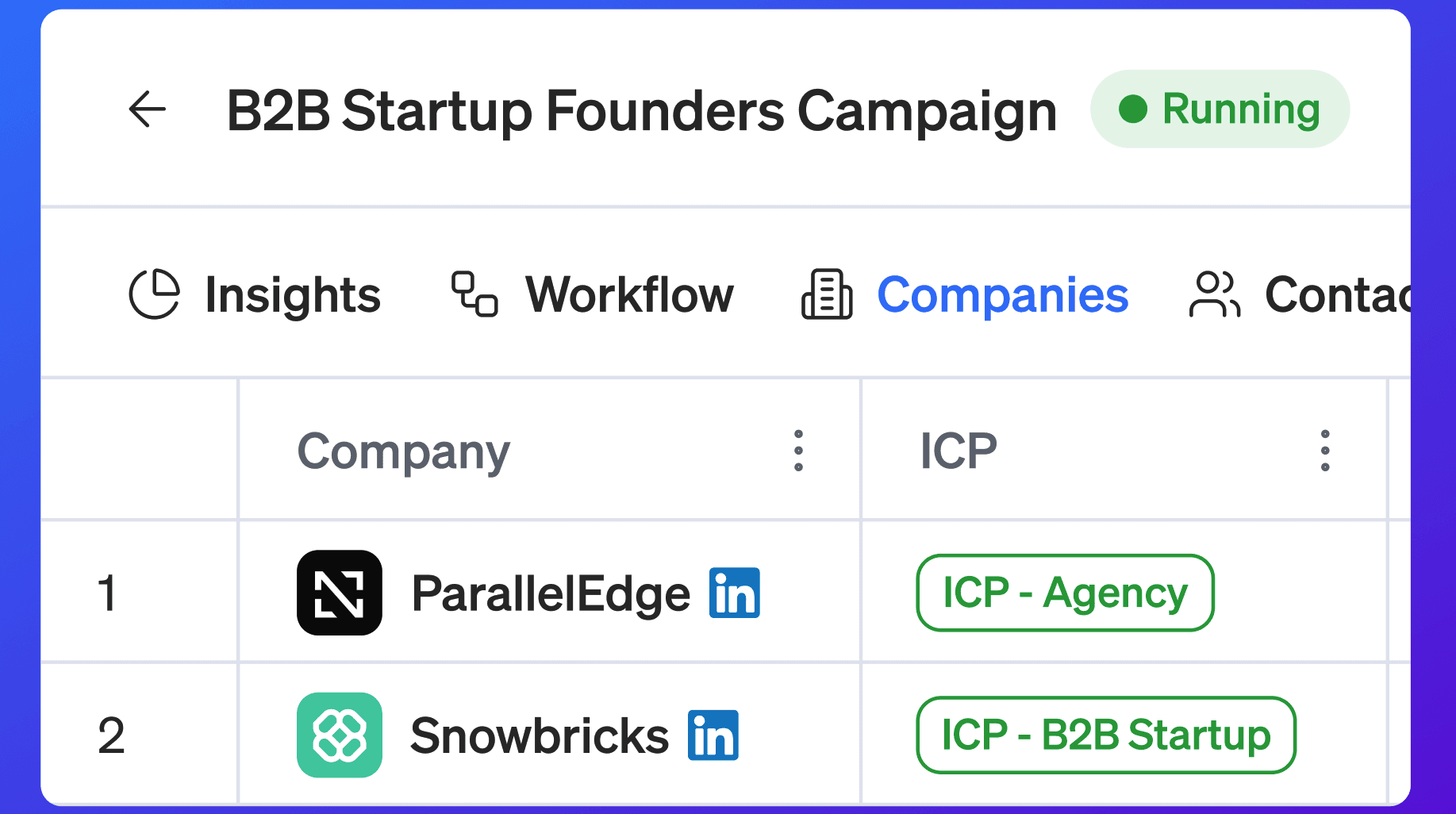
The Companies tab shows the target companies connected to the campaign.
Use it to review:
Company count
ICP fit
Company status
Website
Industry
Employee count
Created date
Updated date
This helps you understand the account audience behind the campaign.
Contacts inside a campaign
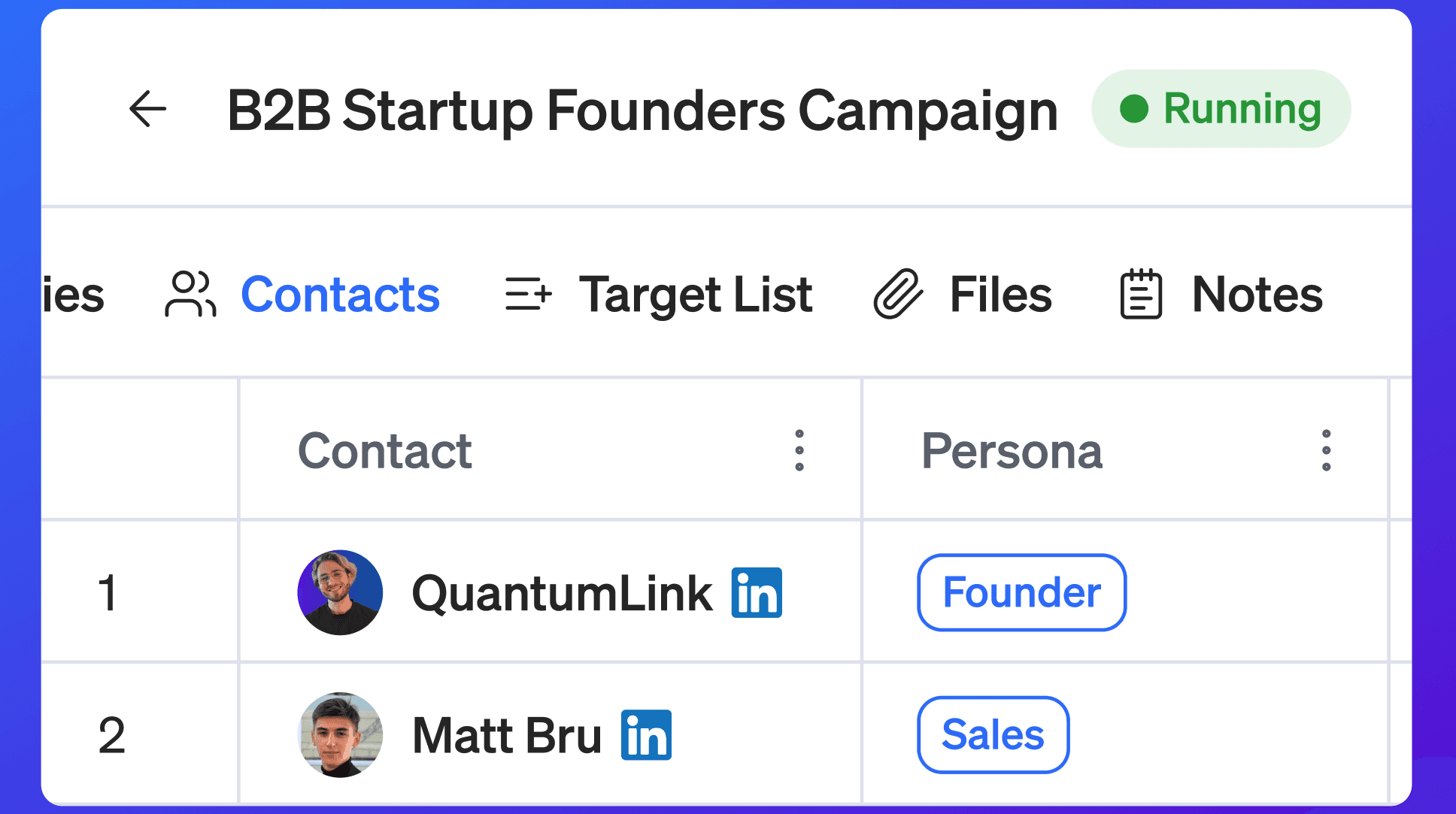
The Contacts tab shows the target contacts connected to the campaign.
Use it to review:
Contact count
Persona fit
Contact status
Company
Title
Email
Phone
LinkedIn availability
Created date
Updated date
This helps you understand the people being engaged.
Target List tab
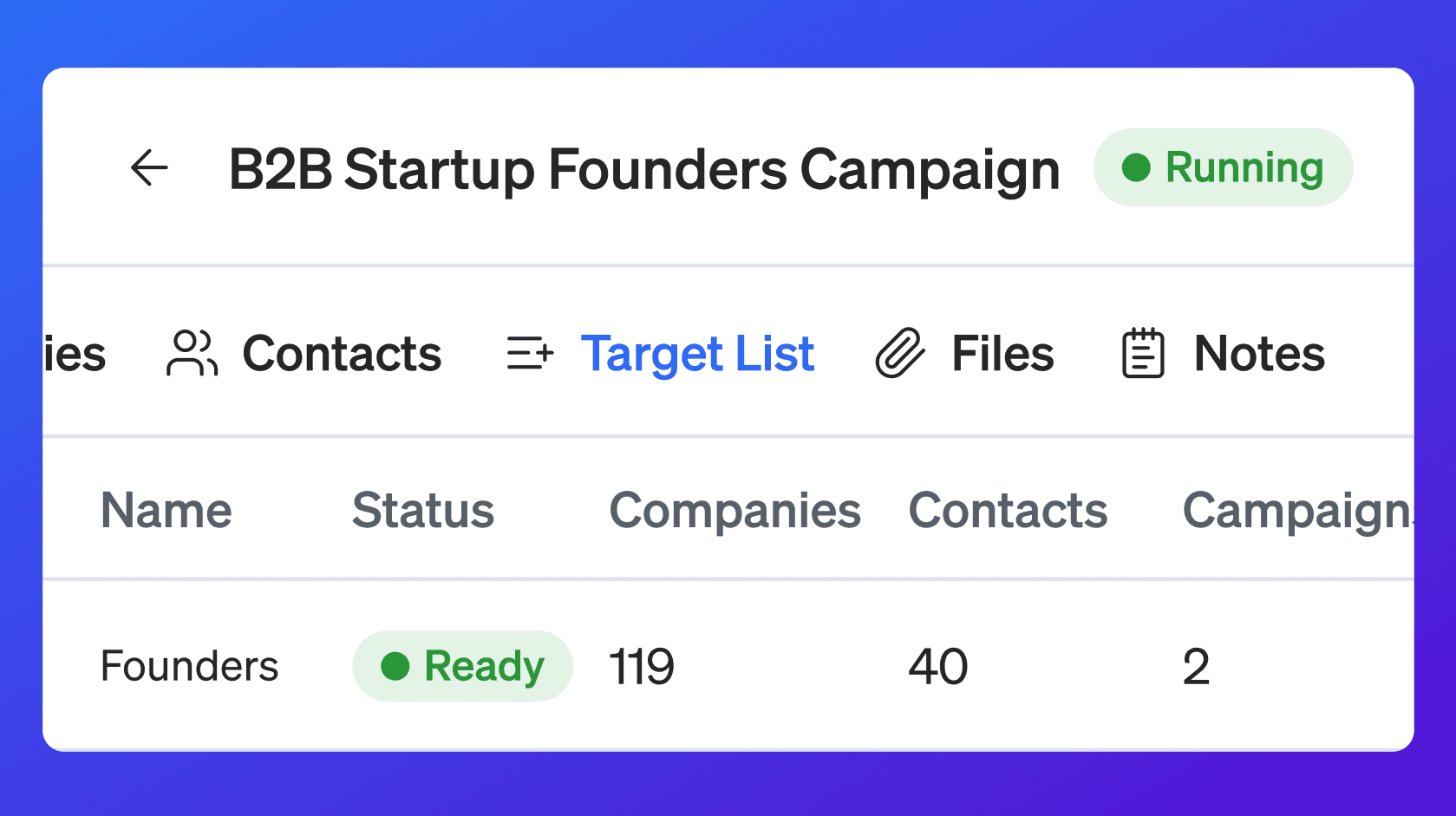
The Target List tab shows the source audience behind the campaign.
Use it to understand:
Which list powers the campaign
How companies were added
How contacts were added
Whether the list is Ready
Whether the list needs changes before launch
You can add a target list to a campaign directly from this tab using Add Target List. This lets you select one or more existing target lists to add to the campaign, with multi-select support.
Adding a target list to a campaign is only possible while the campaign is in Draft or Paused status.
Campaigns should run from clean target lists.
Files and Notes
Campaigns may include Files and Notes.
Use Files for:
CSV imports
Campaign source files
Supporting research
Event lists
Planning documents
Use Notes for:
Campaign strategy
Message angle
Targeting assumptions
Launch notes
Follow-up reminders
Lessons learned
Good notes make campaigns easier to review and improve later.
Console
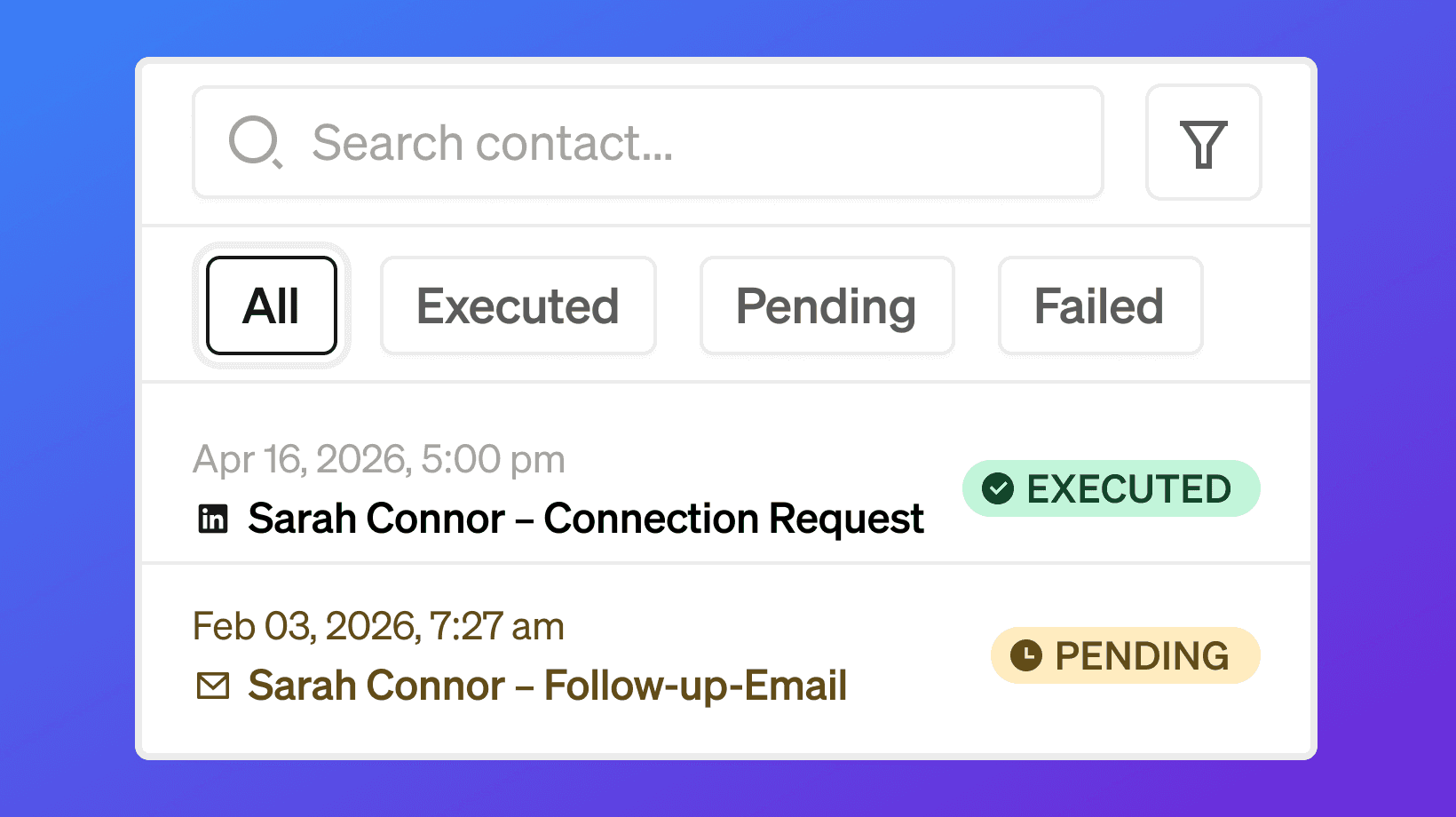
The Console shows campaign execution.
Use Console to see:
What executed
What is pending
What failed
Which contact is on which node
Which channel was used
When the next action is scheduled
Message details
Node status
Console is useful when a campaign is running and you want to understand exactly what is happening.
Campaign execution statuses
Console activity may include statuses such as:
Status | What it means |
|---|---|
Executed | The step ran successfully. |
Pending | The step is waiting to run. |
Failed | The step did not complete successfully. |
Use the Console to investigate campaign execution and troubleshoot issues.
Launch requirements
Before launching a campaign, make sure:
Workspace is on a paid plan
Required channels are enabled
Required user accounts or lines are connected
Target List is ready
Contacts are in Target status
Contacts have required channel data
Workflow is complete
Messages are written
Senders are selected
Timing looks correct
Exclusions are handled
Do not launch a campaign from an unfinished target list or incomplete workflow.
Campaign lifecycle
A typical campaign lifecycle looks like this:
Build or select a Target List
Create a campaign
Add a name and purpose
Select the Target List
Import a workflow or build one from scratch
Configure channel nodes
Write messages by ICP or persona when needed
Preview the campaign
Launch the campaign
Monitor Console
Review Conversations and Insights
Pause, edit, or end the campaign when needed
Use results to improve future campaigns
Example campaign
Here is an example for Snowbricks.
Field | Example |
|---|---|
Campaign name | RevOps SaaS Outreach |
Purpose | Introduce Snowbricks to RevOps leaders at B2B SaaS companies that need better account intelligence, enrichment, and signal-led GTM workflows. |
Target List | RevOps SaaS Pipeline |
Exclusion List | Existing Customers |
ICP | B2B SaaS Companies |
Persona | Revenue Operations Leader |
Channels | Email, LinkedIn |
Workflow | Intro Email → Wait 1 Day → LinkedIn Connection Request → Check Accepted → LinkedIn Message or Final Email |
Status | Running |
This campaign uses a target list, multiple channels, signal conditions, and persona-specific messaging.
Example workflow

A simple multi-channel campaign may look like this:
This workflow uses email first, then LinkedIn, then branches based on whether the LinkedIn connection request was accepted.
Recommended setup workflow
Use this workflow when creating a new campaign.
Confirm your workspace is on a paid plan
Confirm the required channels are enabled
Confirm senders have connected accounts or lines
Open Campaigns
Select Add
Enter campaign name
Enter campaign purpose
Select a Target List
Select Exclusion List maintained in Knowledge base
Import an existing workflow or build a new one
Configure workflow nodes
Write messages
Preview the campaign
Launch when ready
Recommended review workflow
Use this workflow before launching.
Review campaign setup
Review Target List
Review Exclusion list
Review Companies
Review Contacts
Confirm ICPs and personas
Confirm channel availability
Confirm sender availability
Review all messages
Review waits and branches
Review exclusions
Preview the campaign
Launch only when clean
Recommended monitoring workflow
Use this workflow after launch.
Open the campaign
Review Insights
Open Console
Check Executed, Pending, and Failed steps
Review replies
Review positive, neutral, and negative intent
Pause the campaign if something looks wrong
Update future workflows based on results
Best practices
Start with a clean Target List
Campaign quality depends on audience quality.Use paid plans for campaigns
Campaign execution requires enabled engagement channels.Enable only the channels you plan to use
Keep the workflow focused and operationally clean.Connect senders before building workflows
Missing senders can block campaign steps.Write messages by ICP or persona when needed
Different audiences need different context.Avoid generic outreach
Use company, persona, and signal context.Use wait steps
Give contacts time to respond before sending another message.Use branching
Campaigns should adapt based on signals and replies.Preview before launch
Catch workflow, sender, and message issues before the campaign runs.Monitor Console after launch
Console shows what is actually happening.Pause when something looks wrong
Do not let a bad workflow keep running.Use replies to improve targeting
Positive and negative replies both teach you what to change.Track performance by ICP and persona
Some segments will perform better than others.Keep campaign notes
Document assumptions, changes, and learnings.
Troubleshooting
I cannot launch a campaign
Check:
Workspace is on a paid plan
Target List is selected
Target List has contacts
Contacts are in Target status
Workflow is complete
Messages are written
Required channels are enabled
Required senders are connected
Required contact data exists
Exclusions are handled
I do not see Email nodes
Check:
Email is enabled in Settings → Engagement Channels
Workspace is on a paid plan
A Google Workspace Gmail mailbox is connected
The sender is available
Contacts have email addresses
I do not see LinkedIn nodes
Check:
LinkedIn is enabled in Settings → Engagement Channels
Workspace is on a paid plan
A LinkedIn account is connected
Contacts have LinkedIn profiles when needed
The sender is available
I do not see iMessage nodes
Check:
iMessage is enabled in Settings → Engagement Channels
Workspace is on a paid plan
An iMessage line is connected
Contacts have phone numbers
The line is available
Messages are not sending
Check:
Campaign is Running
Workflow is saved
Sender is connected
Contact has required channel data
Contact is in Target status
Send limits are available
User schedule allows sending
Console does not show failures
Campaign is running but nothing is happening
Check:
Workflow has pending wait steps
Campaign schedule
Sender schedule
Channel limits
Console pending queue
Target contacts
Whether the campaign is waiting for a signal condition
A workflow step failed
Open Console and review the failed step.
Common causes include:
Missing email
Missing LinkedIn profile
Missing phone number
Disconnected sender
Channel disabled
Send limit reached
Invalid message content
Contact excluded
Campaign paused or ended
I need to stop a campaign
Use Pause Campaign to stop execution temporarily.
Use End Campaign only when the campaign is complete or should not run again.
I changed a workflow but it did not apply
Make sure you save the workflow.
If the campaign is already running, review whether changes apply to future steps only.
Replies are not showing
Check:
The channel is connected
The reply had time to process
The conversation is connected to the campaign
Filters are not hiding replies
Console does not show failed nodes
Insights look empty
Insights may populate after campaign activity starts.
Check:
Campaign is Running
Messages have been sent
Replies or opens have occurred
Target companies and contacts are present
Filters are not hiding activity
FAQ
What is a campaign?
A campaign is a workflow that engages contacts from a Target List across enabled channels such as email, LinkedIn, and iMessage.
Do campaigns require a paid plan?
Yes. Campaign execution requires engagement channels, and engagement channels are available on paid plans.
What is required before launching a campaign?
You need a paid plan, enabled channels, connected senders, a target list, target contacts, a workflow, and message content.
What is a Target List in a campaign?
The Target List is the audience for the campaign. It contains the companies and contacts the campaign will use.
How do I add a new target list to an existing campaign?
Open the campaign's Target List tab and select Add Target List. You can select one or more existing target lists to add, with multi-select support. This is only available while the campaign is in Draft or Paused status — pause a running campaign first if you need to add more target lists, then resume it once the list has been added.
What are the Campaign Config settings?
The Campaign Config panel has three settings: Enable Unsubscribe URL (controls whether an unsubscribe link is appended to messages), Enable Auto Send (controls whether messages send automatically), and Enable Spintax for Messages (enables spintax variation syntax across Email, LinkedIn, and iMessage).
What is Auto Send?
Auto Send is a campaign setting that controls whether messages are sent automatically as contacts become eligible in the workflow. When Auto Send is enabled, the campaign runs continuously without requiring manual send approvals at each step. When disabled, sends require manual action before each message goes out. Enable Auto Send when you want the campaign to execute on its own schedule against the target list.
What is Spintax?
Spintax, short for Spin Syntax, is a way of writing a single message template that contains multiple word or phrase alternatives. When a message is sent, 1eyeᴬᴵ automatically picks one option from each group, producing a unique version for each recipient.
Why Spintax helps outreach?
Improves deliverability — Email service providers can flag campaigns where identical messages are sent to many recipients. Unique message variations reduce that risk.
Maintains message consistency — Since all variations come from one template, your tone, structure, and intent stay aligned across every send.
Saves time — One Spintax template can produce dozens of unique message versions without writing separate copies.
Supports natural-sounding outreach — Varied greetings, openers, and CTAs make messages feel less automated and more conversational.
What happens if the same contact appears in multiple exclusion lists?
Yes. Contacts are automatically deduplicated at the campaign level, even if they appear in multiple target lists or exclusion lists.
Can I import a workflow from another campaign?
Yes. You can import a workflow from an existing campaign and edit it for the new audience.
Can I use multiple channels in one campaign?
Yes. A campaign can use email, LinkedIn, and iMessage when those channels are enabled and connected.
Why do only some channels show up in the workflow?
Only enabled and connected channels are available in workflow nodes.
Can I write different messages by ICP?
Yes. You can write different messages for different ICPs when the campaign audience includes multiple company segments.
Can I write different messages by persona?
Yes. You can write different messages for different personas when the campaign audience includes multiple target contact types.
What is the Workflow tab?
The Workflow tab is where you build the campaign sequence, including channel nodes, wait steps, signal conditions, branches, and end states.
What is the Console?
The Console shows campaign execution, including executed, pending, and failed steps.
What are Insights?
Insights summarize campaign performance across companies, contacts, ICPs, personas, conversations, messages, channels, and reply intent.
Can I pause a campaign?
Yes. Use Pause Campaign when you want to stop execution temporarily.
Can I end a campaign?
Yes. End a campaign when it is complete or should no longer run.
What should I review after a campaign launches?
Review Console, replies, Conversation Signals, positive intent, failed steps, and performance by ICP, persona, and channel.
Next step
Next, go to Workflows to learn how to build campaign logic with channel nodes, wait steps, signal conditions, branching, and message personalization.