Channels
Connect and manage Google Workspace Gmail and Microsoft 365 mailboxes to power your 1eyeᴬᴵ outreach campaigns.
1eyeᴬᴵ currently supports Google Workspace Gmail and Microsoft 365 accounts for mailbox-based campaign sending. Before users can connect their mailboxes, an administrator may need to approve and trust the 1eyeᴬᴵ application at the organization level.
Google Workspace: A Google Workspace administrator may need to install and trust the 1eyeᴬᴵ app for the company domain before users can connect their Gmail accounts.
Microsoft 365: A Microsoft 365 administrator may need to grant admin consent and approve the 1eyeᴬᴵ app before users can connect their Microsoft 365 mailboxes.
Use Email to send campaign emails, manage follow-ups, track email activity when available, capture replies, and create Conversation Signals from email engagement.
What Email is for
Email helps your team engage target contacts through connected Gmail mailboxes.
Use Email when you want to:
Send campaign emails
Send follow-up emails
Use Gmail / Outlook mailboxes in campaign workflows
Track email opens when available
Capture email replies
Create Conversation Signals from email activity
Route replies by response intent when available
Combine email with LinkedIn and iMessage in multi-channel campaigns
Current email support
You can connect business email accounts from Google Workspace Gmail and Microsoft 365 to send campaigns through 1eyeᴬᴵ.
Mailbox type | Status |
|---|---|
Business Google Workspace Gmail | Supported |
Microsoft Outlook / Microsoft 365 | Supported |
Personal Gmail | Not supported |
Other email providers | Not supported yet |
For now, users should connect company’s Google Workspace domain.
Business Google Workspace and Microsoft 365
1eyeᴬᴵ currently supports both business Google Workspace Gmail mailboxes and Microsoft Outlook accounts.
Personal Gmail accounts are not supported.
Use a mailbox from your company’s Google Workspace or Microsoft Outlook domain, such as:
Do not use personal Gmail accounts such as:
If a user tries to connect a personal Gmail account, the mailbox may not connect or may not be available for campaign workflows.
Each connected mailbox should be a business mailbox that belongs to your organization’s Google or Microsoft Workspace.
Before you begin
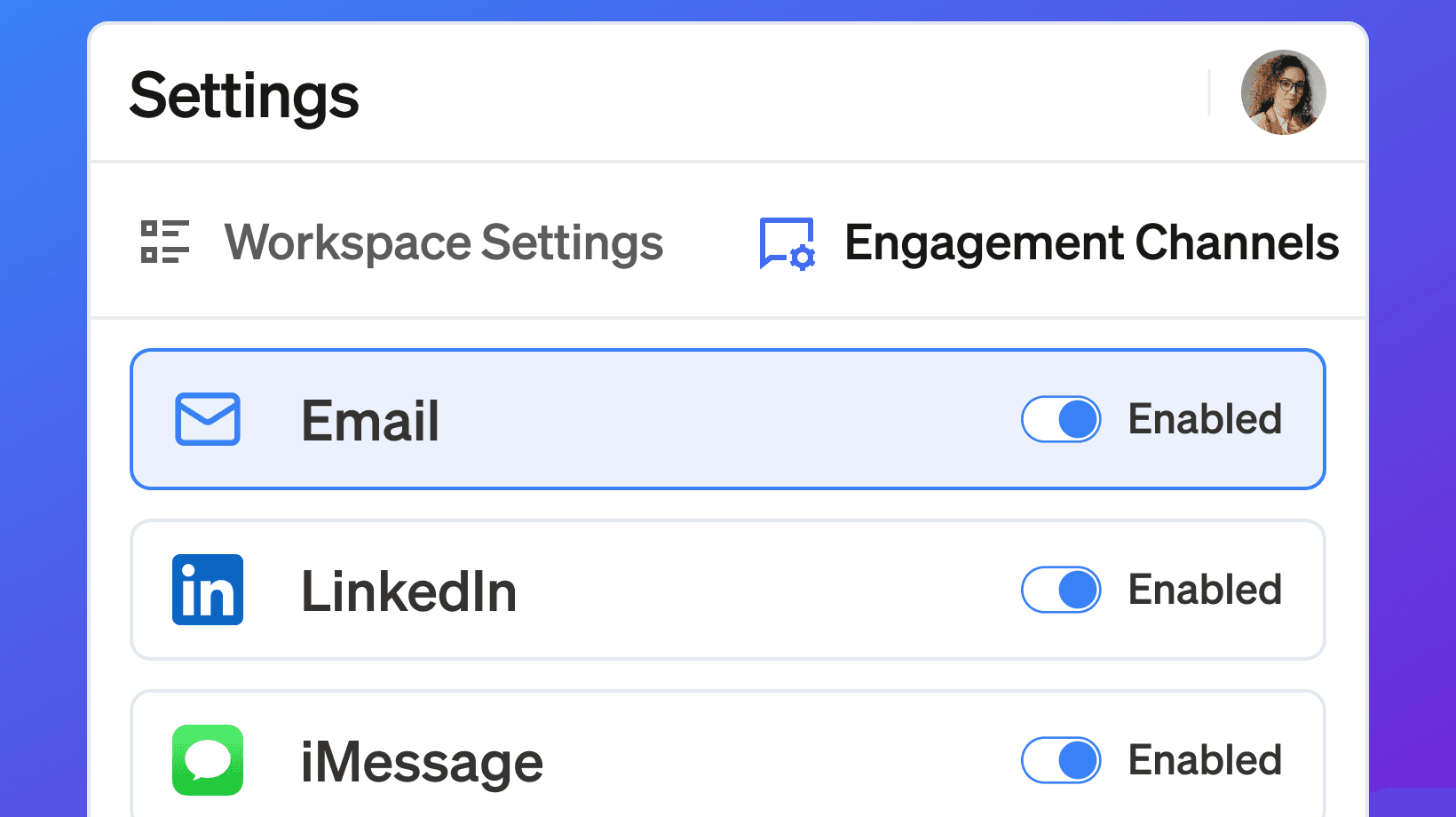
Before setting up Email, make sure:
Your workspace is on a paid plan that includes mailboxes
Email is enabled in Settings → Engagement Channels
You have Google / Microsfot Workspace admin access if domain-level app installation is required
Users have Gmail / Outlook mailboxes on the company’s Google / Microsfot Workspace domain
Users who will send campaign emails are invited to the 1eyeᴬᴵ workspace
Where to manage Email
Admins can manage Email from Engagement Channels.
Open your 1eyeᴬᴵ workspace
Go to Settings
Select Engagement Channels
Select Email
Turn Email Enabled
Follow the Google Workspace / Microsoft 365 installation steps if required
Once Email is enabled and the Google / Microsoft Workspace setup is complete, users can connect their Gmail / Outlook mailboxes from their user settings.
Email setup has two parts
Email setup has two layers:
Workspace-level setup
A Google / Microsoft Workspace admin installs or trusts the 1eyeᴬᴵ app for the company domain.User-level mailbox connection
Each user connects the Gmail / Outlook mailbox they want to use for campaign sending.
The workspace setup usually only needs to happen once per Google / Microsoft Workspace domain.
Each user still needs to connect their own mailbox after that.
Step 1: Enable Email in 1eyeᴬᴵ
An admin should first enable Email for the workspace.
Go to Settings
Select Engagement Channels
Select Email
Turn Email Enabled
When Email is enabled, 1eyeᴬᴵ shows the setup instructions for Google / Outlook Workspace.
If the Google / Microsoft Workspace app is already installed and trusted, users can continue with mailbox connection.
If not, complete the admin installation first.
Step 2: Install the 1eyeᴬᴵ app in Google Workspace
The Workspace admin must install or trust the 1eyeᴬᴵ app before users on the domain can connect Gmail mailboxes.
This step requires Workspace admin access.
Google Workspace Admin - Open Console
Go to your Google Workspace Admin Console
Sign in as a Google Workspace admin
Confirm you are managing the correct company domain
For example, if your team uses Snowbricks, make sure you are signed in as an admin for:
Step 3: Open API controls
In Google Workspace Admin Console:
Open the left menu
Go to Security
Select Access and data control
Select API controls
Find App access control
Choose Manage third-party app access
Google Workspace uses this area to control which third-party apps can access Google data.
Step 4: Configure a new app on Google Workspace
Inside Manage third-party app access:
Select Configure new app
Choose the option to configure by OAuth app name or client ID
Copy the app identifier shown in 1eyeᴬᴵ
Paste it into the Google Workspace search field
Search for the 1eyeᴬᴵ app
Select the verified 1eyeᴬᴵ app
The app identifier is shown inside 1eyeᴬᴵ on the Email setup screen.
Copy it exactly from 1eyeᴬᴵ.
Example format:
Use the value shown in your own workspace. Do not copy this example unless it matches what 1eyeᴬᴵ shows in your setup screen.
Step 5: Set app access to Trusted
After selecting the 1eyeᴬᴵ app:
Review the app details
Choose the access level
Set the 1eyeᴬᴵ app to Trusted
Continue through the Google Workspace flow
Finish the installation
Setting the app to Trusted allows users on your domain to connect their Gmail mailboxes to 1eyeᴬᴵ.
Step 6: Return to 1eyeᴬᴵ
After the Google Workspace admin setup is complete:
Return to 1eyeᴬᴵ
Go to Settings → Engagement Channels → Email
Confirm Email is enabled
Ask users to connect their Gmail mailboxes
At this point, users on the domain should be able to connect Gmail.
Step 7: Connect a Google Workspace Gmail mailbox
Each user who will send emails must connect their own Google Workspace Gmail mailbox.
To connect a mailbox:
Open 1eyeᴬᴵ
Go to the user profile area
Select the user
Open the Mailbox tab
Select Connect Google Mailbox
Choose the Google Workspace Gmail account you want to connect
Review the Google permissions screen
Select Allow
Return to 1eyeᴬᴵ
Confirm the mailbox shows as Connected
If you are signed in to multiple Google accounts in the browser, Google may show a list of available accounts. Select the business Google Workspace account you want to connect.
If you are signed in to only one Google account in the browser, Google may automatically continue with that account.
Make sure the selected account is a business Google Workspace mailbox, not a personal Gmail account.
Google permissions screen
During mailbox connection, Google shows a permissions screen.
This screen asks the user to allow 1eyeᴬᴵ to access the Gmail mailbox.
The permission may include access to:
This access is required so 1eyeᴬᴵ can send campaign emails, process replies, and support email-based campaign workflows.
The Google permissions screen only works if the 1eyeᴬᴵ app has already been installed or trusted by a Google Workspace admin for the company domain.
If the app has not been approved by the Google Workspace admin, the user may not be able to complete the connection.
Step 8: Install the 1eyeᴬᴵ app in Microsoft 365 Workspace
The Workspace admin must install or trust the 1eyeᴬᴵ app before users on the domain can connect Outlook mailboxes.
This step requires Workspace admin access.
Microsfot 365 Workspace Admin Console
Sign in using a Microsoft 365 admin account.
Review the requested permissions.
Confirm on behalf of your organization.
What a connected mailbox shows
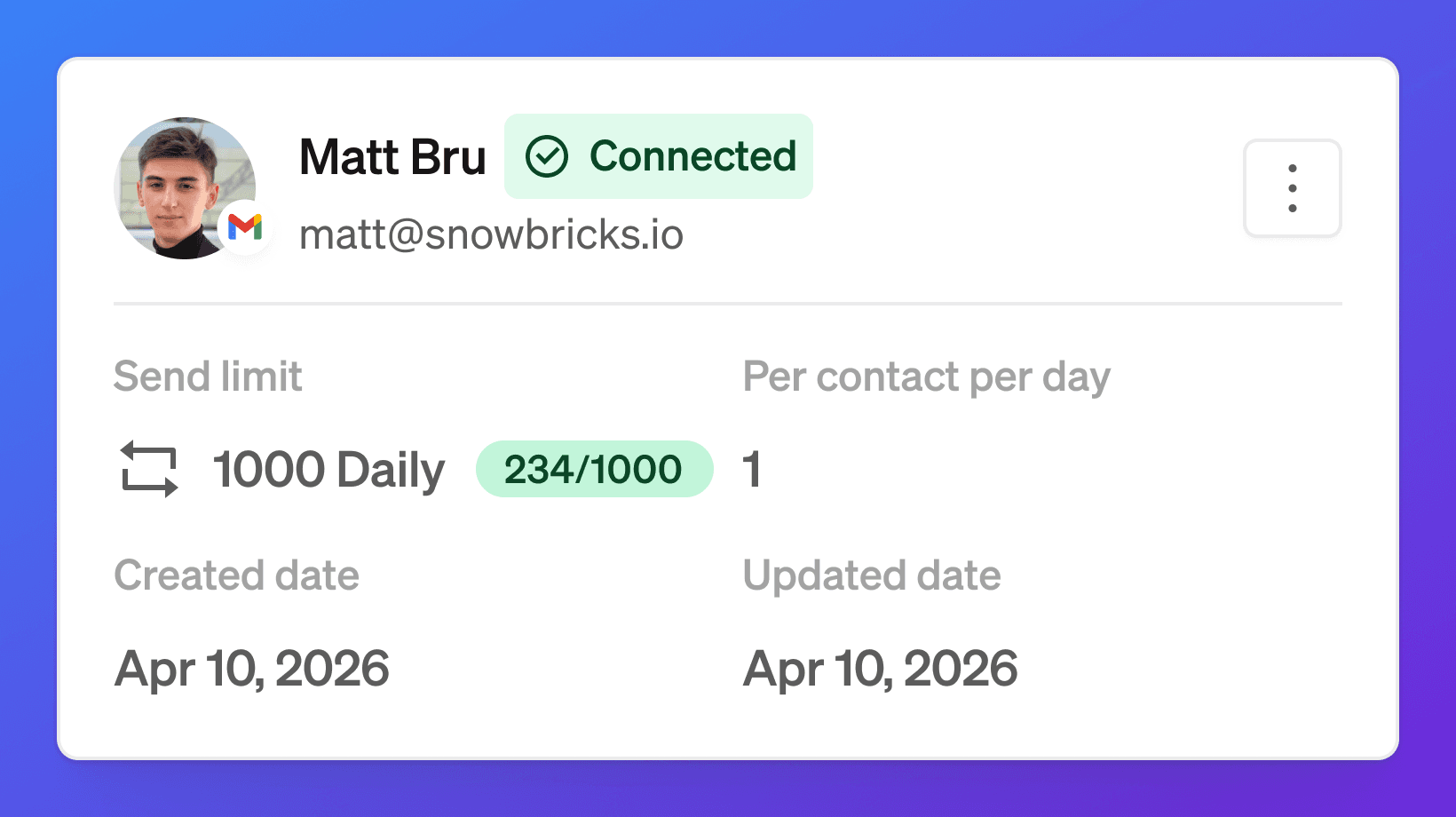
Once connected, a mailbox may show:
User name
Email address
Connected status
Daily send limit
Per-contact per-day limit
Created date
Updated date
Connection menu
Example:
Field | Example |
|---|---|
Mailbox | |
Status | Connected |
Daily send limit | 1,000 |
Per contact per day | 1 |
Created date | Apr 10, 2026 |
Updated date | Apr 10, 2026 |
These fields help your team understand whether the mailbox is ready for campaign sending.
Connected vs disconnected
A mailbox can be connected or disconnected.
Status | What it means |
|---|---|
Connected | The mailbox is connected and can be used in campaign workflows. |
Disconnected | The mailbox is not currently connected and must be reconnected before use. |
A mailbox may become disconnected if authentication expires, permissions change, the user removes access, or Google / Outlook requires a new security check.
Add multiple mailboxes
Your workspace can connect multiple Gmail or Outlook mailboxes depending on your plan.
Each mailbox should belong to the user or sender who will use it in campaigns.
Use multiple mailboxes when:
Multiple teammates are sending campaigns
You want campaign replies to go to different users
You want to distribute sending across users
You want different campaigns to use different senders
The number of mailboxes available depends on your plan.
Plan limits
Email mailboxes are available on paid plans.
Plan | Mailboxes |
|---|---|
Free | 0 |
Launch | 5 |
Growth | 10 |
Scale | 25 |
If you need more connected Gmail mailboxes, upgrade to a plan with higher mailbox limits.
Send limits
Each connected mailbox has a send limit.
The maximum send limit is:
Admins or authorized users can edit the mailbox send limit from the mailbox settings.
To edit the send limit:
Open the user profile
Go to the Mailbox tab
Open the connected mailbox menu
Select the mailbox settings or edit option
Update the total send limit
Save the change
The send limit cannot be higher than 1,000 emails per day.
Send limits help control campaign volume and protect deliverability.
Common limits may include:
Daily mailbox send limit
Per-contact per-day limit
Plan-level limits
Campaign-level controls when available
For example:
This means the mailbox can send up to the configured daily limit, while limiting how often a single contact receives messages from that mailbox.
Why send limits matter
Send limits help your team:
Avoid over-sending
Protect sender reputation
Reduce spam-like behavior
Keep outreach controlled
Improve campaign quality
Avoid sending too many messages to the same contact
Do not treat send limits as a target to hit every day.
A healthier approach is to send focused campaigns to high-fit contacts.
User schedule
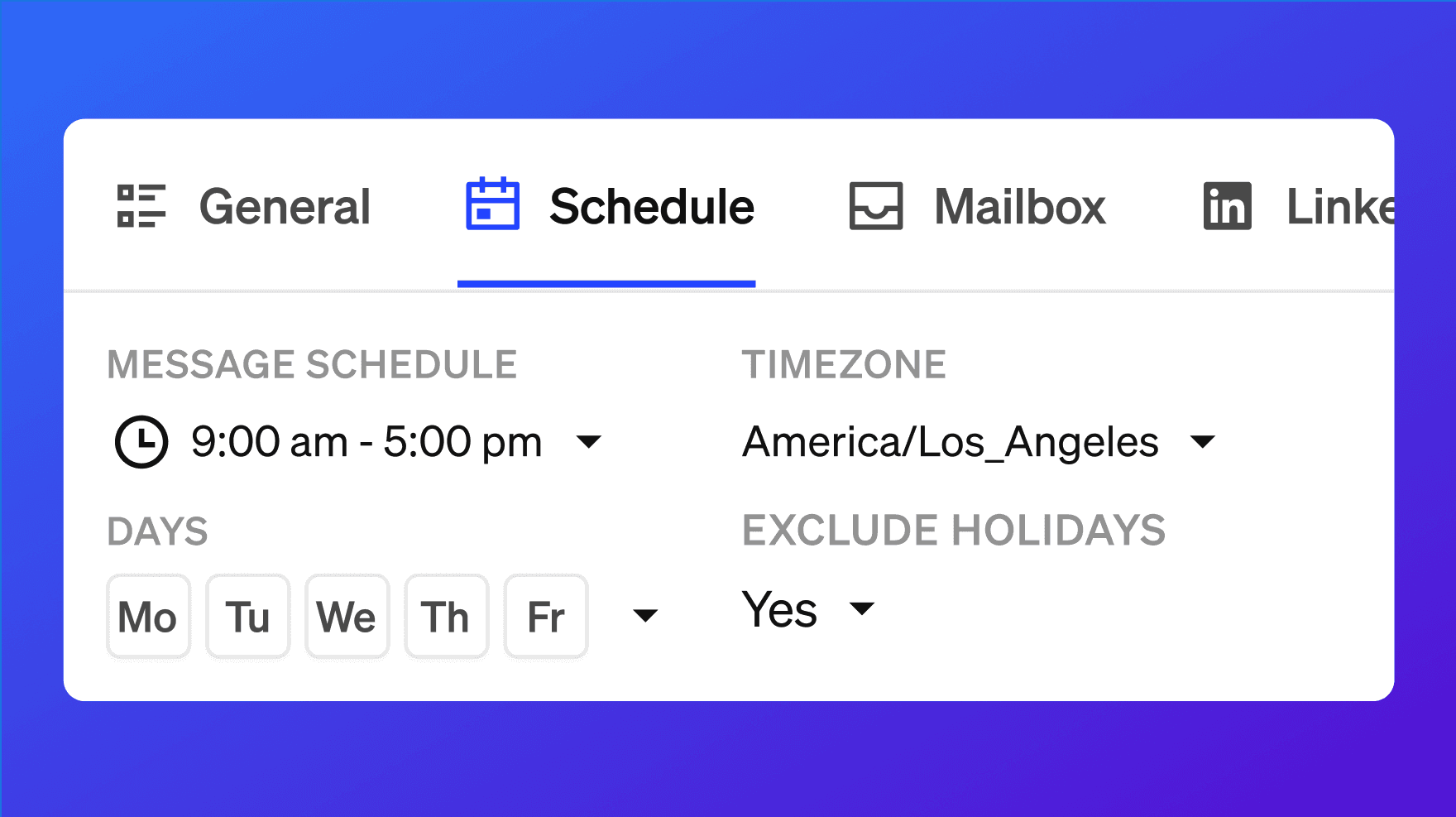
Users may also have a sending schedule.
A schedule can define:
Start time
End time
Timezone
Sending days
Holiday exclusions when available
Use schedules to control when campaign emails are sent.
For example:
This keeps outreach aligned with business hours.
How Email connects to campaigns
Once a Gmail mailbox is connected, campaigns can use it for email steps.
Campaign workflows may include:
Send email
Wait
Send follow-up email
Stop on reply
Branch based on reply or intent when available
Continue to LinkedIn or iMessage when available
Email can be used as a standalone channel or as part of a multi-channel campaign.
How Email creates Conversation Signals
Email activity can create Conversation Signals.
Email Conversation Signals may include:
Email sent
Email opened when available
Email replied
Follow-up sent
Not delivered when available
Positive intent when available
Neutral intent when available
Negative intent when available
Conversation Signals help your team understand which target contacts are engaging and which replies need follow-up.
Email replies and intent
When a target contact replies to an email, 1eyeᴬᴵ may classify the reply intent when available.
Common intent categories include:
Intent | What it means |
|---|---|
Positive | The contact appears interested, asks a question, requests more information, or wants to continue. |
Neutral | The contact replied, but the response is unclear or not strongly positive or negative. |
Negative | The contact is not interested, is not a fit, or asks not to be contacted. |
Use intent to prioritize follow-up.
A positive reply from a target persona at an ICP-matched company should usually be reviewed quickly.
Recommended setup workflow
Use this workflow when setting up Email for the first time.
Confirm your workspace is on a paid plan
Go to Settings → Engagement Channels
Enable Email
Ask your Google Workspace admin to install or trust the 1eyeᴬᴵ app
Return to 1eyeᴬᴵ
Invite users who will send campaign emails
Ask each user to connect their Google Workspace Gmail mailbox
Confirm each mailbox shows Connected
Set user sending schedules
Set mailbox send limits if needed
Use the connected mailbox in campaign workflows
Recommended campaign workflow
Use this workflow when preparing to send email campaigns.
Build or select a Target List
Review target companies
Review target contacts
Confirm contacts are in Target status
Confirm contacts have email addresses
Confirm the sending user has a connected Google / Outlook Workspace mailbox
Review the user’s sending schedule
Review the mailbox send limit
Add email steps to the campaign workflow
Review message content
Launch the campaign when ready
Best practices
Use business Google / Outlook Workspace email only
1eyeᴬᴵ currently supports business Google and Microsoft 365 Workspace mailboxes only.Do not use personal Gmail
Personal Gmail accounts are not supported.Complete admin setup first
If the 1eyeᴬᴵ app is not trusted in Google / Microsft Workspace, users may not be able to connect Gmail / Outlook.Use the right Google / Outlook account
If multiple Google / Outlook accounts are signed in, select the company Google/ Outlook Workspace mailbox.Use real user mailboxes
Connect mailboxes that belong to the people sending or managing outreach.Keep sender identity clear
Use a sender that makes sense for the campaign and target contacts.Set sending schedules
Send during reasonable business hours for the sender and audience.Set thoughtful send limits
The maximum is 1,000 emails per day per mailbox, but your team can choose a lower limit.Respect send limits
Do not overload a mailbox just because a limit is available.Use focused target lists
Email performs better when the audience matches your ICPs and personas.Review contact status
Only use contacts in Target status for campaign outreach.Check email availability before launch
Make sure contacts have usable email addresses before adding email steps.Monitor replies quickly
Positive replies should be reviewed and followed up on fast.Watch negative replies
Negative replies help you improve targeting and messaging.Disconnect unused mailboxes
If a user leaves or a mailbox should no longer send, disconnect it.
Troubleshooting
I do not see Email in campaign workflows
Check:
Email is enabled in Settings → Engagement Channels
Your workspace is on a paid plan
The user has connected a Google / Outlook Workspace mailbox
The mailbox shows Connected
The campaign step supports Email
The user has permission to use that mailbox
Users cannot connect Gmail
Check:
The mailbox is a business Google Workspace Gmail mailbox
The user is signing in with the correct company Google account
The user is not using a personal Gmail account
The Google Workspace admin installed or trusted the 1eyeᴬᴵ app
The app access level is set to Trusted
Google Workspace security settings are not blocking access
The user completed any Google security prompts
The 1eyeᴬᴵ app does not appear in Google Workspace search
Check:
You copied the exact app identifier from 1eyeᴬᴵ
You pasted it into the correct Google Workspace app search field
You are signed in as a Google Workspace admin
You are in Security → Access and data control → API controls
You are configuring a third-party app, not a SAML app or marketplace app
There are no extra spaces before or after the app identifier
Google shows the wrong account
If Google shows the wrong account, sign out of the unwanted Google account or choose the correct business Google Workspace account from the account picker.
Make sure the selected account belongs to your company domain.
For example:
Do not connect a personal Gmail account.
Google skips account selection
If you are signed in to only one Google account in the browser, Google may automatically continue with that account.
If that is not the account you want to connect, sign out of that Google account or open the flow in a browser profile where the correct business Google Workspace account is signed in.
Google permissions screen does not appear
Check:
The user is signing in with a business Google Workspace account
The 1eyeᴬᴵ app has been installed or trusted by a Google Workspace admin
Google Workspace is not blocking third-party app access
The user is not using a personal Gmail account
The browser is not blocking the authentication flow
Google permissions screen appears but the user cannot continue
Check:
The user selected the correct business Google Workspace account
The 1eyeᴬᴵ app is trusted in Google Workspace
The Google Workspace admin has not blocked the app
The user has permission to grant access
The account belongs to the correct company domain
Gmail connection shows disconnected
Reconnect the mailbox from the user’s Mailbox tab.
A mailbox can disconnect because:
Google authentication expired
The user changed their password
The user removed app access
Workspace permissions changed
Google required a new security review
The mailbox was disabled
Email is enabled but sending fails
Check:
The mailbox is connected
The user is active
The campaign is active
The contact has an email address
The contact status is Target
The mailbox is within send limits
The user schedule allows sending at that time
The message content is complete
The target list is connected to the campaign
Emails are not sending at the expected time
Check:
User sending schedule
Timezone
Selected sending days
Holiday exclusions when available
Campaign timing
Mailbox limits
Contact-level send limits
I cannot set the send limit above 1,000
The maximum send limit is 1,000 emails per day per mailbox.
Use a lower number if you want more conservative sending.
I do not see email opens
Email open tracking may depend on availability and recipient behavior.
Some opens may not appear because of:
Email client privacy settings
Image blocking
Security tools
Corporate email gateways
Tracking limitations
Recipient behavior
Open tracking is useful, but replies are usually more important.
I do not see replies
Check:
The mailbox is still connected
The recipient replied to the connected mailbox
The reply had time to process
Filters are not hiding Conversation Signals
The conversation is connected to the campaign workflow
A contact should not receive emails
Do not include the contact in outreach.
Review whether the contact should be:
Removed from the target list
Marked Excluded
Added to exclusions at the company level if appropriate
Excluded contacts should not receive outreach.
Google Workspace admin is not available
Ask someone with Google Workspace admin permissions to complete the app installation.
Without admin approval, users may not be able to connect Gmail mailboxes for the domain.
FAQ
What email provider does 1eyeᴬᴵ support?
1eyeᴬᴵ currently supports business Google Workspace Gmail mailboxes.
Does 1eyeᴬᴵ support personal Gmail?
No. 1eyeᴬᴵ currently supports business Google Workspace Gmail, not personal Gmail.
Does 1eyeᴬᴵ support Outlook or Microsoft 365?
Yes, 1eyeᴬᴵ currently supports Microsoft 365 Outlook mailboxes.
Where do I enable Email?
Admins can enable Email in Settings → Engagement Channels.
Who can install the 1eyeᴬᴵ app in Google Workspace?
A Google Workspace admin must install or trust the 1eyeᴬᴵ app for the domain.
Who can install the 1eyeᴬᴵ app in Microsoft Workspace?
A Microsoft 365 Workspace admin must install or trust the 1eyeᴬᴵ app for the domain.
Does the Google Workspace setup need to happen for every user?
No. The domain-level app setup usually needs to happen once per Google Workspace domain.
Each user still needs to connect their own Gmail mailbox after the app is trusted.
Can users connect their own Gmail mailbox?
Yes. After Email is enabled and the Google Workspace app is trusted, users can connect their own business Gmail mailbox from their user settings.
Where does a user connect Gmail?
Users can connect Gmail from their user profile under the Mailbox tab.
What happens if multiple Google accounts are signed in?
Google may show an account picker. Select the business Google Workspace account you want to connect.
What happens if only one Google account is signed in?
Google may automatically continue with that account. Make sure it is the correct business Google Workspace mailbox.
Why do I see a Google permissions screen?
Google asks you to allow 1eyeᴬᴵ to access the Gmail mailbox. This is required so 1eyeᴬᴵ can send campaign emails and support email workflows.
Why does the Google permissions screen require admin setup?
The 1eyeᴬᴵ app must be installed or trusted by a Google Workspace admin before users on that domain can connect Gmail mailboxes.
Can I connect multiple mailboxes?
Yes, depending on your plan limits.
What is the maximum email send limit?
The maximum is 1,000 emails per day per mailbox.
Can I lower the mailbox send limit?
Yes. You can edit the mailbox send limit from the mailbox settings.
Can a disconnected mailbox send emails?
No. Reconnect the mailbox before using it in campaign workflows.
Can Email be disabled?
Yes. Admins can disable Email from Settings → Engagement Channels.
What happens if Email is disabled?
Email will not be available for campaign workflows.
Do email messages create signals?
Yes. Email activity can create Conversation Signals such as sent, opened, replied, and response intent when available.
Can 1eyeᴬᴵ classify email replies?
Yes, when available. Replies may be classified as positive, neutral, negative, or not delivered.
What should I check before launching an email campaign?
Check that Email is enabled, the mailbox is connected, contacts have email addresses, contacts are in Target status, the sending schedule is correct, send limits are set, and the target list is ready.
Next step
Next, go to LinkedIn to learn how to connect LinkedIn accounts and use LinkedIn in campaign workflows.