Signals
Conversation Signals
Conversation Signals show how target contacts engage across email, LinkedIn, and iMessage, including intent.
1eyeᴬᴵ helps your team understand what happened after outreach starts. Instead of only tracking sent messages, Conversation Signals show engagement across channels and classify replies so your team can quickly find positive, neutral, and negative responses.
Use Conversation Signals to track engagement, understand reply intent, prioritize follow-up, and move active target contacts into the right next step.
Before you begin
To use Conversation Signals, you should have:
A 1eyeᴬᴵ workspace
Users invited to your workspace
Mailbox, LinkedIn, or iMessage connected for users who will send messages
Campaigns or workflows using one or more engagement channels
ICPs and personas reviewed in your Knowledge Base
Target company and target contact lists ready for campaigns
For this guide, we’ll use Snowbricks as the example workspace.
Field | Example |
|---|---|
Company | Snowbricks |
Domain | snowbricks.io |
Workspace admin | Matt Bru |
Admin email |
What Conversation Signals capture
Conversation Signals can include activity across engagement channels.
Common Conversation Signals include:
Email opens
Email replies
LinkedIn connection requests sent
LinkedIn connection requests accepted
LinkedIn messages sent
LinkedIn replies
iMessage messages sent
iMessage reads
iMessage replies
Message delivery status
Follow-up activity
Response intent
Conversation status
Conversation Signals help your team understand who is engaging, which channel is working, and which responses need attention.
Supported conversation channels
Conversation Signals can come from multiple channels.
Channel | Example signals |
|---|---|
Opens, replies, sent messages, follow-ups, conversation activity. | |
Connection requests, accepted connections, sent messages, replies, intent. | |
iMessage | Sent messages, reads, replies, delivery activity, intent. |
Your available channels depend on your plan, connected accounts, user roles, and workspace settings.
How Conversation Signals work
Conversation Signals start when 1eyeᴬᴵ sends or tracks engagement activity.
A campaign sends a message
A target contact receives an email, LinkedIn message, connection request, or iMessage.The contact engages
The contact may open, read, accept, reply, ignore, or reject the message.1eyeᴬᴵ captures the activity
The activity appears as a Conversation Signal.1eyeᴬᴵ evaluates intent
When a reply is available, 1eyeᴬᴵ may classify the response as positive, neutral, negative, or another supported status.Your team follows up
Use the signal and intent to decide the next action.
Conversation intent
Intent is one of the most important parts of Conversation Signals.
When a target contact replies, 1eyeᴬᴵ can help classify the response so your team knows what to do next.
Common intent categories include:
Intent | What it means |
|---|---|
Positive | The contact appears interested, asks a question, requests more information, or shows intent to continue. |
Neutral | The contact replied, but the response is unclear, informational, or not strongly positive or negative. |
Negative | The contact is not interested, is not a fit, or asks not to be contacted. |
Intent helps your team prioritize attention. A positive response from a target persona at an ICP-matched company should usually be reviewed before lower-priority activity.
Intent filters
Conversation Signals can be reviewed by intent.
Common views include:
All
Shows all conversation activity.Positive
Shows responses that appear interested or worth follow-up.Neutral
Shows responses that need review but are not clearly positive or negative.Negative
Shows responses that indicate no interest, poor fit, or a request to stop.
Use intent filters to focus your team on the conversations that need action.
Email Conversation Signals
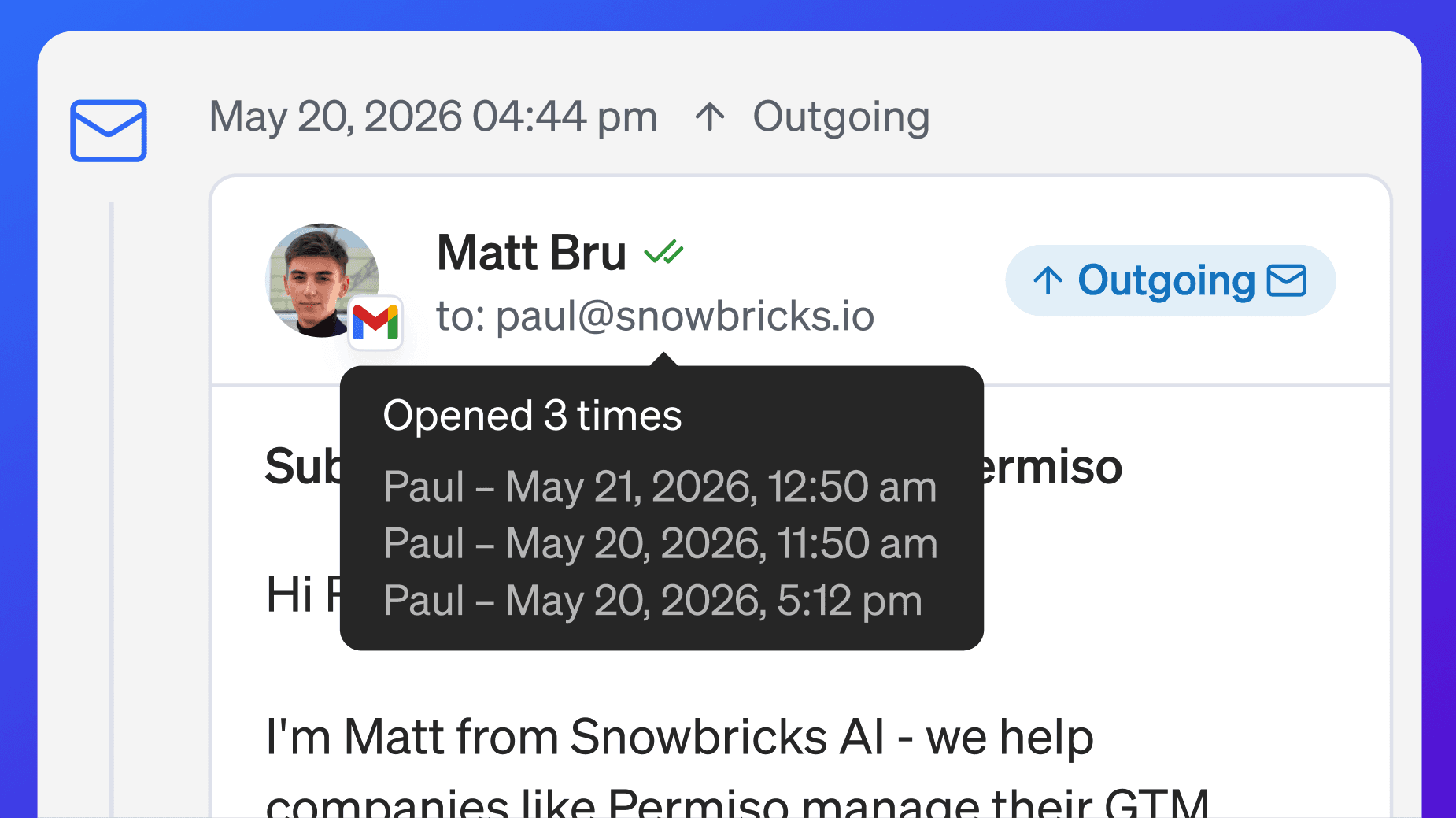
Email Conversation Signals show engagement from email activity.
Email signals may include:
Email sent
Email opened
Email replied
Follow-up sent
Message not delivered when available
Conversation intent when available
Email opens can show early engagement, but replies are usually more important.
For example, if a RevOps leader opens an email twice and replies asking for more information, that contact should be reviewed quickly.
LinkedIn Conversation Signals
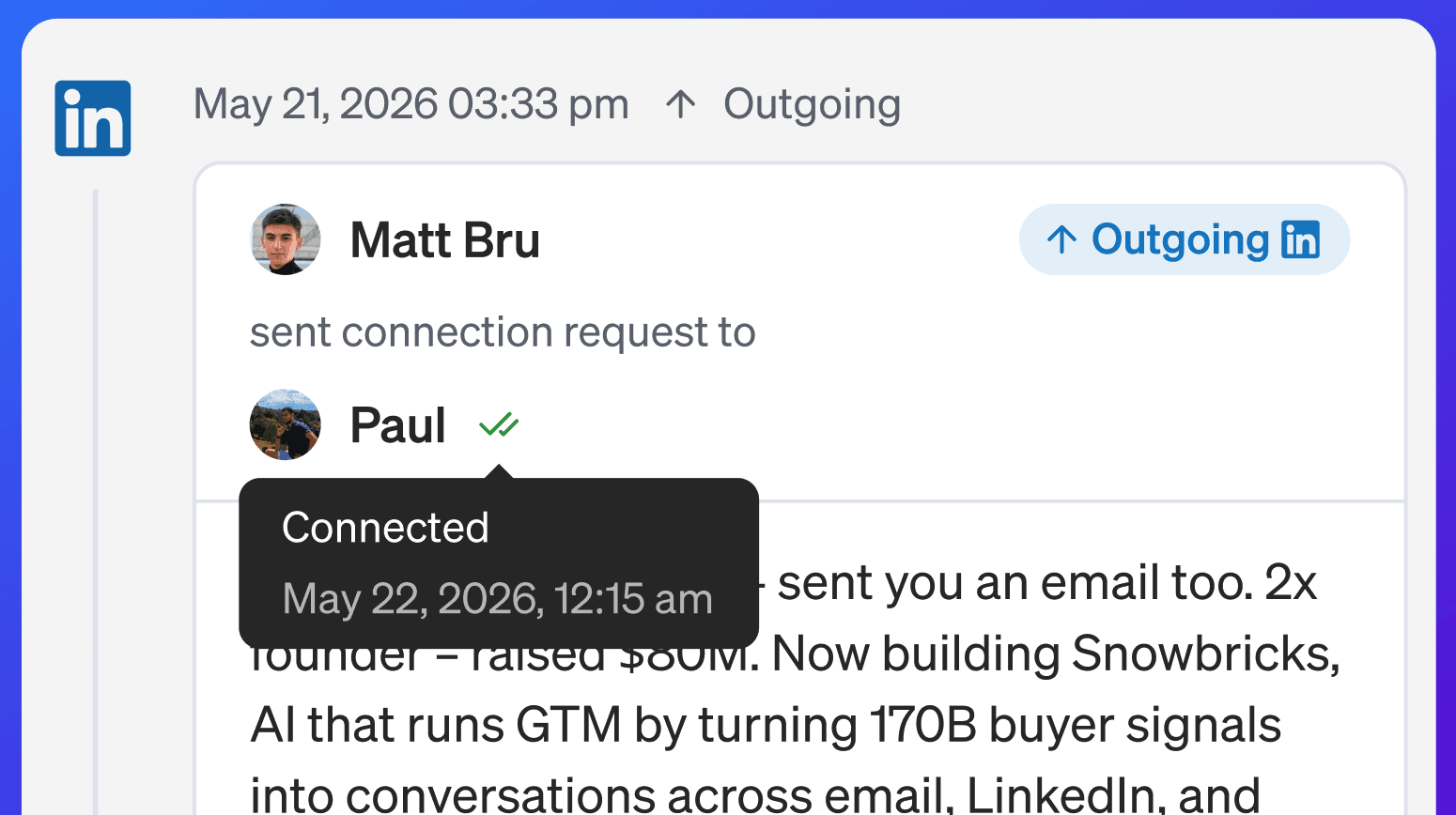
LinkedIn Conversation Signals show engagement from LinkedIn outreach and activity.
LinkedIn signals may include:
Connection request sent
Connection request accepted
LinkedIn message sent
LinkedIn reply received
LinkedIn follow-up sent
LinkedIn message intent
Not delivered when available
LinkedIn Signals are especially useful when target contacts engage with your team before or during a campaign.
For example, if a Head of Data accepts a connection request and replies positively to a LinkedIn message, that conversation should be prioritized.
iMessage Conversation Signals
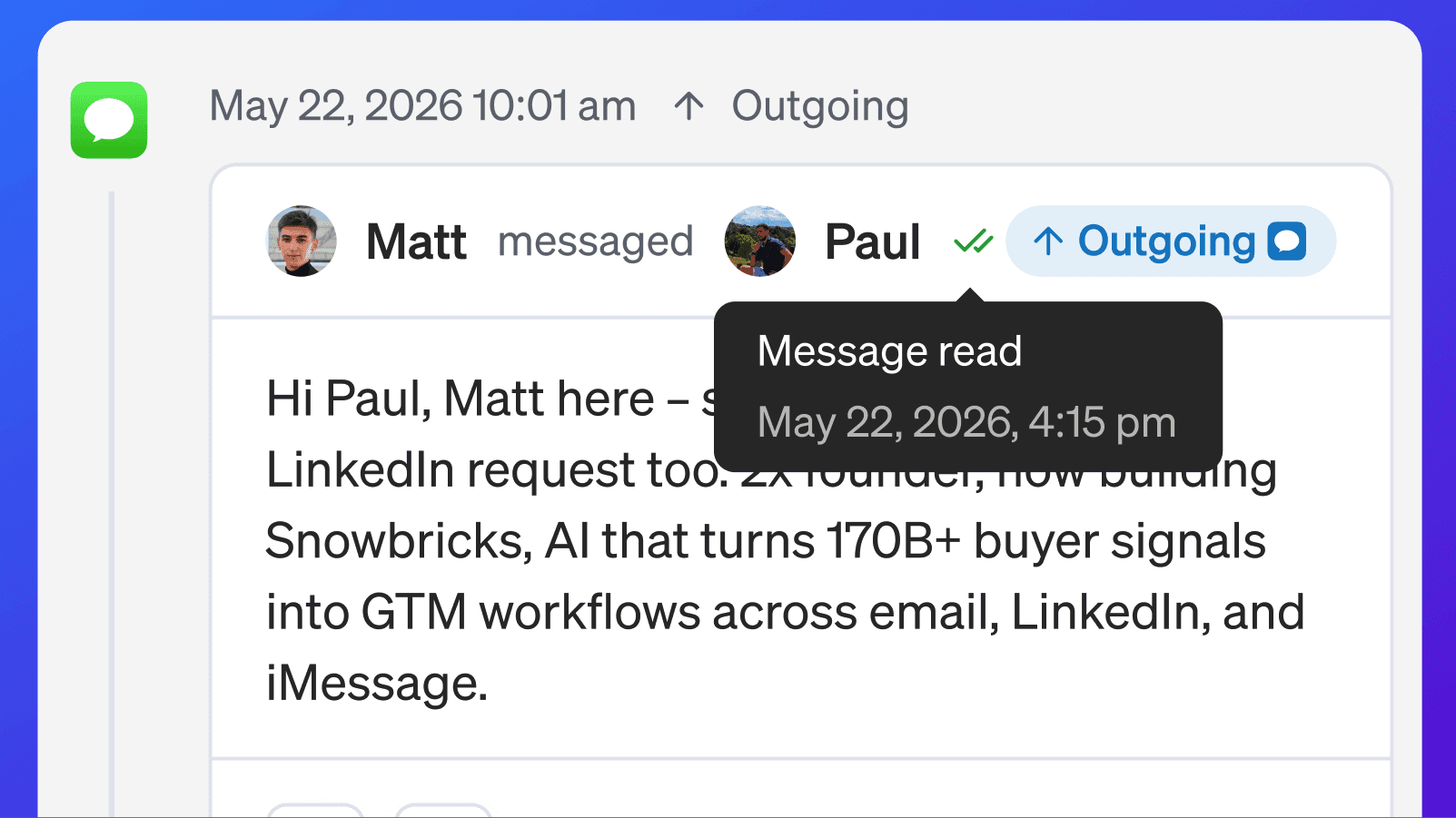
iMessage Conversation Signals show engagement from iMessage activity.
iMessage signals may include:
iMessage sent
iMessage read
iMessage reply received
iMessage follow-up sent
iMessage delivery activity
iMessage response intent when available
iMessage reads can show that a contact has seen the message. Replies and reply intent help your team decide what to do next.
For example, if a founder reads an iMessage and replies asking for pricing, 1eyeᴬᴵ can help surface that response as a high-priority conversation.
Response signals
Response signals show when a target contact replies.
Responses are usually more actionable than passive engagement because the contact has taken a direct action.
Response signals may include:
Email reply
LinkedIn reply
iMessage reply
Positive intent
Neutral intent
Negative intent
Follow-up needed
Conversation update
Use response signals to prioritize the contacts most likely to need human attention.
Why response intent matters
Response intent helps your team avoid digging through every message manually.
It helps you:
Find interested contacts faster
Separate positive replies from neutral or negative replies
Route conversations to the right teammate
Prioritize follow-up
Avoid continuing outreach to contacts who are not interested
Improve campaign quality over time
Conversation Signals are not just about whether a message was sent. They help your team understand whether the message created a real opportunity.
Conversation Signals by Company
Use Signals → By Company to review conversation activity at the account level.
This helps you answer:
Which companies are engaging with outreach?
Which companies have multiple active contacts?
Which companies have positive replies?
Which companies have negative or not-delivered activity?
Which companies should be added to a target list?
Which companies need account-level follow-up?
Company-level conversation activity is useful when your team wants to prioritize accounts, not just individual contacts.
Conversation Signals by Contact
Use Signals → By Contact to review conversation activity at the person level.
This helps you answer:
Which contacts opened or read messages?
Which contacts replied?
Which contacts accepted LinkedIn connection requests?
Which contacts have positive intent?
Which contacts need follow-up?
Which contacts should be paused or removed from outreach?
Contact-level conversation activity is useful when your team wants to take action on specific people.
Conversation Signal types
Conversation Signals may appear as different signal types.
Signal type | What it means |
|---|---|
Email-related activity such as opens, replies, or sent messages. | |
LinkedIn-related activity such as connection requests, messages, or replies. | |
iMessage | iMessage-related activity such as sent messages, reads, or replies. |
Response | A target contact replied or created response activity. |
Positive | A response appears interested or worth follow-up. |
Neutral | A response is unclear or informational. |
Negative | A response indicates no interest or poor fit. |
Not delivered | A message could not be delivered when available. |
Use signal types to separate channel activity from reply intent.
Search Conversation Signals
Use search to find a specific company, contact, domain, or conversation.
Examples:
Search is useful when you know which account, person, or topic you want to review.
Filter Conversation Signals
Use filters to narrow Conversation Signals.
You can filter by:
Company
Contact person
Persona
ICP
Signal type
Date range
Intent when available
Useful filters include:
Positive replies
Neutral replies
Negative replies
Email activity
LinkedIn activity
iMessage activity
Responses
Recent activity
Filters help your team focus on the conversations that need attention.
Filter by channel
Use channel filters when you want to review activity from a specific channel.
Examples:
Email only
LinkedIn only
iMessage only
Response only
This helps your team understand which channels are driving engagement.
Filter by intent
Use intent filters to focus on reply quality.
Examples:
Positive
Neutral
Negative
Not delivered
Use this when you want to prioritize follow-up or clean up campaign activity.
Filter by date range
Use date range to review Conversation Signals from a specific period.
Examples:
Today
Yesterday
Last 7 days
Last 30 days
Current campaign window
After a new sequence launched
After a LinkedIn campaign
After an email campaign
Date filters help your team connect replies and engagement to campaign activity.
Sort Conversation Signals
Use sort to change the order of Conversation Signals.
You may sort by:
Most recent activity
Highest signal count
Company name
Contact name
Created date
Updated date
Use sorting to prioritize the newest or most active conversations first.
Export Conversation Signals
Use Export CSV to download Conversation Signal data.
Export is useful when you want to:
Share reply activity with your team
Review campaign performance
Analyze engagement in a spreadsheet
Send conversation activity to RevOps
Review positive replies with sales
Track channel performance over time
Compare email, LinkedIn, and iMessage engagement
Before exporting, use filters to narrow the data.
For example:
Filter by Positive intent
Select the last 7 days
Export CSV
This gives your team a cleaner export focused on actionable conversations.
Recommended workflow: positive replies
Use this workflow when you want to follow up on high-priority responses.
Open Conversation Signals
Filter by Positive
Review the contact and company
Check persona and ICP match
Review the message context
Assign follow-up or respond directly
Move the contact to the right next step
Update the target list or campaign if needed
This workflow helps your team act quickly on interested target contacts.
Recommended workflow: neutral replies
Use this workflow when replies need judgment.
Open Conversation Signals
Filter by Neutral
Review the full message context
Check the contact’s persona
Check the company’s ICP match
Decide whether to follow up, pause, or re-route
Update the conversation as needed
Neutral replies can become opportunities, but they usually need human review.
Recommended workflow: negative replies
Use this workflow when a contact is not interested or not a fit.
Open Conversation Signals
Filter by Negative
Review the reply
Confirm whether the contact should be paused
Update the target list or campaign if needed
Add the company to exclusions if appropriate
Avoid unnecessary follow-up
Negative signals are useful because they help your team protect deliverability, avoid poor-fit contacts, and improve targeting.
Recommended workflow: channel performance
Use this workflow when you want to understand which channels are working.
Open Conversation Signals
Filter by channel, such as Email, LinkedIn, or iMessage
Review opens, reads, replies, and intent
Compare positive, neutral, and negative responses
Identify which channel is creating the best conversations
Adjust campaigns based on performance
This workflow helps your team improve outreach strategy over time.
How Conversation Signals connect with campaigns
Conversation Signals help you understand what happens after a campaign starts.
A campaign may generate:
Email opens
LinkedIn connection requests
LinkedIn messages
iMessages
Reads
Replies
Follow-ups
Intent classifications
Not-delivered activity
This gives your team a feedback loop from campaign action to contact response.
Instead of guessing whether outreach is working, Conversation Signals show which contacts engaged, which channels created responses, and which replies need follow-up.
How Conversation Signals improve targeting
Conversation Signals also help improve your future targeting.
Use them to learn:
Which ICPs are responding
Which personas are responding
Which messages are creating positive intent
Which channels are producing real conversations
Which target lists are too noisy
Which exclusions should be added
Which campaigns should be paused or adjusted
Over time, Conversation Signals help your team refine ICPs, personas, lists, and campaign strategy.
Best practices
Prioritize positive replies first
Positive intent usually deserves the fastest follow-up.Review neutral replies carefully
Neutral replies may still be useful, but they need context.Respect negative replies
Do not keep pushing contacts who are clearly not interested.Use channel filters
Review email, LinkedIn, and iMessage performance separately.Review intent with ICP and persona fit
A positive reply from a target persona at an ICP-matched company is usually high priority.Act on recent replies quickly
Fresh replies are more valuable than old replies.Use conversation data to improve campaigns
Adjust messaging, targeting, and follow-up based on what people actually respond to.Watch not-delivered activity
Delivery issues can indicate channel, contact, or data quality problems.Keep target lists clean
Use negative and not-delivered signals to improve lists over time.Use Conversation Signals as a feedback loop
The best campaigns improve based on real response data.
Troubleshooting
I do not see Conversation Signals
Check:
Campaigns are active
Messages have been sent
Channels are connected
Users have the right role
You are viewing the correct date range
Filters are not hiding activity
I see sent messages but no replies
This can happen when target contacts have not replied yet.
Check:
Campaign timing
Follow-up schedule
Message quality
Target list quality
Channel connection status
Whether replies are available for that channel
I see email activity but not LinkedIn activity
Check:
LinkedIn accounts are connected
The campaign includes LinkedIn steps
LinkedIn activity has occurred
You are not filtering out LinkedIn signals
I see LinkedIn activity but not iMessage activity
Check:
iMessage lines are connected
The campaign includes iMessage steps
iMessage activity has occurred
You are not filtering out iMessage signals
Reply intent looks wrong
Review the full message context.
Intent classification helps prioritize conversations, but your team should review important replies before taking action.
Too many negative replies
Review:
Target list quality
ICP fit
Persona fit
Message relevance
Campaign timing
Channel selection
Offer or call to action
Negative replies are a signal that targeting or messaging may need improvement.
Too many neutral replies
Review:
Message clarity
Call to action
Personalization
Target persona
Follow-up logic
Neutral replies often mean your message created some engagement but not enough urgency.
Messages are not being delivered
Check:
Channel connection
Contact data quality
Sending limits
User schedule
Campaign status
Delivery status if available
Export is too noisy
Before exporting:
Filter by channel
Filter by intent
Select a recent date range
Filter by ICP or persona
Export only the focused view
FAQ
What are Conversation Signals?
Conversation Signals are activity from email, LinkedIn, iMessage, replies, reads, opens, connection requests, messages, and response intent.
Which channels create Conversation Signals?
Conversation Signals can come from email, LinkedIn, and iMessage depending on what is connected and used in campaigns.
Do email opens count as Conversation Signals?
Yes. Email opens can appear as conversation-related engagement signals when available.
Do iMessage reads count as Conversation Signals?
Yes. iMessage reads can be tracked as Conversation Signals when available.
Do LinkedIn connection requests count as Conversation Signals?
Yes. Connection requests sent and accepted can appear as LinkedIn Conversation Signals.
Do LinkedIn messages count as Conversation Signals?
Yes. LinkedIn messages sent and replies received can appear as Conversation Signals.
Does 1eyeᴬᴵ classify response intent?
Yes, when available. 1eyeᴬᴵ may classify responses as positive, neutral, negative, or not delivered.
What is positive intent?
Positive intent means the contact appears interested, asks a question, requests more information, or shows intent to continue.
What is neutral intent?
Neutral intent means the contact replied, but the response is unclear, informational, or not strongly positive or negative.
What is negative intent?
Negative intent means the contact is not interested, is not a fit, or asks not to be contacted.
What does not delivered mean?
Not delivered means the message could not be delivered when delivery status is available.
Can I filter Conversation Signals by intent?
Yes. You can review all conversations or focus on positive, neutral, negative, and other supported statuses.
Can I export Conversation Signals?
Yes. Use Export CSV to download the current conversation signal view.
How should I use Conversation Signals?
Use Conversation Signals to prioritize follow-up, understand channel performance, improve messaging, and refine targeting.
Next step
Next, go to View by Company to understand how 1eyeᴬᴵ organizes company-level signal activity.